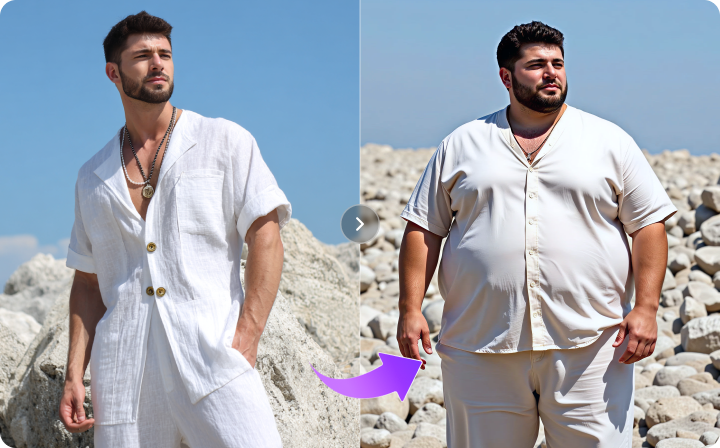
이미지에서 이미지까지
Nano Banana Pro
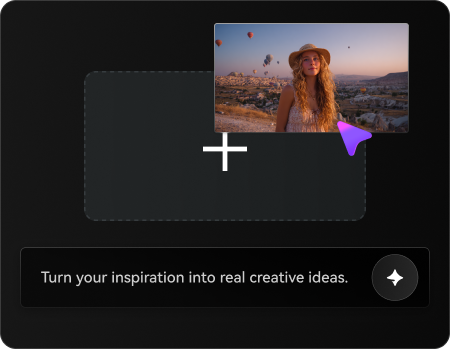
이미지 업로드
0 / 9
내 기록에서 선택하거나 업로드하려면 클릭하거나 드래그하세요
아이디어가 없나요? 먼저 이미지를 생성하세요. >
지원되는 업로드 형식: jpg, png, jpeg.
프롬프트
0/2000
1K
자동
1
바나나 프로 무제한 모드
제작물
아이디어 허브
전체
목록 생성
작업물은 7일 동안 저장됩니다. 업그레이드 후 생성된 에셋은 영구 저장됩니다.
ai_video_generator창의적 잠재력을 풀고 미디어 AI의 마법을 즉시 경험하십시오!

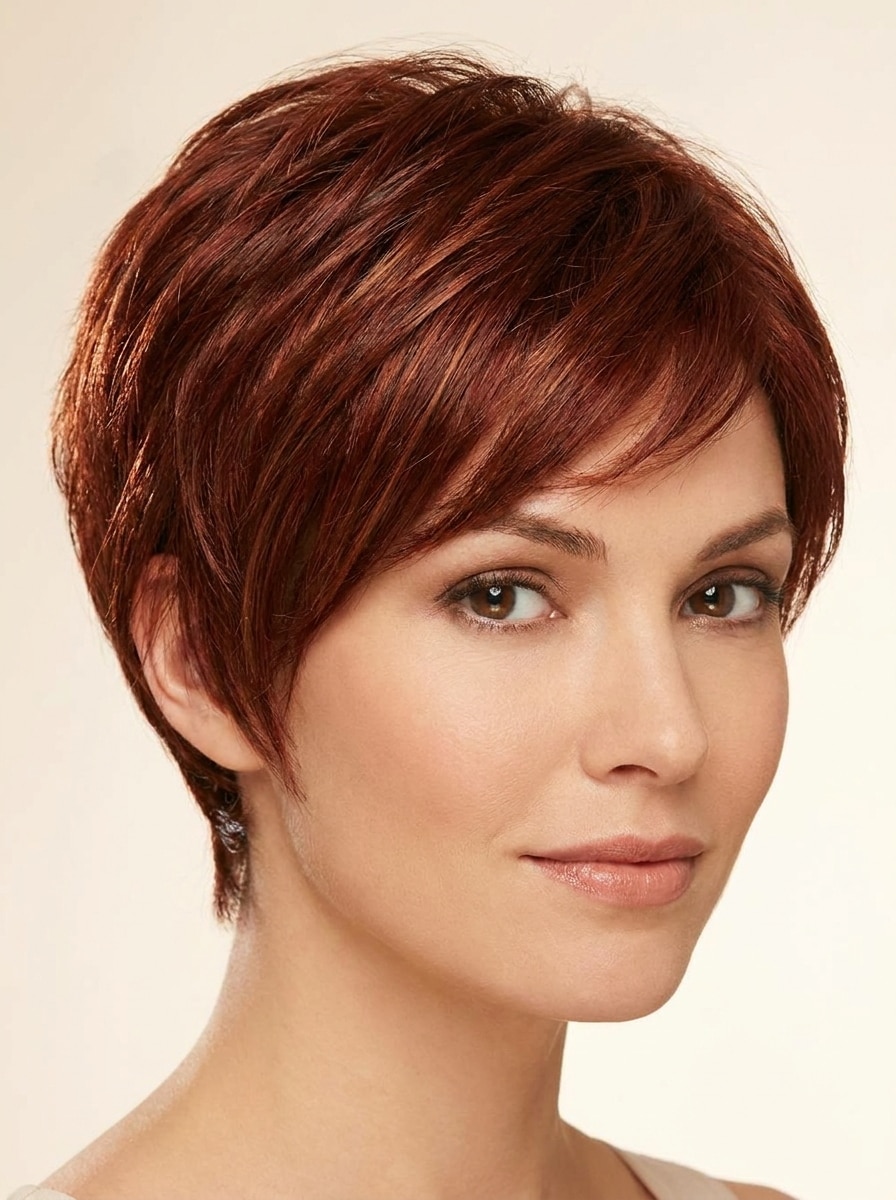
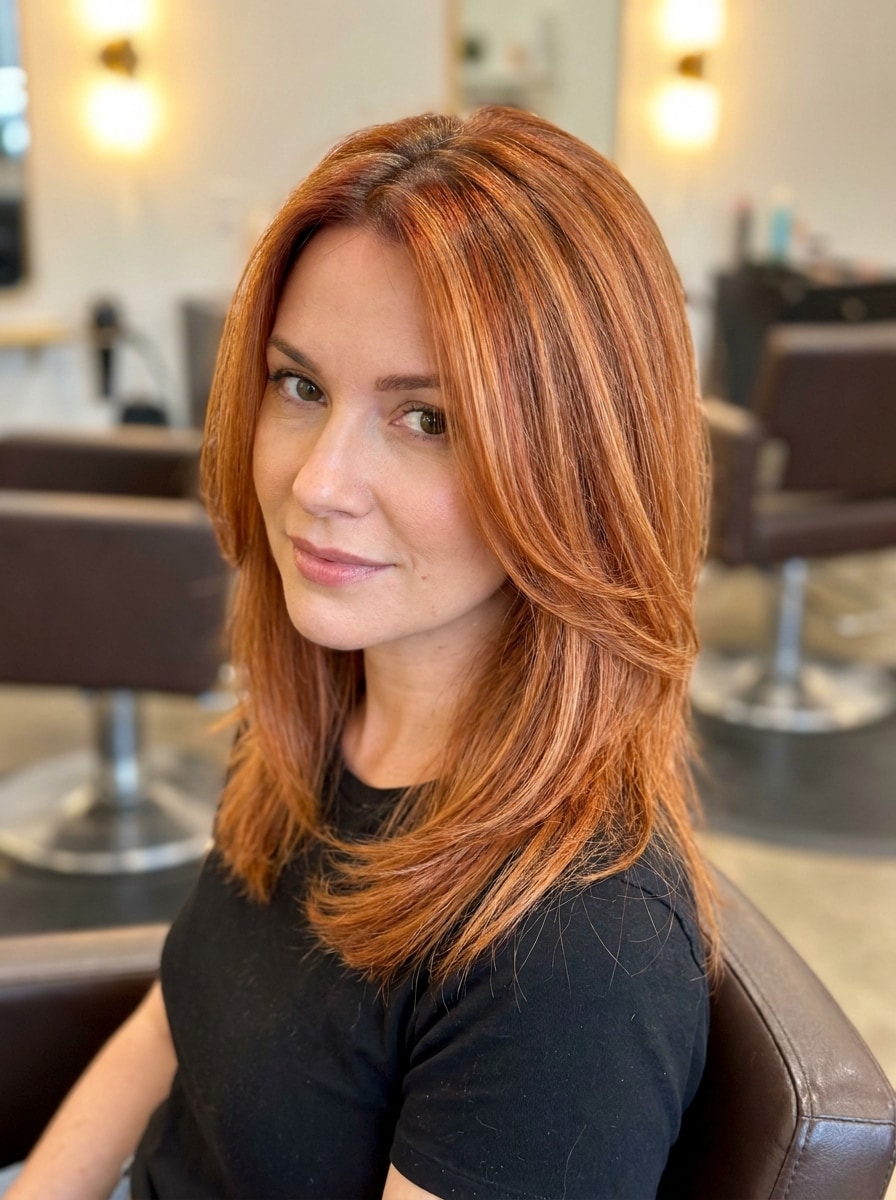
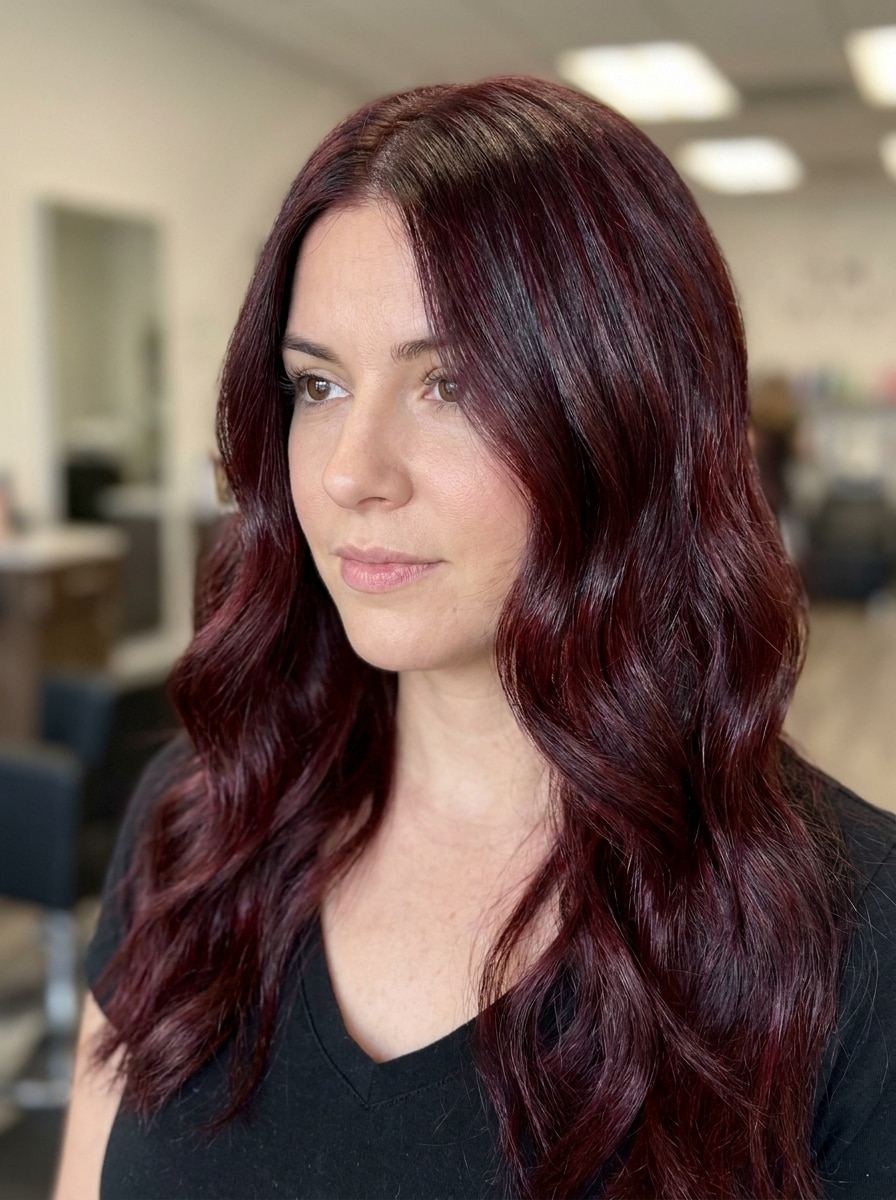
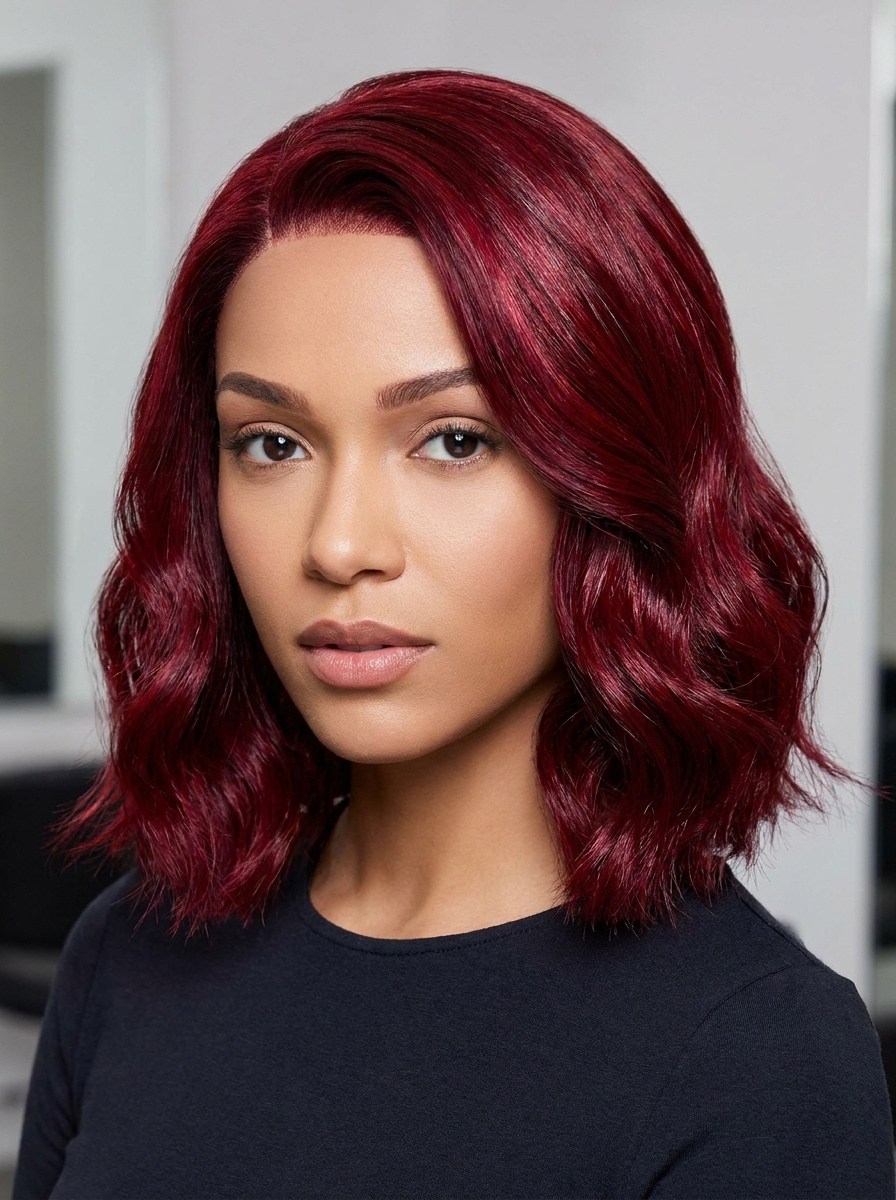
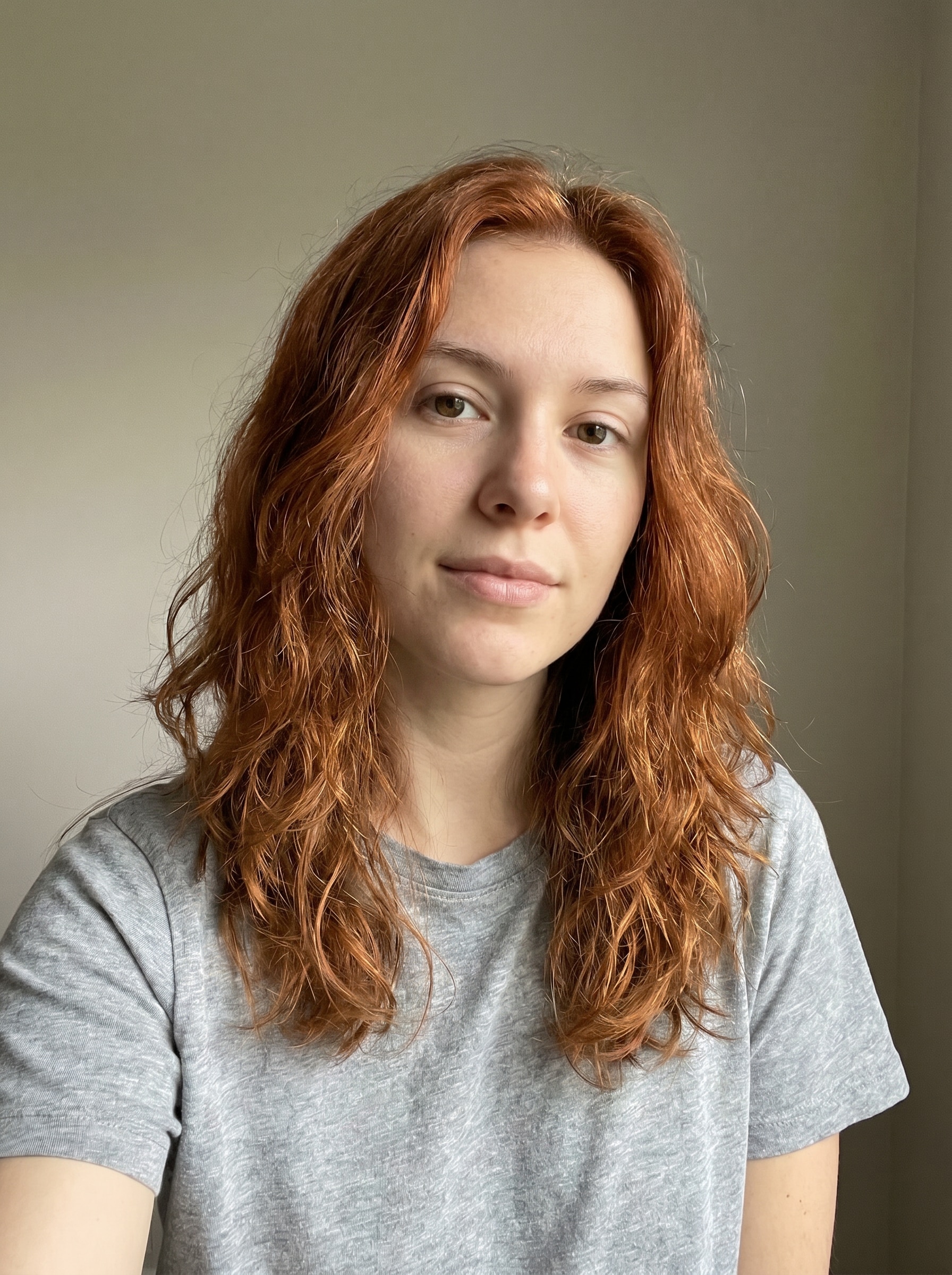
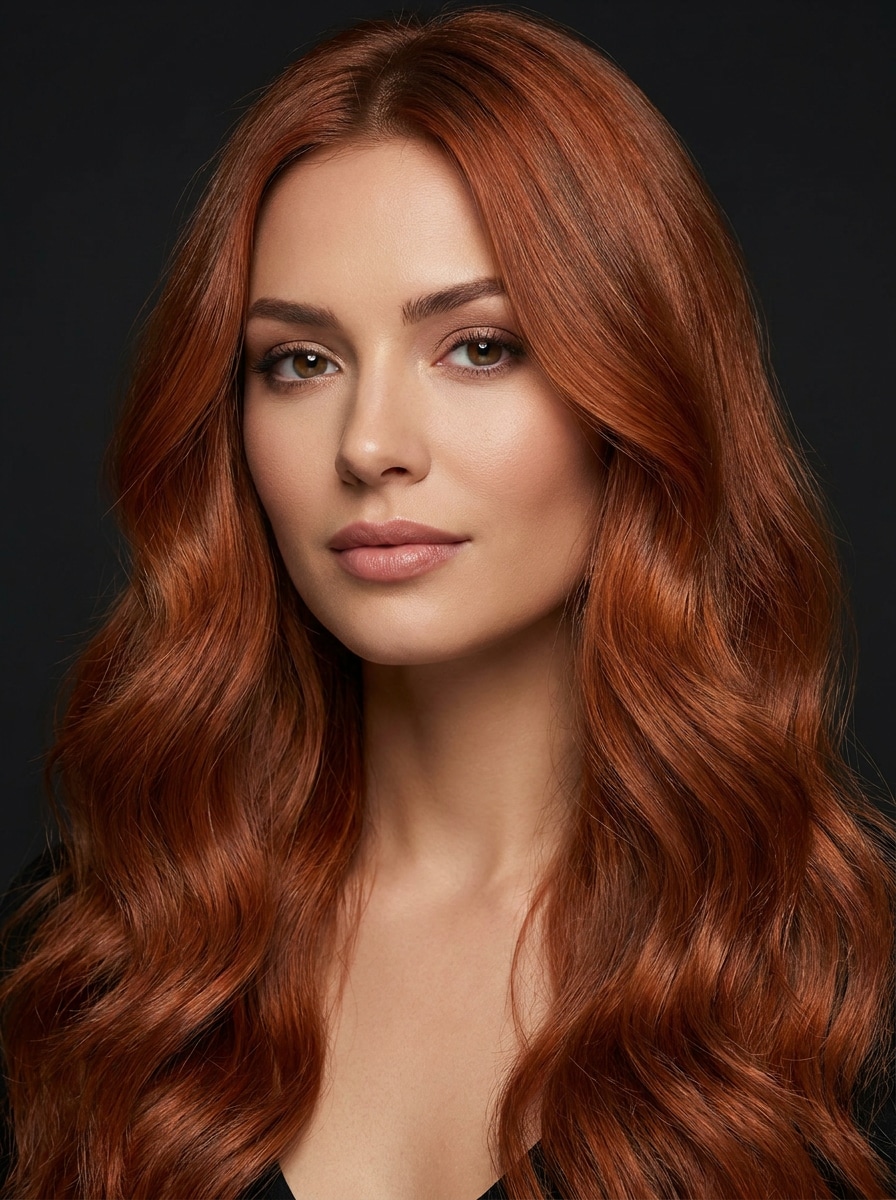
Red Hair Filter for Realistic Selfie Try-On in Seconds

Red Hair Filter Before
Red Hair Filter After

Upload a selfie to preview copper, auburn, ginger, and cherry-toned looks with a realistic red hair filter. Media.io makes it easy to try red hair online with natural lighting, preserved facial features, and fast AI image-to-image results you can compare and save.

Try My Red Hair Look

Type your idea -> AI designs it. Free to try.

Review these example directions, then tailor the prompt details to get stronger results with this Red Hair Filter.

Copper Red

Copper Red

Use the uploaded portrait as the subject and transform the hair into a natural copper red salon shade. Preserve the original haircut, facial features, skin tone, and background, with soft daylight lighting, subtle root depth, glossy strands, warm orange-red undertones, realistic texture, and clean hairline blending.

Auburn Red

Auburn Red

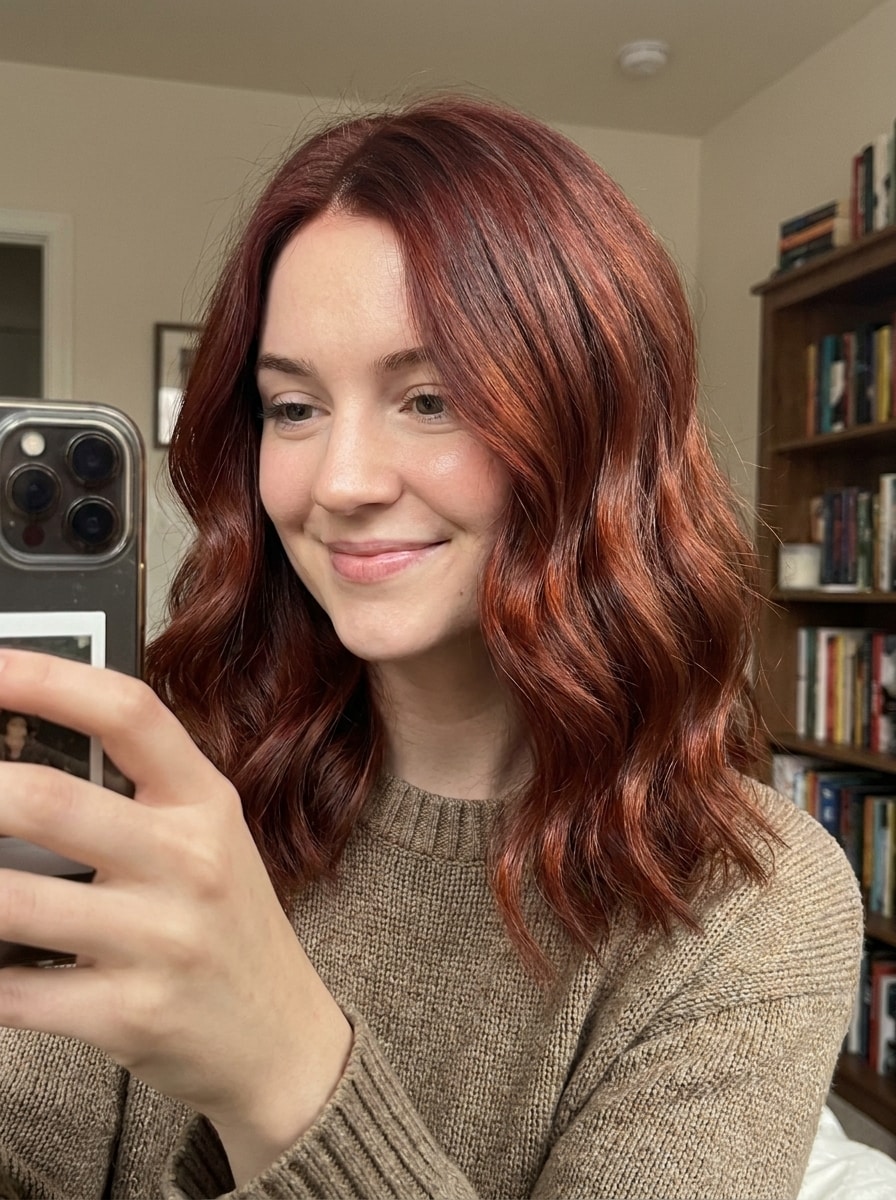
Use the uploaded image as the subject and recolor the hair to a rich auburn red tone. Keep the hairstyle, facial proportions, and lighting unchanged, while adding soft brown-red depth, smooth shadows, healthy shine, realistic roots, natural strand separation, and a polished salon-preview finish.

Ginger Red

Ginger Red

Use the uploaded selfie as the subject and apply a natural ginger red hair transformation. Preserve the face, hairstyle, and ambient light, while adding soft golden-red tones, gentle highlights, realistic roots, airy texture, smooth color transitions, and a fresh, flattering, everyday look.

Cherry Cola Red

Cherry Cola Red

Use the uploaded portrait as the base and recolor the hair into a deep cherry cola red. Keep facial features, hairstyle, pose, and background consistent, while adding glossy dark-red dimension, subtle burgundy undertones, defined strands, soft reflections, and an elegant, modern mood.

Crimson Red

Crimson Red

Use the uploaded photo as the subject and apply a vivid crimson red hair recolor. Preserve the haircut, face, and lighting, with bright saturated red tones, crisp edges around the hairline, glossy texture, balanced highlights, controlled contrast, and a bold but believable fashion finish.

Mahogany Red

Mahogany Red

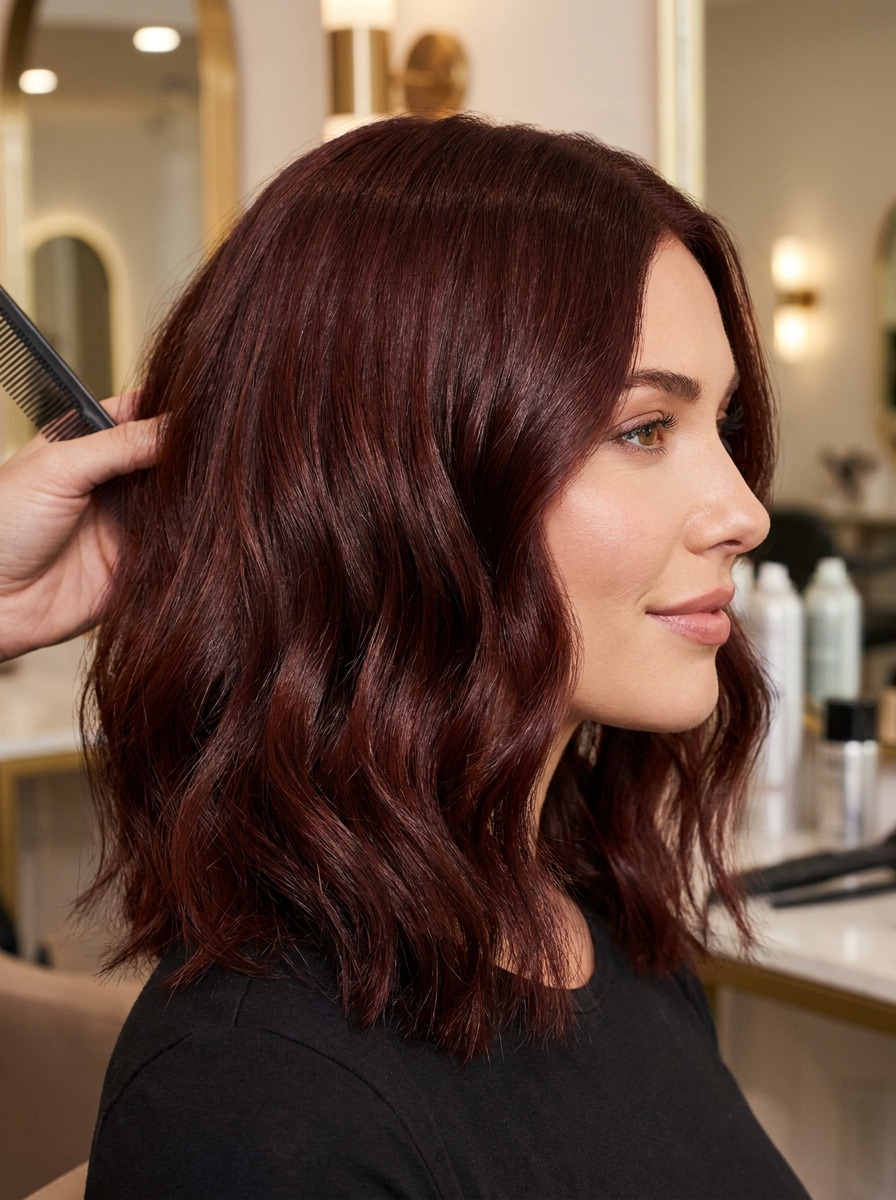
Use the uploaded portrait and transform the hair into a dark mahogany red shade. Preserve the subject's identity, styling, and environment, while adding deep red-brown richness, smooth tonal layering, soft sheen, natural roots, realistic strand texture, and an upscale salon-inspired result.

Before And After Split

Before And After Split

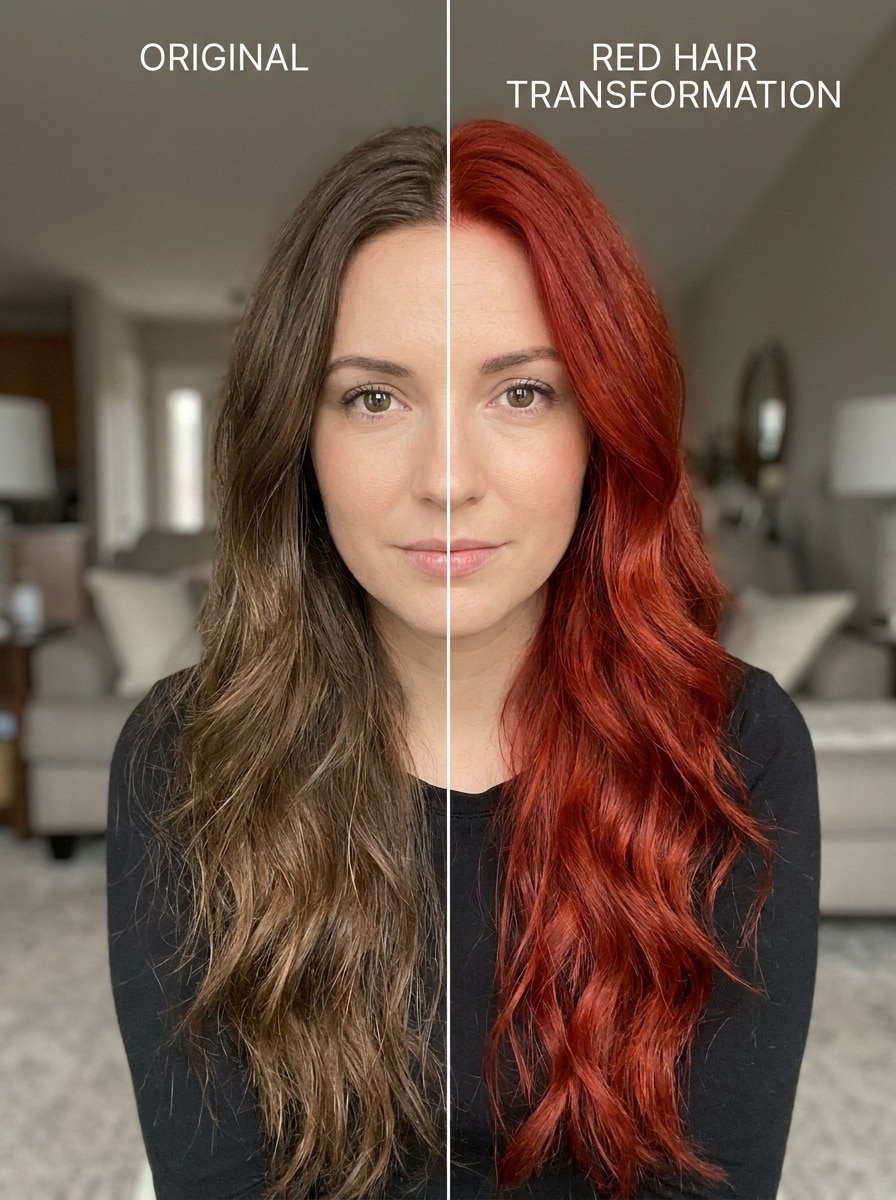
Use the uploaded portrait to create a split-screen comparison: original hair on one side and a realistic red makeover on the other. Keep angle, expression, and lighting identical, with clean vertical separation, salon-style editing, natural color blending, glossy texture, and easy visual comparison.

Multi Shade Grid

Multi Shade Grid

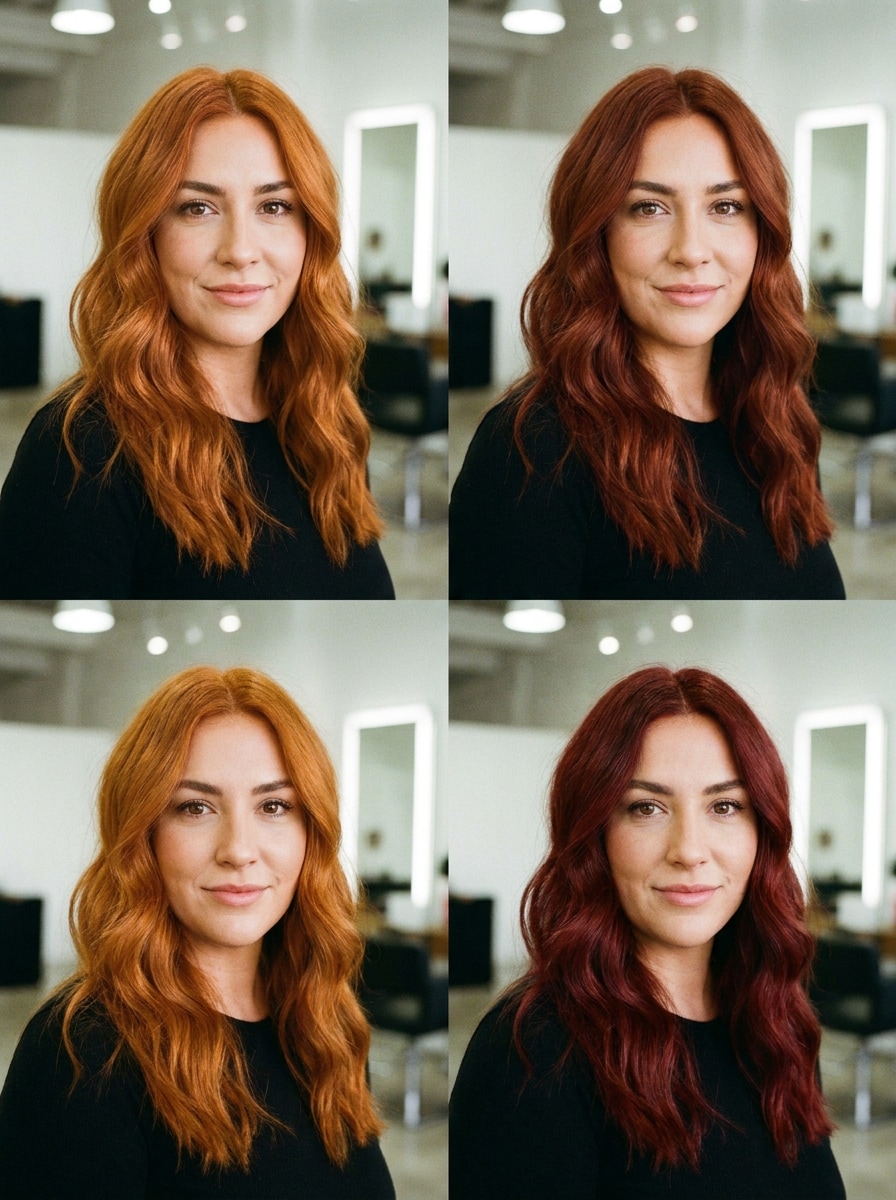
Use the uploaded selfie to generate a four-panel grid with different realistic red shades: copper, auburn, ginger, and cherry cola. Keep the same face, hairstyle, pose, and lighting in each panel, with consistent framing, polished strand detail, and clear side-by-side shade comparison.

Soft Glam Selfie

Soft Glam Selfie

Use the uploaded selfie as the subject and create a soft glam red hair makeover optimized for flattering beauty content. Preserve face shape, hairstyle, and background, while adding smooth red tone transitions, healthy shine, gentle highlights, warm color harmony, and polished, realistic selfie aesthetics.

Live Camera Try-On Look

Live Camera Try-On Look

Use the uploaded portrait to simulate a realistic virtual hair color preview, as if from a live beauty try-on. Preserve background, facial features, and hairstyle, with accurate hair masking, believable shade placement from roots to ends, natural reflections, and clean salon-style realism.

Why Use Media.io for an AI Red Hair Color Try-On

Personalize Results Around a Reference Subject

Media.io turns a simple portrait into a personalized AI red hair color try on, so you can preview copper, auburn, ginger, or cherry tones on your actual haircut and face shape instead of relying on generic hair color swatches.

Compare Looks Fast and Refine the Best One

A single idea often needs more than one look. Media.io helps reinterpret the same red hair filter visual across different styles so each version can better match the project brief.

Create High-Resolution Images for Real Use

When a red hair filter visual is headed for real publishing use, Media.io gives you sharper output up to 4K, which helps the image stay clear across presentations, backgrounds, and reused assets.

Edit on Any Device and Export Sharper Results

Some red hair filter visual concepts get drafted on the go and finished later at a desk. Media.io keeps that process online, so you can return to the same workflow without extra installs or setup.

How to Use the Red Hair Filter on Your Photo

Turn your words into stunning visuals in three simple steps, then continue refining the result if you want to take it further.

how to use image to image AI for red hair filter step 1
Step 1

Upload Your Reference Image

Start with a clear selfie or portrait in JPG, PNG, or JPEG format. Front-facing photos with visible hair, balanced lighting, and a simple background usually give the most realistic virtual hair color preview.

how to use image to image AI for red hair filter step 2
Step 2

Describe the Change and Set Options

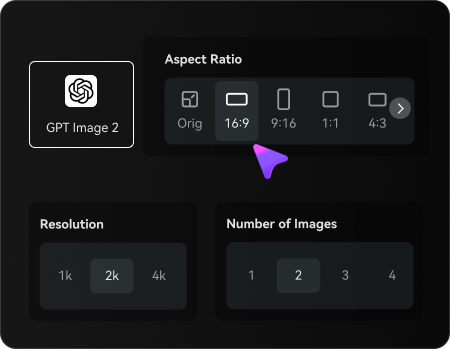
Enter the red shade you want, such as copper, auburn, ginger, or cherry cola, and choose your model and image settings. You can adjust aspect ratio, quality, and the number of variations to test different looks.

how to use image to image AI for red hair filter step 3
Step 3

Generate, Download, and Keep Improving

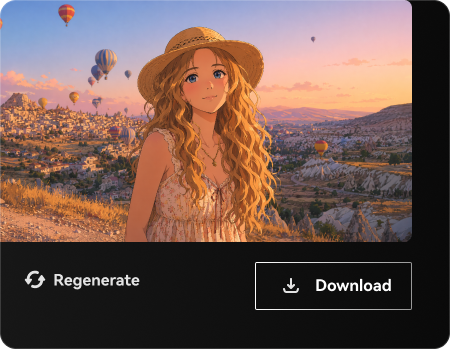
Create your makeover, compare the results, and download the version you like best. If needed, edit the prompt, try another shade, or generate new variations until the color looks natural on your portrait.

Unlock the Potential of Try Red Hair Online

See how creators use this Red Hair Filter for content, marketing, and personal projects, then adapt each idea to fit the brief.

Test a New Shade Before a Salon Visit

Preview warm copper, soft auburn, or deeper cherry tones on your own portrait before booking an appointment. This makes color conversations with a stylist more specific and helps you narrow down a look that suits your skin tone and haircut.

Create Shareable Hair Makeover Content

Use selfie transformations, split comparisons, or multi-shade grids for social posts, beauty mood boards, or creator content. A realistic makeover is far more useful than a novelty filter when you want polished results people can actually imagine wearing.

Explore Bold Changes Without Commitment

If you're curious but not ready to dye your hair, upload a photo and experiment safely. Media.io gives you a fast way to try red hair online and compare subtle natural reds with more dramatic fashion shades before making a real-world decision.

What Users Say

user
Mia R.

Beauty Content Creator

star star star star star

"Realistic red shades from one selfie" I wanted a believable copper preview, not a gimmicky overlay. This tool kept my face and haircut intact, and the color looked surprisingly natural in different red tones.

user
Jasmine L.

Salon Client

star star star star star

"Helpful before my color appointment" I used it to compare auburn, ginger, and cherry cola before seeing my stylist. The side-by-side results made it much easier to explain what kind of red I actually wanted.

user
Noah T.

Social Media Designer

star star star star star

"Fast workflow on mobile" I uploaded a phone selfie, typed a quick prompt, and got usable previews in minutes. It felt more like a practical virtual try-on than a random face filter.

user
Elena P.

Lifestyle Blogger

star star star star star

"Good for subtle or bold looks" What I liked most was the flexibility. I could test soft natural reds and brighter fashion shades without losing the original lighting and texture in my photo.

Red Hair Filter FAQs

1. How can I see myself with red hair online?

You can upload a clear selfie to Media.io and use an image-to-image prompt to recolor your hair in realistic red tones. It works well if you want to preview copper, auburn, ginger, or cherry shades and see how they look on your own face, hairstyle, and lighting.

Yes, free users can try the tool with free credits. If you want more generation volume or watermark-free high-resolution downloads, you can check Media.io's pricing page for plan options. Free users can use free credits. For more usage, users can subscribe to a plan on the pricing page. Upgrade to a paid plan on the pricing page for more credits and watermark-free high-resolution downloads.

You can prompt Media.io to generate multiple red variations, including copper, auburn, ginger, mahogany, or cherry-toned looks. This makes it useful for anyone who wants a neutral AI red hair color try on instead of being limited to a single brand shade chart.

Media.io is designed for reference-based image editing, so it uses your uploaded photo to guide the result. That helps preserve your hairstyle, facial features, skin tone, and overall lighting while changing the hair color, which is why the preview looks more realistic than a generic overlay.

This workflow is based on uploading a reference image. A clear selfie or portrait usually works best for a red hair try on AI preview, especially when your hairline and current hairstyle are easy to see in balanced lighting.

It usually takes only a short time to create a preview after you upload your image, enter your prompt, and choose settings. The exact speed can vary depending on the model and generation options you select, but the workflow is built for quick testing and comparison.

Media.io Online AI Tools Quality Rating:
vote 4.7 (162,357 Votes)