Template Tren Baru Awarapan CapCut - Buat Video Sedih Online | Media.io

Buat tren template Awarapan CapCut dengan foto Anda sendiri. Buat video sedih sinematik, animasikan potret, dan unduh video template CapCut gaya Awarapan secara online dengan Media.io.

Awarapan Capcut Template

Create the moody, cinematic look behind the Awarapan CapCut template trend with your own photo. Turn a portrait into a sad movie-style visual, then animate it into a vertical CapCut-style video for Reels, Shorts, or status edits with Media.io.

Create Awarapan Trend Video

Upload your photo, create the cinematic look, and turn it into a share-ready video.

Why Create the Awarapan CapCut Template Trend with Media.io?

Recreate the emotional Awarapan-style edit without building every transition manually. Start with your own portrait, generate a cinematic sad visual, animate it, and create a vertical social video that matches the atmosphere of the Awarapan CapCut template new trend.

Create the Awarapan Cinematic Look

Turn an ordinary portrait into a dramatic movie-style frame with lonely back-view poses, white shirts, poster walls, rain, sunset light, deep shadows, and warm brown color grading. Keep the subject recognizable while changing the overall mood.

Turn One Photo into a CapCut-Style Video

Animate your finished image with subtle walking motion, camera push-ins, rain, smoke, drifting particles, or slow cinematic movement. It is an easy way to build a CapCut template video look from a single image.

Make Sad Status & Reel Edits

Create vertical 9:16 clips for Instagram Reels, YouTube Shorts, TikTok-style posts, or WhatsApp status. The melancholic visual style works especially well for heartbreak, memory, separation, and emotional storytelling.

Customize Beyond a Fixed Template

Instead of being limited to one preset, change the character, location, lighting, camera movement, atmosphere, and pacing. Create several variations of the Awarapan CapCut template trend while keeping your own creative direction.

How to Make an Awarapan CapCut Template Video in 3 Steps

01

Step 1: Upload Your Portrait

Choose a clear portrait or full-body image. For the classic trend look, a standing male portrait with visible clothing and a simple pose gives the AI more room to create a cinematic environment.

02

Step 2: Create the Awarapan-Style Frame

Describe the mood you want: white shirt, lonely back view, faded poster wall, rain, warm sunset, film grain, or dark romantic lighting. Generate the image and refine the prompt until the subject and atmosphere look right.

03

Step 3: Animate & Download the Video

Send the image to AI Image to Video, add subtle character or camera motion, preview the result, and export your clip. You can then add music, lyrics, captions, or extra edits for your preferred social platform.

Popular Awarapan CapCut Template New Trend Styles

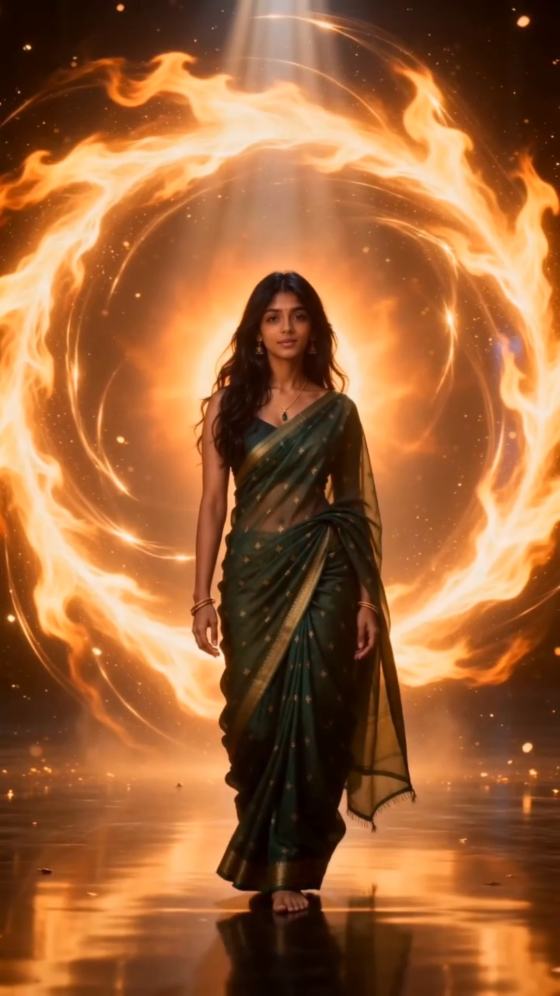
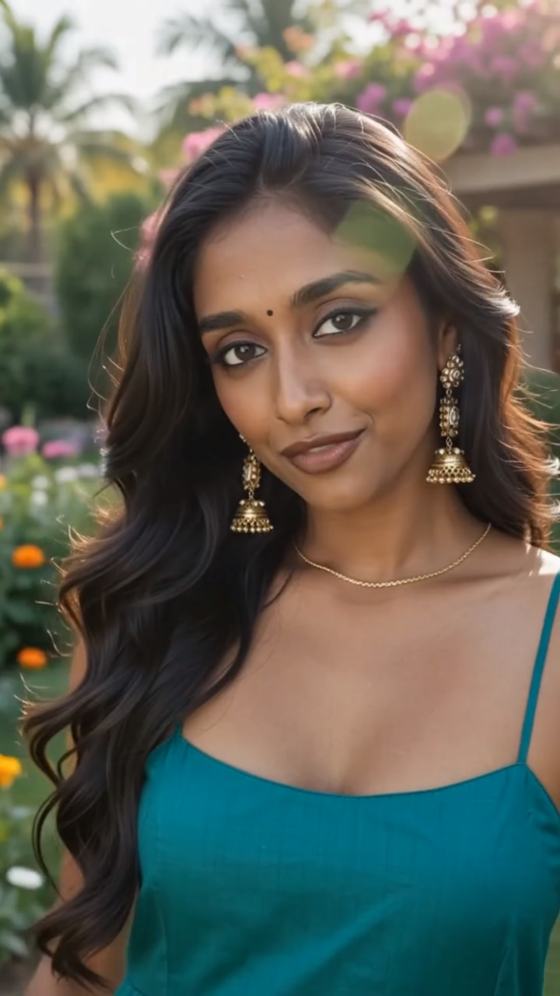
Use the trend as a starting point, then adjust the setting and motion to fit your story. These three scenes capture the visual language users commonly expect from a sad cinematic CapCut template video.

Lonely Back-View Movie Poster

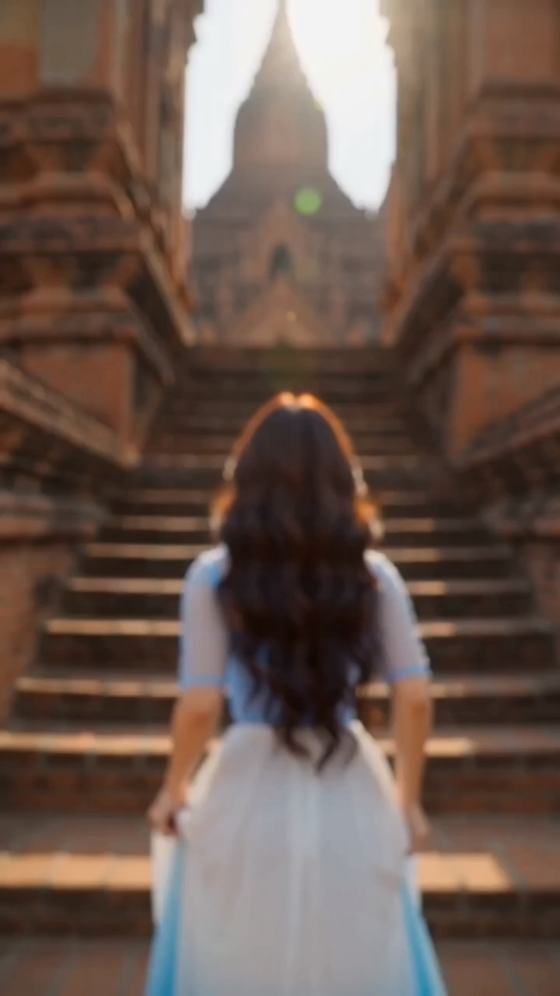
Place the subject in a loose white shirt, facing away from the camera in front of a huge weathered movie-poster wall. Add burnt-orange light, haze, deep shadows, and subtle film grain for an emotional poster-like opening shot.

Rainy Sad CapCut Template Video

Create a night scene with wet pavement, rain streaks, distant streetlights, and a slowly moving subject. Use restrained camera motion and dark teal-brown grading for a heartbreak or separation status edit.

Walking-Away Sunset Reel

Show the subject walking away through an empty street or corridor while warm sunset light creates a long shadow. A slow push-in or follow-camera effect gives the scene an understated, reflective mood.

What Creators Say About Media.io

user
Arjun Mehta

Reels Creator

“Nailed the Sad Mood.” I started with a normal portrait and quickly got the faded, cinematic look I wanted. Animating the image afterward made it much easier to turn the idea into a short Reel.

user
Sameer Khan

Status Video Creator

“Easy Trend Variation.” Instead of copying one fixed template, I could change the rain, background, lighting, and movement. That helped me make several versions without every video looking identical.

user
Riya Sharma

Social Media Editor

“Fast for Vertical Videos.” The workflow is straightforward for 9:16 content. I can create a cinematic image, animate it, then finish the clip with my own captions and audio for social posts.

FAQs About Awarapan CapCut Template

1. What is the Awarapan CapCut template trend?

The Awarapan CapCut template trend refers to emotional short-video edits built around a dark, cinematic romantic-drama aesthetic. Typical visuals include a lonely character, back-view walking shots, white shirts, faded poster walls, rain, sunset light, film grain, muted brown tones, and slow transitions. With Media.io, you can recreate a similar visual mood from your own image and animate it instead of relying only on a fixed preset.

Start by uploading a portrait and generating an Awarapan-inspired cinematic image. Then open Media.io AI Image to Video, animate the frame with subtle walking, camera, rain, smoke, or environmental motion, preview the clip, and export the finished video. If you specifically want an original CapCut template file or template link, availability depends on CapCut and the individual template creator; Media.io provides an AI-based alternative workflow for creating a similar style rather than distributing third-party CapCut templates.

Yes. You can use Media.io to create the key visual first and then animate it with AI Image to Video. This approach is useful when you want the same type of cinematic mood but need more control over the subject, background, lighting, camera movement, or scene. You can export the result and, if desired, continue editing it in another video editor afterward.

Use a clear, well-lit portrait or full-body photo where the main subject is easy to distinguish from the background. For an Awarapan-style sad edit, standing poses and images with visible clothing work especially well because the AI can more naturally create walking-away shots, back-view scenes, poster environments, or dramatic lighting. Avoid heavily blurred faces, extreme crops, and images where hands or the body are hidden if those details need to appear in the generated scene.

Keep the motion restrained. Slow camera push-ins, gentle walking movement, rain, drifting smoke, and subtle fabric motion usually feel more cinematic than fast or exaggerated animation. For the visual treatment, try warm brown or amber highlights, deep shadows, low saturation, shallow depth of field, soft haze, and fine film grain. A vertical 9:16 frame is practical for Reels, Shorts, and status videos. Add music or captions only after the visual pacing feels right, and make sure you have permission to use any copyrighted audio you add.

Media.io Online AI Tools Quality Rating:
vote4.7 (162,357 Votes)