Sélectionnez / @ caractère, décrivez la scène que vous souhaitez générer.
0/2000
9:16
1K
1
Mode Illimité Banana Pro
Créations
Centre d’idées
Comment ça marche
Tout
Fonctionnalités populaires
Voir tout
Défi créatif d’Halloween
Voir tout
Histoire de Fruits Drama IA
Voir tout
Vidéo d'Histoire par IA
Voir tout
Vidéos virales aujourd'hui
Voir tout
Vidéos de produits IA
Voir tout
Personnage IA
Voir tout
Tendances de Danse
Voir tout
GPT Image 2
Voir tout
Seedance 2.0
Voir tout
Correspondance de Célébrités IA
Voir tout
Suggestions de Poses pour Couples
Voir tout
Prompts de Poses de Fille IA Esthétique
Voir tout
Invites de Poses Élégantes pour Garçon IA
Voir tout
Générer une liste
Vos créations sont conservées pendant seulement 7 jours. Les éléments créés après la mise à niveau de l'Abonnement seront stockés de façon permanente.
Libérez votre potentiel créatif et découvrez la magie de l'IA médiatique dès mIAntenant!
Appliquer un filtre Dark Academia pour des retouches photo vintage et atmosphériques
Transformez vos selfies, portraits et photos de style de vie en images riches inspirées du dark academia en ligne. Media.io vous aide à ajouter un étalonnage brun chaud, des ombres douces, du grain et une profondeur cinématographique pour un résultat soigné avec un filtre dark academia, que vous souhaitiez un filtre esthétique dark academia, une ambiance vintage d'étude subtile, ou une finition raffinée filtre photo dark academia.
Saisissez votre idée -> l'IA la conçoit. Gratuit à essayer.
Consultez ces exemples de directions, puis adaptez les détails du prompt pour obtenir de meilleurs résultats avec ce filtre Dark Academia dans Media.io, que vous souhaitiez une retouche lifestyle atmosphérique ou un résultat de type filtre portrait académique.
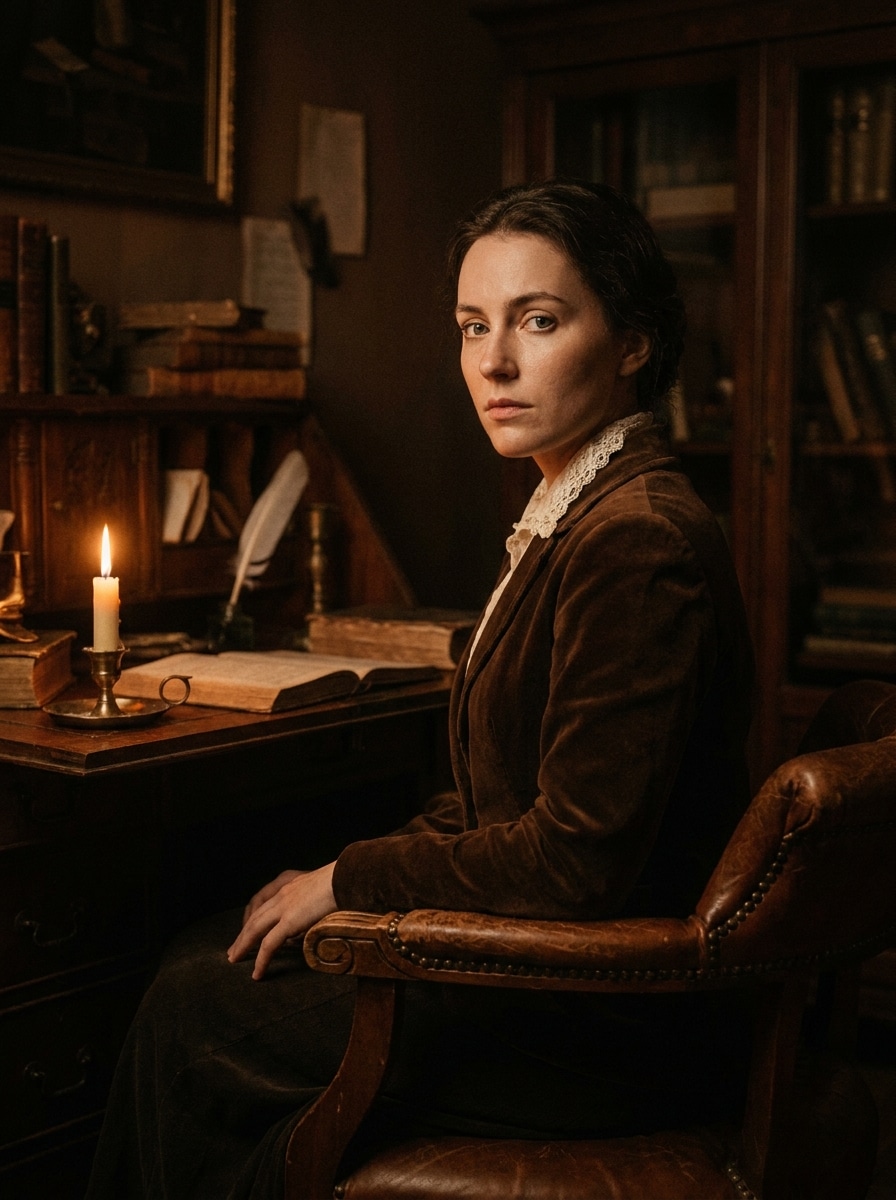
Portrait de bibliothèque atmosphérique
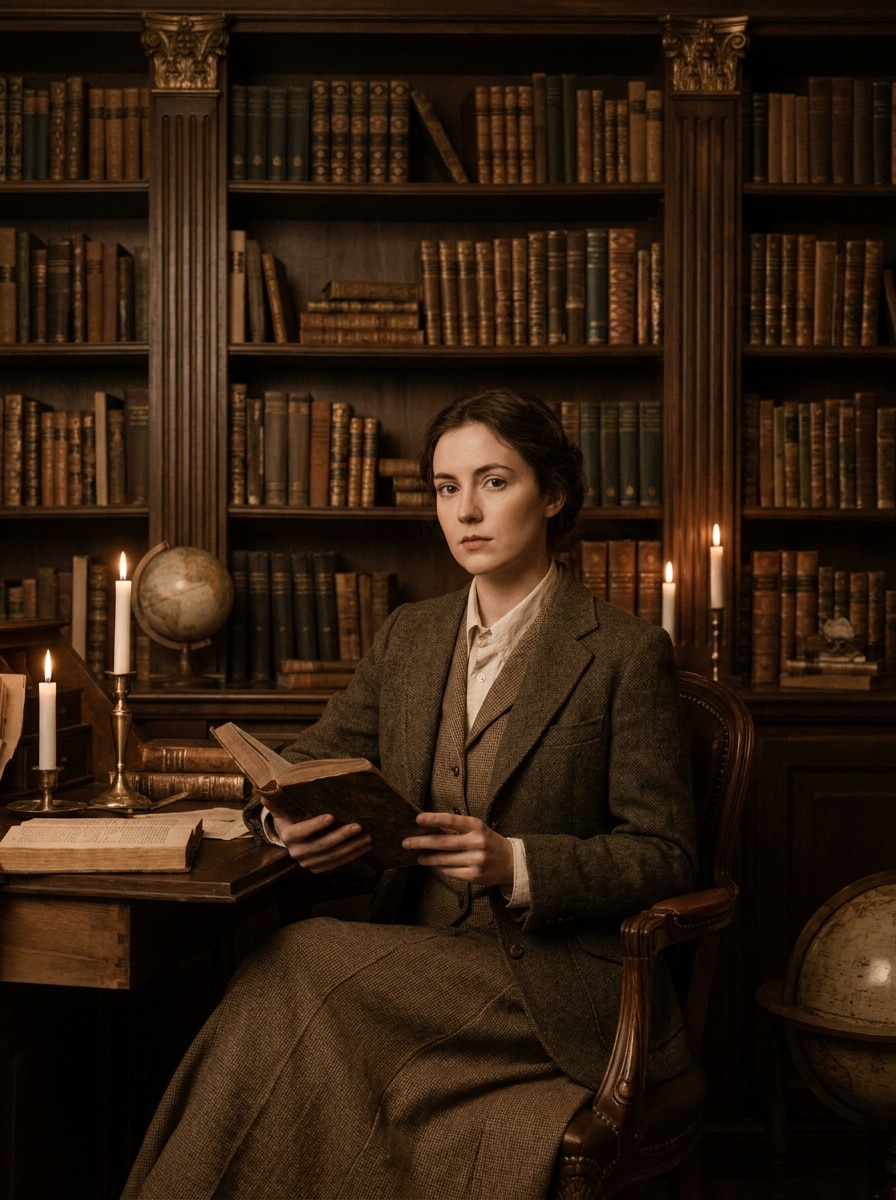
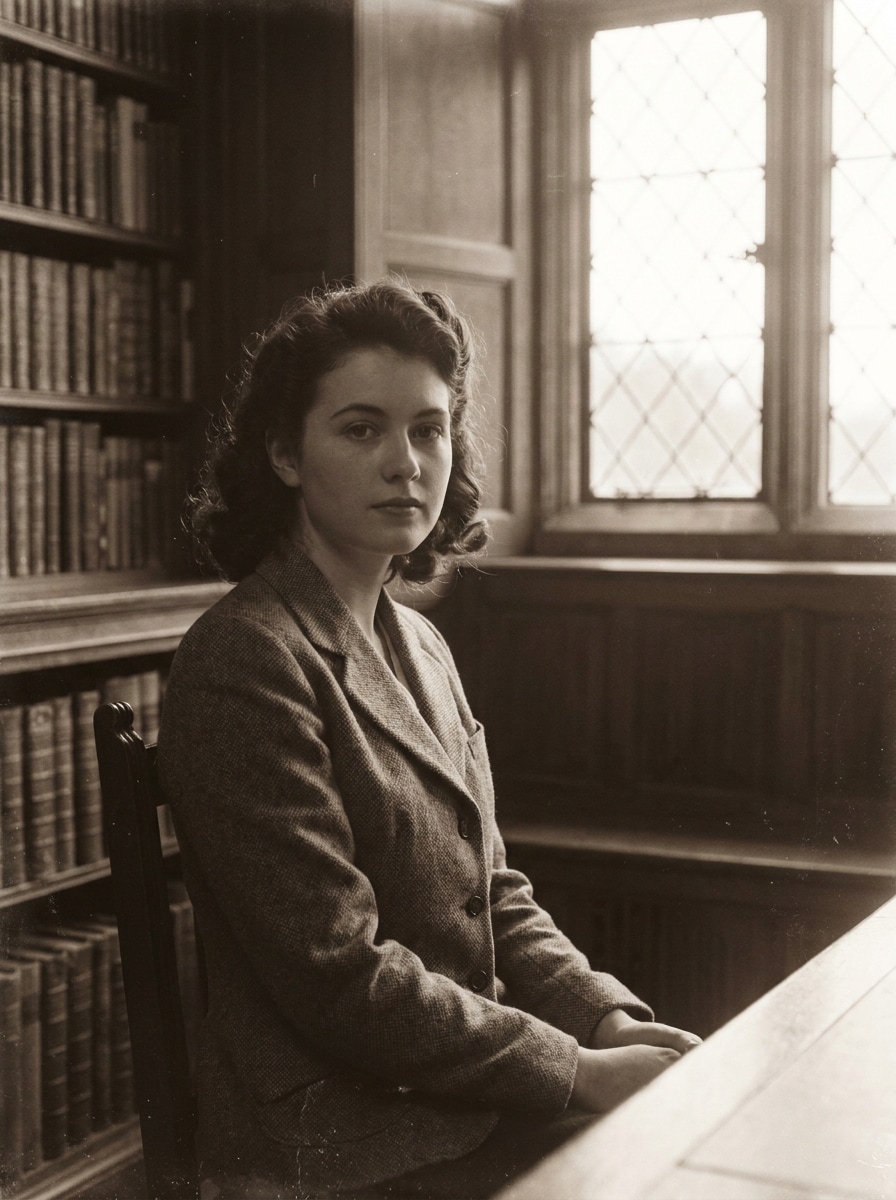
Utilisez l'image téléchargée comme sujet et transformez-la en un portrait de bibliothèque atmosphérique au style dark academia. Ajoutez des tons sépia-brun chauds, des ombres douces comme des bougies, un contraste atténué, un grain de film subtil, une texture de papier vieilli, un environnement en bois sombre et une ambiance élégante et érudite tout en gardant les détails du visage naturels et nets.
Étude sépia vintage
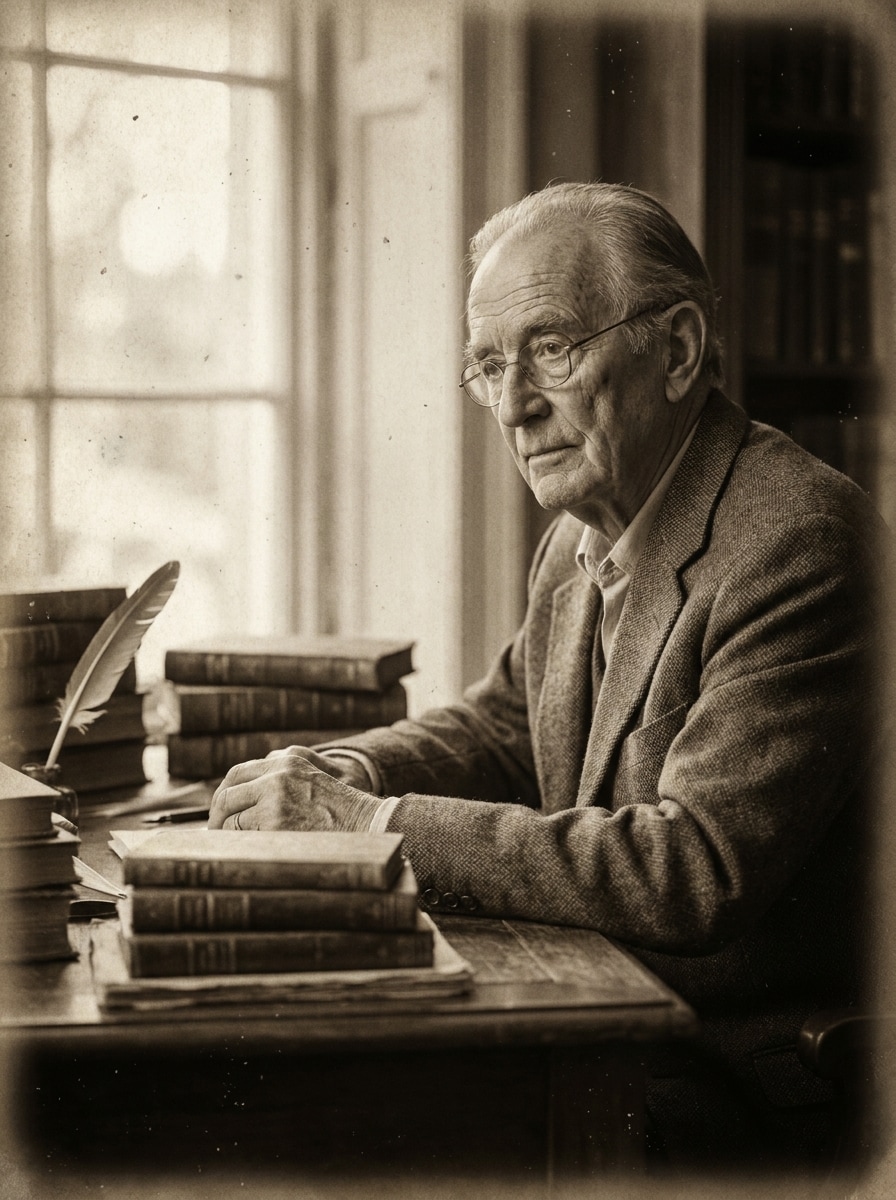
Utilisez l'image téléchargée comme sujet et restylisez-la en une scène d'étude sépia vintage. Mélangez des bruns de papier antique, une faible saturation, un vignettage doux, des noirs mats, un léger grain de poussière et une atmosphère littéraire tranquille avec un bureau, des livres et une lumière de fenêtre chaude, tout en préservant les traits reconnaissables du sujet.
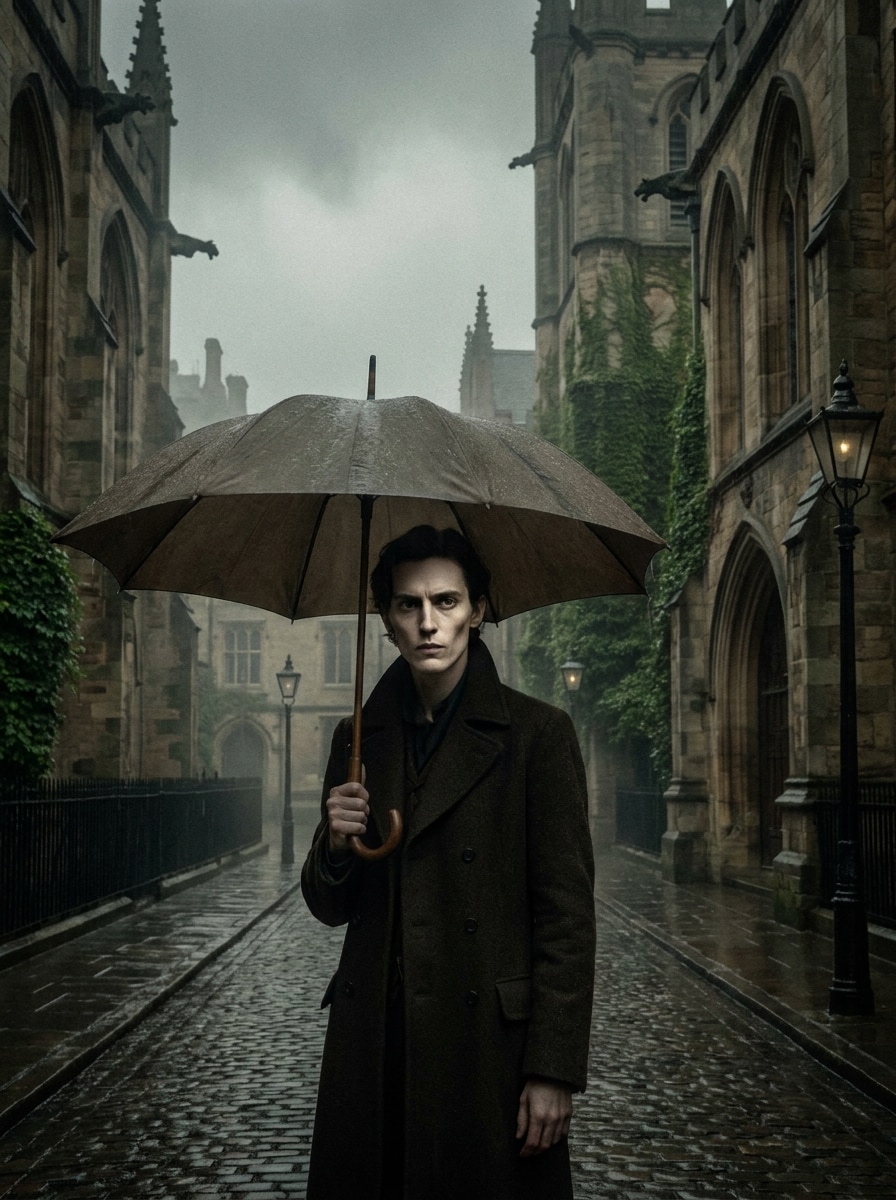
Plan de film gothique sous la pluie
Utilisez l'image téléchargée comme sujet et transformez-la en un plan de film gothique cinématographique sous la pluie. Ajoutez un éclairage couvert, des ombres profondes, des tons vert-brun désaturés, des textures de pierre mouillée, un léger bloom, un grain analogique fin et une atmosphère dramatique, tout en gardant le visage net et le sujet distinct dans le cadre.
Scène à la bougie en faible lumière
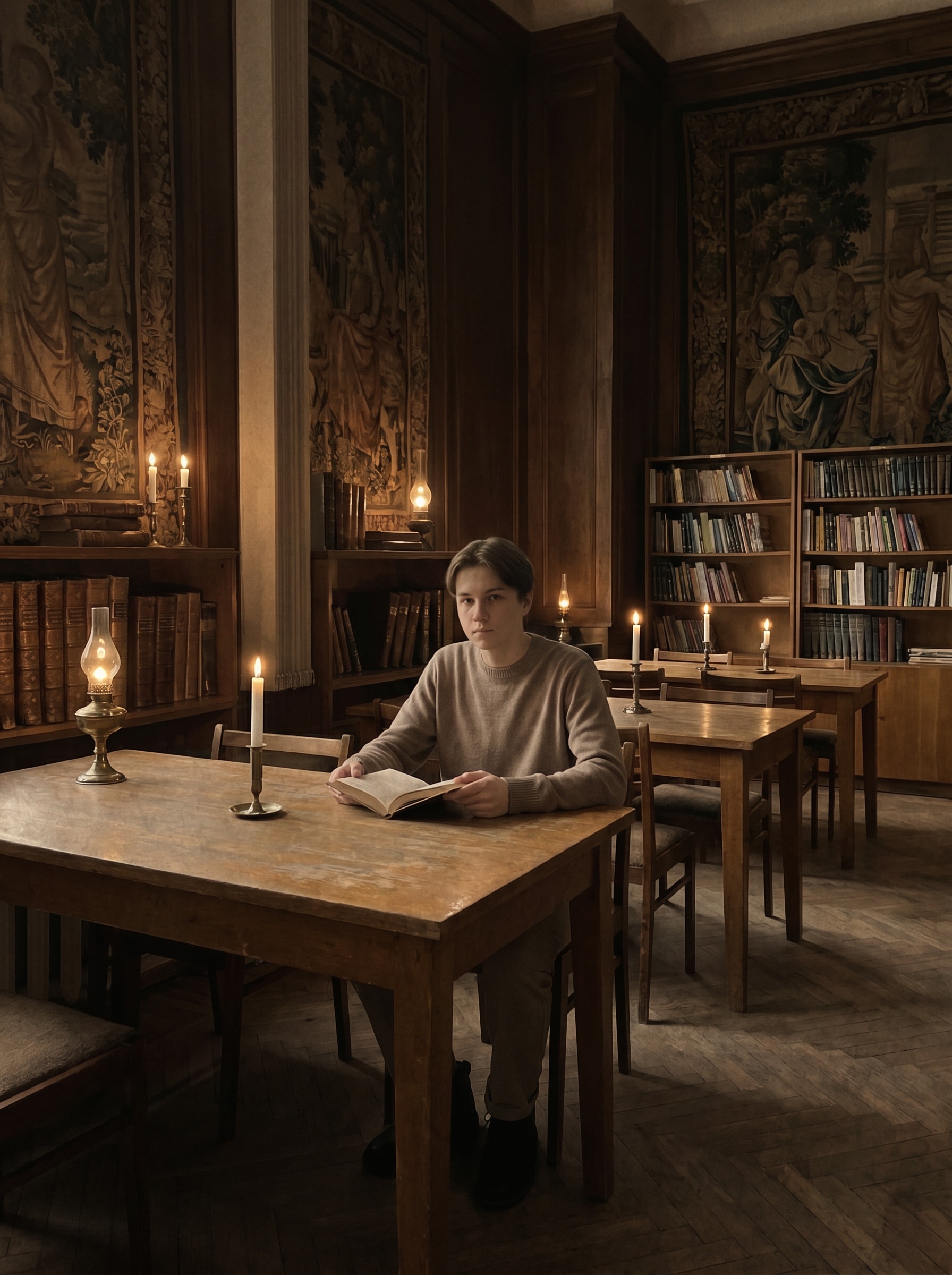
Utilisez l'image téléchargée comme sujet et appliquez un effet dark academia à la bougie. Introduisez des reflets ambrés, une profondeur d'ombre riche, un étalonnage brun chaud, une lueur douce autour des sources lumineuses, un grain texturé et une atmosphère mystérieuse de l'ancien monde tout en maintenant une texture de peau réaliste et un contour net du sujet.
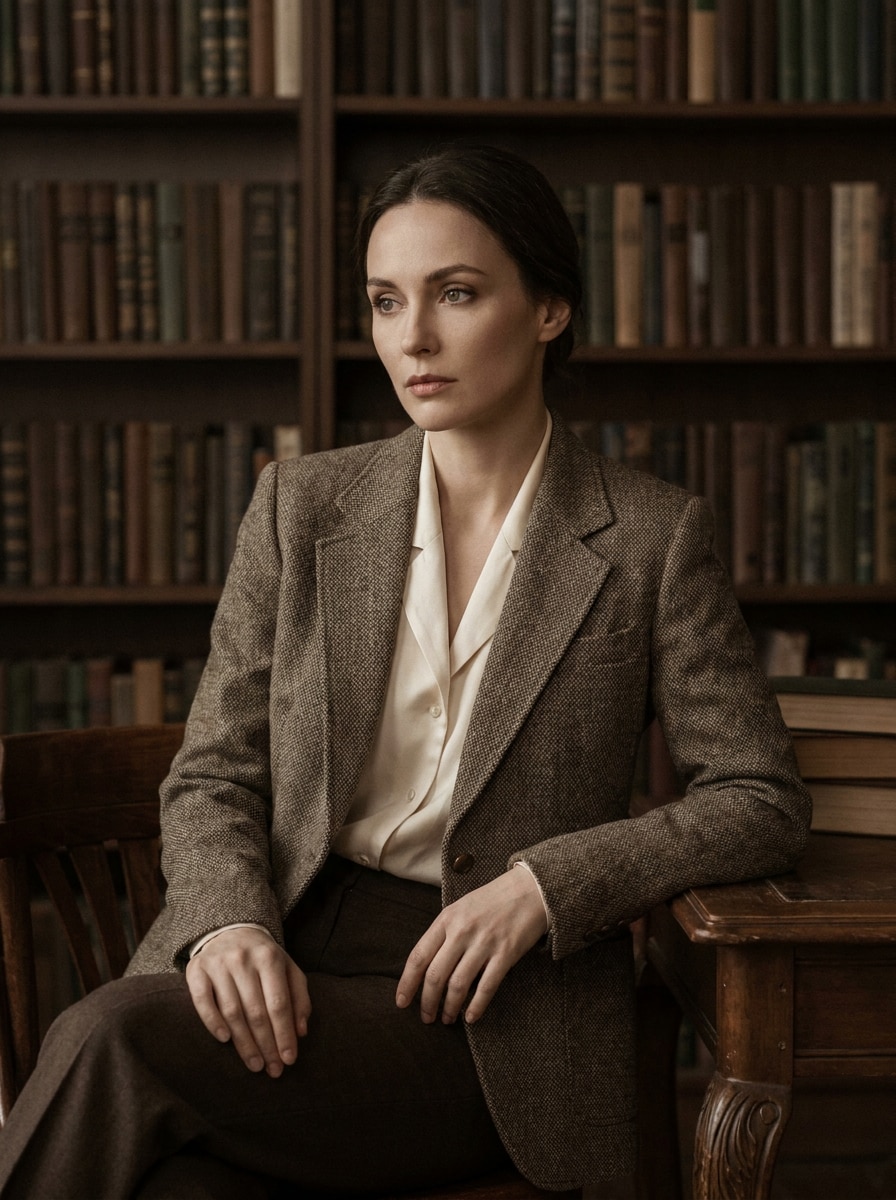
Portrait éditorial érudit
Utilisez l'image téléchargée comme sujet et créez un portrait éditorial érudit et soigné. Appliquez un étalonnage brun mat, un assombrissement doux de l'arrière-plan, un léger affinement des yeux, un contraste doux respectueux de la peau, un grain fin, des indices vestimentaires adaptés et une finition élégante de style magazine pour un résultat raffiné filtre portrait académique.
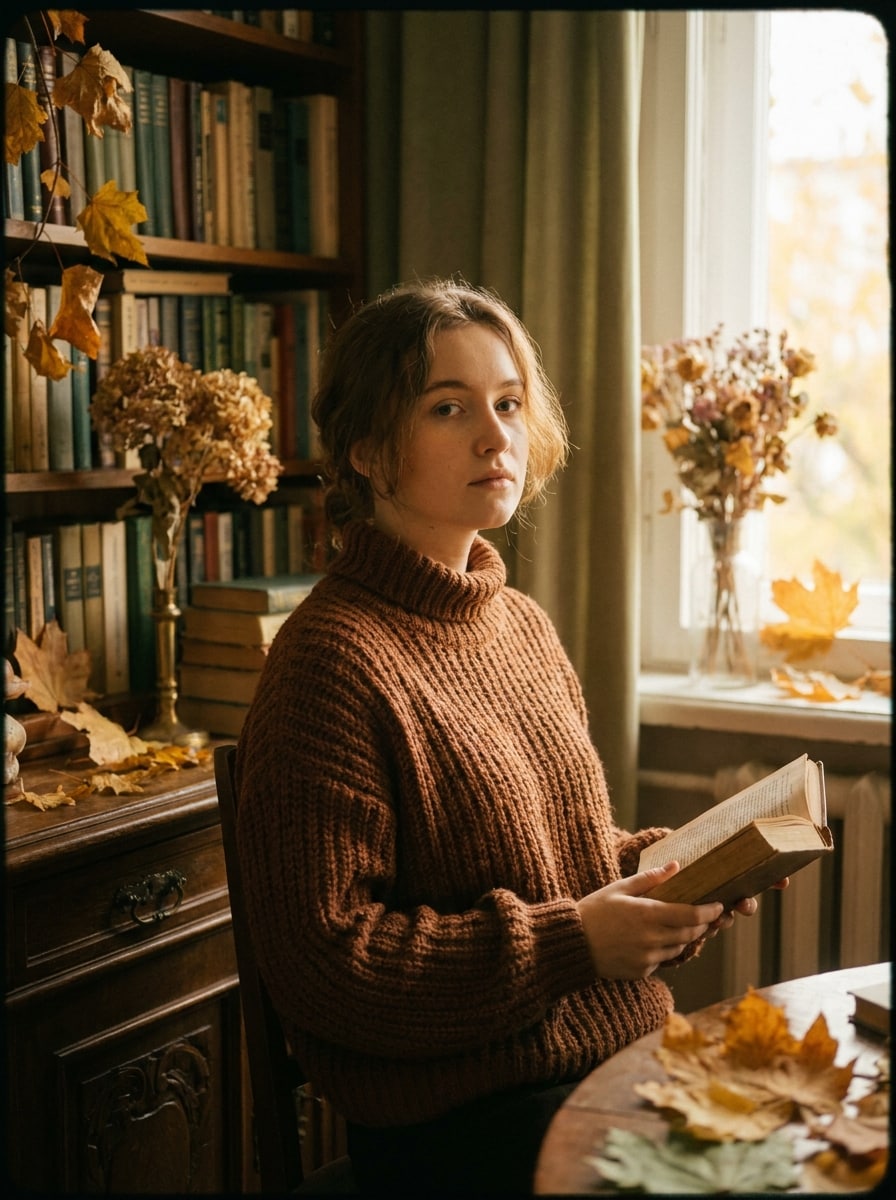
Look Academia d'automne
Utilisez l'image téléchargée comme sujet et transformez-la en un portrait academia d'automne. Ajoutez des bruns châtaigne, des feuilles dorées fanées, des verts atténués, un contraste nostalgique, un vignettage doux, des textures de tricot douillettes et du grain de film pour une ambiance littéraire chaleureuse qui garde néanmoins le visage naturel et bien défini.
Gothique de vieux campus
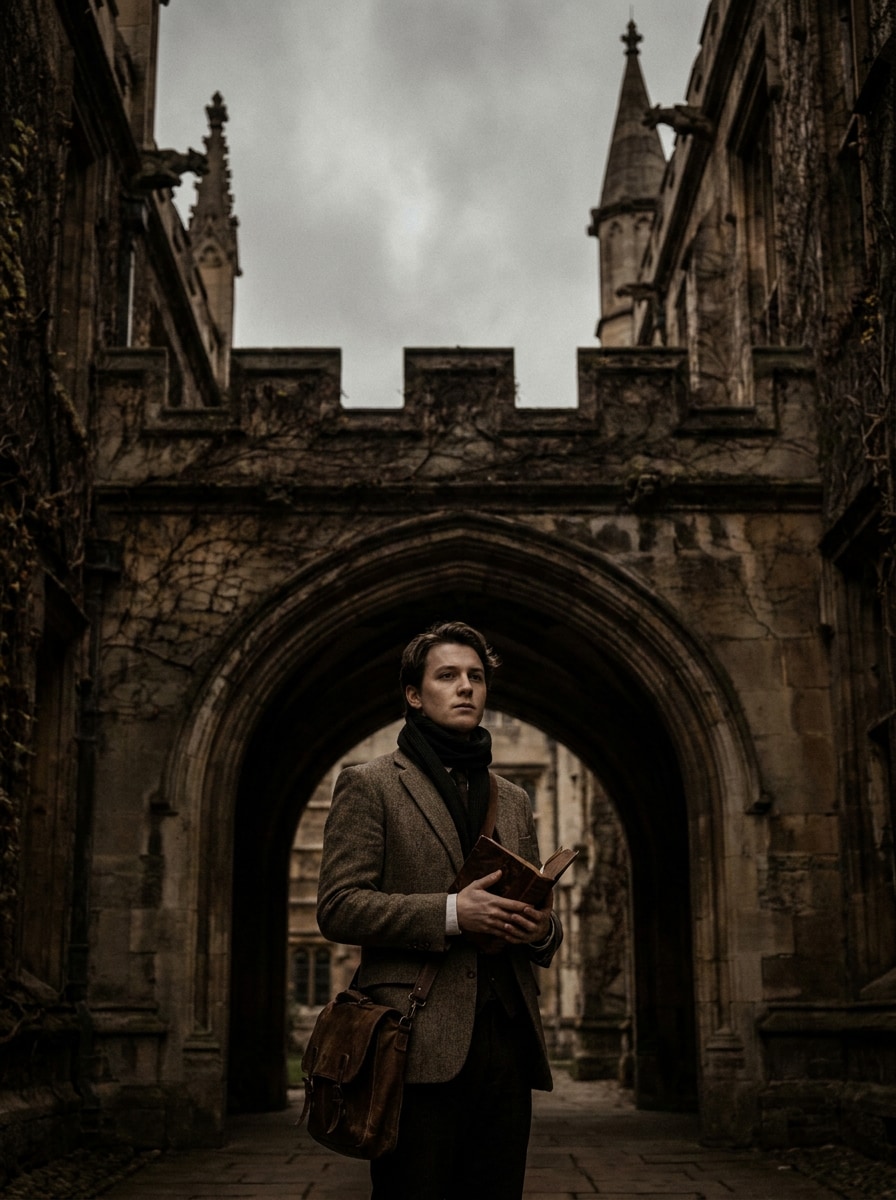
Utilisez l'image téléchargée comme sujet et placez-la dans une scène gothique de vieux campus. Mélangez des textures de pierre altérée, des tons brun-noir antiques, une ambiance nuageuse, un contraste mat, un équilibre dramatique des ombres et un grain subtil pour créer une ambiance collégiale classique sans perdre la clarté ou les proportions du sujet.
Ambiance café et carnet
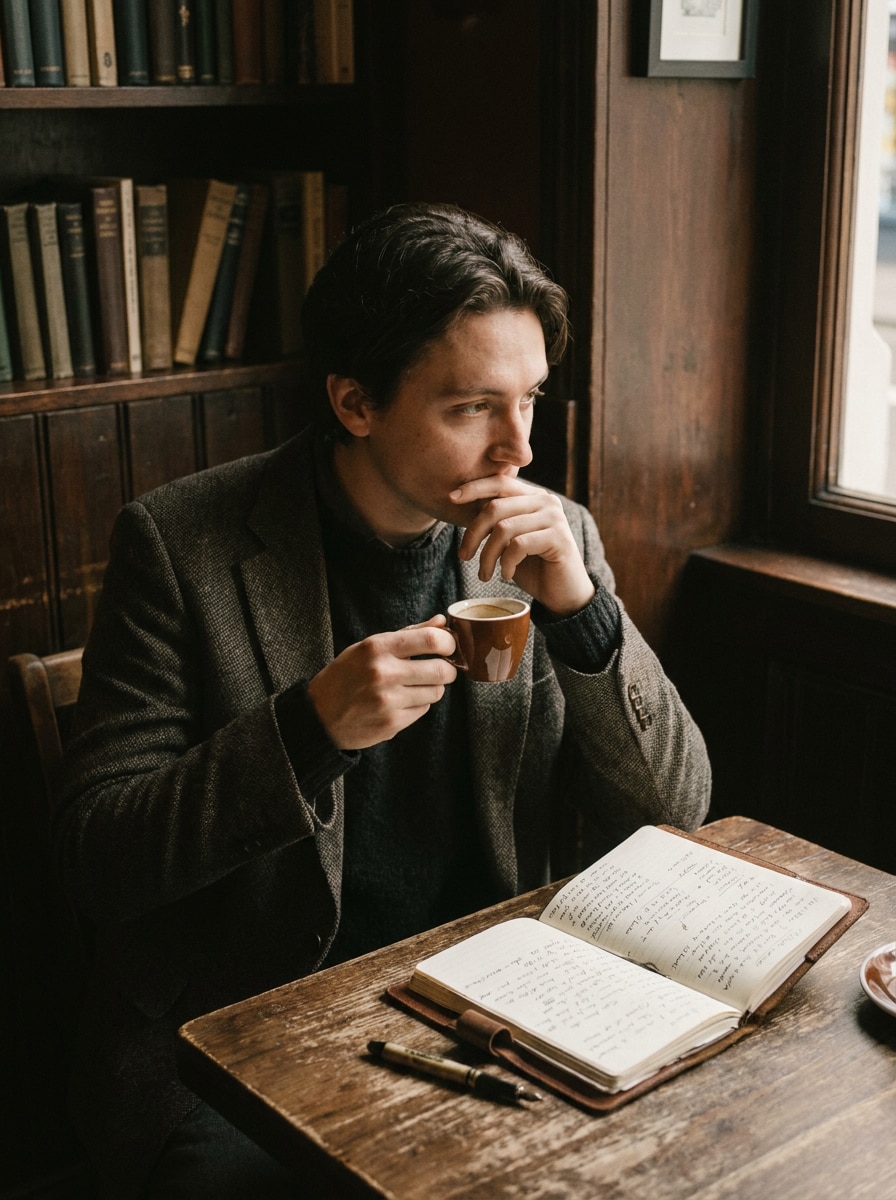
Utilisez l'image téléchargée comme sujet et stylisez-la en une scène de café et carnet méditatif. Ajoutez des bruns espresso, des reflets atténués, des noirs fanés, une texture douce, une chaleur vintage, des détails de café et de papier et une ambiance intellectuelle intime tout en gardant la personne reconnaissable et la retouche propre.
Avant-après : lumineux vers atmosphérique
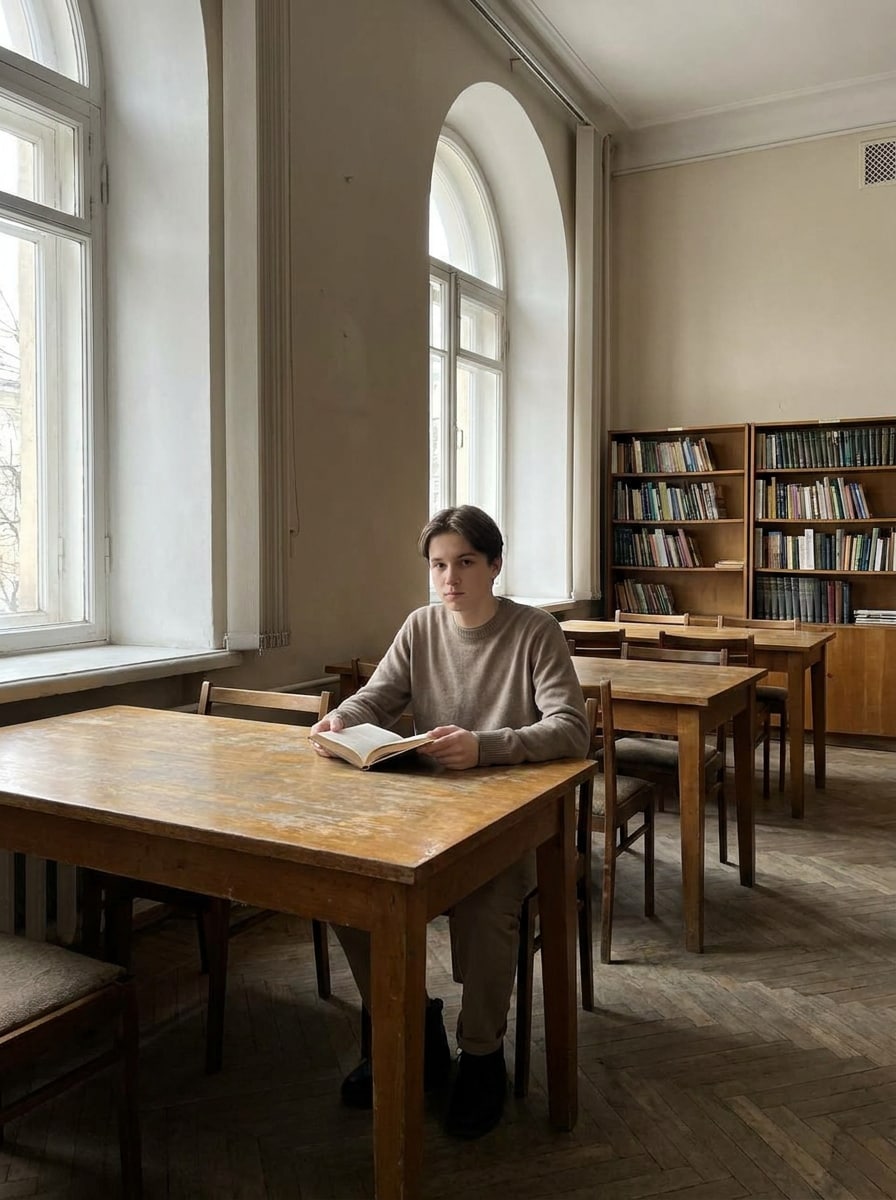
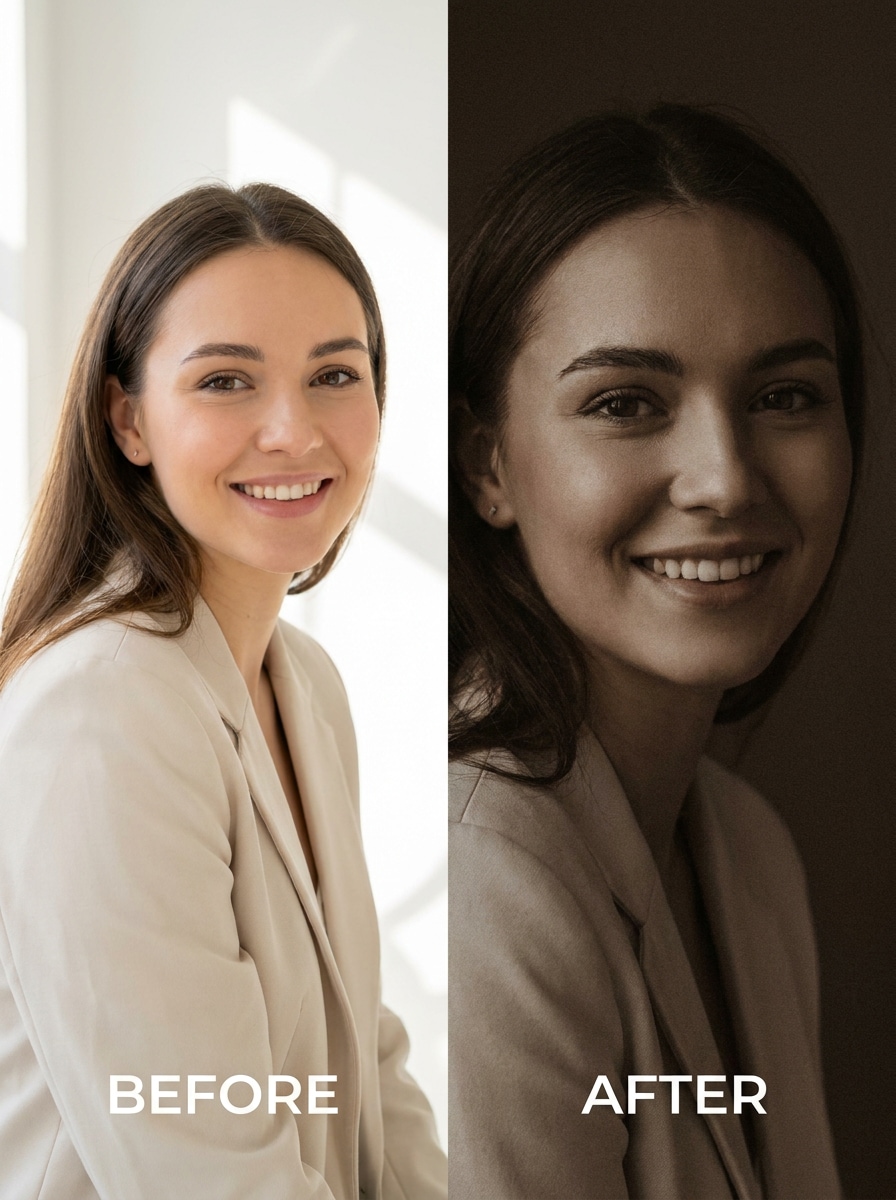
Utilisez l'image téléchargée comme sujet et convertissez une photo moderne lumineuse en une retouche dramatique et atmosphérique. Réduisez les hautes lumières, approfondissez soigneusement les ombres, appliquez des bruns chauds et atténués, gardez les textures nettes, ajoutez une finition mate et un grain subtil, et livrez une filtre photo dark academia transformation propre sans flou.
Effet caméra pellicule brune
Utilisez l'image téléchargée comme sujet et donnez-lui l'apparence d'une photographie sur pellicule vintage. Ajoutez une dominante de couleur brune, du grain analogique, une légère brume, des blancs atténués, un contraste estompé et un réalisme nostalgique pour un look érudit intemporel inspiré d'un style filtre vsco dark academia, tout en gardant le sujet net.
Pourquoi utiliser Media.io pour le stylisme photo Dark Academia
Créer plusieurs variations Dark Academia à partir d'un seul téléchargement
Pour les publications sur les réseaux sociaux, les visuels de marque ou les maquettes qui doivent toujours ressembler à la personne originale, Media.io aide à préserver les traits reconnaissables tout en appliquant un style de filtre dark academia, de sorte que l'image finale soit atmosphérique sans perdre son identité.
Garder votre visage reconnaissable tout en changeant l'ambiance
Différents résultats nécessitent différentes esthétiques. Media.io vous aide à explorer des traitements variés du même concept visuel de filtre dark academia afin que le visuel final atteigne le bon ton plus rapidement.
Retoucher en ligne avec un contrôle de qualité de sortie élevé
Lorsqu'un visuel avec filtre dark academia est destiné à une utilisation éditoriale réelle, Media.io vous offre une sortie plus nette jusqu'en 4K, ce qui permet à l'image de rester claire dans les présentations, les arrière-plans et les ressources réutilisées.
Créer dans le navigateur sur tous les appareils
La retouche n'a pas à s'arrêter quand vous changez d'écran. Media.io maintient le flux de travail dans le navigateur, vous pouvez donc tester un filtre vsco dark academia concept sur un ordinateur et réviser ou affiner des brouillons depuis votre téléphone avec moins de friction.
Comment appliquer un filtre Dark Academia en ligne
Transformez vos mots en visuels époustouflants en trois étapes simples, puis continuez à affiner le résultat si vous souhaitez aller plus loin.
Étape 1
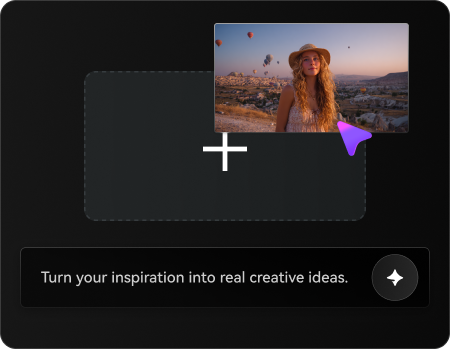
Téléchargez votre image de référence
Commencez avec un selfie net, un portrait, une photo de tenue, une photo de café ou une image de campus au format JPG, PNG ou JPEG. Les photos sources lumineuses et détaillées vous donnent généralement la transformation la plus propre vers un style académique atmosphérique.
Étape 2
Décrivez le changement et définissez les options
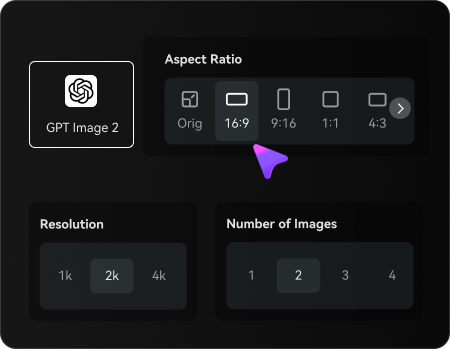
Saisissez le look que vous souhaitez, comme des bruns sépia, des ombres à la bougie, du grain de film, une architecture gothique ou l'ambiance d'une salle d'étude vintage. Choisissez ensuite votre modèle et ajustez le ratio d'aspect, la résolution et le nombre de variations à générer.
Étape 3
Générer, télécharger et continuer à améliorer
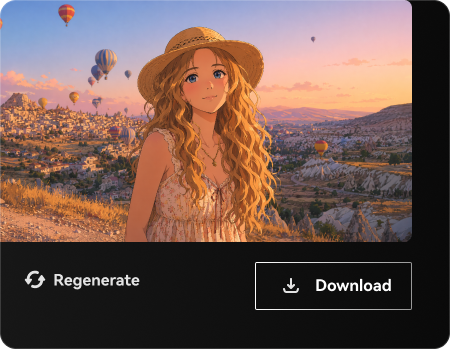
Créez plusieurs versions, comparez les résultats et téléchargez votre retouche préférée. Si nécessaire, affinez le prompt pour un look vintage brun plus marqué, des détails du visage plus nets ou une composition différente jusqu'à ce que le style vous convienne.
Libérez le potentiel du filtre esthétique Dark Academia
Découvrez comment les créateurs utilisent ce filtre Dark Academia dans Media.io pour le contenu, le marketing et les projets personnels, puis adaptez chaque idée à votre brief.
Transformer des selfies du quotidien en portraits littéraires
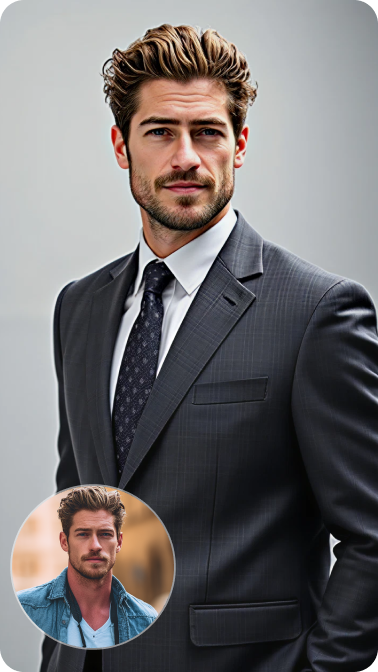
Donnez à un simple selfie pris avec un téléphone une ambiance éditoriale plus riche avec un étalonnage brun, des ombres mates et un grain subtil. Media.io rend cela particulièrement utile pour les photos de profil, les feeds esthétiques ou toute personne souhaitant un style de filtre portrait académique avec une énergie de vieille bibliothèque plutôt qu'un preset standard.
Construire des moodboards cohérents pour les projets sociaux et créatifs
Restylisez des photos de tenues, des shots de table basse, des carnets, des bougies et des scènes de campus dans un langage visuel cohérent. Avec Media.io, un flux de retouche basé sur le navigateur facilite la création d'images harmonisées pour les tableaux Pinterest, les publications Instagram et les présentations de concepts en utilisant un look cohérent de filtre esthétique dark academia.
Créer du contenu livresque atmosphérique sans Photoshop
Recréez l'atmosphère de salles d'étude vintage, de cours sous la pluie ou de coins de café tranquilles sans un long processus de retouche. Media.io aide les créateurs à tester rapidement une direction visuelle brune et atmosphérique, qu'ils souhaitent une ambiance de filtre photo dark academia pour des reels, des miniatures ou des images de marque personnelle.
Ce que disent les utilisateurs
Emma R.
Créatrice de contenu lifestyle
"Exactement la retouche atmosphérique que je voulais" J'ai téléchargé un selfie lumineux et j'ai obtenu un résultat doux aux tons bruns qui semblait vraiment intentionnel, pas boueux. Le visage est resté net, et l'ambiance style bibliothèque était parfaite pour mes publications esthétiques.
Noah T.
Blogueur étudiant
"Idéal pour les portraits et le contenu d'étude" Je l'ai utilisé sur des photos de bureau, des shots de café et quelques portraits. Les retouches ont donné à tout la même ambiance académique vintage, ce qui a rendu mon blog et mes visuels pour les réseaux sociaux beaucoup plus cohérents.
Sofia L.
Créatrice Pinterest
"Mieux que les presets basiques" La plupart des applications de filtres rendaient mes photos plates, mais celle-ci a conservé les détails tout en changeant l'atmosphère. J'ai aimé pouvoir essayer des variations à la bougie, sépia et gothique à partir d'une seule image.
Daniel K.
Marketeur digital
"Facile à utiliser sur mobile" J'ai retouché depuis le navigateur de mon téléphone sans avoir besoin d'outils avancés. Il était rapide de télécharger, d'ajuster le prompt et de télécharger une version qui fonctionnait bien pour une couverture de story et une miniature.
Découvrez Les Effets Vidéo et d'Image IA Les Plus Populaires
Un filtre dark academia est un style photo qui oriente une image vers des bruns chauds, des tons atténués, des ombres douces, une texture vintage et une atmosphère érudite et atmosphérique. Dans Media.io, vous pouvez utiliser l'édition image-à-image pour appliquer ce look aux portraits, selfies et photos de style de vie tout en gardant le sujet original reconnaissable.
2. Comment appliquer un filtre dark academia à une photo en ligne ?
Téléchargez votre image sur Media.io au format JPG, PNG ou JPEG, puis décrivez l'ambiance que vous souhaitez, comme des tons sépia, des ombres à la bougie, du grain de film ou l'atmosphère d'un campus gothique. Ensuite, choisissez votre modèle préféré et vos paramètres de sortie, générez des variations et téléchargez le résultat que vous préférez. Media.io fonctionne dans le navigateur sur les appareils de bureau et mobiles.
3. Puis-je utiliser un filtre dark academia gratuitement ?
Les utilisateurs gratuits peuvent essayer Media.io avec des crédits gratuits, ce qui est utile pour tester une retouche dark academia avant de s'engager dans plus de générations. Si vous avez besoin de plus de crédits, de téléchargements sans filigrane ou d'exports en haute résolution, vous pouvez passer à la version supérieure sur la page des tarifs.
4. Le filtre gardera-t-il mon visage et les détails de la photo nets ?
Oui, surtout si vous commencez avec une image de référence nette. Media.io est conçu pour la retouche d'images basée sur une référence, il peut donc restyliser la couleur et l'atmosphère tout en préservant les traits du visage importants, la ressemblance générale et les détails visibles mieux qu'un simple preset en un seul clic.
5. Quels types de photos fonctionnent le mieux avec une esthétique dark academia ?
Les portraits, selfies, scènes de café, images de livres et de bureaux, photos de campus et photos d'architecture fonctionnent généralement très bien. Une image source nette avec un éclairage correct donne à Media.io plus de détails pour travailler, ce qui aide à créer de meilleurs résultats pour un look académique atmosphérique sans perdre en définition.
6. Puis-je créer un portrait dark academia à partir d'un selfie ?
Oui. Media.io peut transformer un selfie en un portrait soigné avec un étalonnage brun, un contraste plus doux, du grain et une ambiance éditoriale vintage. Parce que vous téléchargez votre propre image comme référence, Media.io aide à orienter le résultat vers un look de portrait dark academia tout en gardant le sujet reconnaissable.
Au-delà du filtre Dark Academia en ligne propulsé par l'IA