Seleccione / @ carácter, describa la escena que desea generar.
0/2000
9:16
1K
1
Modo Ilimitado Banana Pro
Creaciones
Centro de Ideas
Cómo funciona
Todo
Funciones populares
Ver todo
Historia de Frutas con IA
Ver todo
Video de Historia de IA
Ver todo
Videos Virales Hoy
Ver todo
Videos de Productos de IA
Ver todo
Personaje de IA
Ver todo
Tendencias de Baile
Ver todo
GPT Image 2
Ver todo
Seedance 2.0
Ver todo
Emparejamiento de Celebridades con IA
Ver todo
Indicaciones de Poses para Parejas
Ver todo
Prompts de Poses de Chica AI Estética
Ver todo
Sugerencias de Pose Elegante para Chicos AI
Ver todo
Lista de generación
Tus creaciones solo se guardan durante 7 días. Los recursos creados después de actualizar a Membresía se almacenarán de forma permanente.
¡Desbloquea tu potencial creativo y experimenta la magia de Media AI ahora mismo!
Crea un retrato tilt shift con enfoque nítido y desenfoque cinematográfico
Convierte cualquier foto en un retrato tilt shift con enfoque selectivo realista, detalles faciales nítidos y un desenfoque dramático en la parte superior e inferior. Media.io facilita la aplicación de un filtro tilt shift con IA o un aspecto natural de filtro de foto tilt shift para ediciones de retratos cinematográficas, soñadoras o con estilo miniatura en línea en solo unos pasos.
Escribe tu idea -> La IA la diseña. Pruébalo gratis.
Revisa estas instrucciones de ejemplo y luego ajusta los detalles del prompt para obtener mejores resultados con este efecto de retrato tilt shift.
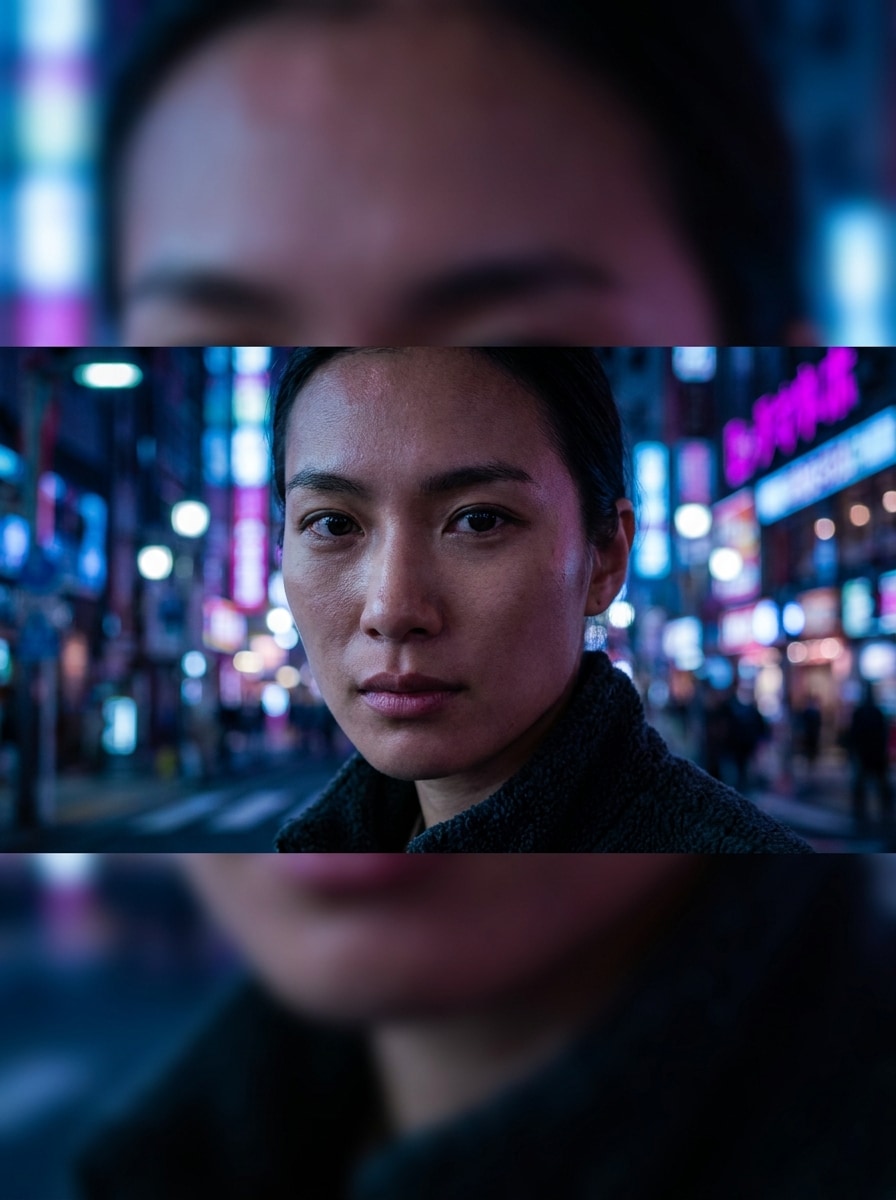
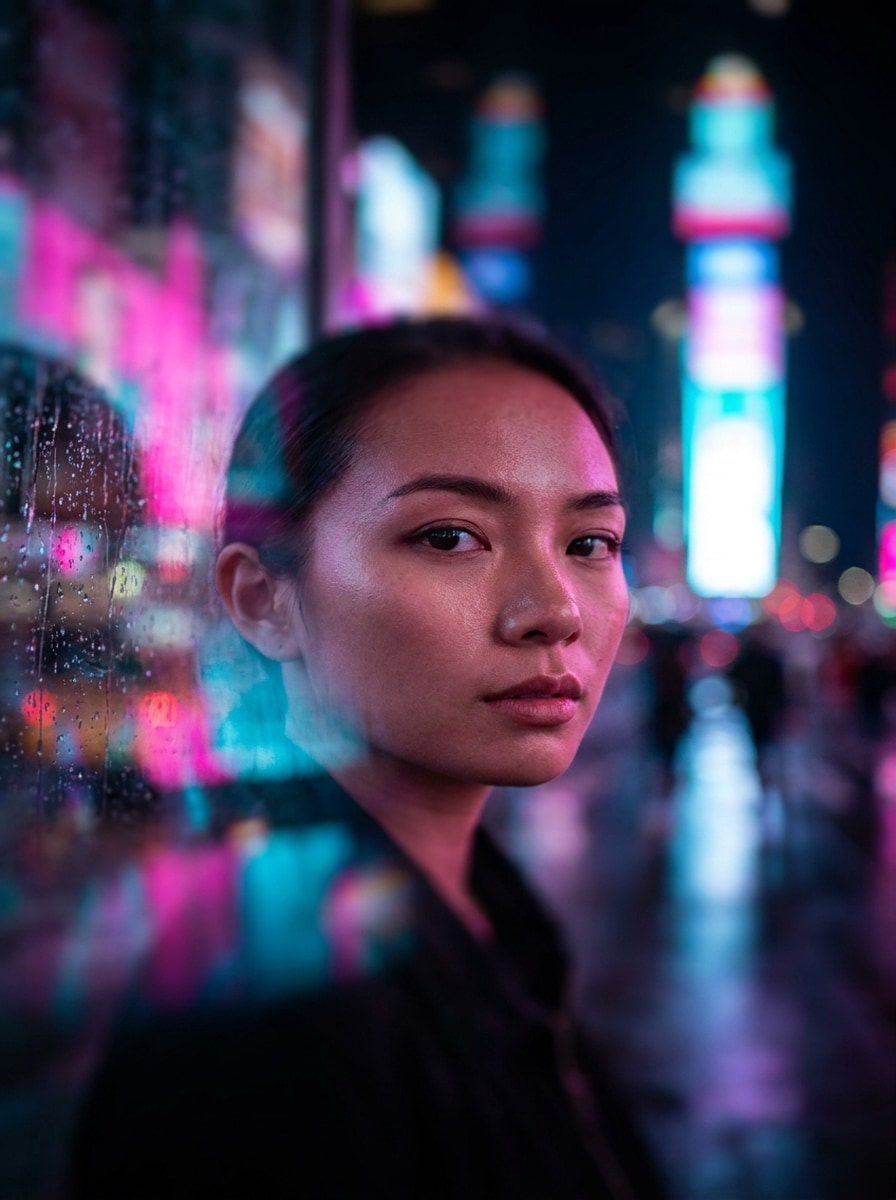
Tilt shift urbano cinematográfico
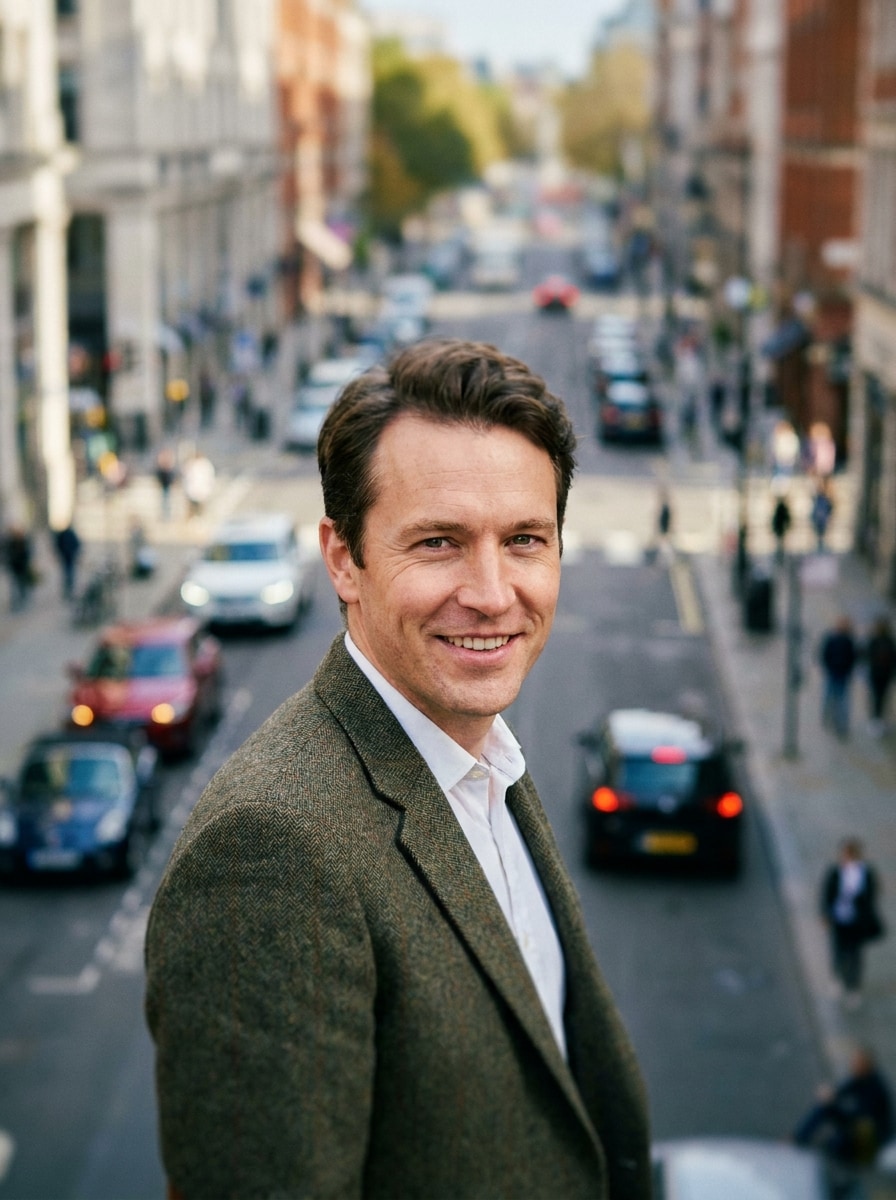
Usa la imagen cargada como sujeto y transfórmala en un retrato tilt shift urbano y cinematográfico. Mantén los ojos, el rostro y los detalles clave de la ropa con enfoque nítido, añade bandas de desenfoque intenso en la parte superior e inferior, mejora el bokeh de neón urbano, profundiza el contraste, enfría las sombras y conserva una textura de piel realista.
Retrato miniatura con neón nocturno
Usa el retrato cargado como sujeto y crea un aspecto tilt shift de neón con enfoque selectivo centrado en el rostro. Añade una transición de desenfoque suave por encima y por debajo, colores de letreros luminosos, acentos magenta y cian, un sutil ambiente de diorama en miniatura, piel realista y un plano focal nítido que destaque contra las luces.
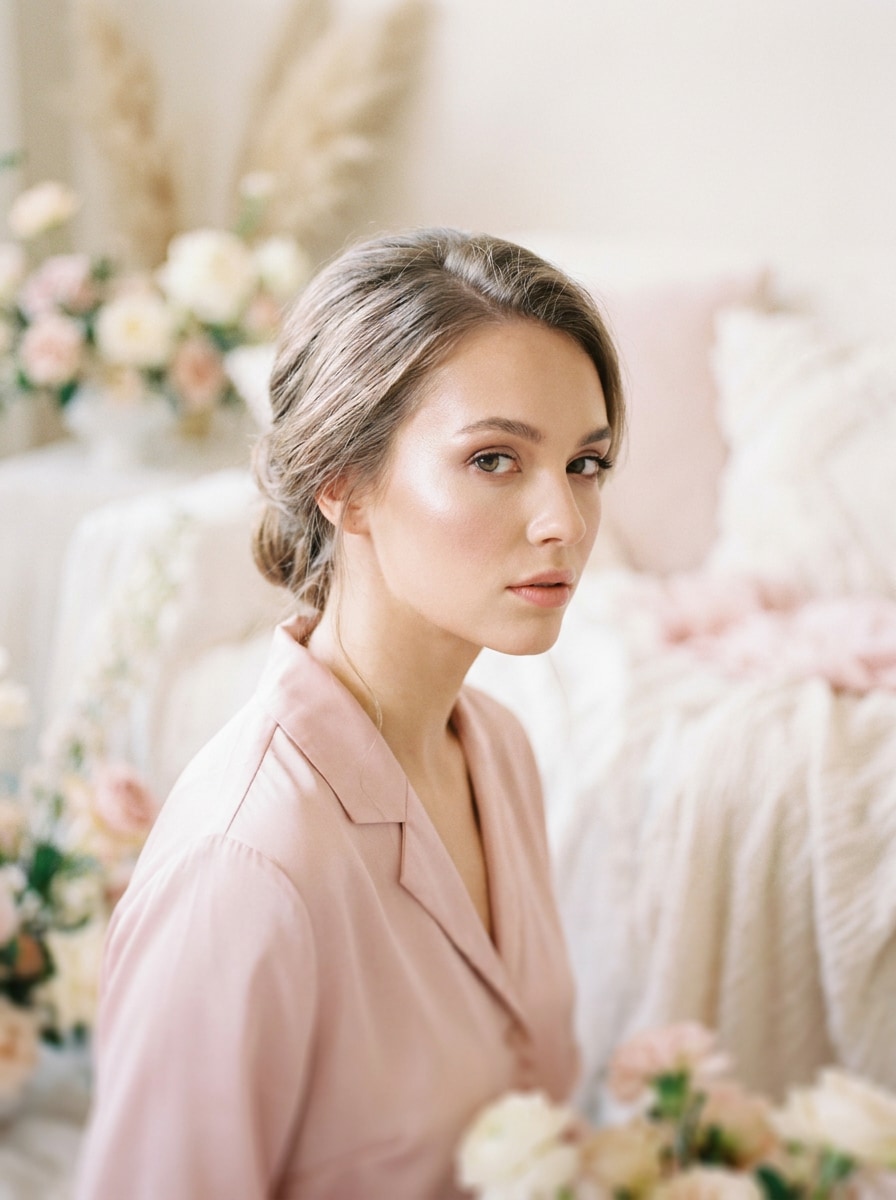
Tilt shift pastel soñador
Usa la imagen cargada como sujeto y conviértela en un retrato tilt shift soñador en tonos pastel. Mantén los rasgos faciales limpios y nítidos, aplica bandas de desenfoque suave en la parte superior e inferior del encuadre, añade reflejos luminosos, suavidad etérea, tonos rosa rubor y crema, y una atmósfera editorial romántica.
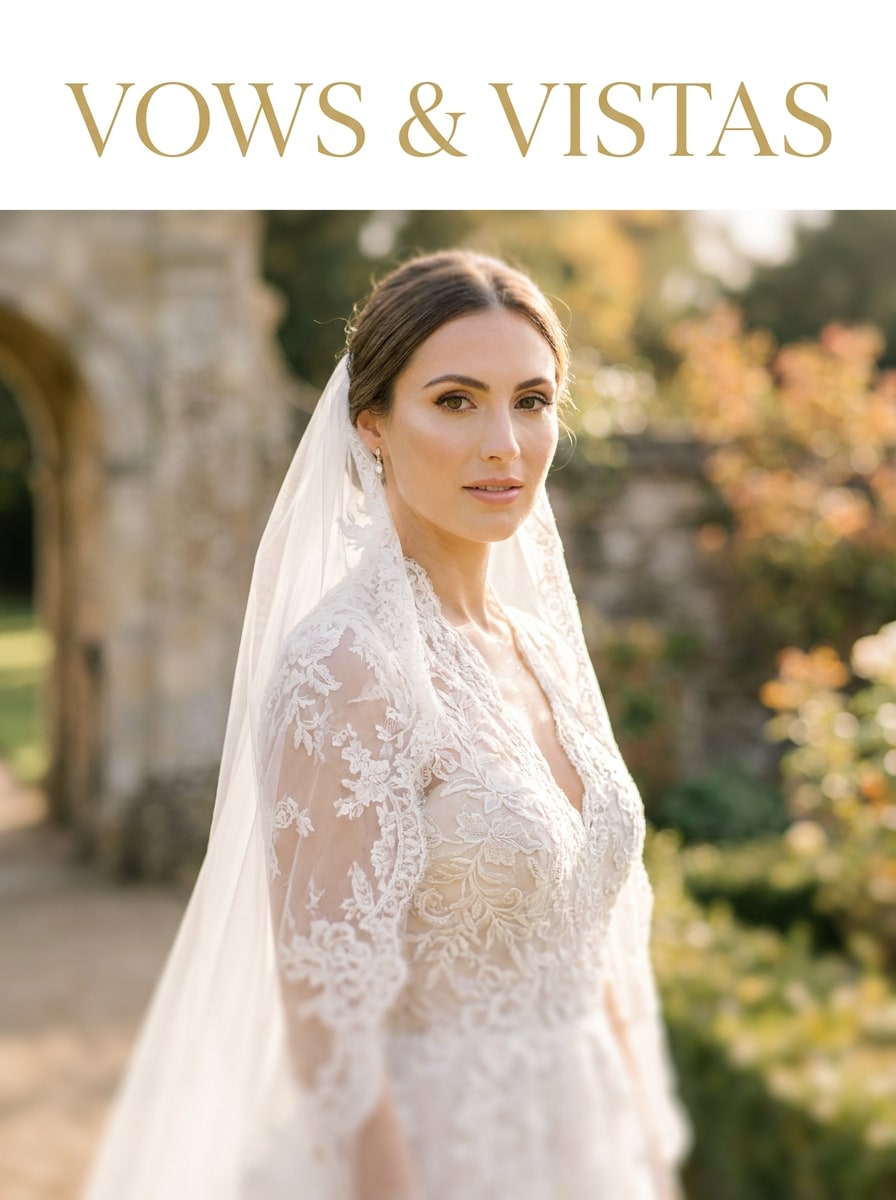
Tilt shift editorial de boda
Usa el retrato cargado y transfórmalo en una imagen tilt shift de editorial de bodas. Conserva los detalles del rostro y la textura del atuendo, añade planos de desenfoque refinados alrededor del sujeto, suaviza los reflejos, calienta la gradación de color con tonos marfil y champán, y crea una sensación elegante de revista de lujo.
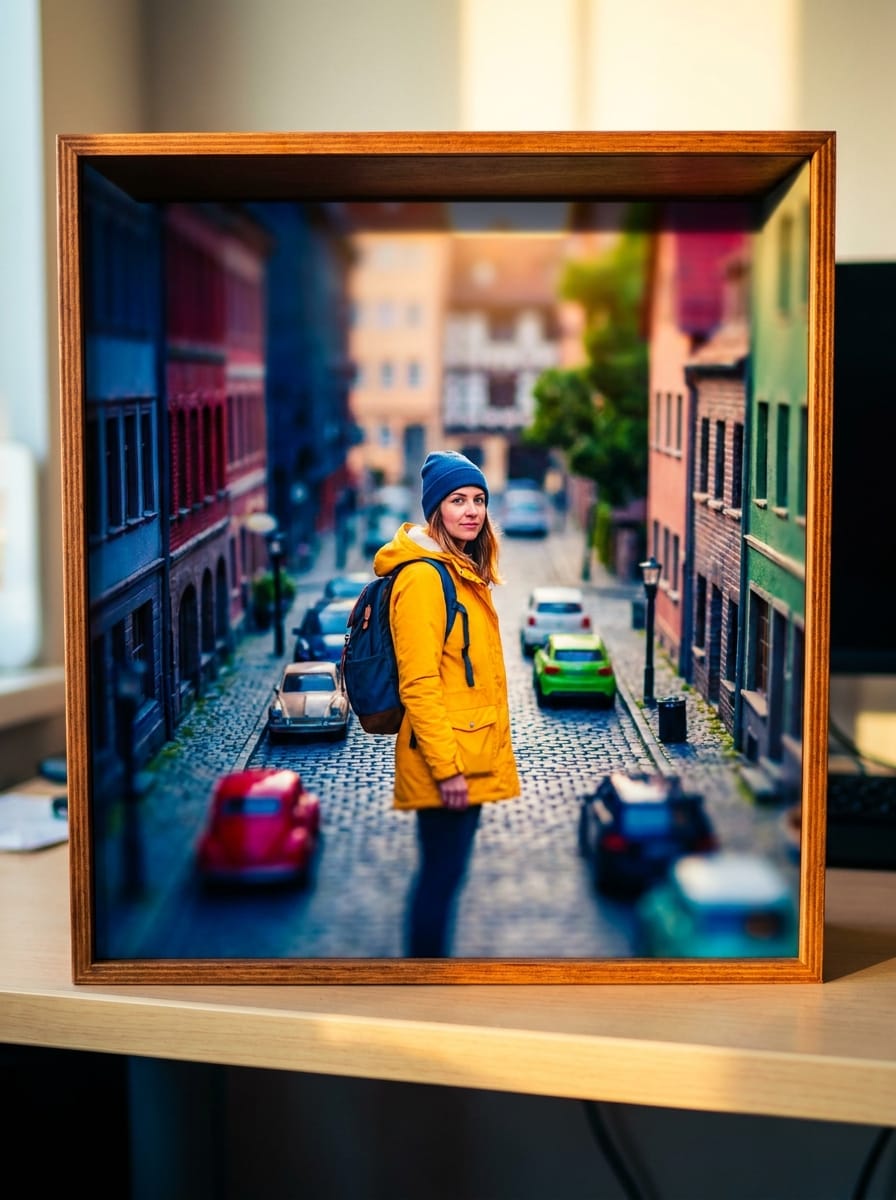
Retrato estilo pueblo de juguete
Usa la imagen cargada como sujeto y crea un efecto tilt shift lúdico de ciudad en miniatura. Mantén a la persona nítida y reconocible, desenfoca los planos superior e inferior de forma dramática, aumenta ligeramente la saturación y el contraste, y dale a la escena una sensación de diorama de mundo diminuto con bordes limpios e iluminación realista.
Retrato de diorama de escena callejera
Usa el retrato exterior cargado como sujeto y conviértelo en un diorama vívido de escena callejera. Mantén a la persona con enfoque nítido, desenfoca las capas circundantes de la calle por encima y por debajo, aumenta la vibración y el microcontraste, conserva el realismo facial y crea una atmósfera creíble de ciudad en miniatura.
Enfoque selectivo de alta costura
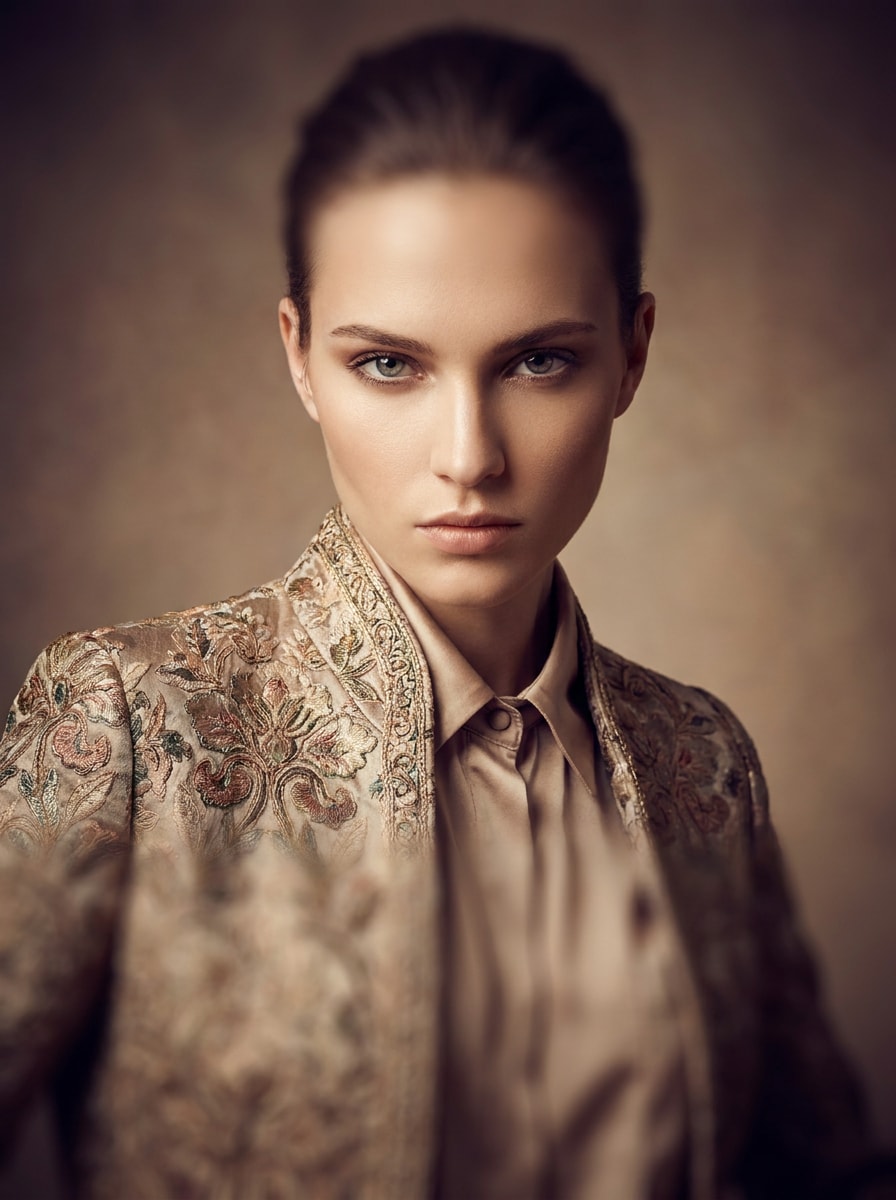
Usa el retrato cargado como sujeto y edítalo como una imagen tilt shift de alta costura. Resalta ojos nítidos, detalles de piel y textura del vestuario, añade bandas dramáticas de enfoque selectivo, Gradación de color estilo estudio pulido, un sutil viñeteado y un acabado editorial de revista Premium.
Tilt shift de backstage de pasarela
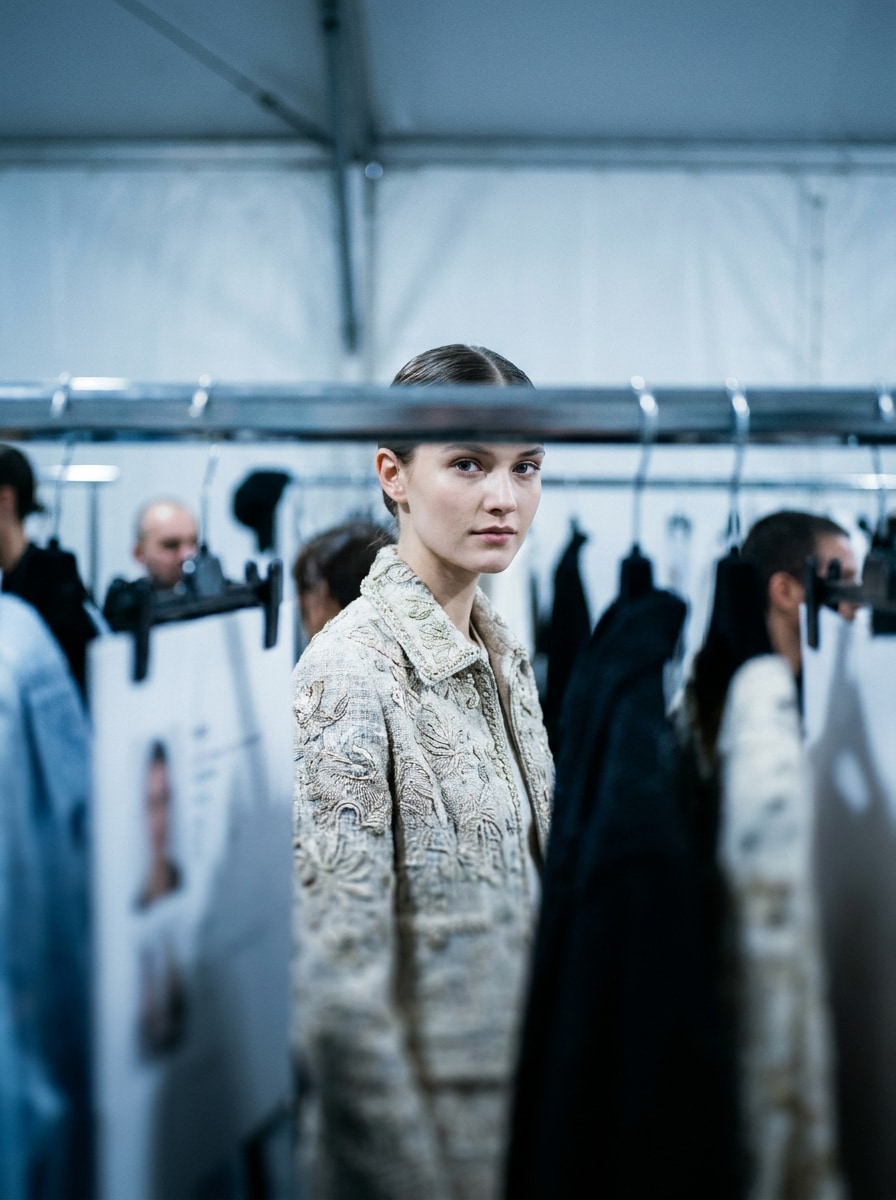
Usa la imagen cargada como sujeto y crea un retrato de moda entre bastidores con desenfoque tilt shift. Conserva la claridad del rostro y el detalle de las prendas, enfría los tonos, desenfoca las capas de profundidad circundantes, añade un aspecto de flash suave y construye una atmósfera moderna de campaña con nitidez central enfocada.
Tilt shift de hora dorada
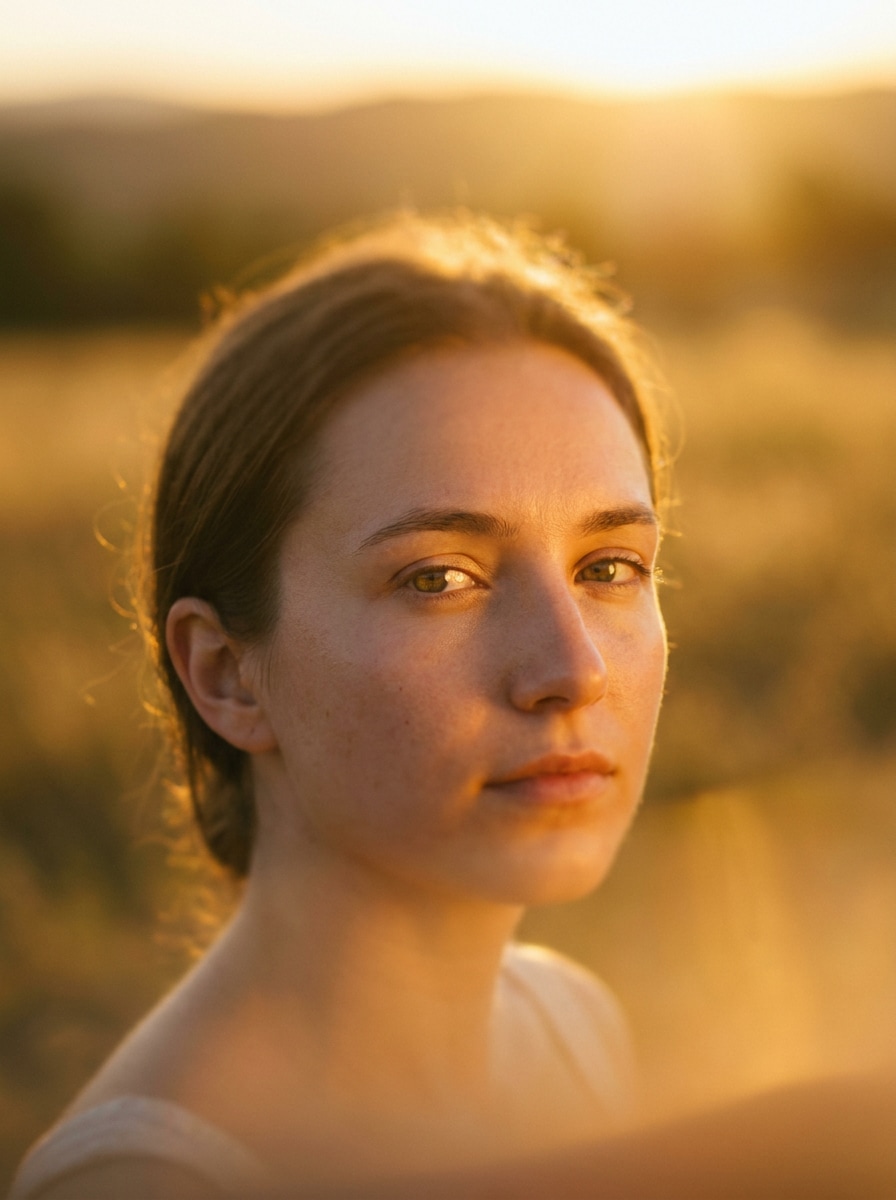
Usa la imagen cargada como sujeto y dale un aspecto tilt shift de hora dorada. Mantén los ojos nítidos, aplica un degradado de desenfoque suave a lo largo del encuadre, añade una cálida luz solar resplandeciente, tonos de piel naturales, reflejos ámbar y un ambiente de retrato al aire libre que se sienta pulido y cinematográfico.
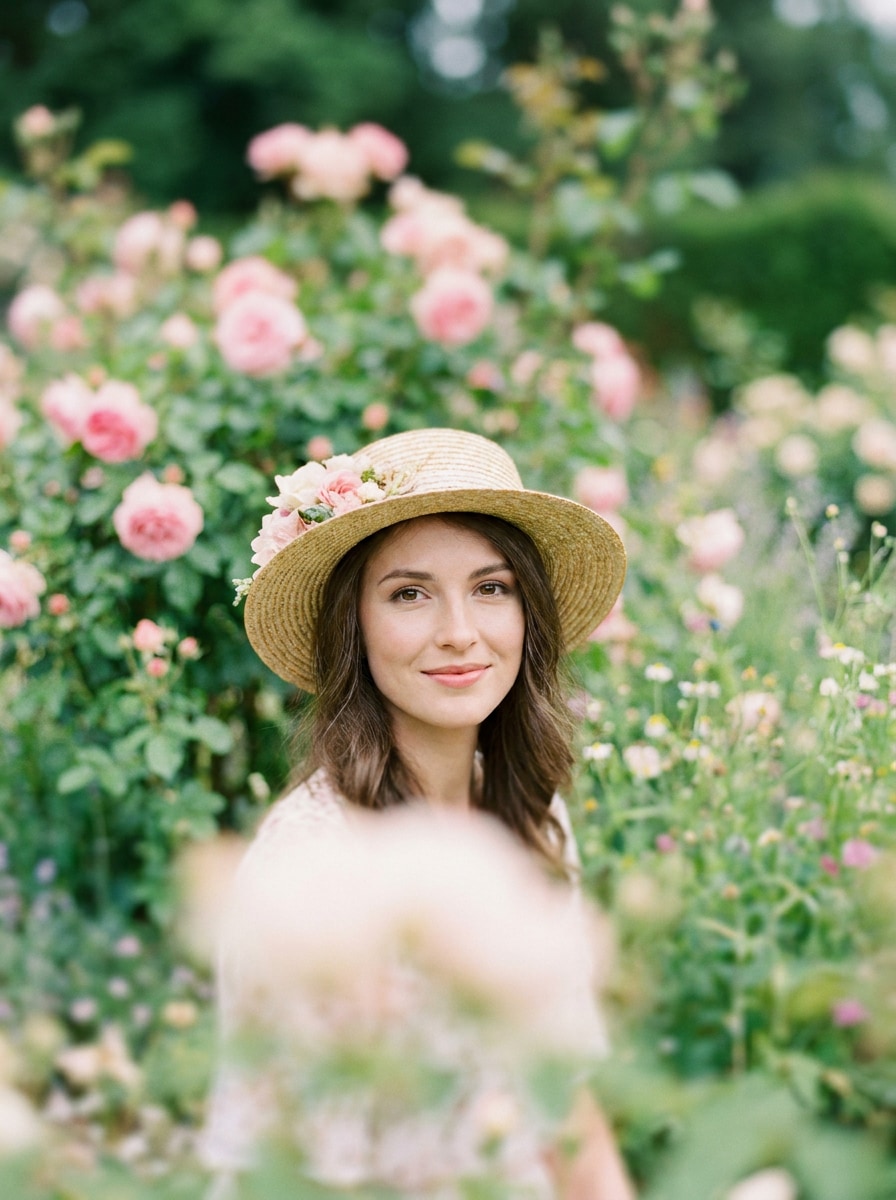
Tilt shift de jardín en flor
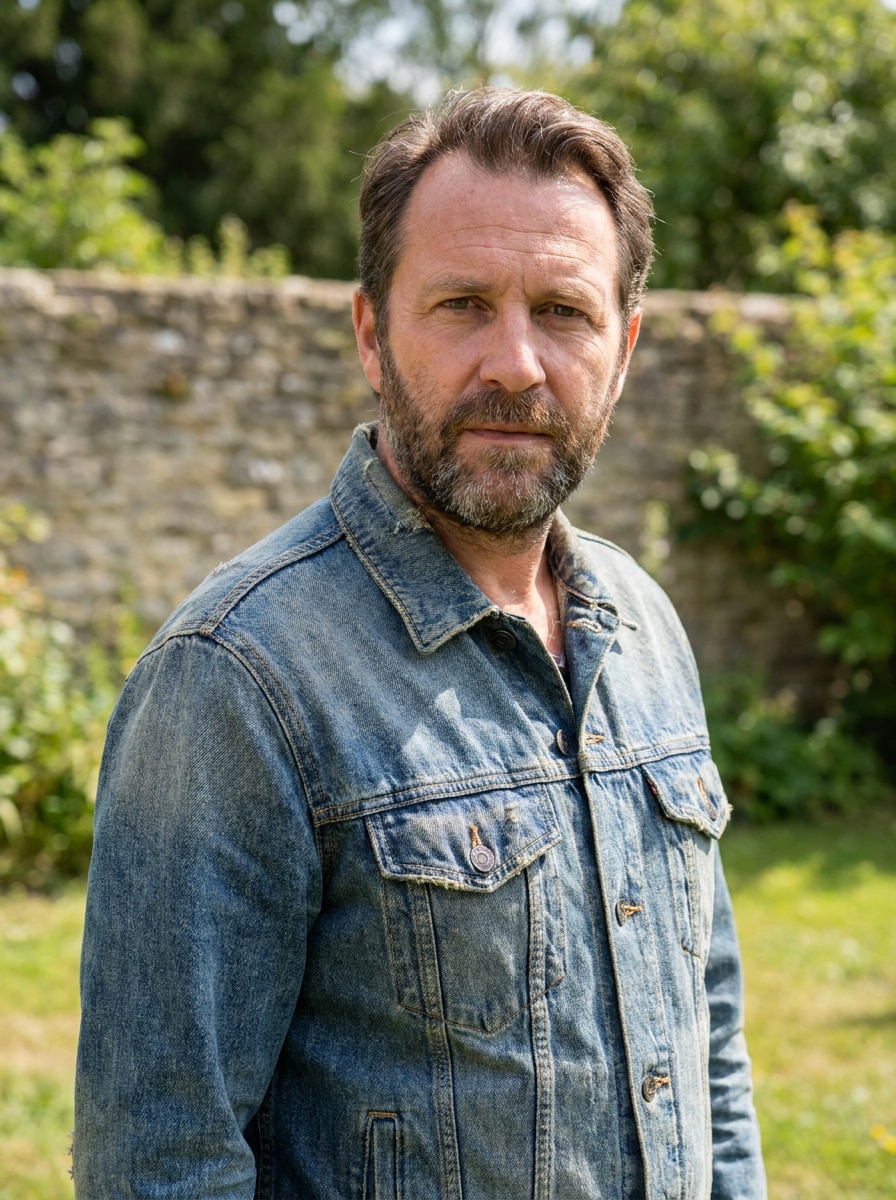
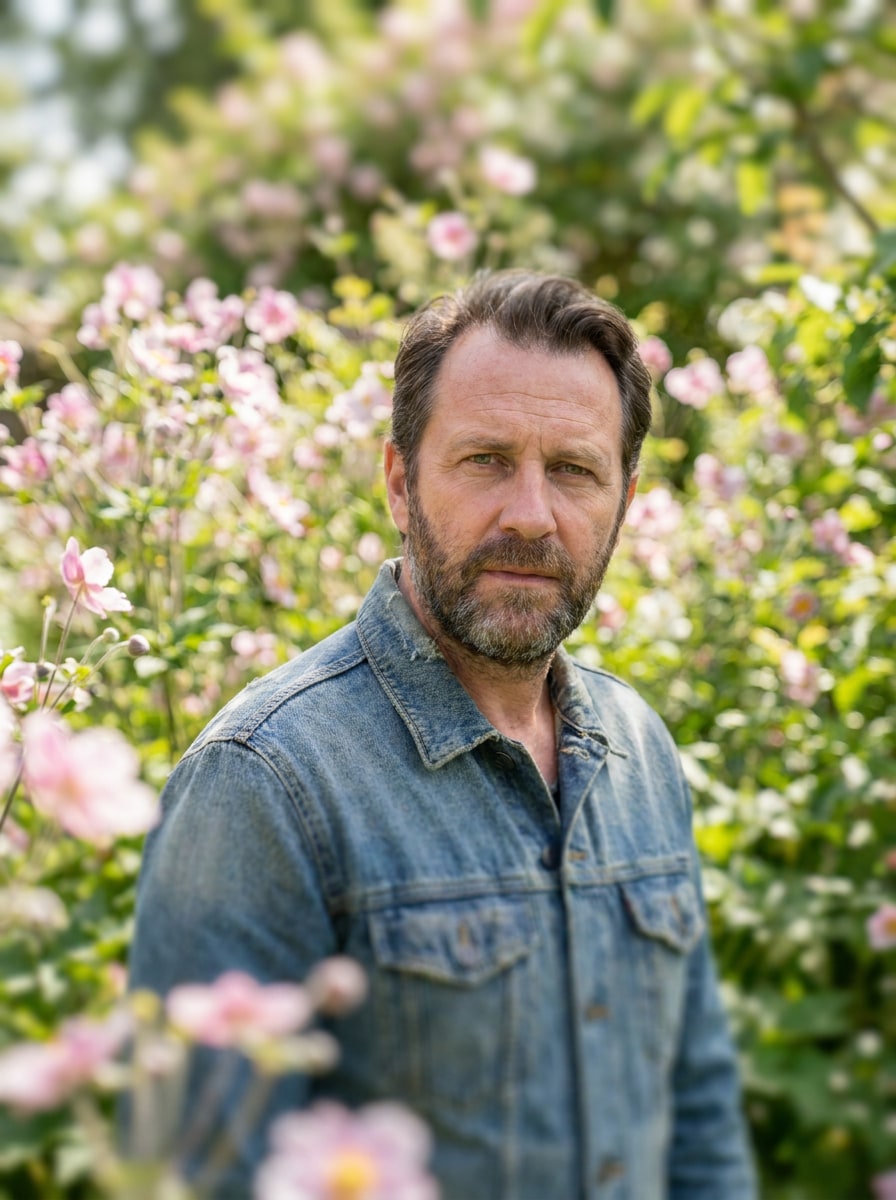
Usa el retrato cargado como sujeto y transfórmalo en una imagen tilt shift floral. Mantén los detalles faciales nítidos, desenfoca las áreas superior e inferior del encuadre, añade verdes y rosas suaves, iluminación natural fresca, bokeh delicado de fondo y un ambiente romántico y ligero.
Por qué usar Media.io para ediciones de retratos tilt shift
Mantén al sujeto reconocible en nuevos estilos
Para ediciones de retratos, Media.io usa tu foto cargada como referencia para que la persona siga pareciéndose a sí misma mientras el efecto de desenfoque transforma el ambiente.
Explora diferentes estilos sin perder la dirección
Los proyectos centrados en retratos rara vez se detienen en un solo tratamiento visual. Media.io ayuda a explorar diferentes estilos en torno a la misma idea de retrato tilt shift para que la versión final se sienta más intencional para el caso de uso.
Mantén los visuales finales nítidos para proyectos reales
Algunos resultados necesitan hacer más que verse bien en una vista previa. Media.io ayuda a generar retratos tilt shift más limpios con salida de hasta 4K para que la imagen final se mantenga bien en fondos de pantalla, presentaciones y maquetas.
Edición rápida en el navegador desde cualquier dispositivo
Cuando una idea de retrato tilt shift surge lejos de tu equipo principal, Media.io te permite crearla y perfeccionarla en el navegador para que cambiar entre móvil y escritorio sea fluido en lugar de disruptivo.
Cómo hacer un retrato tilt shift en línea
Convierte tus palabras en visuales impresionantes en tres simples pasos y luego continúa refinando el resultado si deseas llevarlo más lejos.
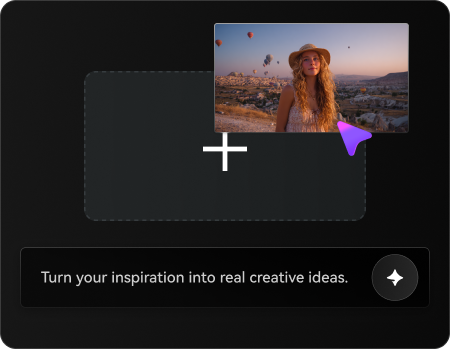
Paso 1
Sube tu imagen de referencia
Comienza con un retrato claro en formato JPG, PNG o JPEG. Una foto bien iluminada con un rostro visible y una buena separación del sujeto le da a Media.io una base más sólida para una Edición realista con enfoque selectivo.
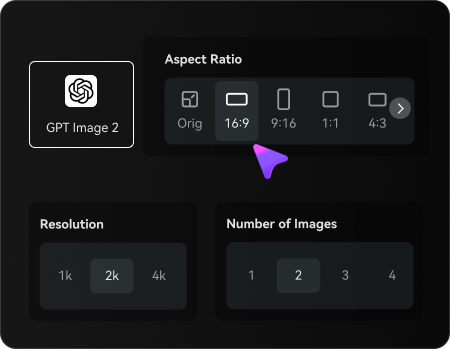
Paso 2
Describe el cambio y configura las opciones
Introduce el aspecto que deseas, como desenfoque cinematográfico, tonos pastel soñadores o un efecto de diorama en miniatura. Luego elige tu modelo y ajusta la relación de aspecto, la resolución y el número de variaciones de imagen.
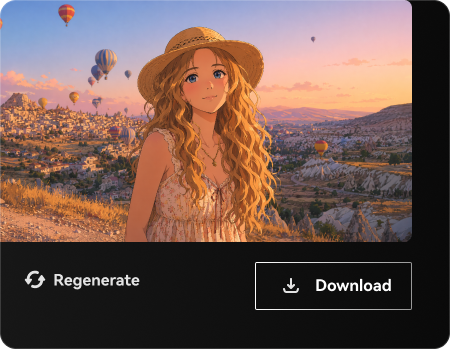
Paso 3
Genera, descarga y sigue mejorando
Crea tus resultados, compara diferentes estilos de desenfoque y descarga la versión que más te guste. Puedes refinar el prompt, regenerar nuevas variaciones o continuar editando hasta que el retrato coincida con tu dirección creativa exacta.
Desbloquea el potencial del filtro tilt shift con IA
Descubre cómo los creadores usan este estilo de retrato tilt shift para contenido, marketing y proyectos personales, y luego adapta cada idea a tu brief.
Haz que los retratos sociales detengan el scroll al instante
Añade enfoque selectivo dramático, contraste audaz y una ilusión de escena diminuta que destaque en Reels, antes y después de TikTok y publicaciones en carrusel. Es una forma rápida de convertir un retrato cotidiano en un visual estilizado con gran impacto móvil usando un aspecto de filtro de foto tilt shift.
Crea looks editoriales sin enmascaramiento manual complejo
Para contenido de moda, estilo de vida o bodas, puedes simular un efecto Premium de plano de desenfoque mientras mantienes los rasgos faciales y los detalles del vestuario claros. Esto ayuda a los creadores a producir visuales de retratos pulidos que se acercan más a la fotografía de campaña que a las ediciones con filtros estándar.
Prueba estilos cinematográficos y de miniatura para conceptos de clientes
Diseñadores, fotógrafos y equipos de contenido pueden explorar rápidamente múltiples ambientes, desde profundidad urbana de neón hasta enfoque romántico suave. Eso hace que Media.io sea útil para presentar conceptos, previsualizar direcciones de retoque o crear visuales destacados para portadas y pósteres.
Lo que dicen los usuarios sobre Media.io
Ava Martinez
Creadora de contenido de retratos
"Gran detalle facial con desenfoque creíble" Quería un efecto de retrato que se viera estilizado sin hacer que la persona pareciera falsa. Media.io mantuvo los ojos y la piel nítidos mientras añadía el desenfoque tilt shift exactamente donde lo necesitaba.
Jordan Lee
Diseñador/a de redes sociales
"Flujo de trabajo rápido para ediciones optimizadas para móvil" El flujo de trabajo en el navegador es simple y los resultados se ven muy bien en redes sociales. Lo usé para crear publicaciones dramáticas de retratos de antes y después con un estilo miniatura en solo unos minutos.
Sophie Nguyen
Editora visual de bodas
"Útil para estilización editorial suave de retratos" Lo probé con retratos de novia y me gustó lo natural que se mantuvo la piel. Las transiciones de desenfoque se veían suaves y le dieron a las imágenes un aire editorial más romántico sin un retoque manual pesado.
Marcus Bennett
Fotógrafo freelance
"Forma fácil de previsualizar direcciones creativas" Media.io me ayuda a crear maquetas de diferentes looks de enfoque selectivo para clientes antes de la Edición final. Es especialmente útil cuando quiero mostrar conceptos cinematográficos, de moda o estilo pueblo de juguete rápidamente.
Explora los efectos de video e imagen con IA más populares
Un efecto de retrato con desplazamiento de inclinación utiliza un desenfoque selectivo para mantener enfocada una zona estrecha, generalmente los ojos y el rostro, mientras suaviza las áreas por encima y por debajo. Esto crea un efecto de profundidad estilizado que puede resultar cinematográfico, onírico o incluso similar a una miniatura en comparación con el desenfoque de retrato estándar.
2. ¿Cómo puedo crear un retrato tilt shift en línea?
Sube un retrato nítido a Media.io, describe el estilo de desenfoque que deseas y luego elige tu Relación de aspecto, Resolución y variaciones de imagen antes de generar. Este flujo de trabajo de Imagen a imagen facilita la creación de un retrato con desplazamiento de inclinación en línea sin necesidad de enmascaramiento manual ni Edición compleja en escritorio.
3. ¿Puede la IA convertir un retrato normal en una foto tilt shift?
Media.io te permite subir un retrato normal como imagen de referencia y aplicar una transformación estilizada de enfoque selectivo basada en tu indicación. Es una forma práctica de convertir una foto estándar en un retrato cinematográfico o con aspecto de miniatura mediante un efecto de filtro tilt shift con IA.
4. ¿Existe un generador gratuito de retratos con desplazamiento de inclinación?
Sí, los usuarios gratuitos pueden probar Media.io con créditos gratuitos. Si necesitas más generaciones o un uso de mayor volumen, puedes consultar la página de precios. Las exportaciones gratuitas pueden incluir una marca de agua, mientras que los planes de pago permiten descargas en alta resolución sin marca de agua.
5. ¿El efecto mantendrá el rostro nítido y realista?
Media.io está diseñado para la Edición de imágenes basada en referencias, por lo que el retrato que subas guía el resultado final. Esto ayuda a Media.io a preservar los rasgos faciales reconocibles mientras aplica un desenfoque controlado alrededor del sujeto, lo cual es especialmente útil para estilos de enfoque selectivo específicos de retratos.
6. ¿Qué calidad de imagen o Resolución puedo exportar?
Media.io admite opciones de salida en 1K, 2K y 4K, por lo que puedes elegir una Resolución adecuada para compartir rápidamente en redes sociales o para una entrega final más detallada. La exportación en mayor Resolución es útil cuando deseas Transiciones de desenfoque más suaves, mayor nitidez en los detalles faciales y mejor flexibilidad para impresión o uso en gran formato. Los usuarios gratuitos pueden tener marcas de agua.