Tus creaciones solo se guardan durante 7 días. Los recursos creados después de actualizar a Membresía se almacenarán de forma permanente.
¡Desbloquea tu potencial creativo y experimenta la magia de Media AI ahora mismo!
Prueba un Filtro de Cabello Pelirrojo con Cambios de Foto Realistas por IA
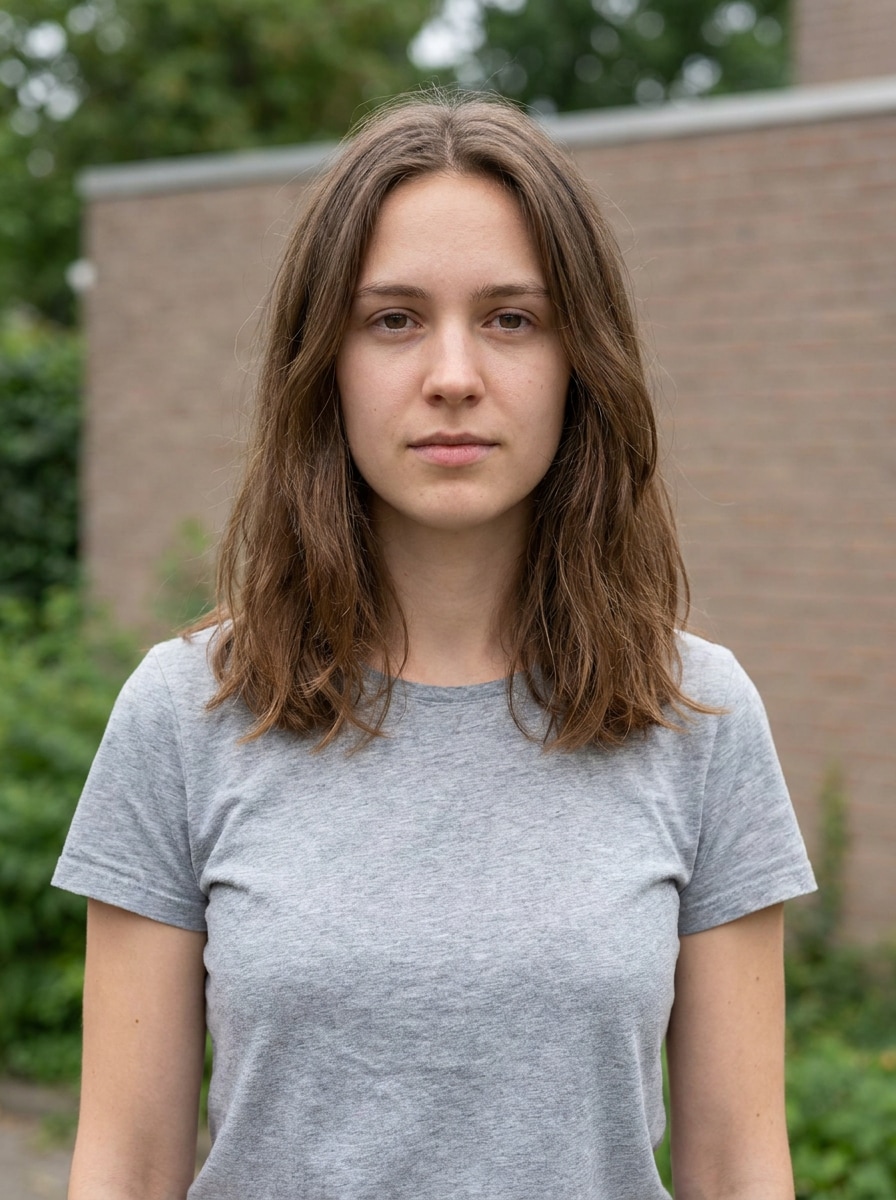
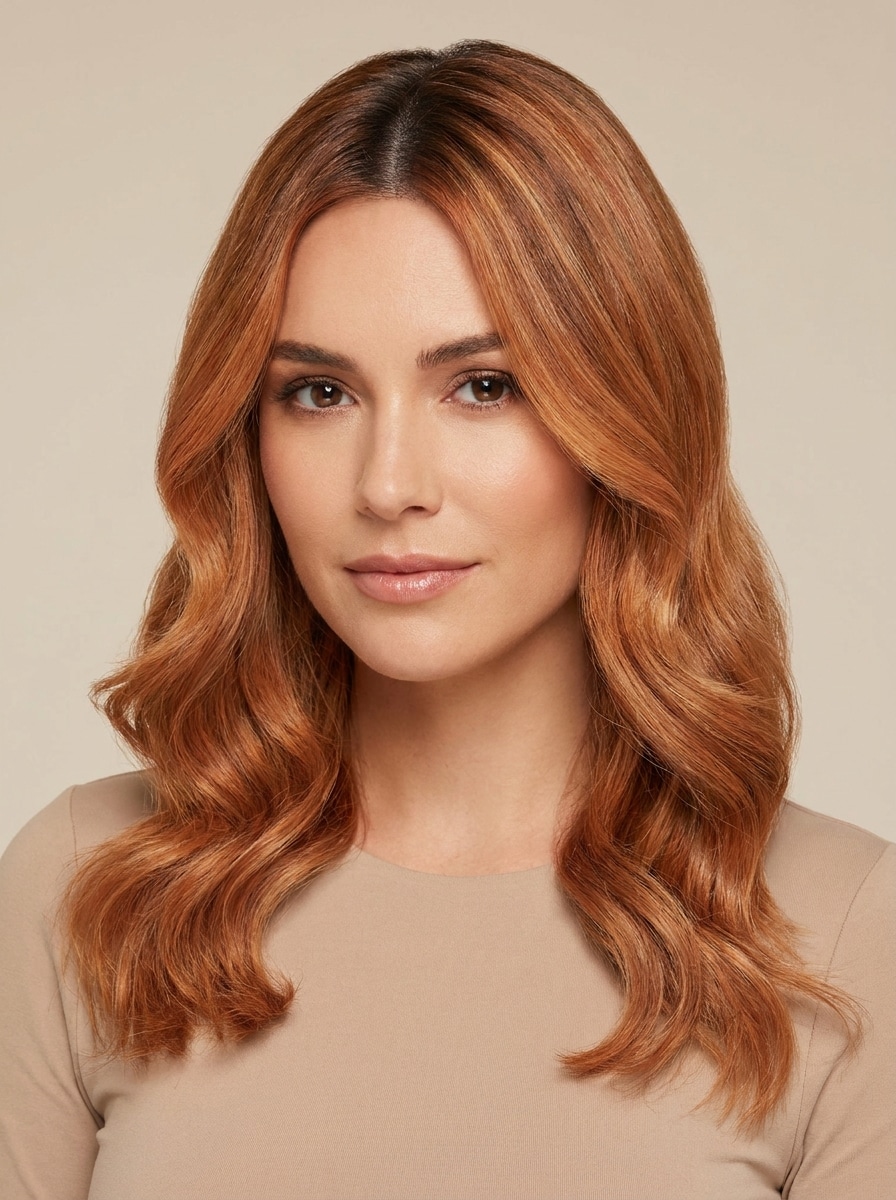
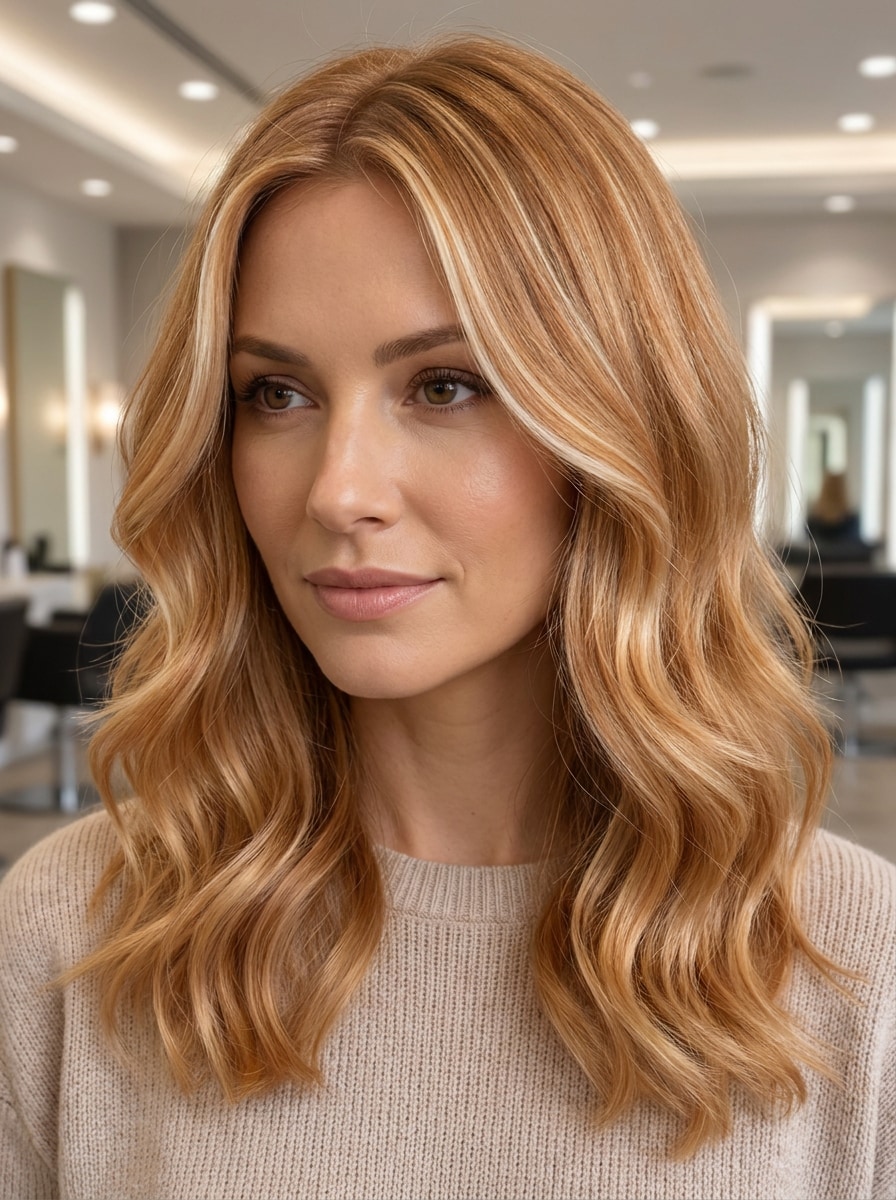
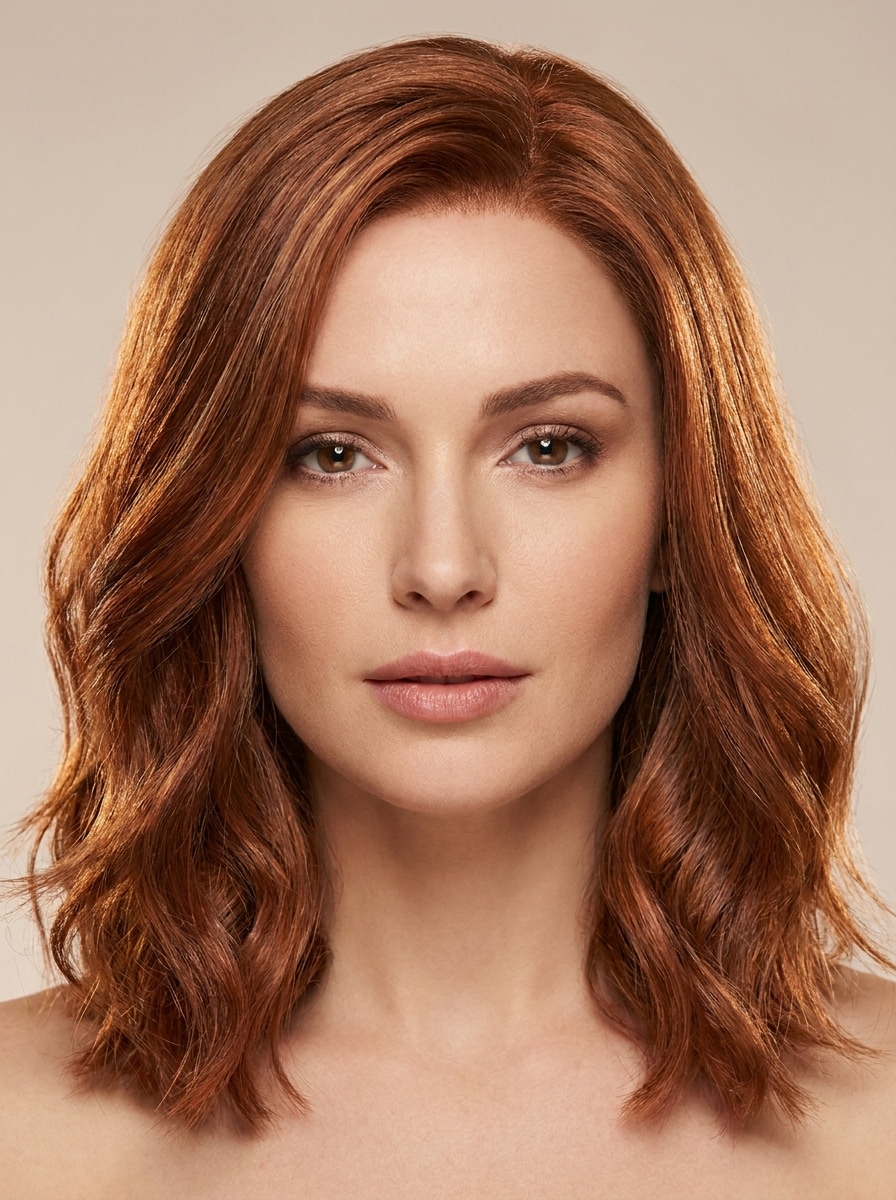
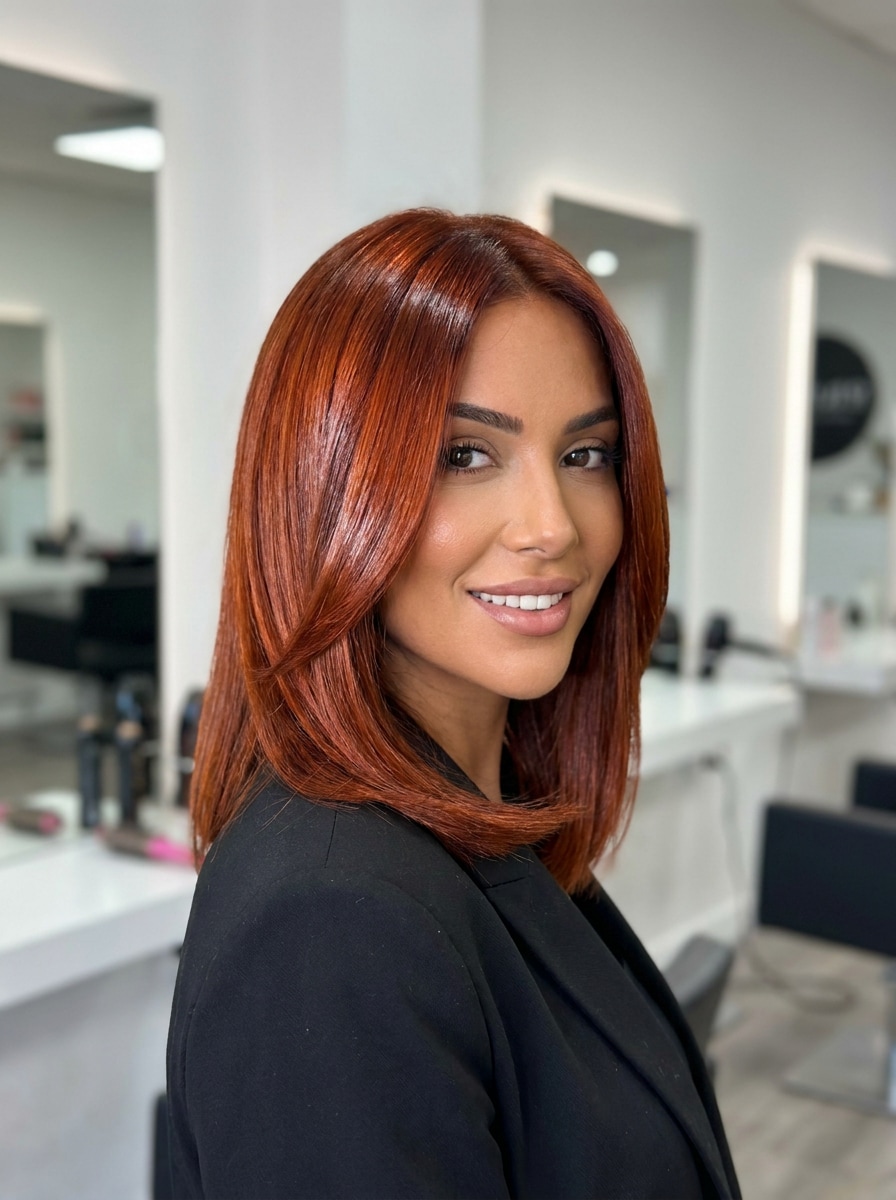
Sube una selfie para previsualizar tonos pelirrojos naturales en segundos. Media.io te ayuda a probar tonos cobre, caoba y rojo suave con un filtro de cabello pelirrojo flujo de trabajo que sirve para selfies casuales, retratos pulidos e incluso filtro de cabello pelirrojo tiktok-estilo ediciones de antes y después.
Escribe tu idea -> La IA la diseña. Gratis para probar.
Revisa estas indicaciones de ejemplo y luego ajusta los detalles del prompt para obtener mejores resultados con este Filtro de Cabello Pelirrojo.
Cobre Pelirrojo Suave
Usa el retrato cargado como sujeto y transforma el cabello en cobre pelirrojo suave con sutil calidez dorada, profundidad natural en las raíces, brillo de salón y definición realista de las hebras. Mantén la identidad facial sin cambios, preserva el tono de piel, usa luz suave y uniforme, y logra un resultado limpio y fotorrealista.
Rubio Pelirrojo Claro
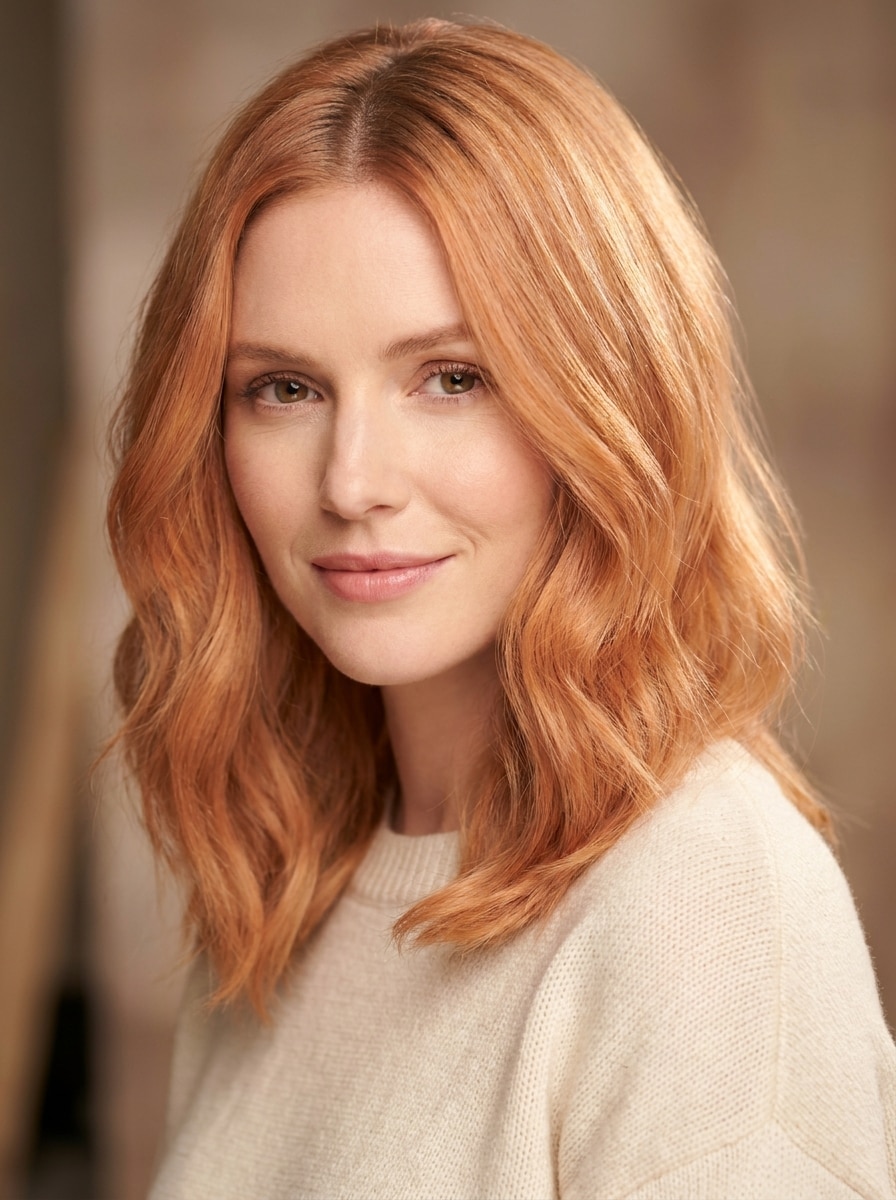
Usa la imagen cargada como sujeto y recolorea el cabello a rubio pelirrojo claro con tonos dorado-cobre aireados, destellos suaves, textura natural y brillo sutil. Preserva el rostro, la forma del cabello y el fondo mientras haces que el resultado sea brillante, realista y favorecedor con iluminación de retrato equilibrada.
Caoba Pelirrojo Clásico
Usa el retrato cargado como sujeto y aplica cabello pelirrojo caoba clásico con tonos rojos castaños equilibrados, suave profundidad en las raíces, reflejos de dimensiones y textura lisa y reflectante. Mantén el rostro reconocible, conserva el estilo de peinado y produce una vista previa refinada y realista de salón con iluminación limpia y transiciones de color naturales.
Cobre Rojo Brillante
Usa la selfie cargada como sujeto y convierte el cabello en un rojo cobre brillante con calidez vívida, brillo reluciente, línea del cabello limpia y contraste alto pero creíble. Mantén las facciones faciales sin cambios y haz que el resultado destaque como una transformación viral antes y después siendo fotorrealista y usable.
Cobre Cowboy
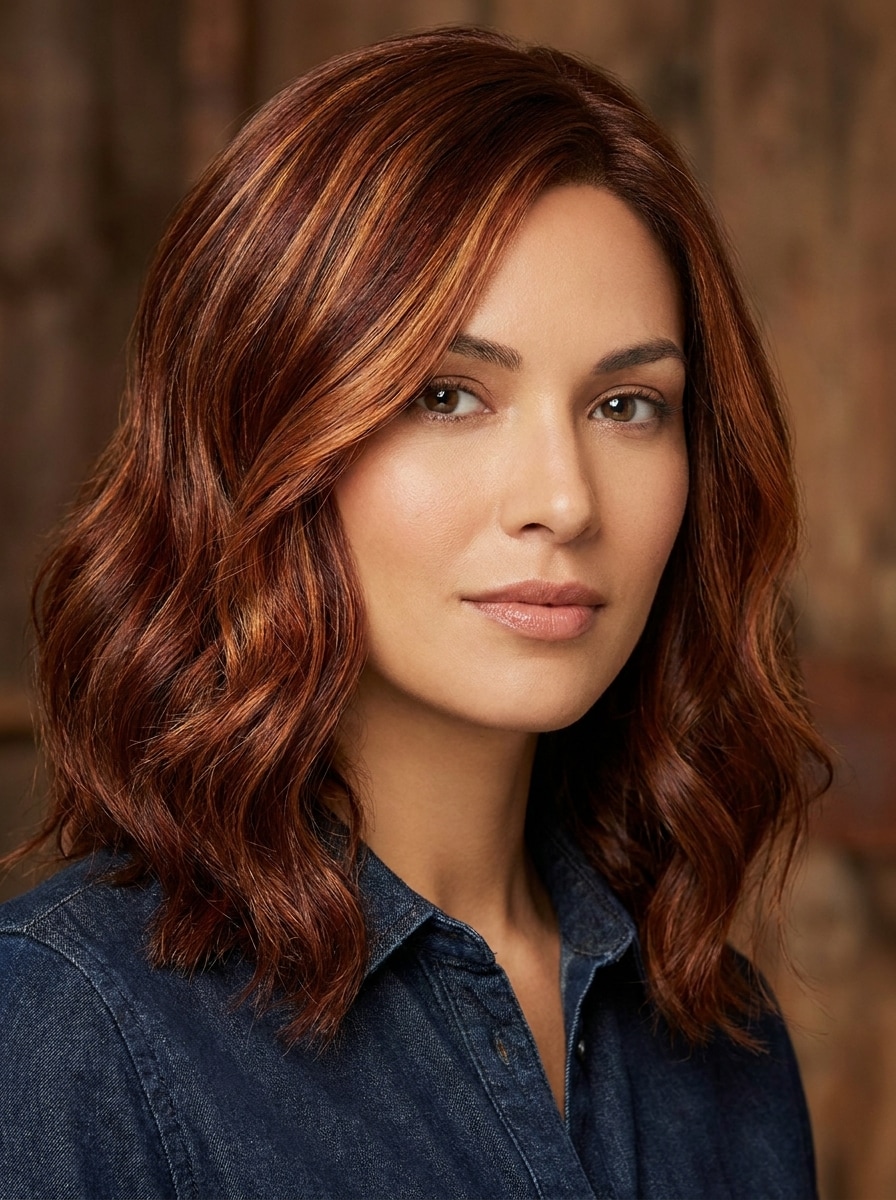
Usa la imagen cargada como sujeto y transforma el cabello en cobre cowboy, combinando tonos cobre cálidos y marrón suave con dimensión rica, profundidad natural y textura de salón brillante. Preserva la identidad facial, movimiento del cabello e iluminación realista para crear una prueba de color moderna pero creíble para el día a día.
Canela Pelirroja
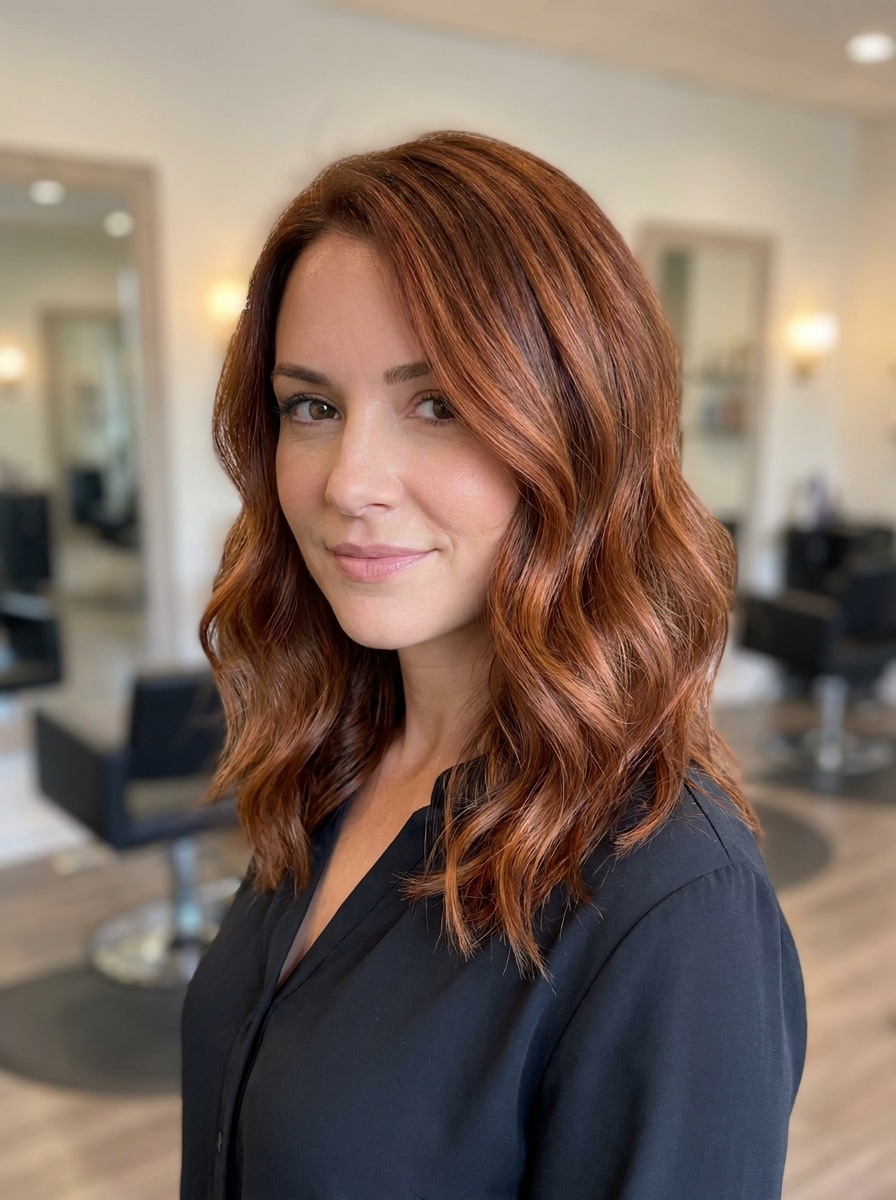
Usa el retrato cargado como sujeto y recolorea el cabello a pelirrojo canela con tonos rojizos calientes, reflejos cobre suaves, profundidad de sombra natural y brillo saludable. Conserva el rostro y la textura del cabello del sujeto, y crea un cambio sutil y usable que se siente refinado, acogedor y fotorrealista.
Pelirrojo para Piel Clara
Usa la selfie cargada como sujeto y aplica un tono pelirrojo favorecedor para piel clara, equilibrando la calidez de cobre melocotón con profundidad natural suave, raíces realistas y brillo luminoso. Mantén el rostro sin cambios y crea una prueba personalizada que se siente elegida por salón, usable, brillante y con una mezcla natural.
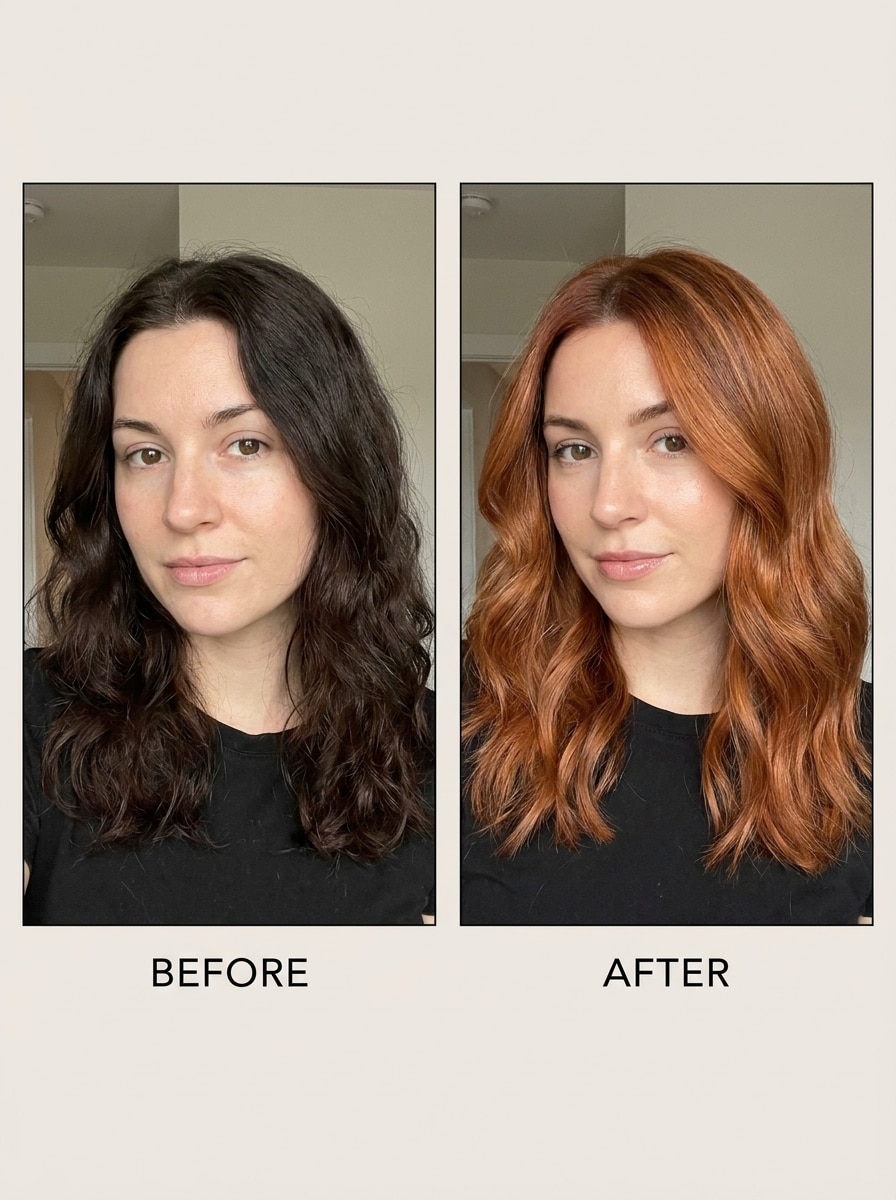
De Cabello Oscuro a Pelirrojo
Usa la foto cargada como sujeto y transforma el cabello marrón oscuro en pelirrojo realista con elevación visible, tono cobre cálido, textura preservada y dimensión de estilo de salón. Mantén las facciones y el peinado intactos, y muestra una transición de color creíble para ayudar al usuario a juzgar si una base oscura puede ser adecuada para tonos pelirrojos.
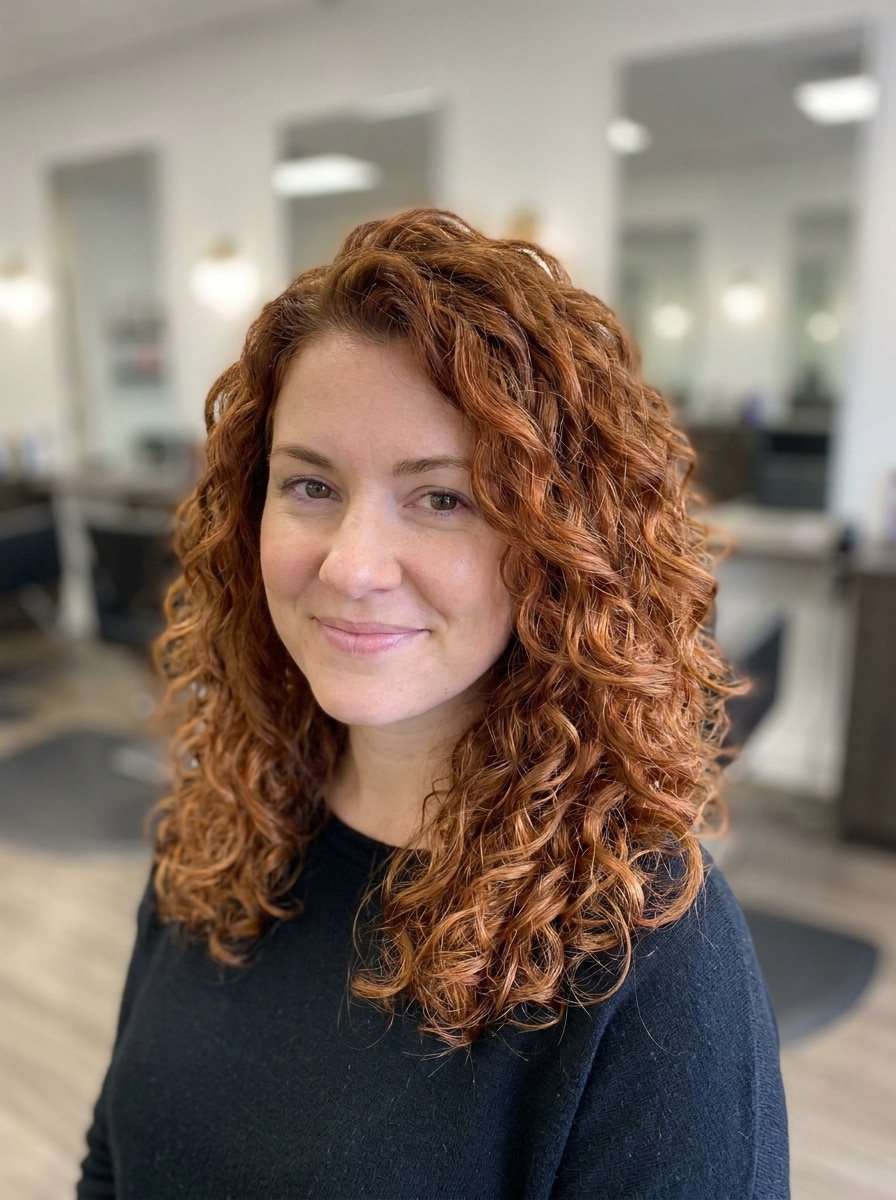
Cabello Pelirrojo Rizado
Usa la foto de cabello rizado cargada como sujeto y aplica un color pelirrojo realista manteniendo la definición, rebote, volumen y textura del rizo. Agrega reflejos cobre dimensionales, profundidad natural y brillo suave de salón, manteniendo el rostro reconocible y el retrato limpio, favorecedor y muy fotorrealista.
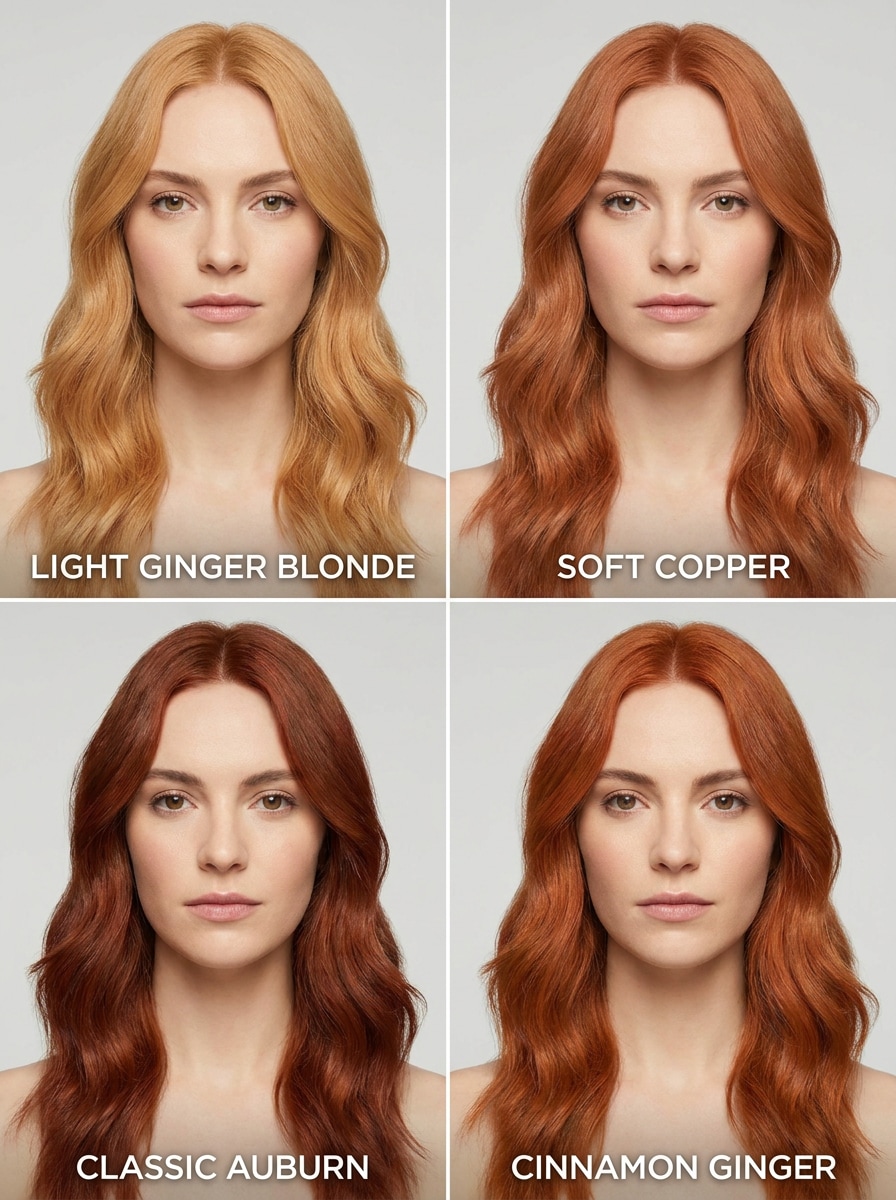
Comparación de Varias Tonalidades de Pelirrojo
Usa el retrato cargado como sujeto y genera una comparación lado a lado mostrando varias opciones pelirrojas, incluidas tonalidades claras, cobre, caoba y canela. Mantén la identidad facial, la pose y la iluminación consistente en todos los paneles para que el usuario pueda comparar matices, profundidad y adecuación general de un vistazo.
Por Qué Usar Media.io para Probar Pelirrojo
Crea múltiples looks con una sola carga
Si el sujeto aún debe verse como sí mismo tras la transformación, Media.io ayuda a mantener las claves de identidad mientras actualiza el estilo visual para un resultado más limpio.
Ajusta el resultado para ediciones realistas de cabello
Diferentes salidas exigen diferentes estéticas. Media.io te ayuda a explorar varios estilos del mismo concepto visual de filtro pelirrojo para que el resultado sea el adecuado más rápido.
Crea imágenes en alta resolución para uso real
Algunos resultados deben lucir bien más allá de la vista previa. Media.io ayuda a generar imágenes más limpias con el filtro pelirrojo en calidad hasta 4K, ideales como fondos, presentaciones y mockups.
Pruébalo fácilmente en móvil o escritorio
Cambiar de dispositivo no debería frenar la producción. Media.io te permite crear, ajustar y descargar imágenes del filtro pelirrojo directamente en el navegador, facilitando el proceso al trabajar entre pantallas.
Cómo Usar el Filtro de Cabello Pelirrojo
Convierte tus palabras en imágenes sorprendentes en tres pasos sencillos, y sigue mejorando el resultado si quieres ir más allá.
Paso 1
Sube tu Imagen de Referencia
Comienza con una selfie o retrato claro en formato JPG, PNG o JPEG. Una foto de frente, con el cabello visible, luz uniforme y un fondo simple suele ofrecer el resultado más realista.
Paso 2
Describe el Cambio y Configura Opciones
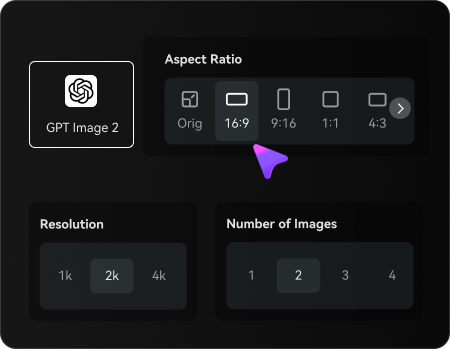
Escribe el tono pelirrojo que quieres, como cobre suave, caoba, canela o rojo cobre brillante. Luego elige tu modelo preferido y ajusta la relación de aspecto, resolución o cantidad de variantes a comparar.
Paso 3
Genera, Descarga y Sigue Mejorando
Crea la vista previa, compara resultados y descarga la versión que prefieras. Si es necesario, afina el prompt, prueba otro tono o genera variantes adicionales hasta encontrar el color adecuado para tu estilo y tono de piel.
Descubre el Potencial del Filtro Pelirrojo de TikTok
Mira cómo los creadores usan este Filtro de Cabello Pelirrojo para contenido, marketing y proyectos personales. Luego adapta cada idea a tu necesidad.
Prueba ideas de salón antes de teñir tu cabello
Comprueba cómo se ven los tonos cobre, caoba o fresa en tu propio retrato antes de agendar una cita de color. Así es más fácil llevar una referencia real a tu estilista en vez de depender de fotos de inspiración que no tienen tu misma fisionomía.
Crea impactantes publicaciones de antes y después
Genera imágenes pulidas para Reels, videos cortos y transformaciones compartibles. Si te gusta el look viral de un este workflow tiktok tendencia, puedes lograr adelantos más limpios y realistas para contenido igualmente natural y favorecedor.
Compara matices para encontrar el mejor match
Prueba varios tonos cálidos en la misma selfie para evaluar brillo, profundidad y armonía con tu piel. Muy útil al decidir entre pelirrojo suave natural, caoba intenso o un acabado inspirado en rojo brillante para el día a día o contenido.
Lo que Dicen los Usuarios
Chloe M.
Creadora de Contenido de Belleza
"Visualizaciones de color realistas" Quería probar tonos cobre sin usar filtros de apps aleatorios. Esto me dio una vista previa mucho más creíble en mi selfie real, y el brillo y la textura se veían sorprendentemente naturales.
Vanessa R.
Cliente de Coloración Capilar
"Útil antes de ir al salón" Lo usé para comparar caoba y tonos pelirrojos claros antes de mi cita. Tener varias versiones de la misma foto facilitó mostrarle a mi estilista lo que buscaba.
Tia L.
Creadora de Lifestyle en TikTok
"Genial para contenido de cambios de look" Buscaba un probador de pelirrojo lo suficientemente pulido para redes. Los resultados sirvieron muy bien para antes y después y fueron más realistas que la mayoría de filtros rápidos.
Erin K.
Estudiante
"Fácil en el móvil" Lo usé desde mi teléfono con una sola selfie y obtuve varias opciones pelirrojas al instante. Fue sencillo ajustar el prompt y repetir hasta encontrar un tono que realmente combinara con mi piel.
Explora los efectos de video e imagen con IA más populares
1. ¿Cómo puedo probar un filtro pelirrojo en mi foto?
Sube una selfie o retrato claro a Media.io, luego escribe el tono pelirrojo que quieres probar, como cobre, caoba o un rojo natural suave. La herramienta usa IA de imagen a imagen para transformar tu foto manteniendo la identidad facial reconocible, así puedes probar cabello pelirrojo en tus fotos con vistas previas realistas.
2. ¿Hay un filtro pelirrojo con IA gratis en línea?
Media.io ofrece créditos gratuitos a nuevos usuarios, así puedes probar el flujo de trabajo del filtro pelirrojo online antes de actualizar. Si necesitas más generaciones o uso avanzado, puedes revisar la página de precios. Los usuarios gratuitos pueden ver marcas de agua, mientras que los planes pagos permiten descargas en alta resolución sin marca. Para más uso, puedes suscribirte. Para más créditos y descargas sin marca, mejora tu plan desde la página de precios.
3. ¿Qué tono pelirrojo se ve más natural en mí?
Eso depende de tu tono de piel, profundidad actual del cabello y qué tan atrevido quieres el resultado. El cobre suave y el rubio pelirrojo claro suelen lucir naturales en pieles claras, mientras caoba, canela y cobre cowboy combinan bien con bases profundas. Media.io te permite comparar varios tonos en el mismo retrato para que no tengas que adivinar con muestras genéricas.
4. ¿Puedo cambiar cabello oscuro a pelirrojo en una vista previa realista?
Media.io puede usar tu retrato cargado como referencia y generar una transformación realista de oscuro a pelirrojo conservando peinado, textura y rasgos faciales. Una foto clara, con cabello visible, suele ayudar a que la IA genere una vista previa más creíble, especialmente si quieres probar cobre o caoba en cabello oscuro.
5. ¿Funciona el filtro pelirrojo en iPhone y Android?
Media.io funciona en la web, así que sirve en iPhone, Android, tablets, Mac y Windows desde el navegador. Es conveniente para una prueba rápida desde el móvil o si prefieres editar en pantalla grande. Media.io es una herramienta online compatible con cualquier dispositivo con navegador (Windows, Mac, iOS, Android).
6. ¿Cuánto tarda en generarse una prueba pelirroja?
Normalmente sólo toma un momento tras subir tu imagen y enviar el prompt, aunque la velocidad varía según el modelo y opciones elegidas. El flujo de trabajo está diseñado para ser rápido y conveniente desde el navegador, ideal para prueba de selfies y comparar varias tonalidades en poco tiempo.