Tus creaciones solo se guardan durante 7 días. Los recursos creados después de actualizar a Membresía se almacenarán de forma permanente.
¡Desbloquea tu potencial creativo y experimenta la magia de Media AI ahora mismo!
Añade flores a fotos con IA para ediciones de retratos realistas
Usa la IA para añadir flores a retratos, selfies, fotos de bodas y fotos creativas en segundos. Media.io te ayuda a crear un efecto fotográfico de flores natural, desde flores Suaves en el cabello hasta un efecto completo de pétalos cayendo, con fusión realista en Teléfono o escritorio.
Escribe tu idea -> La IA la diseña. Pruébalo gratis.
Revisa estas instrucciones de ejemplo y luego ajusta los detalles del prompt para obtener mejores resultados con esta herramienta para añadir flores a fotos.
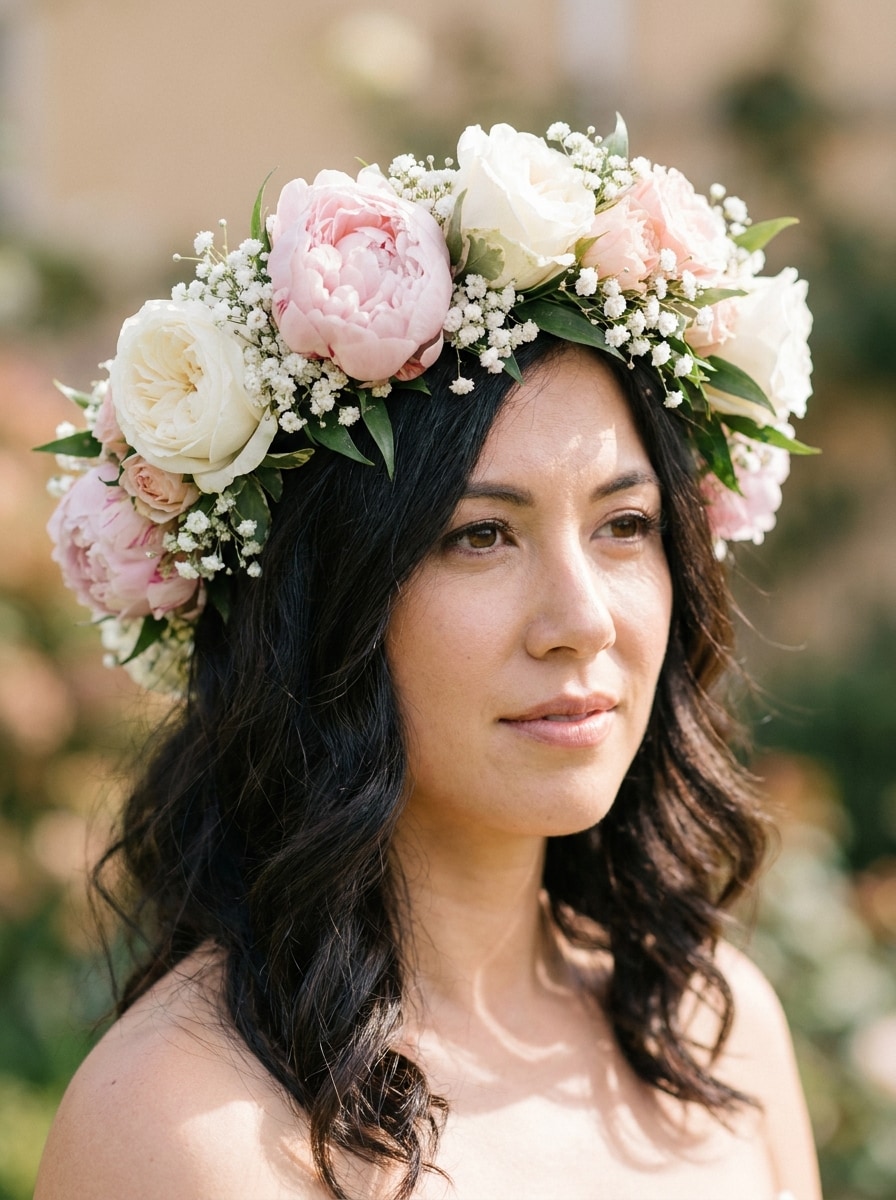
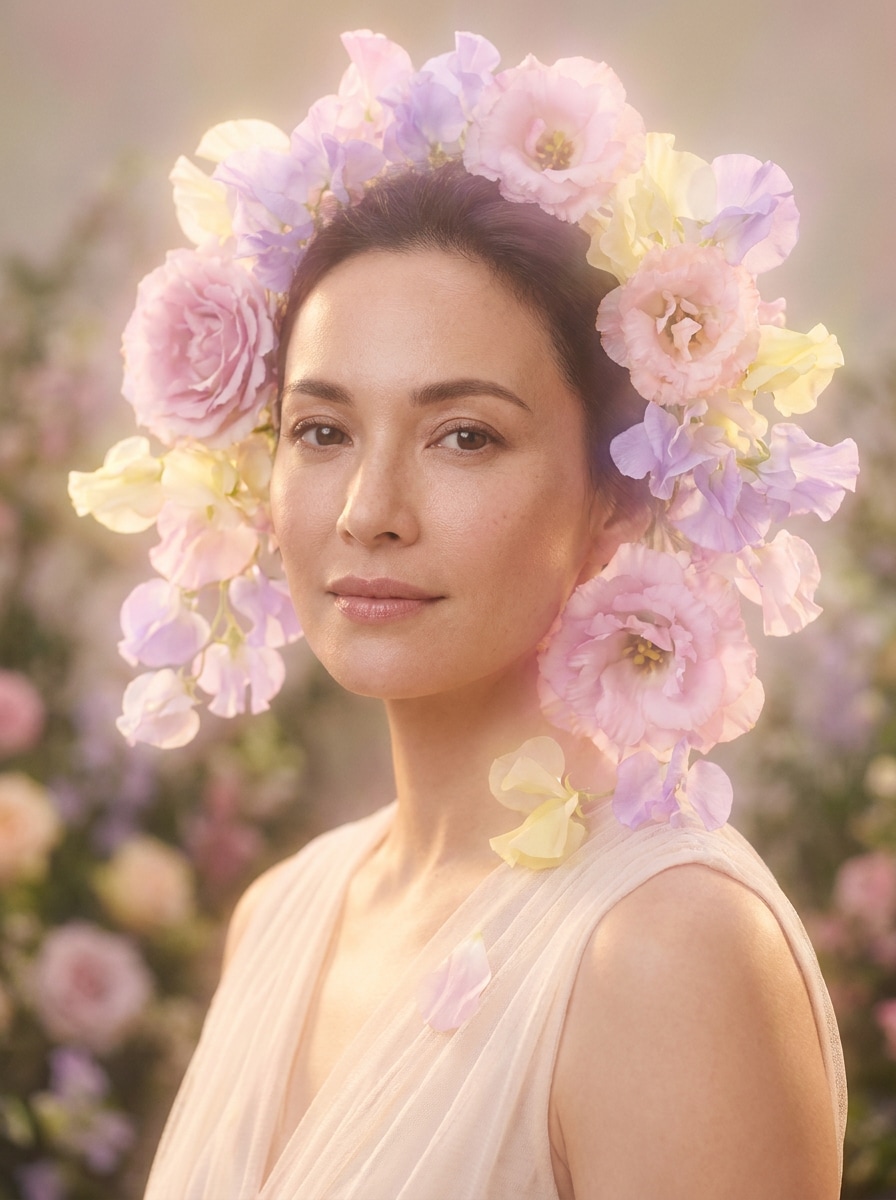
Retrato con corona de flores
Usa la imagen cargada como sujeto y añade una corona de flores realista hecha de peonías rosa rubor, rosas blancas y pequeñas flores de paniculata. Mantén la textura original del cabello, el ángulo de la cabeza y el tono de piel, con luz natural Suave, calidad elegante de retoque de Belleza, Profundidad de campo sutil y un ambiente romántico editorial.
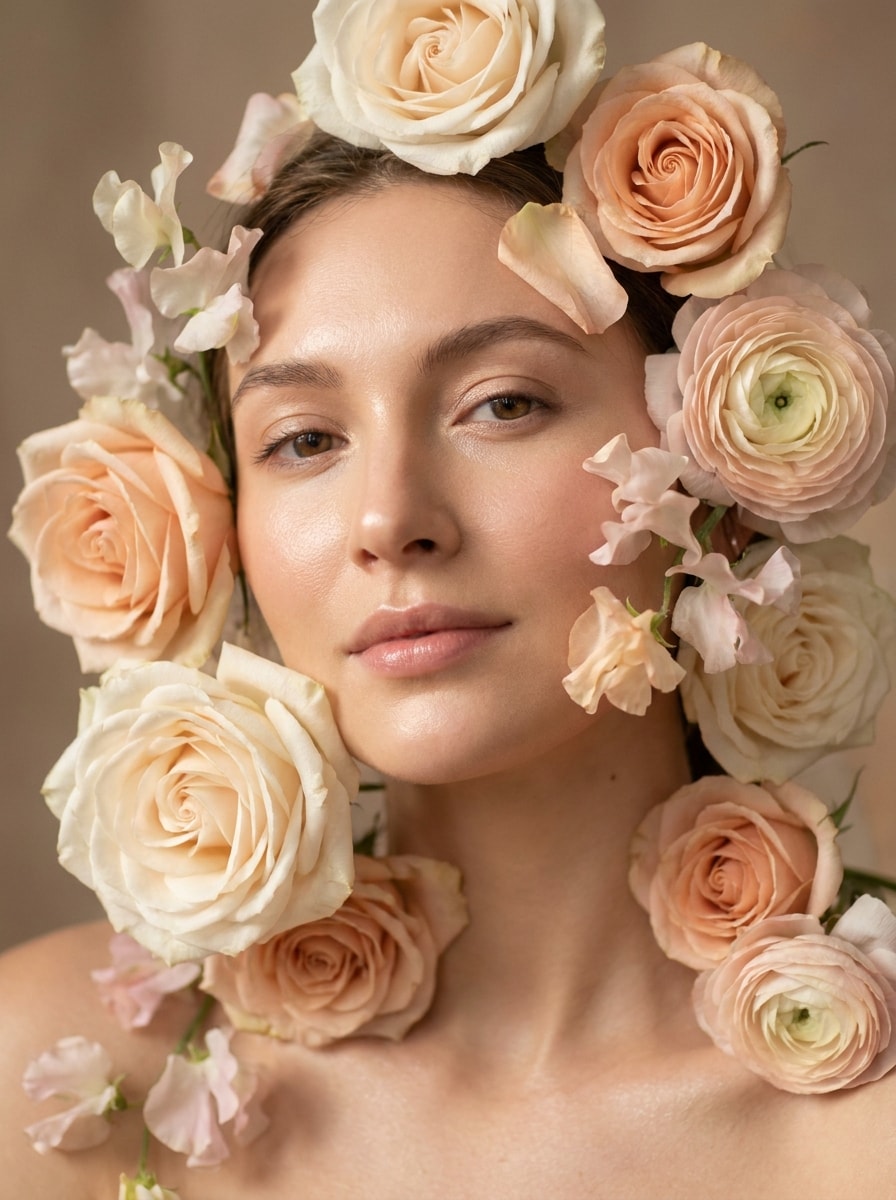
Flores alrededor del rostro
Usa el retrato subido como base y rodea el rostro con delicadas flores en tonos suaves de marfil, melocotón y rosa pálido. Mantén los rasgos faciales completamente claros, mezcla los pétalos de forma natural con la iluminación, añade un ambiente soñador de editorial de Belleza, textura sedosa, reflejos Suaves y un sutil desenfoque de fondo.
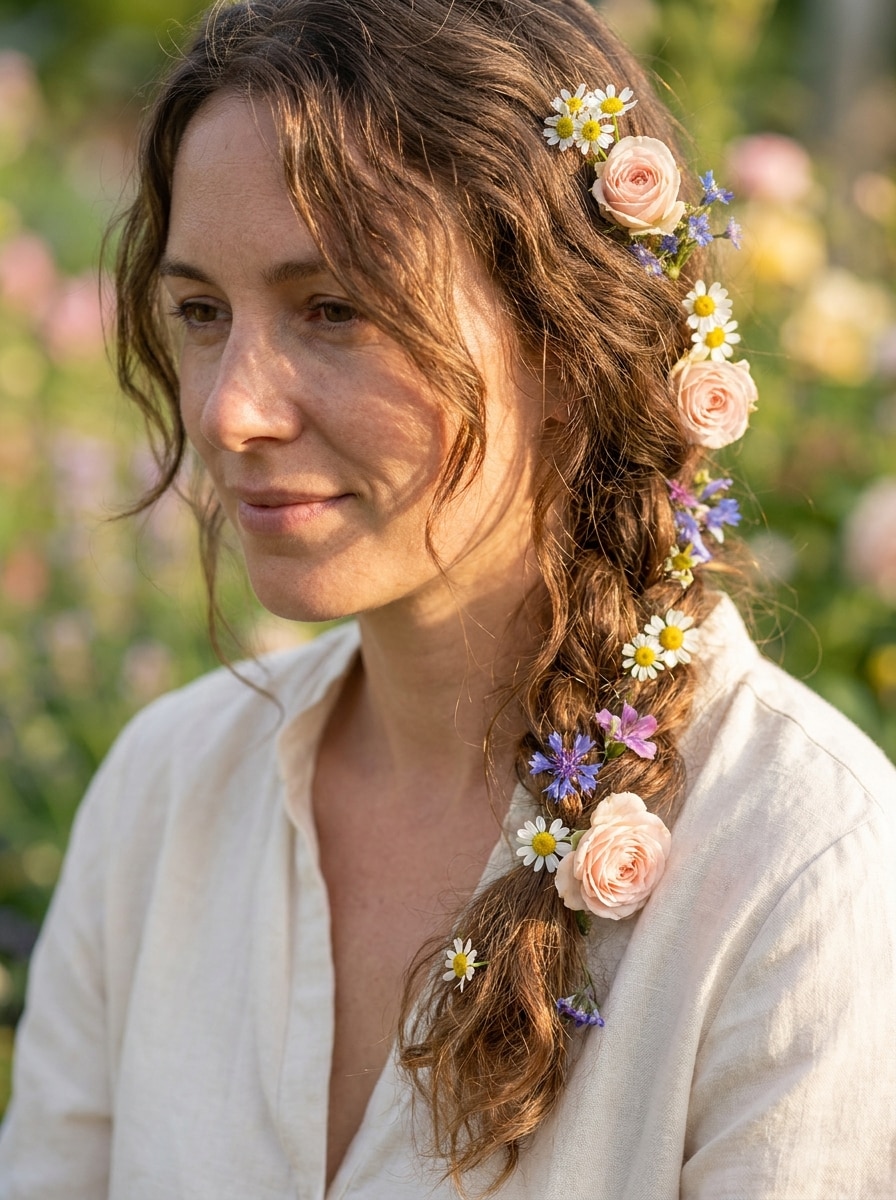
Flores en el cabello
Usa la imagen cargada como sujeto y coloca flores frescas insertadas en el cabello, mezclando pequeñas rosas, margaritas y flores silvestres. Sigue la dirección natural del peinado, conserva los mechones sueltos y las sombras, usa luz cálida de hora dorada, colores pastel Suaves y un acabado romántico pero fotorrealista.
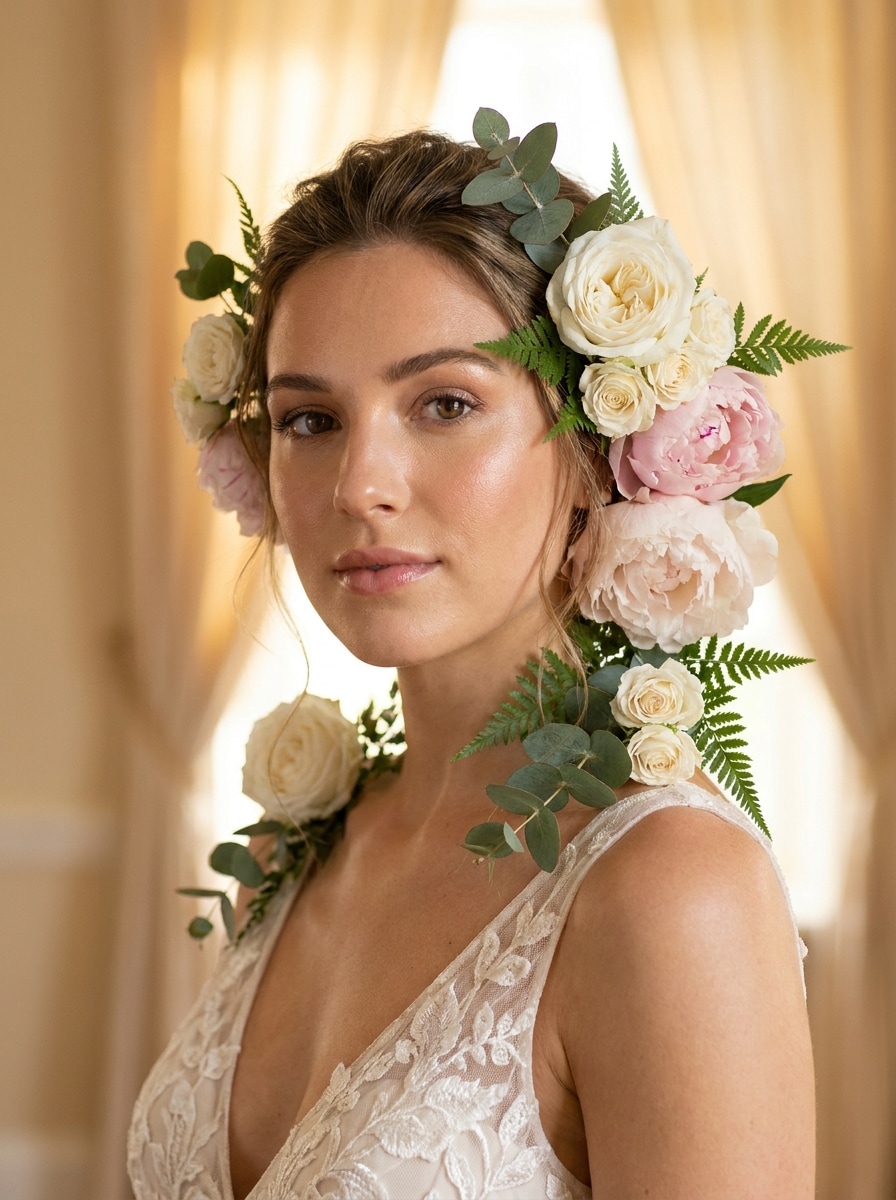
Glamour floral nupcial
Usa la foto subida y mejórala con arreglos florales nupciales refinados de rosas blancas, peonías rosadas y delicada vegetación alrededor de la línea del cabello y los hombros. Iguala la iluminación de foto de boda, mantén los tonos de piel luminosos y naturales, añade texturas Suaves de lujo y crea un retrato romántico pulido y de alta gama.
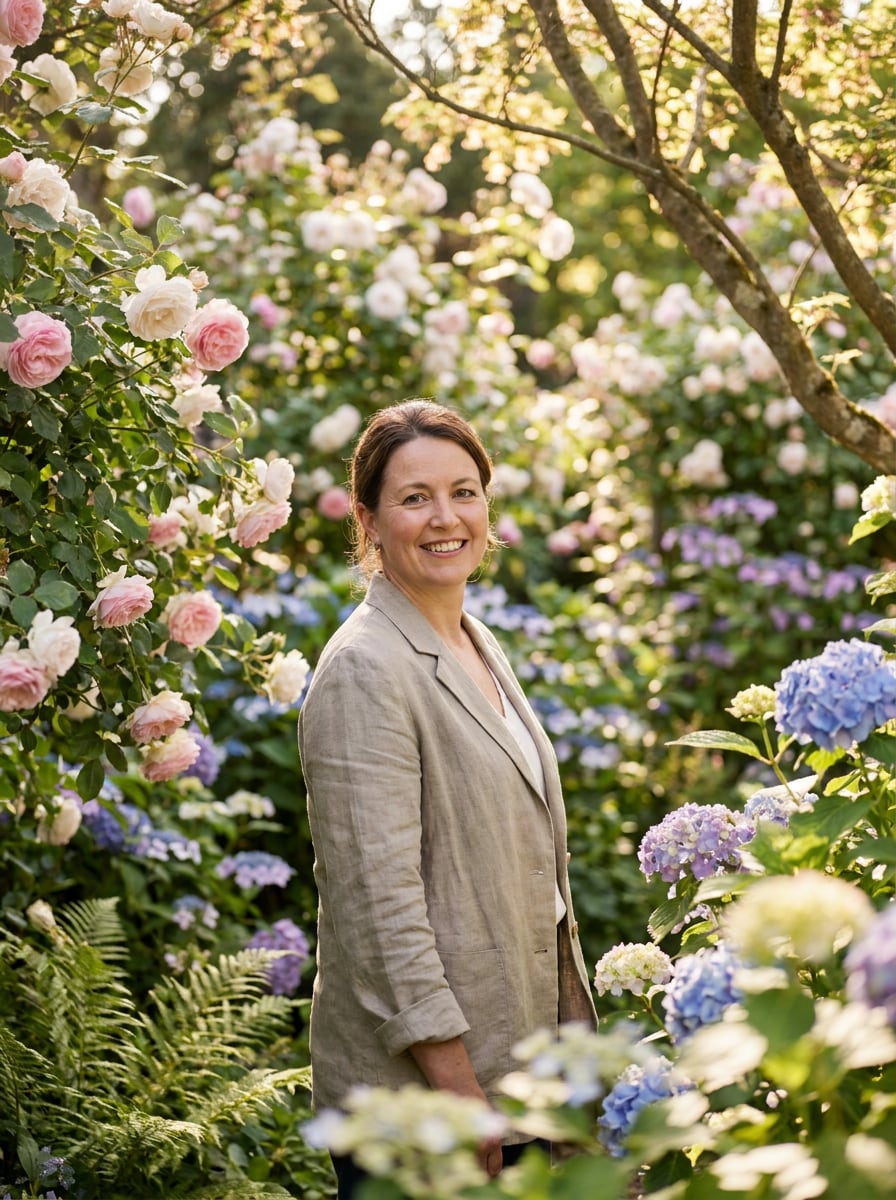
Fondo de jardín en flor
Usa la imagen subida como sujeto y Transformara el fondo en un exuberante jardín en flor lleno de rosas, hortensias y vegetación Suave. Mantén a la persona nítida y realista, añade Profundidad de campo floral en capas, luz solar moteada, colores frescos de primavera y una atmósfera cinematográfica al aire libre.
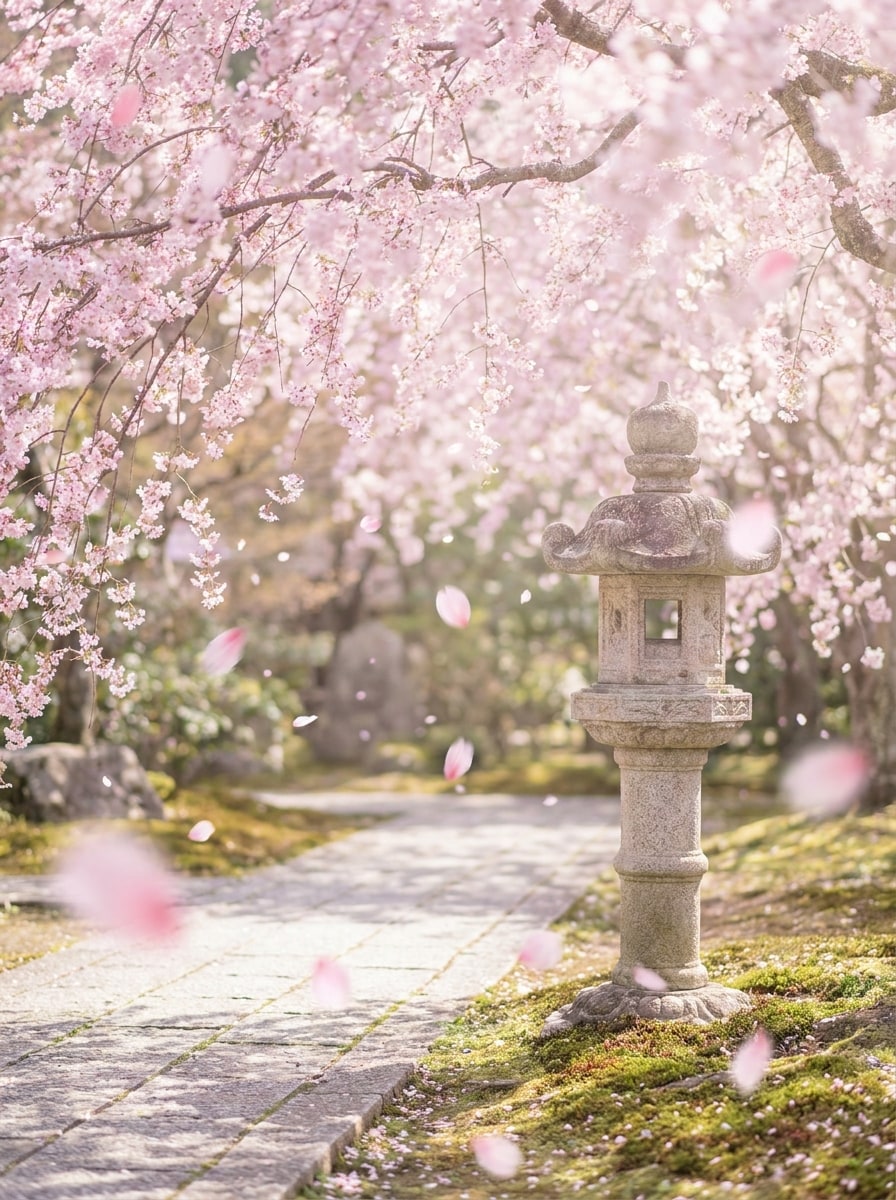
Escena de flores de cerezo
Usa la foto cargada como base y añade ramas de cerezo en flor y pétalos rosas flotando alrededor de la escena. Iguala el ángulo de la cámara y la luz Ambiente, conserva el sujeto con claridad, usa colores primaverales aireados, reflejos Suaves, movimiento sutil y una atmósfera de sakura soñadora pero realista.
Edición de aura floral
Usa el retrato cargado como sujeto y crea un aura floral brillante y Suave alrededor del cuerpo con flores en tonos pastel, pétalos translúcidos y un sutil resplandor de luz. Mantén el rostro sin obstrucciones, fusiona el efecto de forma natural con la iluminación original y apunta a un ambiente etéreo de fantasía editorial.
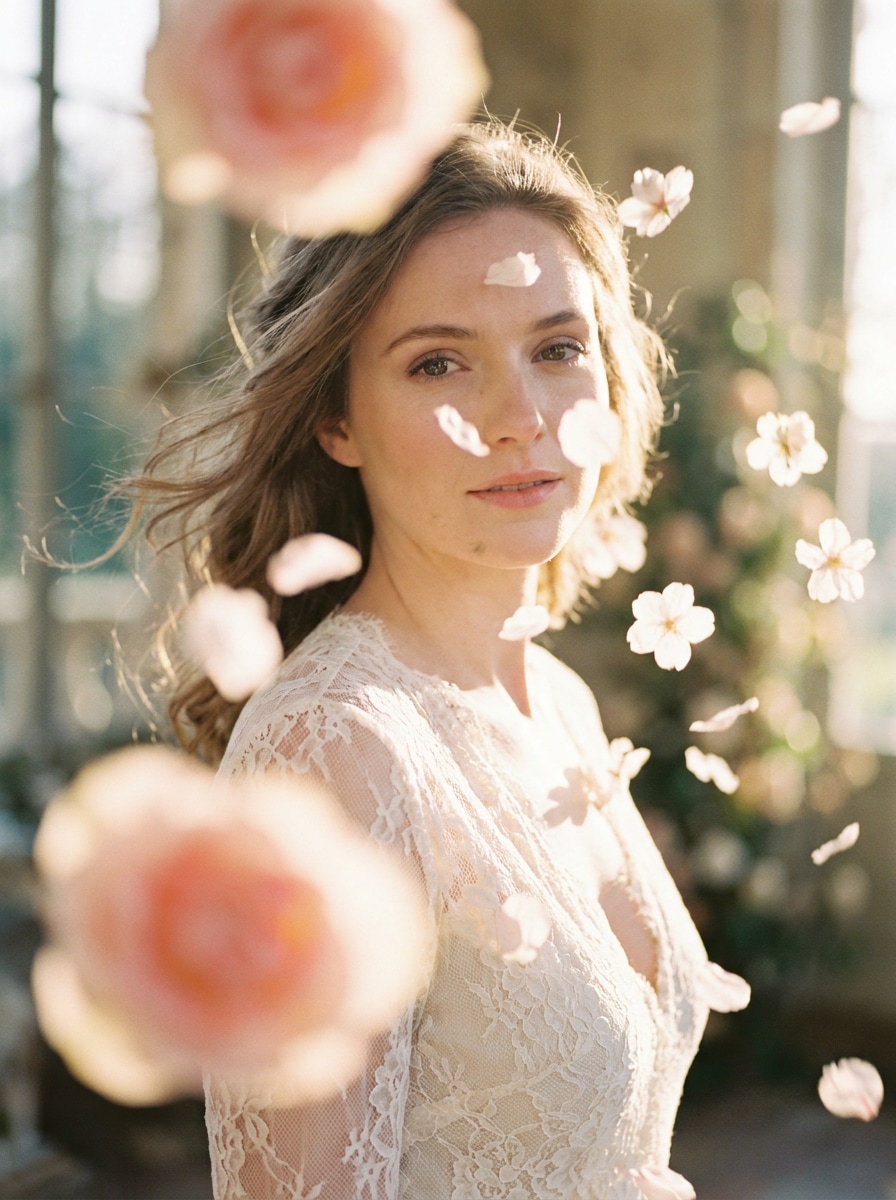
Retrato con pétalos superpuestos
Usa el retrato cargado y añade pétalos de flores flotantes en el primer plano y plano medio, con movimiento realista, profundidad y sombras Suaves. Mantén el sujeto nítido, usa iluminación cinematográfica romántica, tonos rubor y marfil, y crea un aspecto elegante de editor de fotos con pétalos de rosa sin cubrir el rostro.
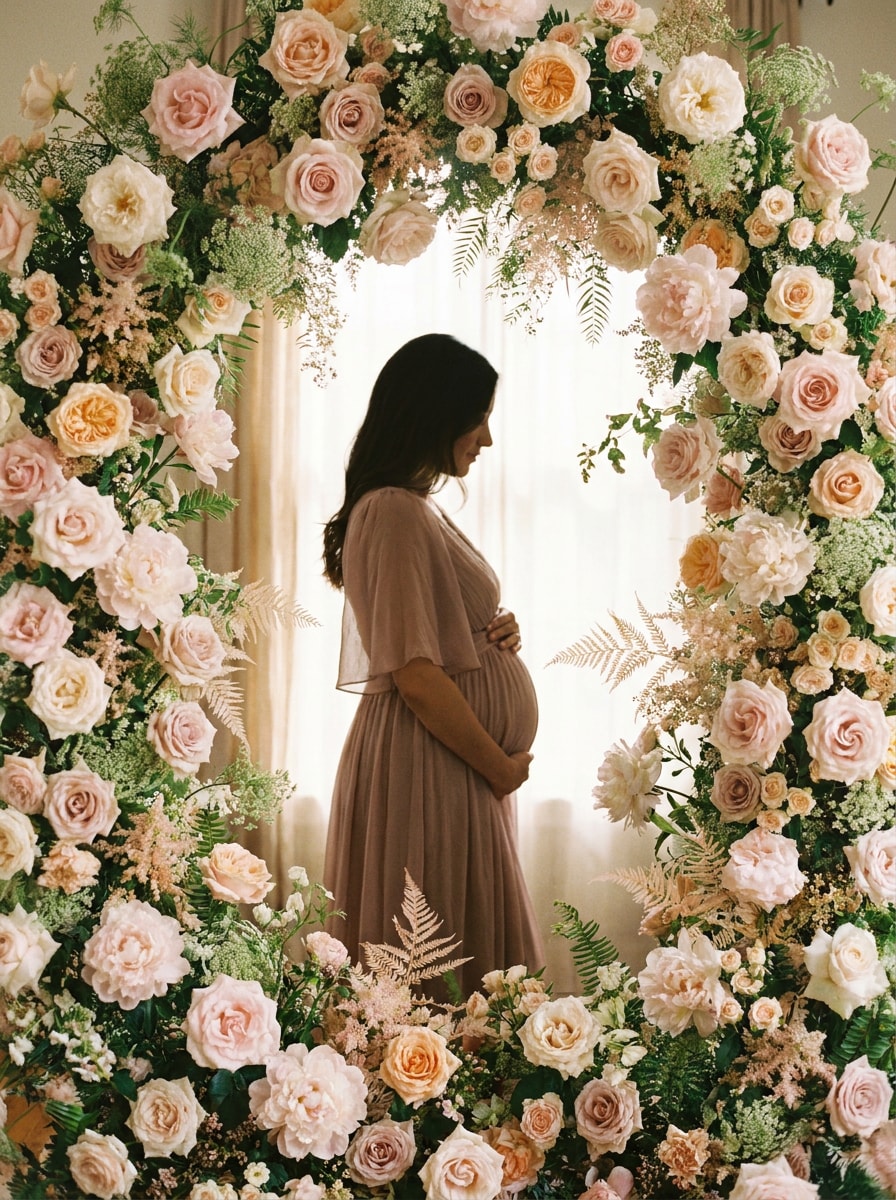
Retrato floral de maternidad
Usa la foto de maternidad cargada como base y añade flores Suaves en tonos pastel alrededor del sujeto, enmarcando la silueta con rosas, peonías y vegetación aireada. Mantén la pose elegante, la iluminación suave y natural, la paleta cálida y tierna, y la imagen final íntima y sofisticada.
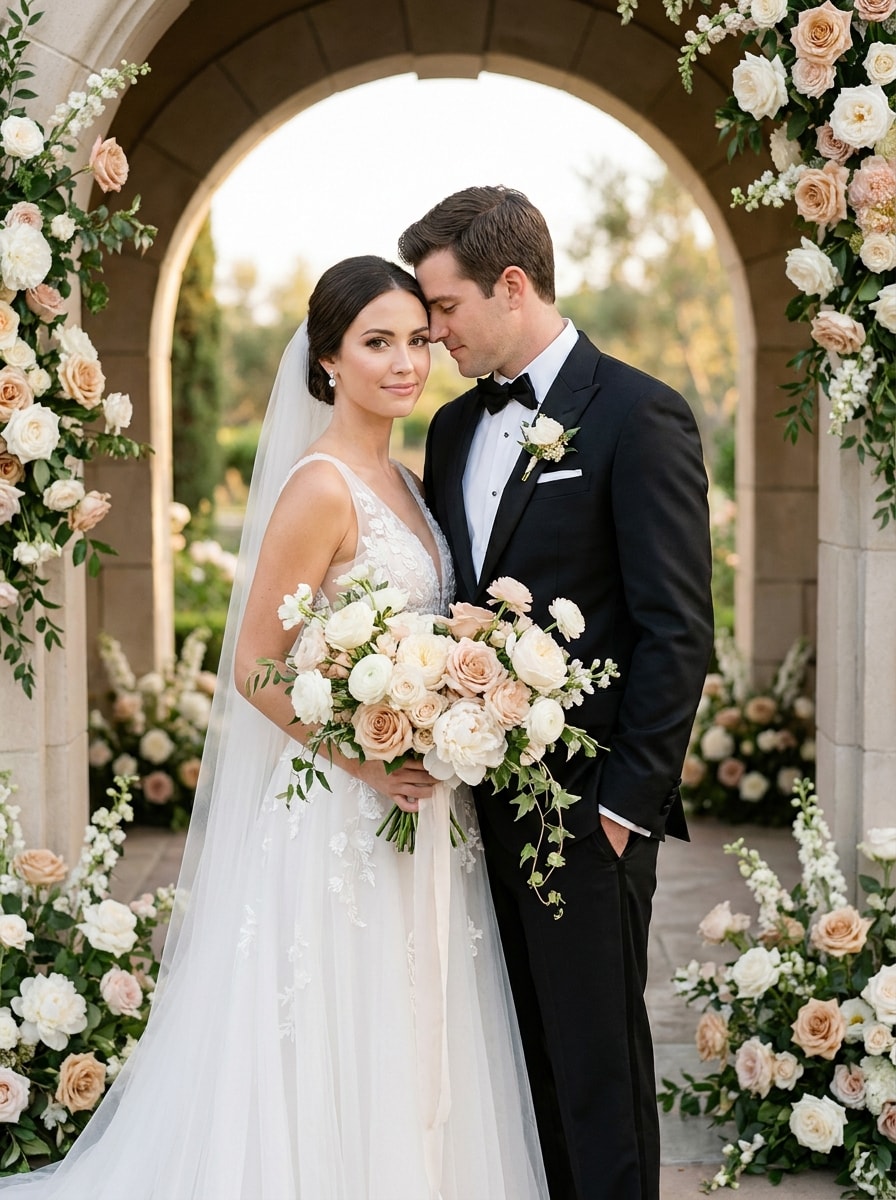
Mejora floral para bodas
Usa la foto de boda cargada y añade flores elegantes al ramo, los bordes del encuadre o el fondo usando flores blancas, rubor y champán. Iguala la iluminación y la armonía de color de la imagen, conserva los rostros y los detalles de la ropa, y crea un acabado editorial de boda Premium y realista.
Por qué usar Media.io como editor de fotos florales con IA
Las ediciones basadas en referencia mantienen los rostros y la identidad reconocibles
Para publicaciones en redes sociales, visuales de marca o maquetas que aún necesitan parecerse a la persona original, Media.io ayuda a preservar los rasgos reconocibles mientras aplica un estilo de añadir flores a fotos que se mantiene alineado con el sujeto.
Control sencillo sobre calidad, Recortar y variaciones
Diferentes resultados requieren diferentes estéticas. Media.io te ayuda a explorar tratamientos variados del mismo concepto de añadir flores a fotos para que el visual final alcance el tono adecuado más rápido.
Mantén los visuales finales nítidos para proyectos reales
Algunos resultados necesitan hacer más que verse bien en una vista previa. Media.io ayuda a generar imágenes más limpias al añadir flores a fotos con una resolución de hasta 4K para que la imagen final se mantenga en fondos de pantalla, presentaciones y maquetas.
Crea en el navegador desde cualquier dispositivo
Para creadores que alternan entre móvil y escritorio, Media.io mantiene la Creación de añadir flores a fotos en el navegador para que el flujo de trabajo sea práctico dondequiera que estés trabajando.
Cómo añadir flores a una foto en minutos
Convierte tus palabras en visuales impresionantes en tres sencillos pasos y luego continúa refinando el resultado si quieres llevarlo más lejos.
Paso 1
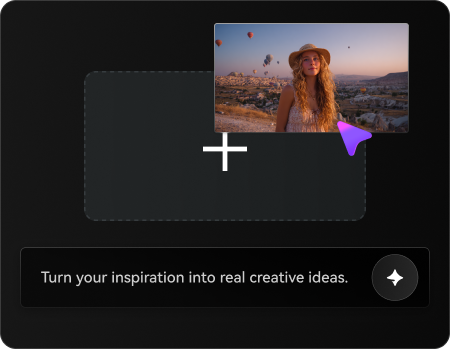
Sube tu imagen de referencia
Comienza con un retrato claro, selfie, imagen de boda, foto de maternidad o foto de producto en JPG, PNG o JPEG. Una referencia limpia y bien iluminada ayuda a Media.io a colocar flores, pétalos y detalles florales de forma más natural alrededor de tu sujeto.
Paso 2
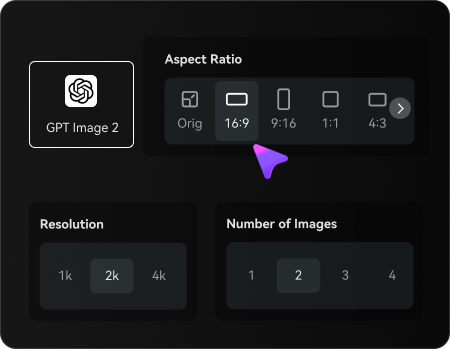
Describe el cambio y configura las opciones
Escribe lo que quieres crear, como añadir flores a una foto, poner rosas en el cabello, crear una corona de flores o aplicar un filtro de pétalos de sakura. Luego elige tu modelo y ajusta la Relación de aspecto, la calidad y el número de variaciones de imagen.
Paso 3
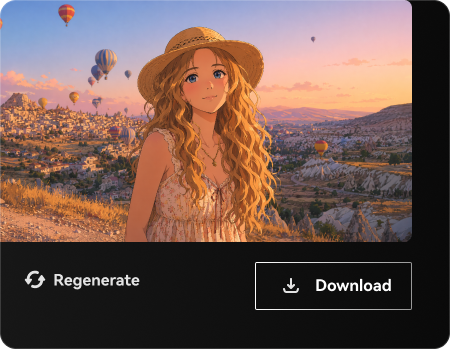
Genera, descarga y sigue mejorando
Crea tu imagen editada, compara versiones y descarga el resultado que más te guste. Puedes refinar el prompt, Regenerar con un estilo floral diferente o continuar la Edición hasta que las flores, los colores y la composición se sientan perfectos.
Desbloquea el potencial de añadir flores a una foto
Descubre cómo los creadores usan este efecto de añadir flores a fotos para contenido, marketing y proyectos personales, y luego adapta cada idea a tu necesidad.
Mejoras de retratos románticos para perfiles sociales
Convierte selfies cotidianos en retratos de Belleza pulidos con flores en el cabello, flores Suaves alrededor del rostro o un aura floral soñadora. Esto es ideal si quieres añadir flores a una foto para Instagram, fotos de perfil, branding de creadores o contenido estacional de primavera.
Fotos de bodas y maternidad con un estilo floral más Suave
Mejora imágenes de momentos importantes sin organizar una sesión fotográfica completa. Media.io te permite añadir pétalos a escenas fotográficas, crear un aspecto de añadir marco de flores a la foto o generar una atmósfera romántica de jardín que se sienta elegante y personal.
Visuales creativos de productos y eventos sin retoque manual
Usa Media.io como un editor fotográfico floral con IA para invitaciones, campañas de Belleza, maquetas de regalos o fotos de productos boutique. Te ayuda a añadir flores, pétalos decorativos, una superposición inspirada en rosas o incluso un filtro ligero de pétalos de sakura más rápido que la Edición manual Capa por Capa en software de diseño tradicional.
Lo que dicen los usuarios sobre la Edición de fotos florales de Media.io
Lena Park
Creadora de estilo de vida
"Retratos florales hermosos y rápidos" La usé para añadir flores alrededor de mi rostro para una foto de perfil de primavera, y el resultado se veía mucho más natural que una app de stickers. La iluminación combinó muy bien con mi selfie.
Marissa Cole
Fotógrafa de bodas
"Útil para mejoras rápidas de bodas" A veces un cliente quiere un fondo floral más Suave después de la sesión. Media.io facilitó añadir flores y pétalos adicionales manteniendo a la pareja y los tonos de piel realistas.
Tia Nguyen
Propietaria de pequeño negocio
"Genial para imágenes promocionales y tarjetas" La usé para crear visuales florales de productos y diseños de tarjetas de regalo. Cambiar la Relación de aspecto para diferentes publicaciones fue sencillo, y obtuve varias versiones utilizables en una sola ronda.
Avery Brooks
Editora de contenido móvil
"Fácil en el Teléfono y en el escritorio" Quería una edición rápida de flores de cerezo en mi Teléfono y la terminé en minutos. Luego reabrí el proyecto en el escritorio para una descarga de mayor calidad, lo cual se adaptó perfectamente a mi flujo de trabajo.
Explora los efectos de video e imagen con IA más populares
Preguntas frecuentes sobre añadir flores a las fotos
1. ¿Cómo puedo añadir flores a una foto con IA?
Sube tu imagen a Media.io, luego introduce un prompt describiendo el cambio floral que deseas, como añadir una corona de flores, flores en el cabello, un fondo floral o superponer pétalos de forma Suave. Media.io usa tu foto original como referencia, por lo que la edición se mantiene alineada con tu sujeto, pose y composición general.
2. ¿Puedo añadir flores a una imagen gratis?
Los usuarios gratuitos pueden probar Media.io con créditos gratuitos para probar ediciones florales y variaciones. Si necesitas más generaciones o descargas adicionales, consulta la página de precios. Las exportaciones gratuitas pueden incluir una marca de agua, mientras que los planes de pago admiten descargas en alta resolución sin marca de agua.
3. ¿Puedo poner flores en el cabello o crear una corona de flores a partir de una foto?
Sí. Media.io funciona bien para ediciones como poner flores en el cabello, crear una corona de flores realista o lograr un aspecto similar al de un editor de fotos con pétalos de rosa alrededor del rostro y los hombros. Sube un retrato claro, describe el tipo de flor y la ubicación que deseas, y genera algunas variaciones para encontrar el resultado más favorecedor.
4. ¿La edición de flores se verá realista o como una pegatina?
Depende de la imagen de origen y del prompt, pero Media.io está diseñado para la Edición de imagen a imagen que sigue la iluminación, el ángulo y las características visibles en tu imagen subida. Eso ayuda a Media.io a integrar los elementos florales de manera más natural que las herramientas simples de superponer, especialmente cuando deseas añadir flores a escenas fotográficas que se sientan parte de la toma original.
5. ¿Puedo añadir flores a retratos, fotos de boda o selfies?
Puedes usar Media.io en retratos, fotos de bodas, selfies, imágenes de maternidad e incluso Tomas de producto. Funciona bien para añadir flores alrededor de una persona, convertir un fondo simple en un escenario floreciente, aplicar un marco floral o crear un efecto fotográfico suave de pétalos cayendo para imágenes de ocasiones especiales.
6. ¿Este editor de fotos con flores funciona en iPhone, Android y escritorio?
Media.io es un editor basado en la web que funciona en navegadores modernos en iPhone, Android, Windows y Mac. Eso facilita comenzar una edición floral rápida en el móvil y luego volver al mismo proyecto en el escritorio para comparar resultados o descargar una versión final en alta resolución.