Tus creaciones solo se guardan durante 7 días. Los recursos creados después de actualizar a Membresía se almacenarán de forma permanente.
¡Desbloquea tu potencial creativo y experimenta la magia de Media AI ahora mismo!
Añade un bocadillo de Discurso a una imagen para memes, publicaciones y cómics
Usa Media.io para añadir un bocadillo de Discurso a una imagen en segundos. Sube tu foto, conviértela en un meme, viñeta de cómic, recurso visual educativo o llamada de producto, y luego personaliza los estilos de bocadillos de Discurso, pensamiento y texto con exportaciones limpias para compartir en redes sociales. Esta configuración funciona bien para añadir bocadillos de Discurso a fotos gratis. Los creadores suelen usarla para añadir un bocadillo de texto a fotos.
Escribe tu idea -> La IA la diseña. Pruébalo gratis.
Revisa estas instrucciones de ejemplo y luego ajusta los detalles del prompt para obtener mejores resultados con Media.io cuando quieras añadir un bocadillo de Discurso a Diseños de fotos, insertar un bocadillo de Discurso en escenas fotográficas o crear una Edición más pulida basada en bocadillos. También es una opción práctica para añadir un bocadillo de palabras a una foto. Este flujo de trabajo es especialmente útil para añadir un bocadillo de dibujo animado a una foto.
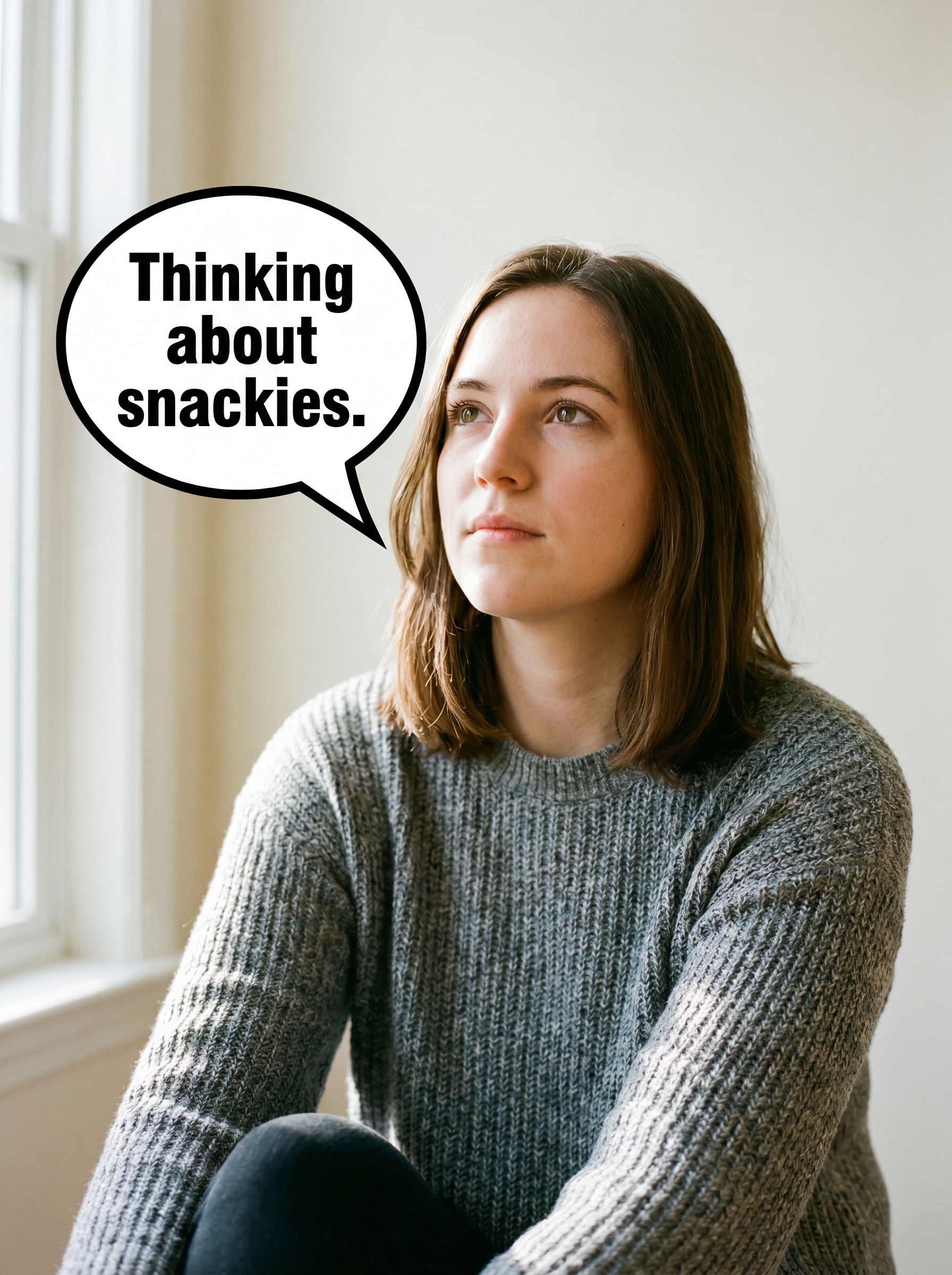
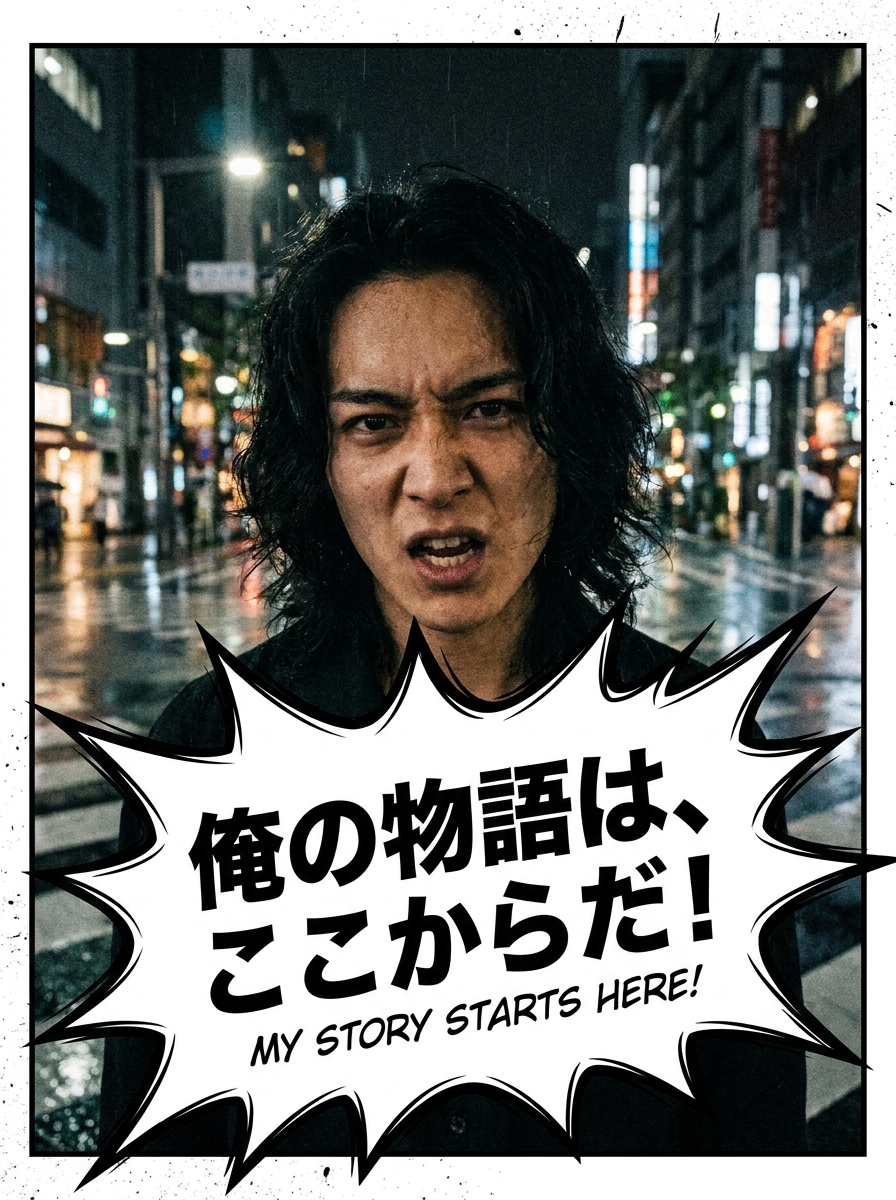
Contorno blanco de cómic
Usa la imagen subida como sujeto principal y añade un bocadillo de Discurso blanco clásico de cómic con un contorno negro grueso cerca del rostro. Mantén la foto original clara y reconocible, usa un contraste nítido, un espaciado equilibrado y texto corto estilo meme con un tono viral y divertido de internet.
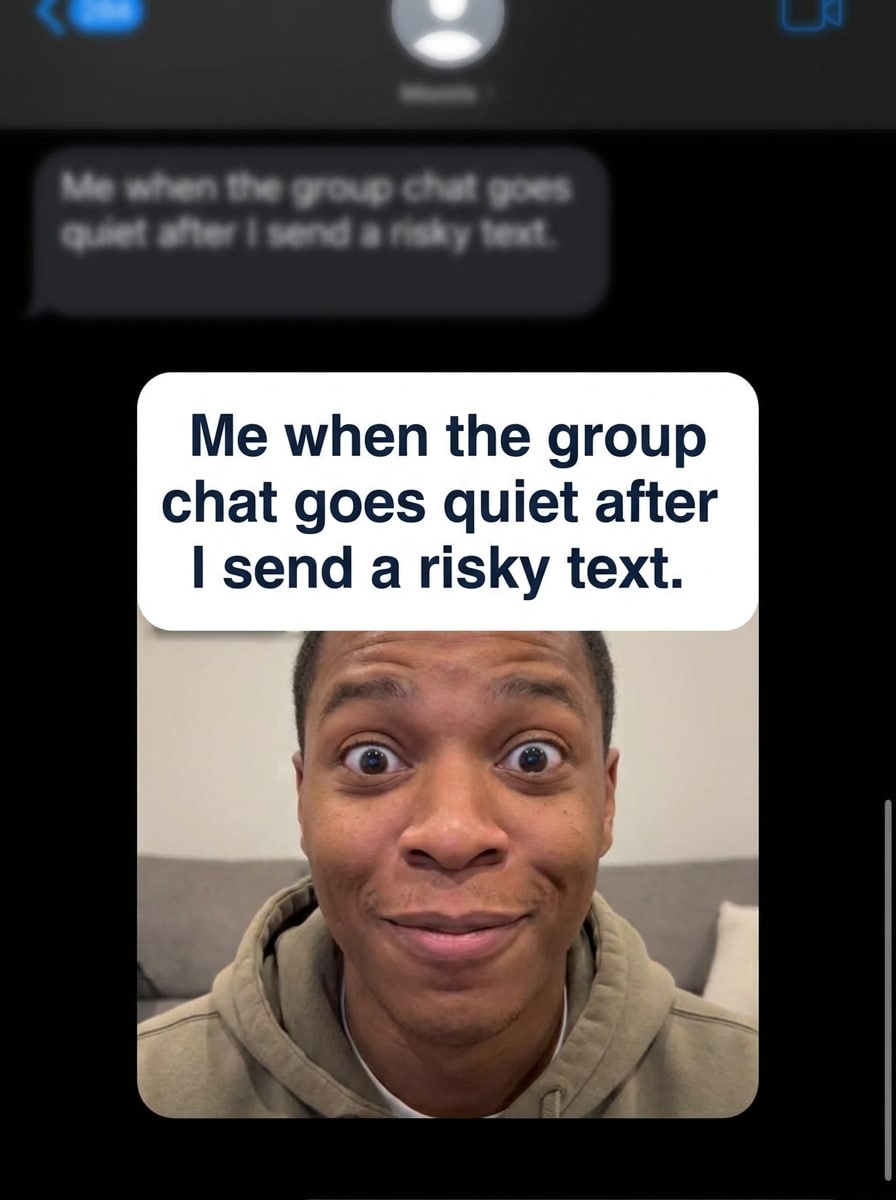
Meme de reacción para Discord
Usa la imagen subida como sujeto y conviértela en un meme de reacción con un bocadillo de Discurso redondeado y texto corto e impactante. Mantén la expresión prominente, coloca el bocadillo para una lectura rápida, usa un Diseño adaptado a chats sociales y conserva la foto mientras añades energía humorística.
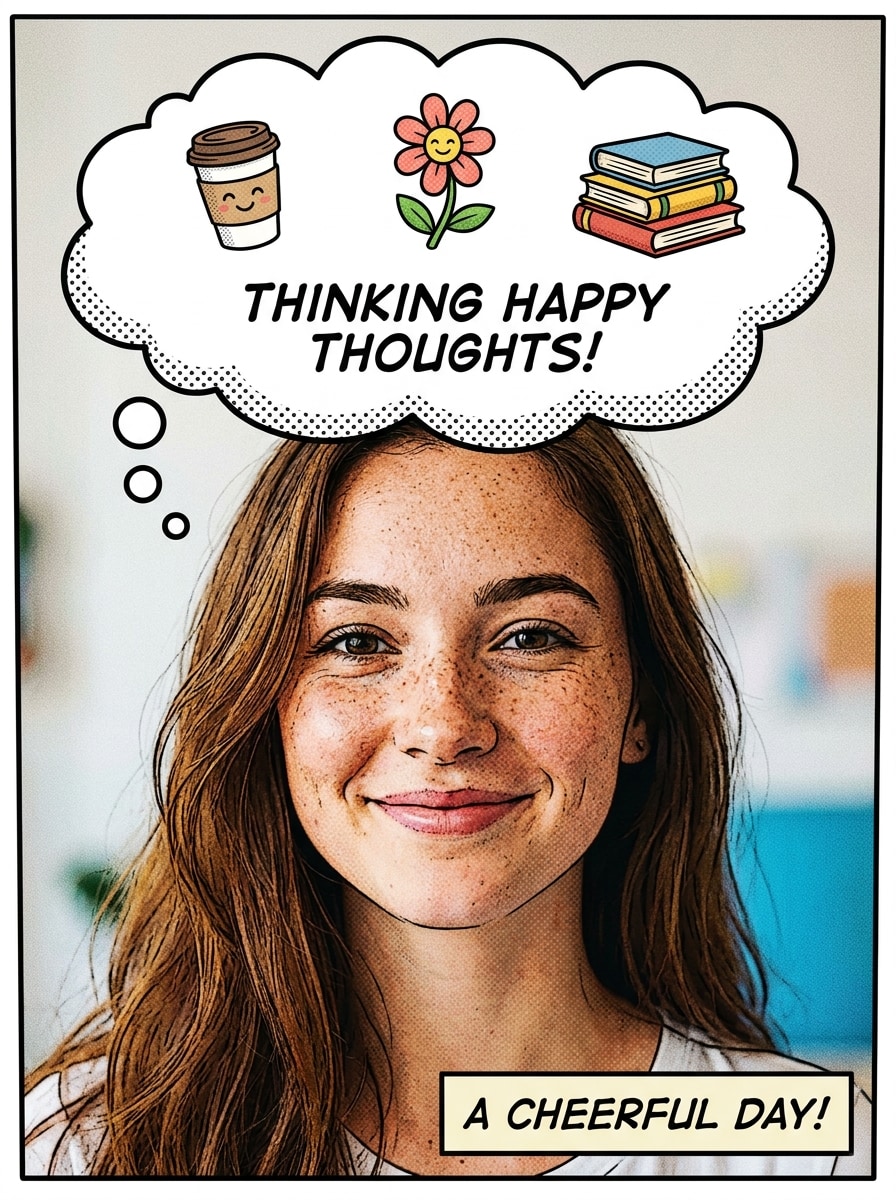
Bocadillo de pensamiento de dibujo animado
Usa la imagen subida como personaje principal y añade un bocadillo de pensamiento en forma de nube con pequeños círculos que apunten hacia la cabeza. Mantén un tono divertido y caricaturesco, deja espacio para texto legible y conserva una composición ordenada y equilibrada que funcione para ediciones divertidas o narrativas.
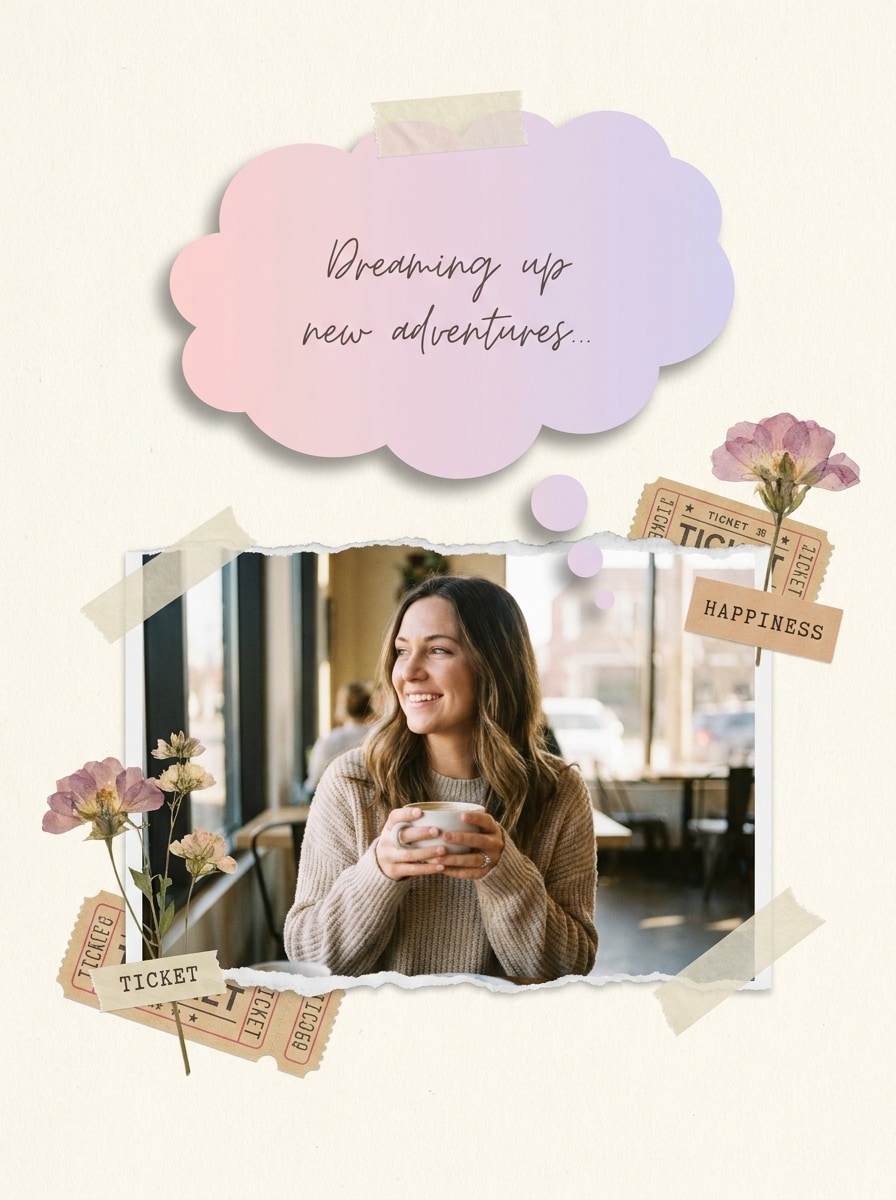
Bocadillo de pensamiento en tonos pastel
Usa la imagen subida como sujeto focal y añade un bocadillo de pensamiento en tonos pastel Suave con sombra sutil y encanto de álbum de recortes. Mantén los colores en rosa claro, crema y lavanda, conserva el rostro original claramente visible y crea un ambiente lindo para publicaciones sociales con espacio para texto estilo manuscrito.
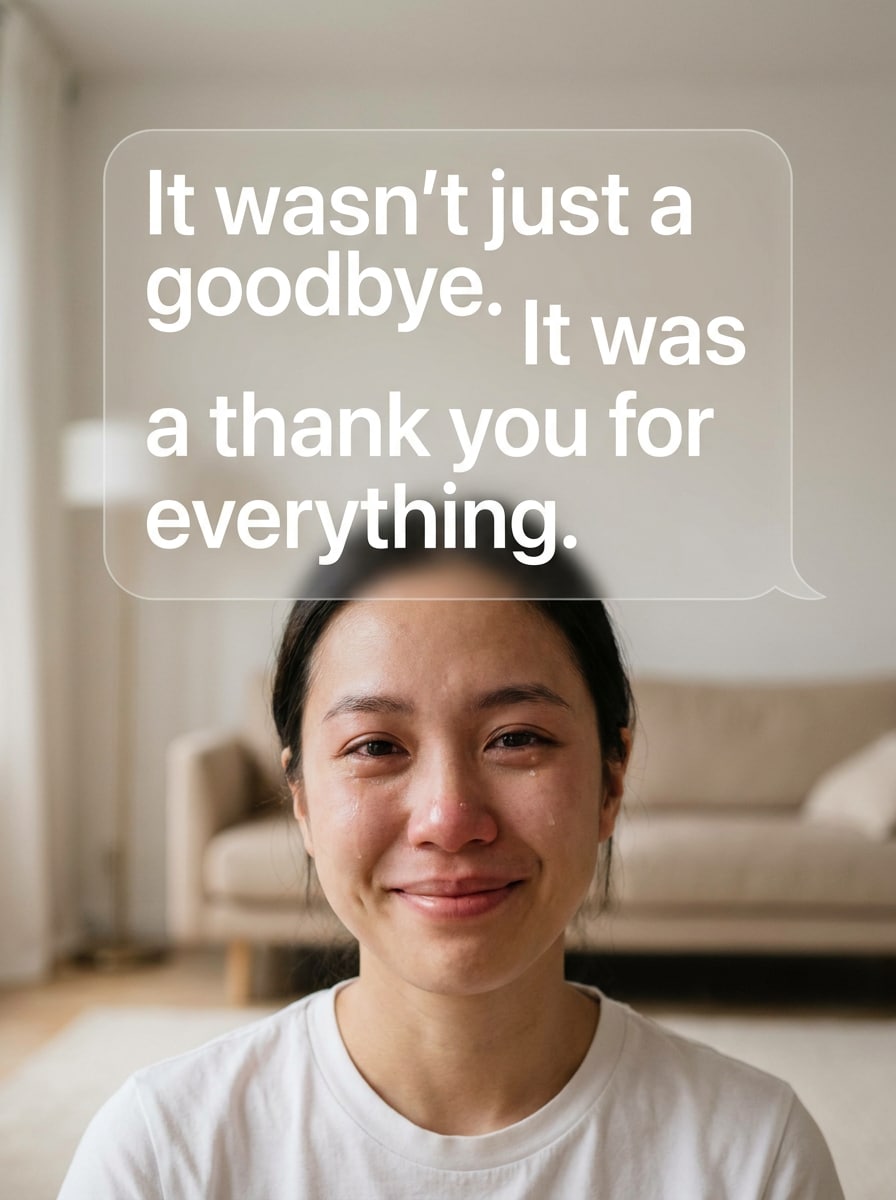
Bocadillo de confesión en POV
Usa la imagen subida y coloca un bocadillo de Discurso grande y moderno en un Diseño vertical para una publicación estilo POV o confesión. Haz que el área de texto sea muy legible en dispositivos móviles, mantén el sujeto visible, usa un espaciado limpio y crea una sensación de narrativa social emotiva o divertida.
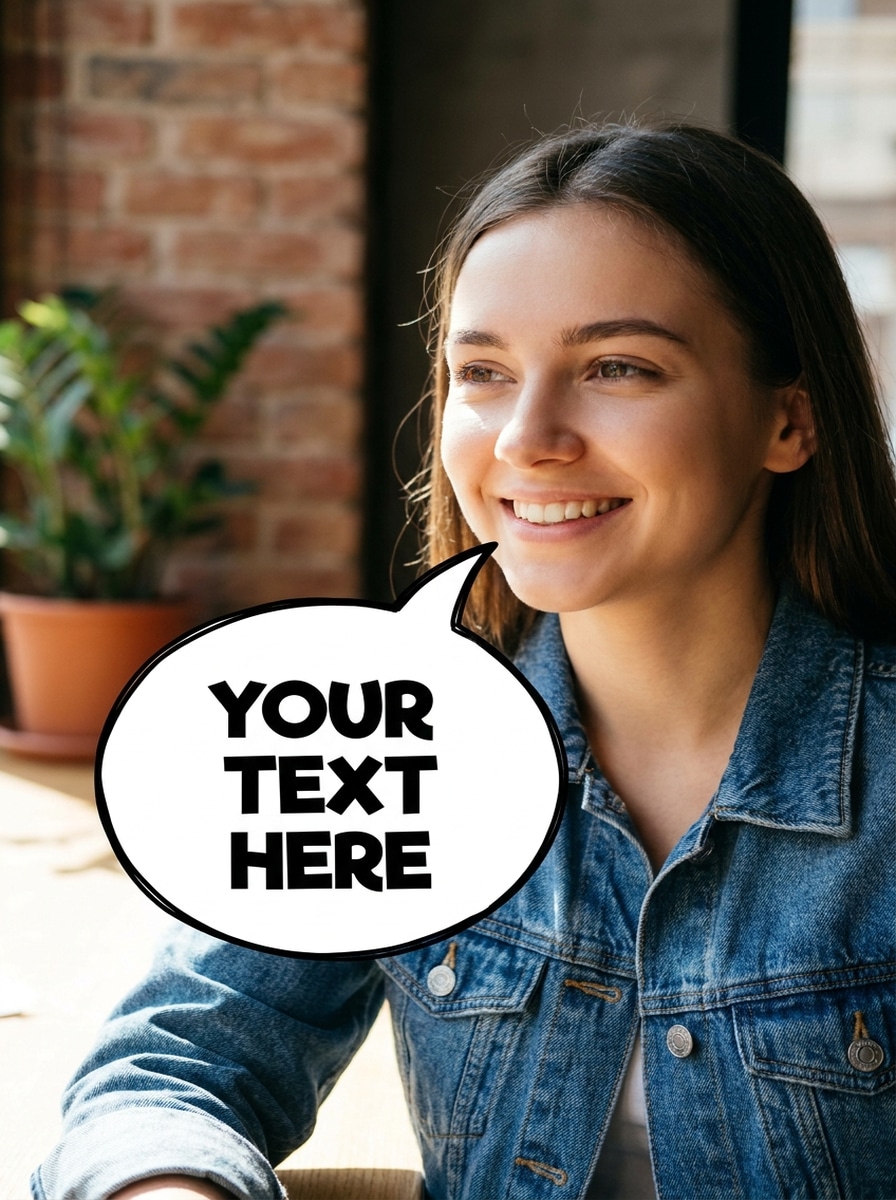
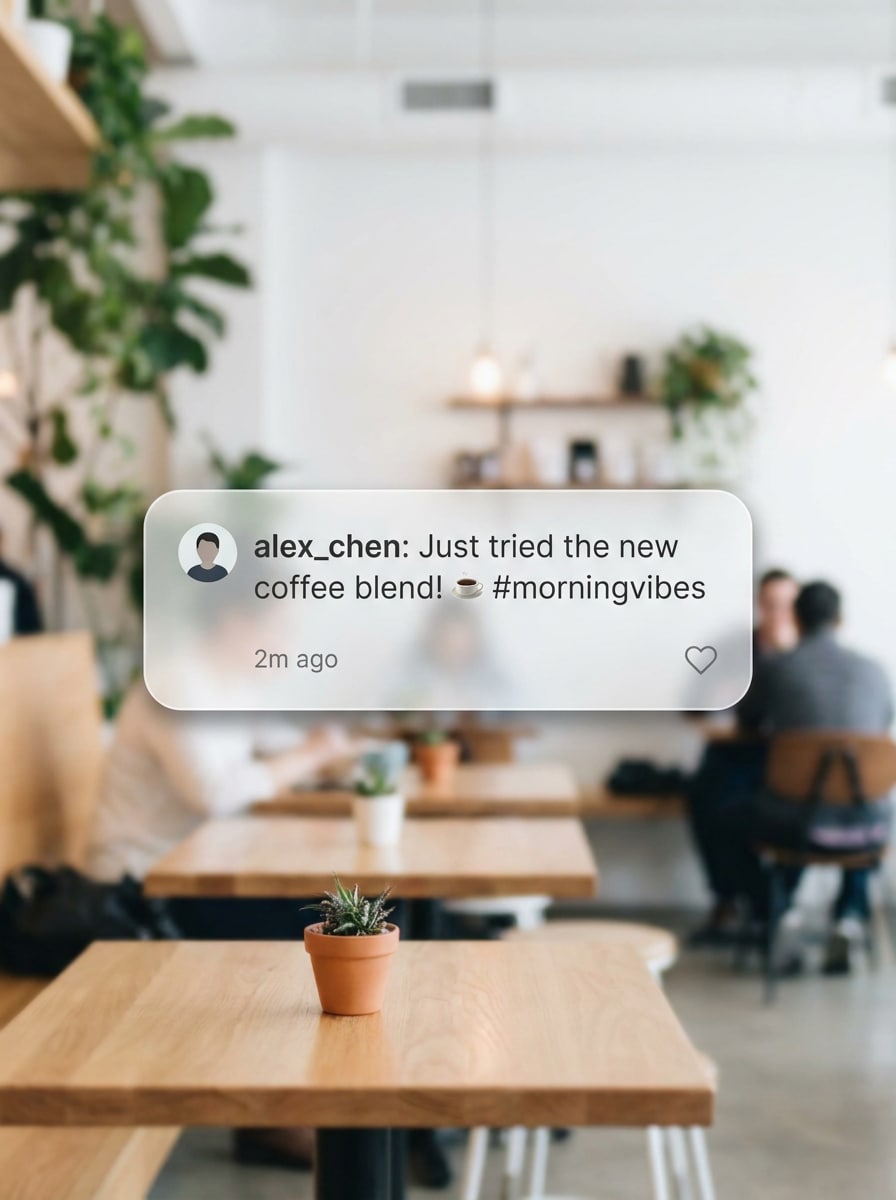
superponer chat de Instagram
Usa la imagen subida como escena de fondo y añade una elegante superposición de bocadillo estilo chat redondeado para superponer. Mantén el diseño minimalista, moderno y limpio, con sombras Suaves y una alineación ordenada, para que la imagen final se sienta como una publicación social con estilo con diálogo hablado o comentarios.
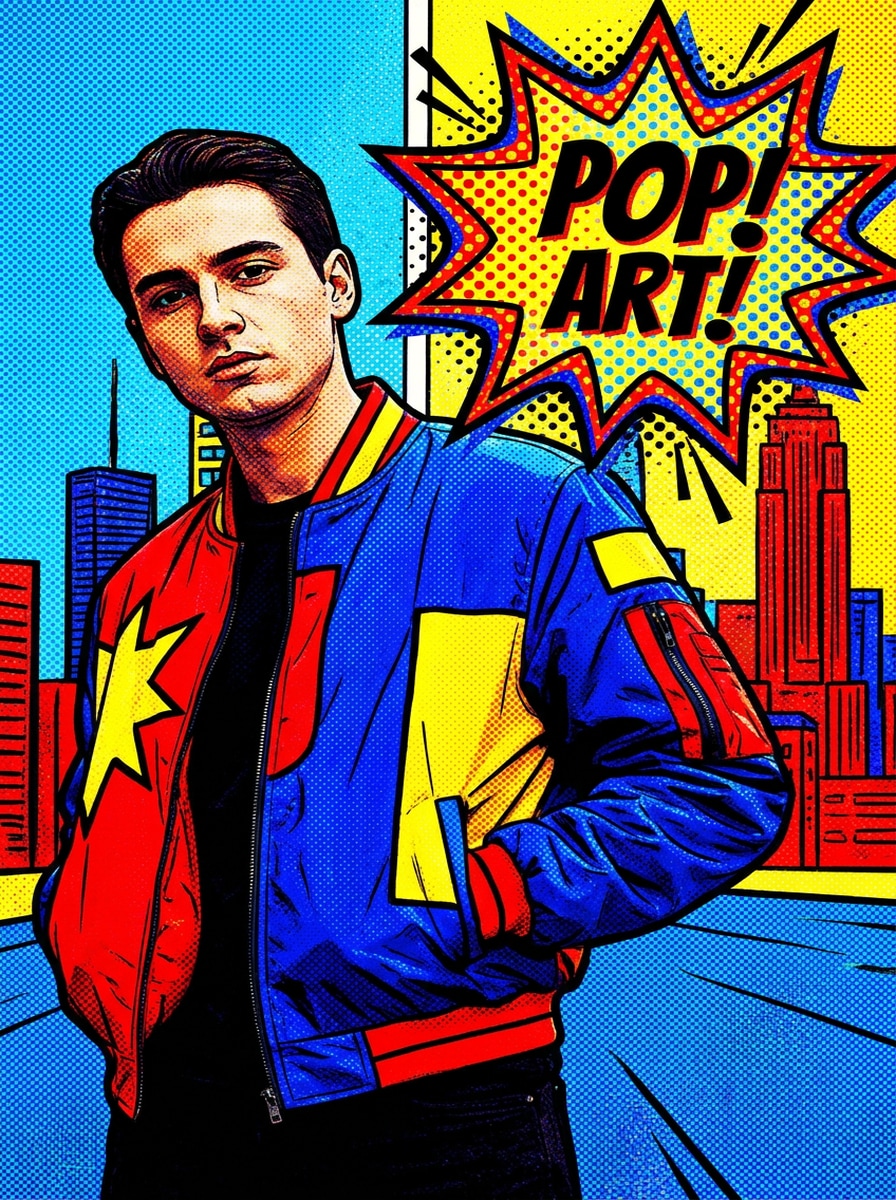
Llamada estilo Pop Art
Usa la imagen subida como base y añade un bocadillo de Discurso dramático de cómic con estilo Pop Art. Incluye acentos vibrantes en amarillo, rojo y azul, textura inspirada en semitonos, contornos gruesos y una colocación enérgica, manteniendo el sujeto reconocible y el área de texto fuerte y expresiva.
Bocadillo de diálogo estilo manga
Usa la imagen subida como escena y añade un bocadillo de diálogo inspirado en el manga con líneas negras nítidas y una forma dinámica. Conserva el fondo fotográfico, mantén el área de texto limpia y crea un ambiente dramático e ilustrado que combine el realismo fotográfico con la narrativa de cómic.
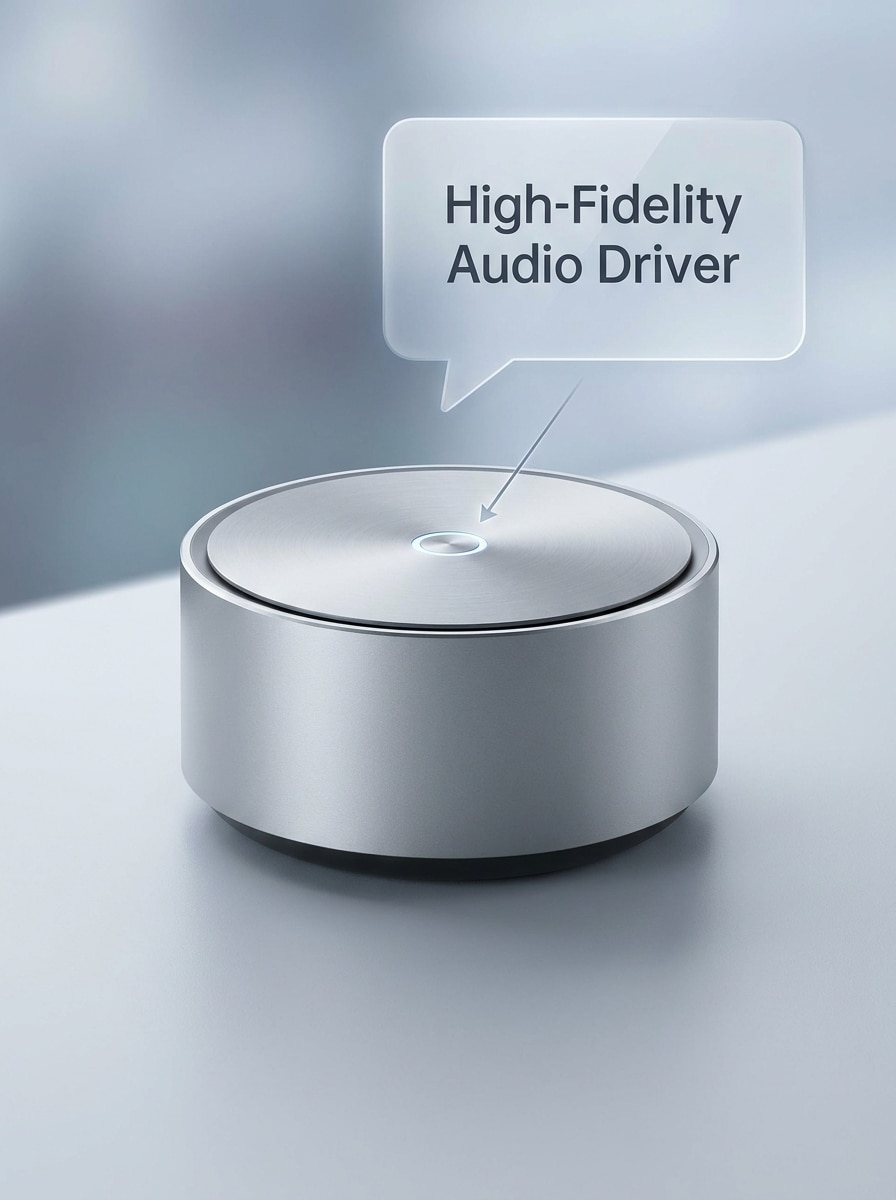
Bocadillo de Anotación de producto
Usa la imagen de producto subida y añade un bocadillo de llamada limpio que señale una característica clave. Mantén el diseño profesional, moderno y de marca, con espacio conciso para texto, espaciado ordenado y un aspecto comercial pulido adecuado para anuncios, tutoriales o explicaciones de producto.
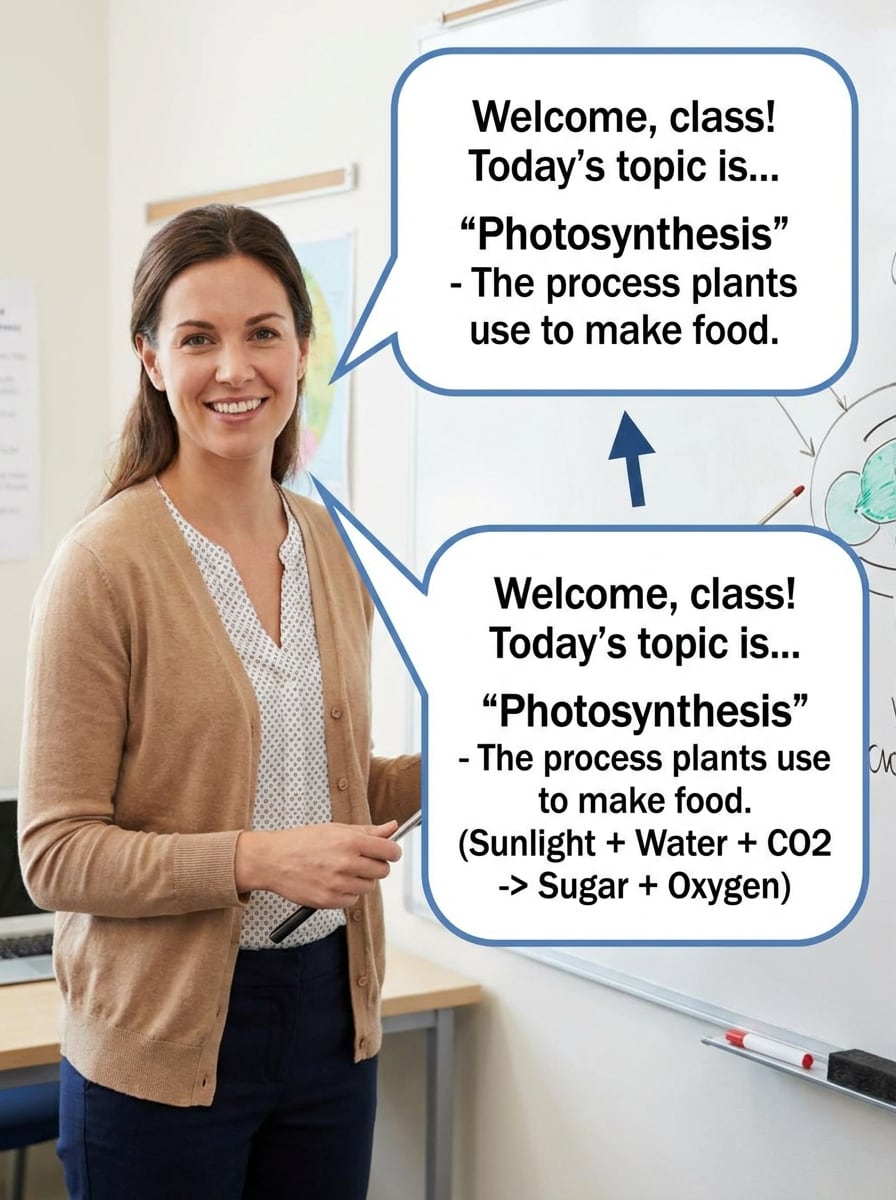
Bocadillo de explicación para el aula
Usa la foto subida y añade un globo de explicación legible con un puntero simple para proyectos escolares, hojas de trabajo o presentaciones. Mantén el diseño claro, el espaciado equilibrado y el área de texto fácil de leer, conservando la imagen original para la narración educativa.
Por qué usar Media.io para añadir bocadillos de Discurso a fotos
Convierte cualquier imagen subida en una Edición con bocadillos clara y rápida
El trabajo basado en referencias necesita más que un cambio de estilo superficial. Media.io ayuda a mantener los detalles de identidad clave reconocibles mientras se reelabora el aspecto visual de añadir un bocadillo de Discurso a una imagen, para que el resultado se sienta personal en lugar de genérico. También puede ayudar con añadir un bocadillo de diálogo a una foto.
Explora diferentes estilos sin perder la dirección
Una sola idea a menudo necesita más de un aspecto. Media.io ayuda a reinterpretar el mismo visual de añadir un bocadillo de Discurso a una imagen en diferentes estilos para que cada versión se ajuste mejor al brief del proyecto. Esta configuración funciona bien para añadir bocadillos de Discurso a fotos en línea gratis.
Genera resultados más limpios en hasta 4K
El trabajo listo para Presentación se beneficia de resultados más limpios. Media.io te ayuda a añadir bocadillos de Discurso a imágenes con exportación de hasta 4K, para que los detalles se mantengan más nítidos cuando necesites Recortar, presentar o reutilizar la imagen final en diferentes canales.
Edita en el navegador sin instalar software adicional
Algunos conceptos visuales de añadir un bocadillo de Discurso a una imagen se esbozan sobre la marcha y se terminan después en el escritorio. Media.io mantiene ese proceso en línea, para que puedas volver al mismo flujo de trabajo sin instalaciones ni configuraciones adicionales.
Cómo añadir un bocadillo de texto a fotos en tres simples pasos
Convierte tus palabras en imágenes impresionantes en tres simples pasos y luego continúa refinando el resultado si deseas llevarlo más lejos.
Paso 1
Sube tu imagen de referencia
Comienza con una foto clara, un marco de meme, un selfie, una Toma de producto o una imagen de aula. Una subida limpia le da a Media.io una mejor base cuando quieres añadir un bocadillo de diálogo, pensamiento o cómic manteniendo el sujeto original fácil de reconocer.
Paso 2
Describe el cambio y configura las opciones
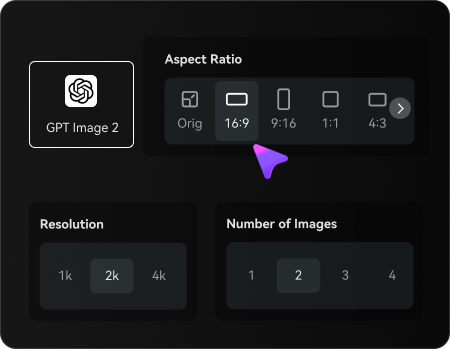
Escribe qué tipo de globo deseas, como un globo de cómic clásico, un globo de chat redondeado para superponer, o el estilo de añadir un globo de pensamiento a una foto. Luego elige tu modelo y ajusta la relación de aspecto, la calidad y la cantidad de imágenes para el diseño final.
Paso 3
Genera, descarga y sigue mejorando
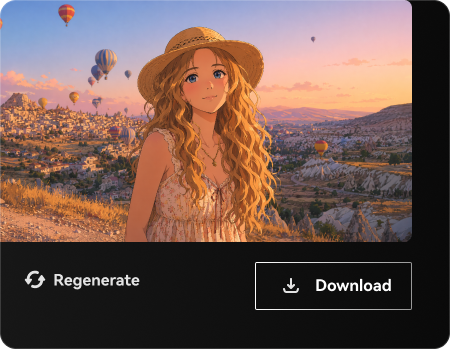
Crea múltiples versiones, compara las ubicaciones y descarga la que mejor se ajuste. Si es necesario, refina el prompt, prueba otro estilo de bocadillo, usa Regenerar para obtener una mejor composición o continúa con la Edición de la imagen para publicaciones sociales, memes y gráficos de marca.
Desbloquea el potencial de añadir un bocadillo de texto a fotos
Descubre cómo los creadores usan Media.io para añadir un bocadillo de Discurso a una imagen para contenido, marketing y proyectos personales, y luego adapta cada idea a tu brief.
Crea memes de reacción que se entienden al instante
Convierte selfis, capturas de pantalla o fotos espontáneas en contenido de reacción listo para compartir con llamativas superposiciones de cómic. Esto es ideal cuando quieres añadir un globo de Discurso a una foto con humor de meme, escribir un remate, añadir un globo de texto a fotos graciosas, o crear publicaciones identificables para TikTok, Instagram y chats grupales.
Diseña bocadillos de pensamiento para narrativas y ediciones de fandom
Usa superposiciones en forma de nube para mostrar monólogo interno, sarcasmo o pausas dramáticas en retratos y contenido de fans. Es una forma sencilla de añadir un globo de pensamiento a escenas fotográficas, poner globos de pensamiento en imágenes, añadir un globo de pensamiento a momentos fotográficos, o incluso añadir un globo de pensamiento a una foto para crear visuales estilo álbum de recortes con más personalidad.
Destaca productos, lecciones y detalles clave con claridad
Los bocadillos de Discurso y de llamada son útiles más allá de los memes. Marca características de productos, etiqueta capturas de pantalla de tutoriales o explica un proyecto de clase con una jerarquía visual más limpia, ya sea que necesites añadir un bocadillo de palabras a recursos fotográficos, anotar una imagen de Presentación o crear explicaciones educativas.
Lo que dicen los usuarios sobre Media.io
Ava Coleman
Creador de contenido para redes sociales
"Edición de memes rápida" Necesitaba una forma rápida de añadir bocadillos de Discurso a imágenes para publicaciones de reacción, y esto fue mucho más rápido que abrir una aplicación de diseño completa. Los resultados se veían limpios y la colocación del bocadillo se sentía natural para contenido vertical.
Marcus Lee
Especialista en marketing de comercio electrónico
"Genial para llamadas de producto" Usé Media.io para añadir un bocadillo de texto a anuncios fotográficos y gráficos de características. Me ayudó a señalar detalles del producto sin reconstruir toda la imagen desde cero, lo que ahorró mucho tiempo durante la preparación de campañ
Nina Patel
Profesora
"Útil para materiales visuales de clase" Para hojas de trabajo y diapositivas de Presentación, quería añadir un bocadillo de diálogo a fotos de ejemplo de forma sencilla. El flujo de trabajo en el navegador fue fácil para mí y mis estudiantes, y los materiales visuales terminados quedaron claros y legibles.
Jordan Reyes
Administrador de página de memes
"Buena combinación de estilos cómic y chat" La mayoría de herramientas que probé eran demasiado básicas o demasiado específicas para memes. Esta me dio suficiente flexibilidad para añadir bocadillos de cómic a ediciones de fotos, usar bocadillos de pensamiento y probar diferentes estilos sin salir del navegador.
Explora los efectos de video e imagen con IA más populares
Preguntas frecuentes sobre añadir bocadillos de cómic a fotos
1. ¿Cómo añado un bocadillo de Discurso a una imagen en línea?
Sube tu imagen a Media.io, introduce un prompt describiendo el estilo de bocadillo que deseas y genera el resultado editado en tu navegador. Este flujo de trabajo funciona bien si quieres añadir un bocadillo de Discurso a una imagen para memes, publicaciones en redes sociales, materiales visuales de clase o llamadas de atención en productos sin instalar software.
2. ¿Puedo editar el texto dentro del bocadillo de Discurso?
Media.io admite la Creación de bocadillos basada en prompts con áreas de texto editables en el concepto de diseño generado, para que puedas perfeccionar la redacción, el tono y el estilo actualizando tu prompt y regenerando variaciones. Es útil cuando quieres añadir un bocadillo de texto a ediciones de fotos, probar diferentes remates o crear un Diseño de subtítulos más limpio.
3. ¿Existe una herramienta gratuita para añadir bocadillos de Discurso a fotos?
Media.io ofrece créditos gratuitos para usuarios nuevos y ocasionales, para que puedas probar ediciones de imagen con estilo de bocadillo antes de actualizar tu plan. Las descargas gratuitas pueden incluir una marca de agua, mientras que los planes de pago permiten exportaciones en alta resolución sin marca de agua. Para más detalles, visita la página de precios.
4. ¿Cómo puedo añadir un bocadillo de pensamiento a una foto en iPhone?
Media.io funciona en el navegador de tu dispositivo móvil, así que puedes abrirlo en un iPhone, subir una foto e indicarle a la herramienta que añada un bocadillo de pensamiento, una burbuja de pensamiento o una nube de cómic para superponer. Eso hace que sea conveniente añadir un bocadillo de pensamiento a fotos sobre la marcha sin necesidad de software de escritorio independiente.
5. ¿Puedo añadir varios bocadillos de Discurso a una sola imagen?
Sí, Media.io puede generar variaciones con más de un bocadillo en la misma escena cuando describes el Diseño completo en tu prompt. Eso es útil para intercambios de cómic, insertar texto de bocadillo en conversaciones fotográficas o ediciones con varias personas donde quieres que varios bocadillos funcionen juntos de forma natural.
6. ¿Qué formatos de imagen puedo subir y descargar?
Media.io admite la carga de archivos JPG, PNG y JPEG. Para las exportaciones, este flujo de trabajo se centra en formatos comunes fáciles de compartir como PNG, JPG y WebP, que son prácticos para memes, gráficos para redes sociales y publicación web.
Más allá de añadir un bocadillo de Discurso a una imagen en línea con IA