
AI Multi-Scene Video Generator for Connected Storytelling
Plan a story that moves from opening hook to final beat without stitching random clips together. Media.io's AI Multi-Scene Video Generator helps creators start with a detailed script, extract a structured outline, guide characters and settings, review storyboard images, and generate a connected video for YouTube, TikTok, lessons, or campaigns.
Build Story Videos That Hold Together Scene by Scene
Use a script-first workflow designed for connected plots, recurring characters, and publishable creator formats.
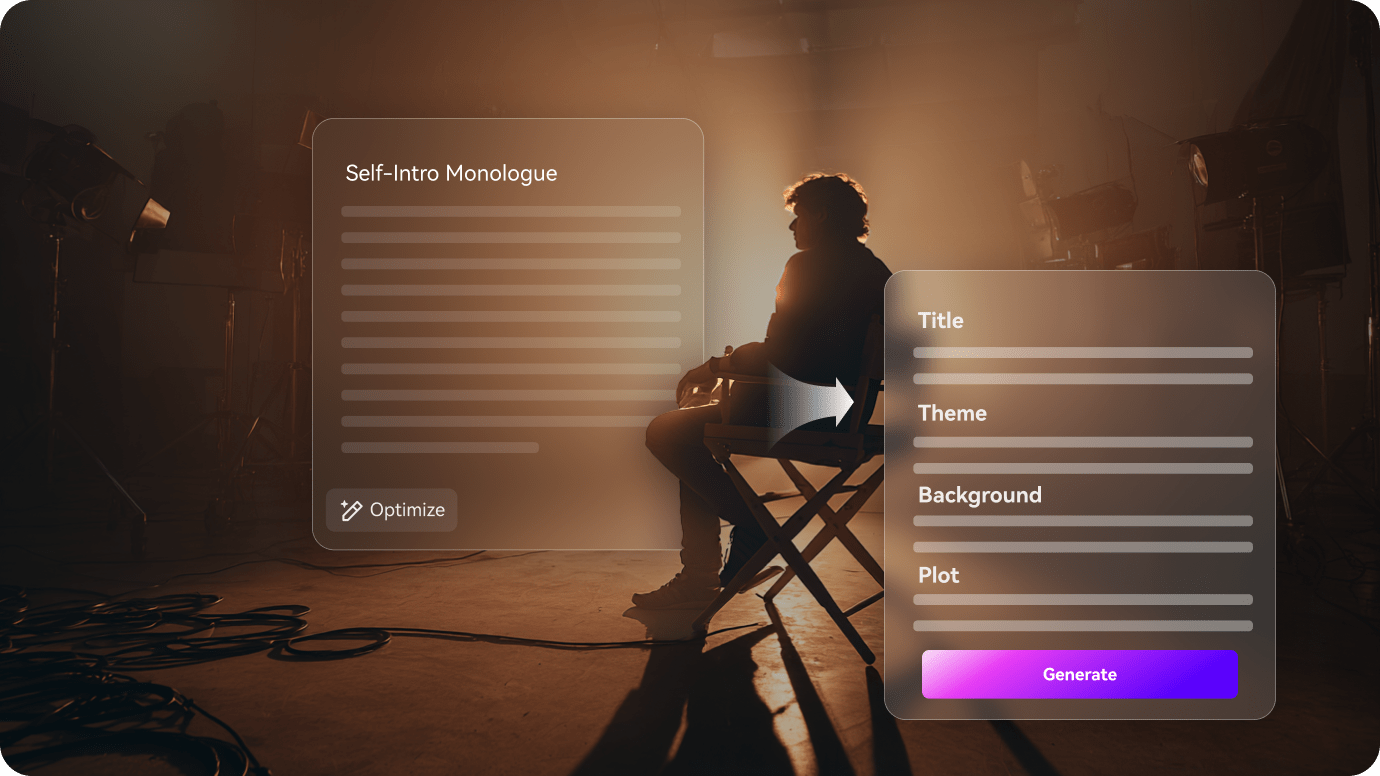
Turn Detailed Scripts into a Clear Scene Sequence
Start with the writing you already trust. It also fits AI story video maker workflows when the audience expects topic-specific scenes.
- Script Input - Use story beats, narration drafts, or full scene notes
- Outline Review - Check the title, theme, background, plot, and cast
- Scene Logic - Help each moment follow the previous beat
- Creator Fit - Shape stories for channels, classes, pitches, or campaigns
Guide Characters Viewers Can Recognize
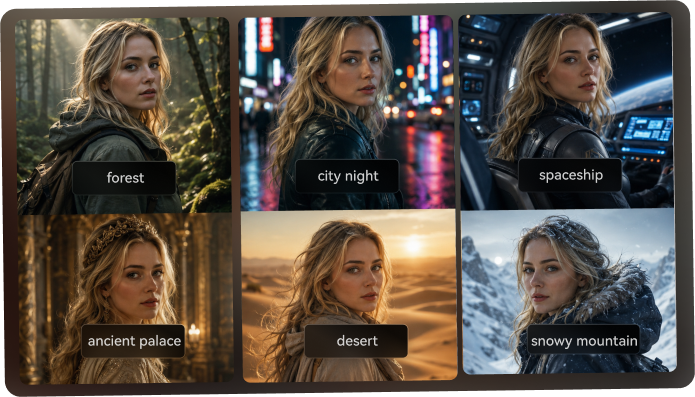
Build a cast that feels intentional across the story. Use it for script to video generator ideas without adding another editing step.
- Text Characters - Describe age, role, wardrobe, mood, and story purpose
- Photo Guidance - Use real images when a personal look matters
- Sketch Support - Turn rough character ideas into clearer visual cues
- Recurring Cast - Help viewers follow who is speaking, acting, or changing
Direct Review the Storyboard Before the Video Runs
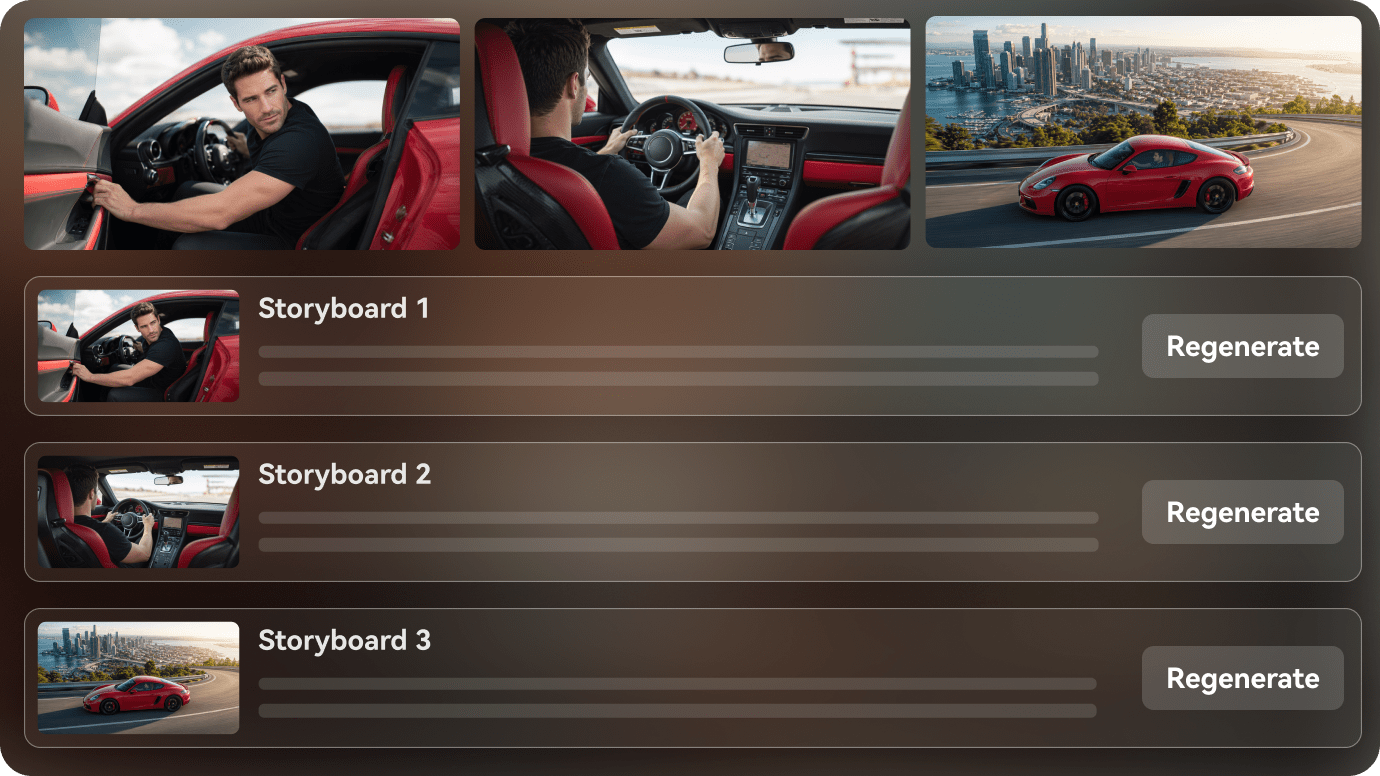
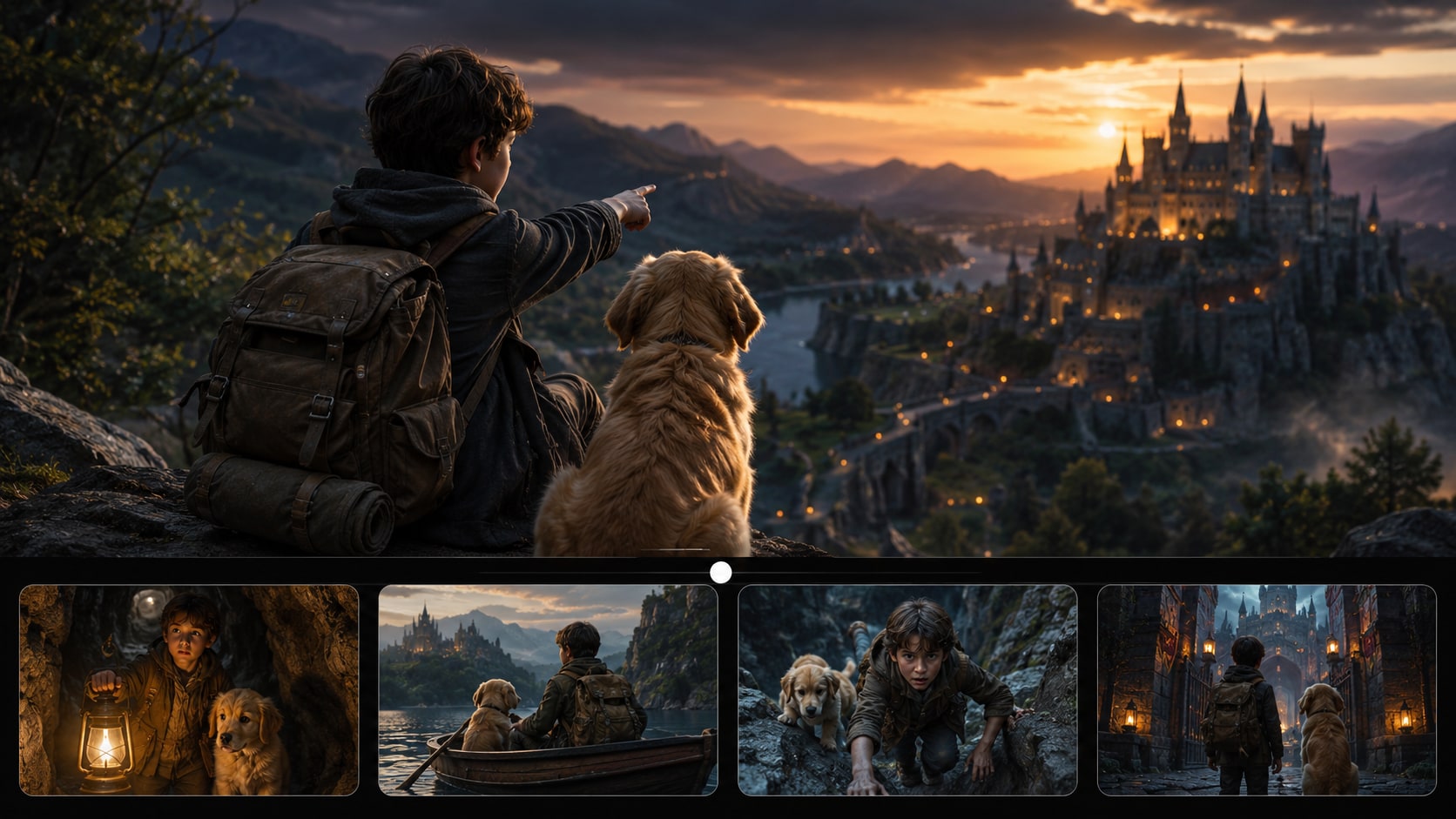
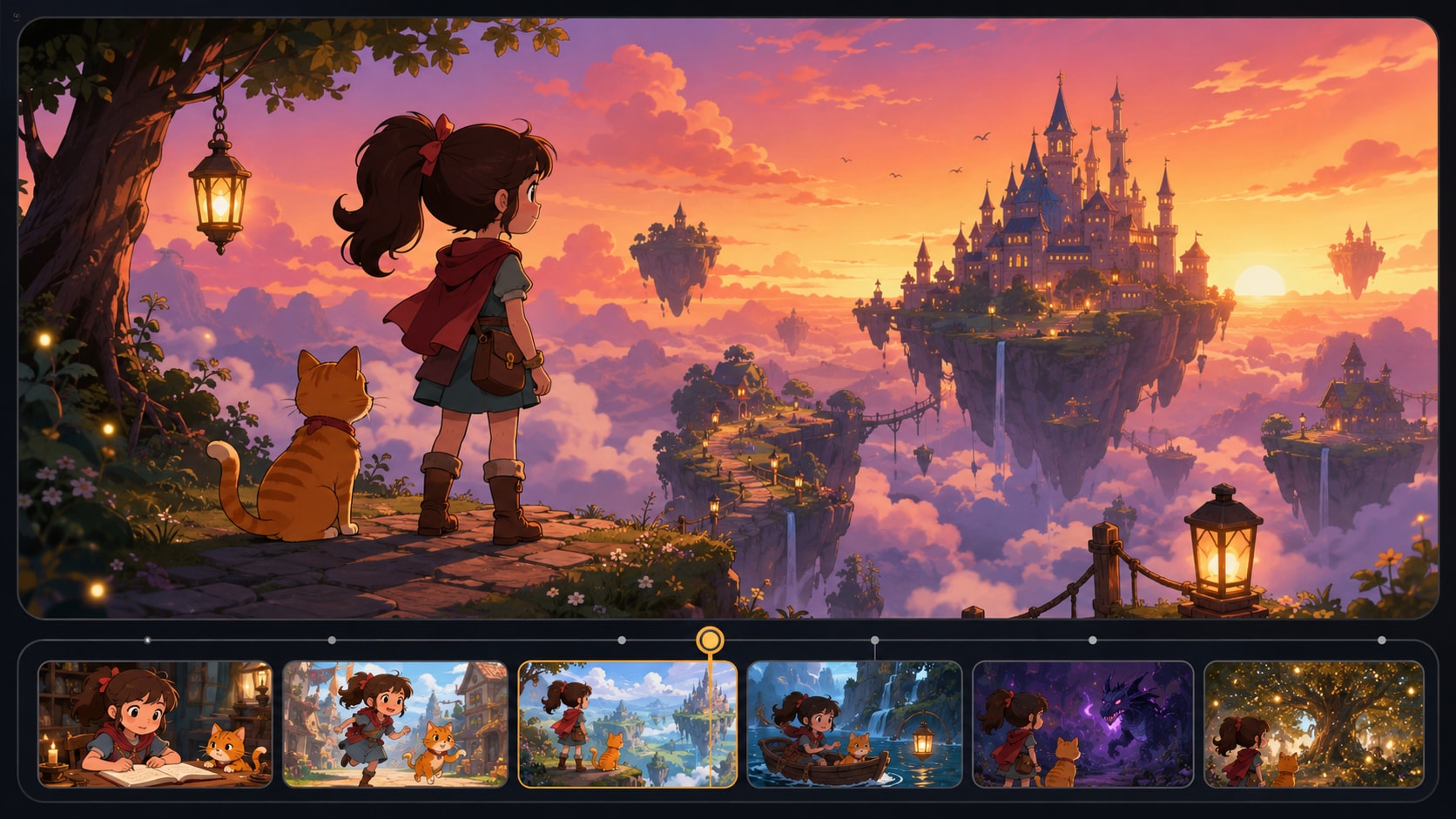
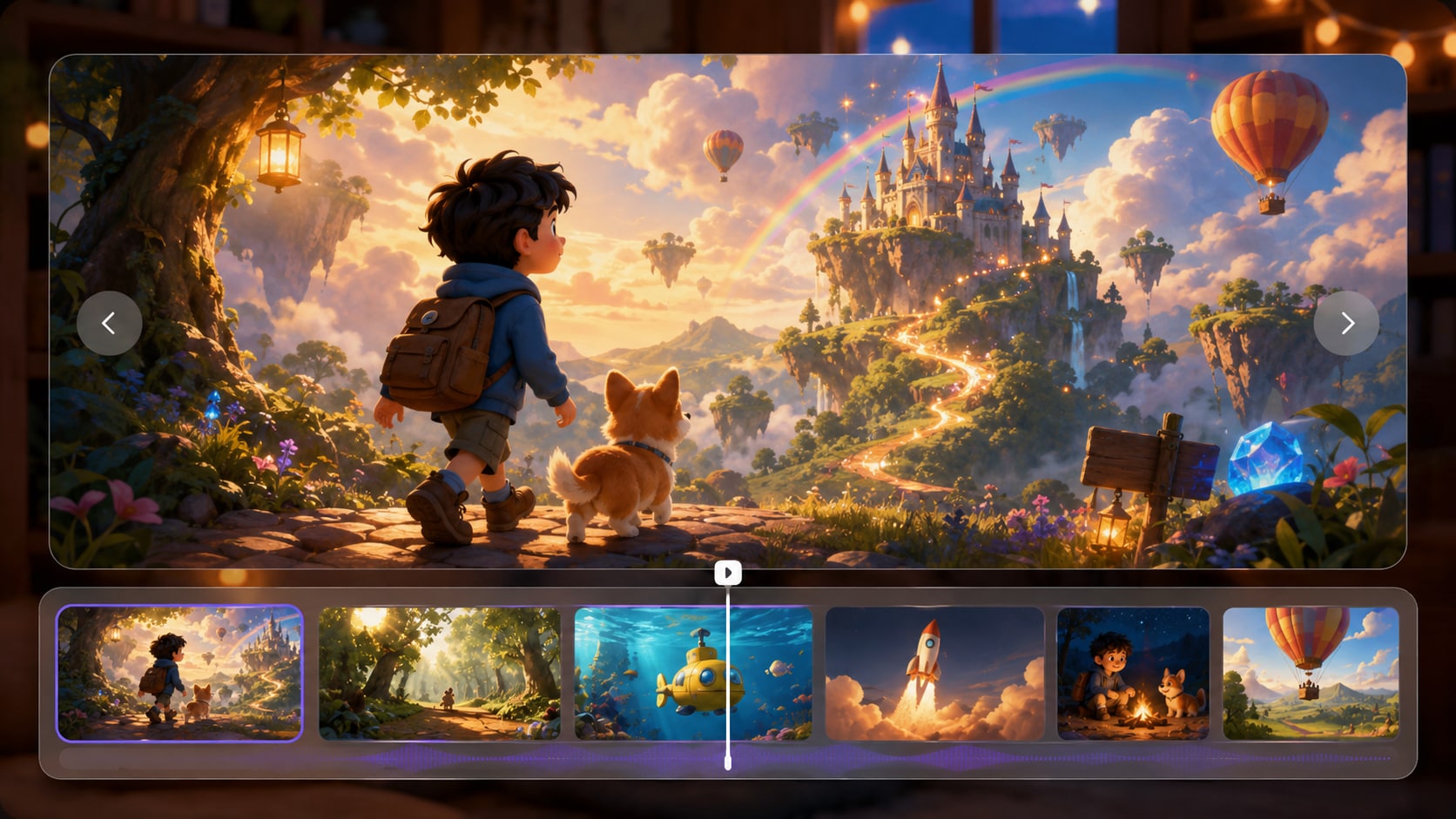
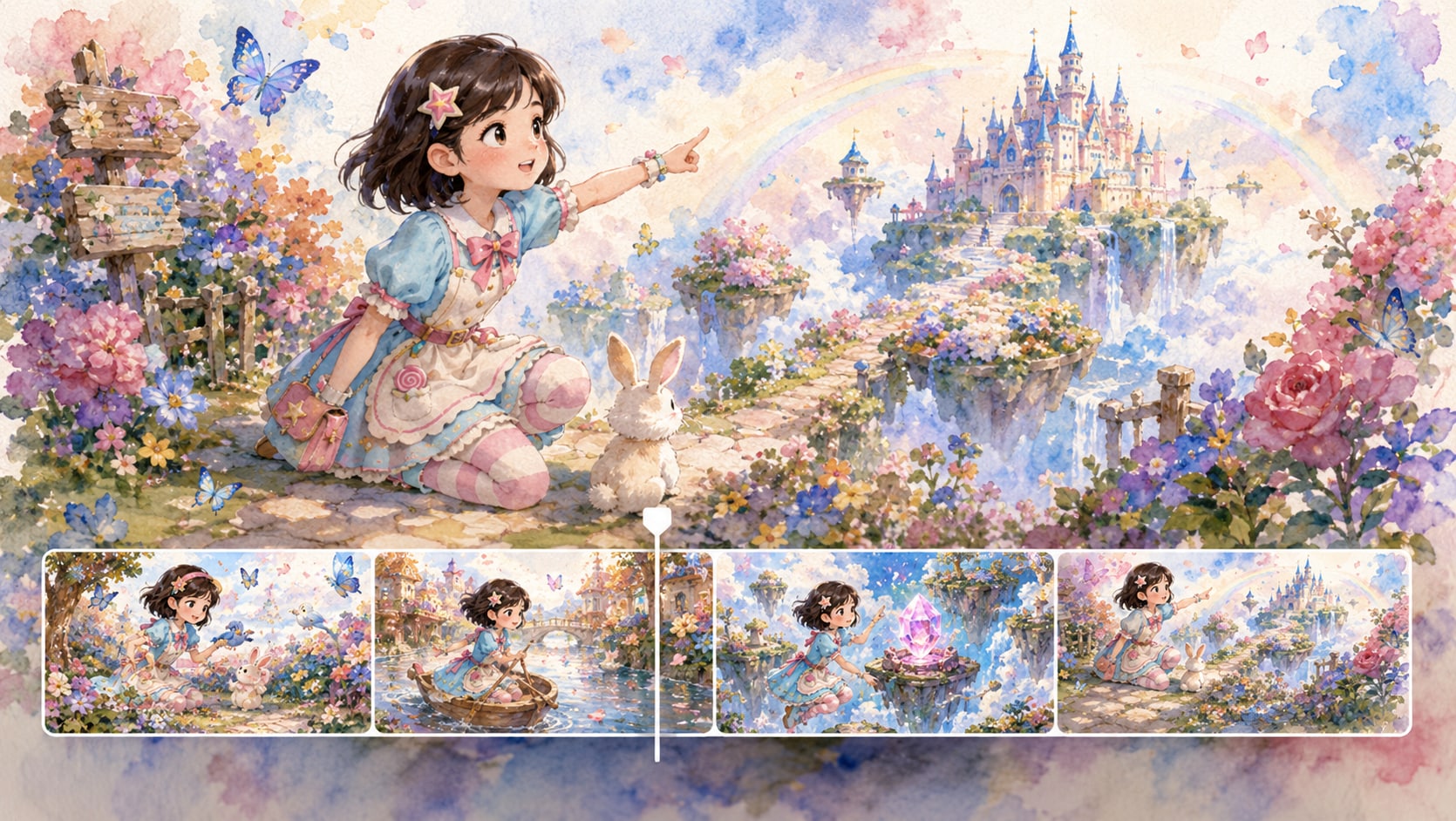
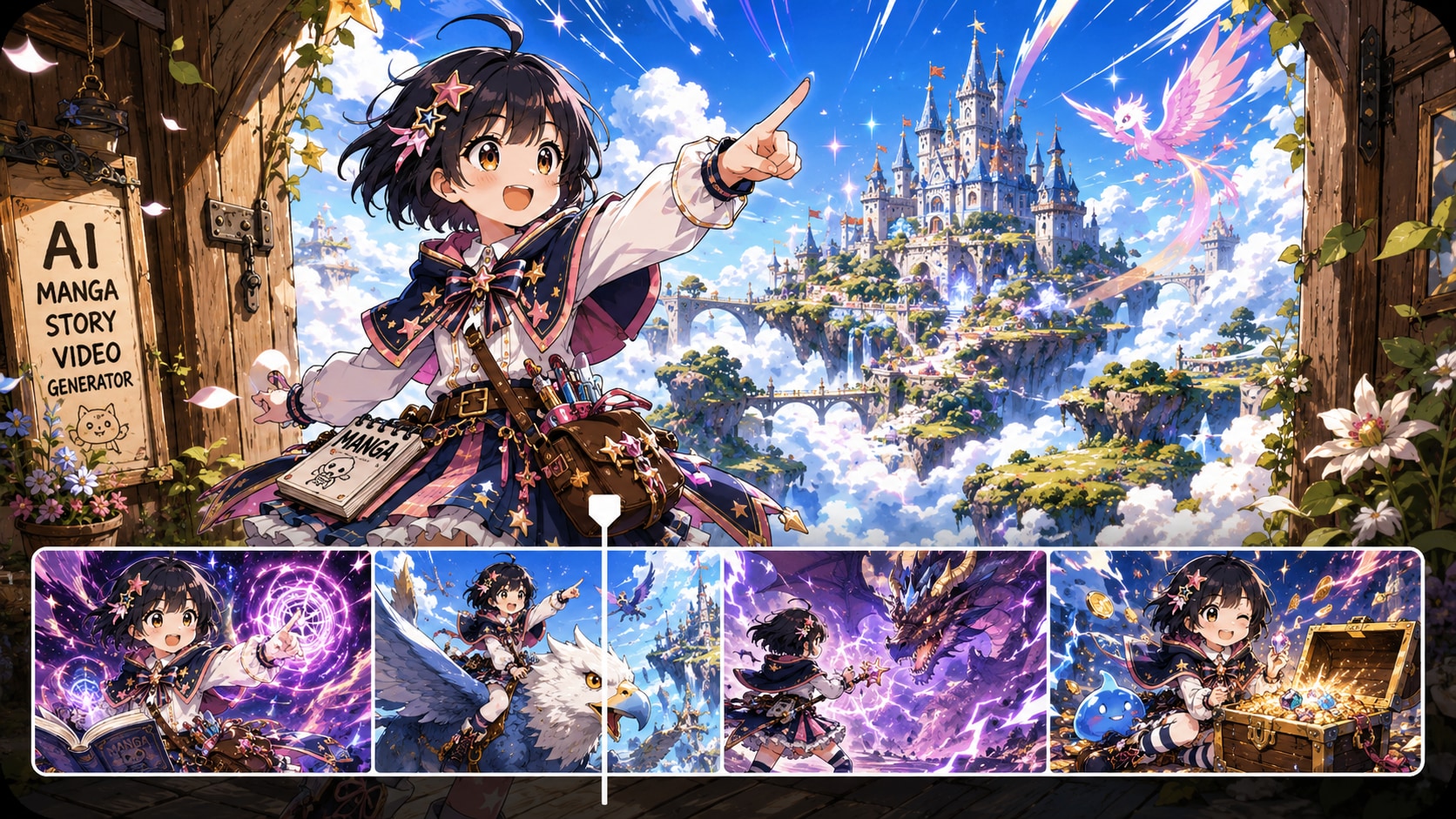
See the narrative as storyboard images after the outline is prepared. If one shot does not match the moment, regenerate that storyboard image and review the sequence again, so the final video has a stronger visual rhythm before generation.
- Storyboard Images - Preview the visual direction scene by scene
- Shot Check - Look for tone, setting, character, and pacing issues
- Regenerate Option - Recreate a specific unsatisfying storyboard image
- Better Flow - Catch weak transitions before the final render
Publish Stories with Narration, Music, and Momentum
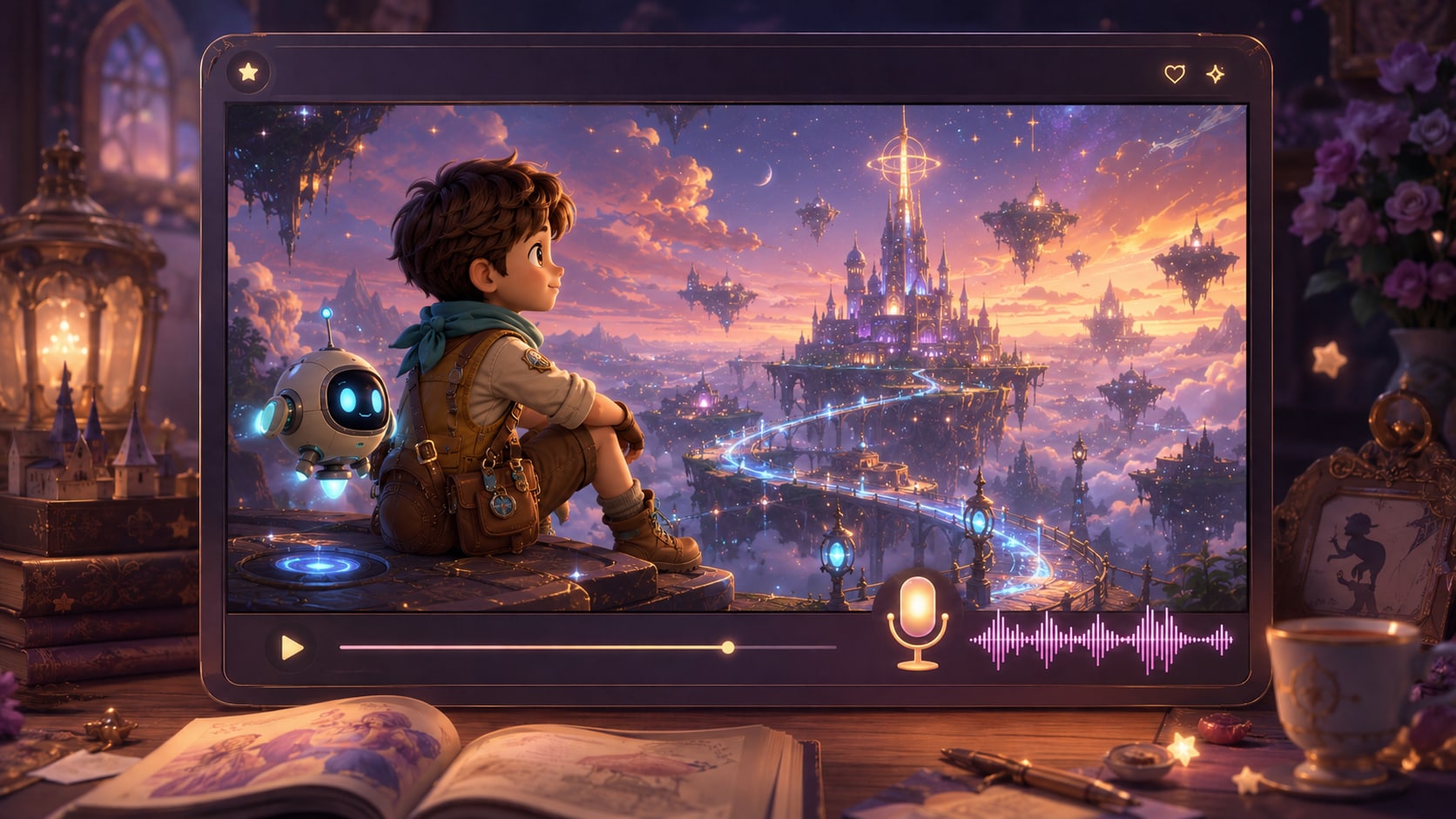
Move from planned scenes to a shareable video with voiceover and music based on the script. After generation, review the result and polish it with Media.io tools when needed, whether you are preparing Shorts, Reels, lessons, pitch reels, or campaign stories.
- Script-Based Audio - Let narration and music follow the written story
- Format Choices - Prepare direction for vertical, square, or widescreen use
- Final Review - Watch the completed video before publishing
- Polish Tools - Improve the finished asset inside the Media.io workflow
Create a Multi-Scene Story Video in Three Practical Steps
Give Media.io enough story detail up front, then review the structure, visuals, and final video before sharing.
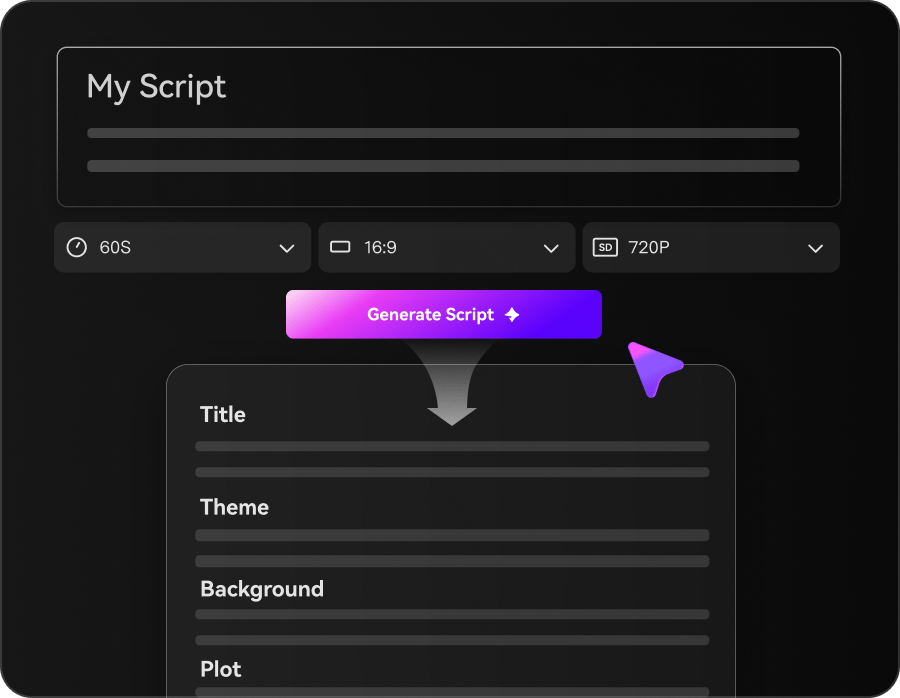
Prepare the Script
Provide a detailed script or structured story input with clear beats, characters, settings, and narration cues. Review and edit the extracted outline fields, including title, theme, setting or background, story plot, and characters. During setup, choose an aspect ratio such as 9:16, 1:1, or 16:9 to match your publishing plan.
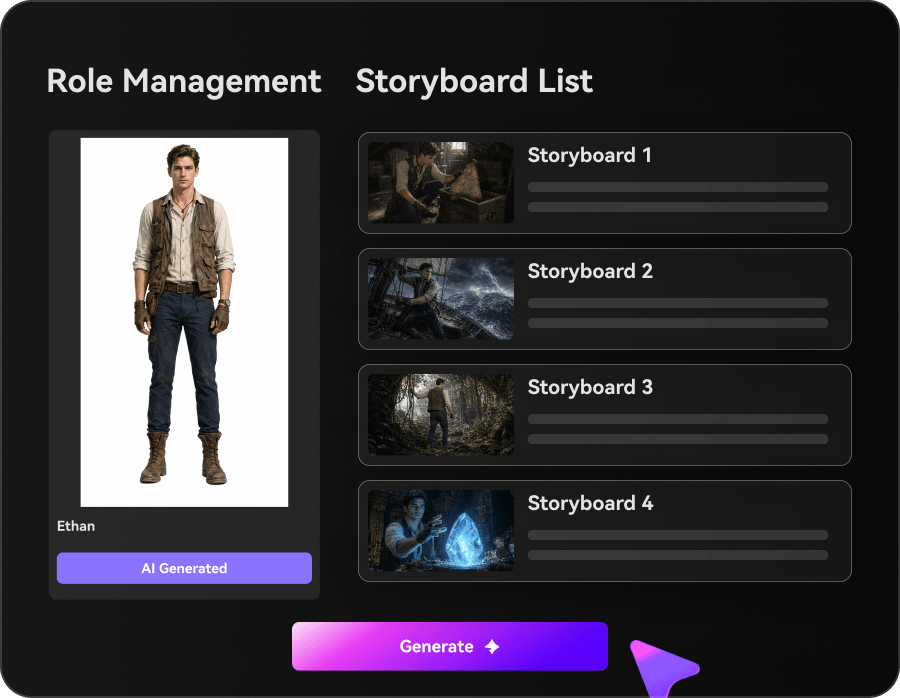
Guide the Scenes
Set the visual direction with available format, style, and scene choices. Add character guidance from text, real photos, or sketches when a recurring cast matters, then review the generated storyboard images to see how the story is staged from one moment to the next.
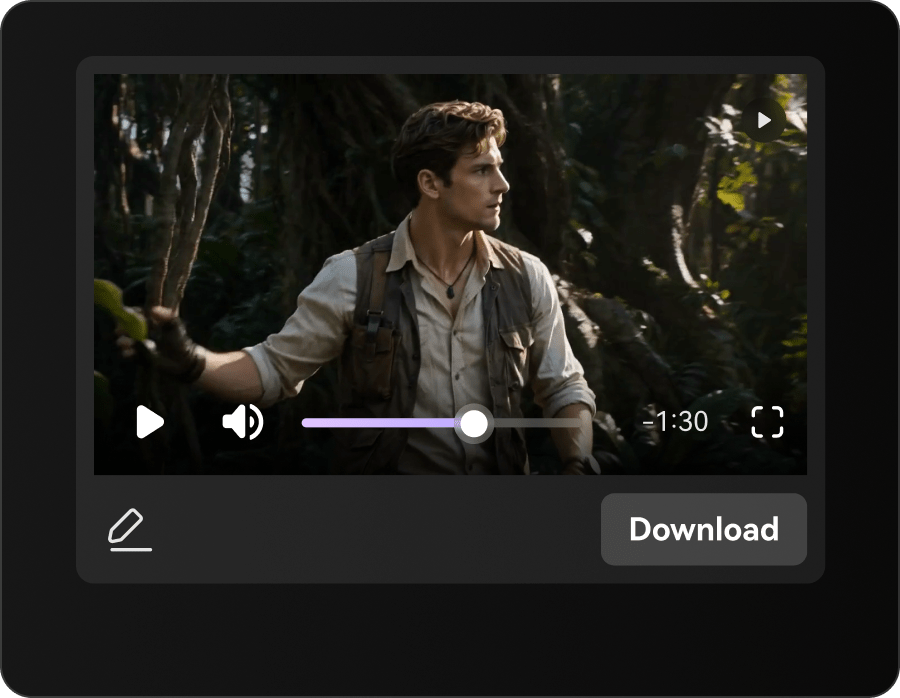
Generate and Polish
Generate the final video with voiceover and music based on the script. If a storyboard image feels off before final generation, regenerate that specific shot. After the video is created, review the result and use Media.io tools such as Enhance Video Quality when extra polish is needed.
Compare an AI Multi-Scene Video Generator with Basic Text-to-Video Tools
A connected story workflow gives creators more control over structure, characters, and scene order than a single prompt-based clip generator.
Create Multi-Scene Videos for Every Storytelling Workflow
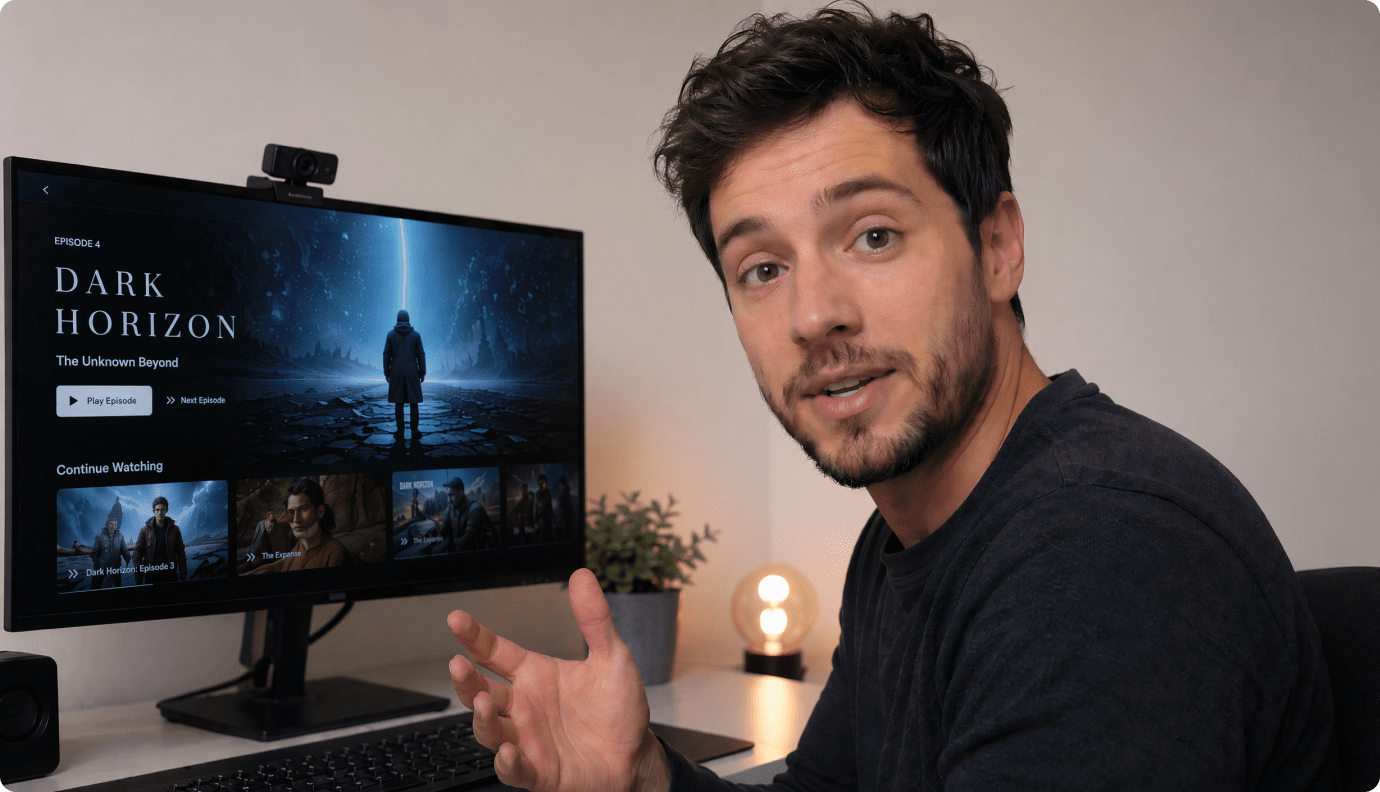
YouTube Creators
Build faceless stories, explainers, recaps, and narrative videos with scene flow that supports longer viewer attention.
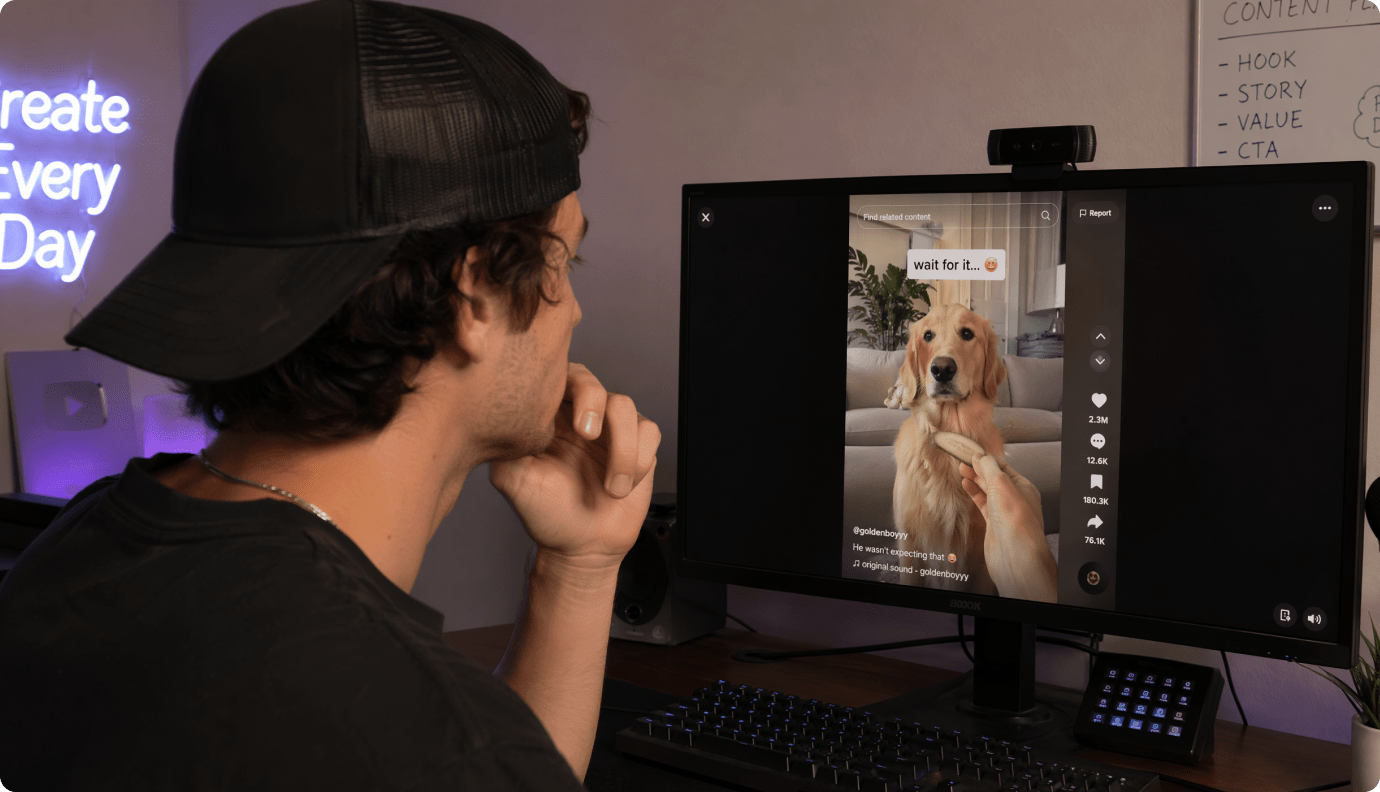
TikTok Creators
Turn hook-driven scripts into short story sequences with clearer pacing for vertical social viewing.

Educators
Explain lessons, historical events, concepts, or classroom stories with scene-by-scene visual structure and narration.
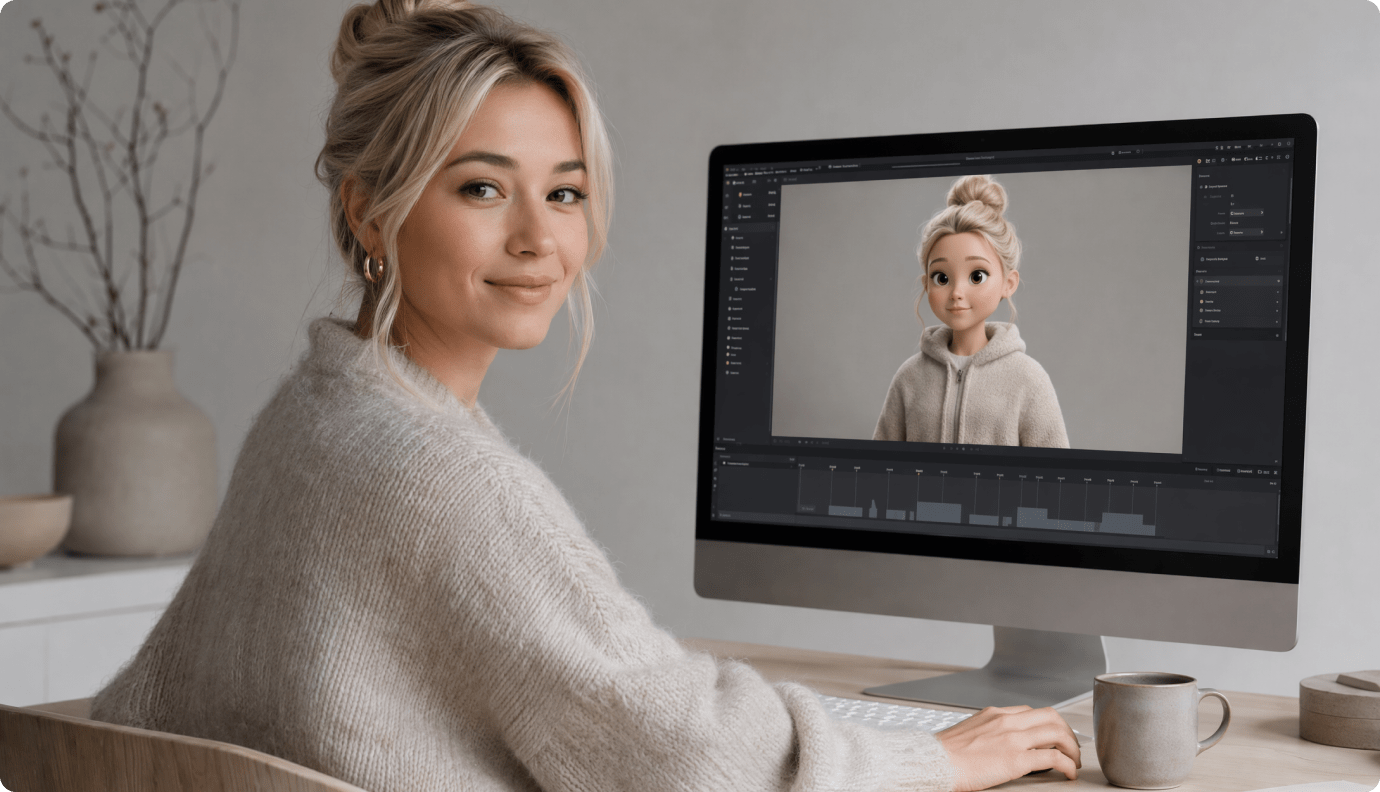
Marketers
Shape brand stories, customer journeys, launch narratives, and campaign explainers from structured copy.
See More Scripts to Video Examples
Explore fixed sample categories that show how different scripts can become connected visual stories.
Loved by Multi-Scene Story Creators
Creators like the workflow because it starts with the script and gives them a clearer way to check the story before publishing.


"The outline step helped me catch weak story beats before I generated the video. That made the final sequence much easier to polish."

"I use it for short serialized stories. The storyboard preview helps me see if the hook, reveal, and ending actually connect."

"My lesson scripts are easier to explain when they become clear scenes with narration. It saves me from building every visual by hand."

"For pitch ideas, I like being able to test mood, setting, and character direction before committing to a bigger edit."

"It works well for campaign narratives because I can start from approved copy and keep the story focused on the customer journey."

"Seeing my scenes as storyboard images gives me a better sense of pacing. I can spot where the story needs a stronger visual beat."
FAQs on AI Multi-Scene Video Generator
What Is an AI Multi-Scene Video Generator?
An AI multi-scene video generator helps turn a detailed script or structured story input into a connected video made of multiple scenes. Media.io supports outline extraction, character guidance, storyboard images, and final video generation with script-based audio.
What Should I Paste into Media.io to Create a Multi-Scene Story Video?
Use a detailed script, narration draft, scene list, or structured story outline. Include the main characters, setting, plot beats, tone, and any important visual cues so the workflow has enough context to build connected scenes.
Can the Script Guide the Voiceover and Music?
Yes. The final generated video can include voiceover and music based on the script, so narration, mood, and pacing can follow the story you provide.
How Do I Write a Better Script for a Multi-Scene Video?
Write in clear scene beats. Give each scene a purpose, describe who appears, where the moment happens, what changes, and what the viewer should understand before the next scene begins.
How Can I Avoid a Multi-Scene Video That Feels Disconnected?
Use recurring character descriptions, consistent setting cues, and a clear cause-and-effect plot. Review the extracted outline before generation so the story arc, background, and character roles are aligned.
Can I Use the Same Character Across Several Scenes?
You can provide clear character guidance from text, real photos, or sketches to help the character remain recognizable across scenes. Avoid relying on vague prompts if the same cast needs to carry the story.
Can I Make Videos for YouTube, TikTok, Lessons, or Marketing?
Yes. During setup, choose a format direction that fits your channel, such as vertical social stories, square posts, or widescreen videos for lessons, presentations, and longer storytelling formats.
Can I review the storyboard or Regenerate a Scene?
You can review and edit the extracted story outline before storyboard generation. The storyboard images themselves are not manually editable, but if a specific storyboard image is unsatisfying, you can regenerate that shot and review the sequence again.
Why Use Media.io Instead of a Basic AI Video Generator for Multi-Scene Stories?
Media.io is built around a more structured story workflow. It works best with detailed scripts, extracts a reviewable outline, generates storyboard images, supports character guidance, and lets you polish the final video after generation.
Explore More Ways to Turn Scripts into Story Videos
Try adjacent AI Script to Video workflows when your next project needs a different storytelling angle, from short social narratives to educational explainers and genre-driven video ideas.

Create a Story
That Moves Scene by Scene
Start with a detailed script, review the outline and storyboard images, then generate a connected video ready for your next channel or project.
 4.8 (281 Votes)