AI Video Reframer: Reframe Videos for Every Screen
Made a great clip, but the frame does not fit where you want to post it? With Media.io's AI Video Reframer, you can reframe video online for vertical, square, or landscape viewing while keeping the original people, products, and scene details in focus. Adapt an existing video for TikTok, Instagram Reels, YouTube Shorts, ads, or another screen - without starting your creative work over.
Why Reframe a Video Instead of Just Cropping It?
Both can help a video fit a new screen, but the difference is what happens to the original scene.
AI Video Reframing
- Adapts an existing video to a new aspect ratio while keeping the original scene in focus.
- Helps preserve important people, products, and visual details when changing the frame.
- Useful for turning landscape videos into vertical or square formats without recreating the clip.
- Ideal for repurposing social media clips, product videos, and AI-generated footage across platforms.
Traditional Video Cropping
- Changes the visible frame by removing areas outside the selected crop.
- Works well when unwanted edges or empty background space can be removed.
- May cut off people, products, or important details near the edges of the video.
- Ideal for tightening a shot when keeping the entire original scene is not necessary.
If changing your video's aspect ratio would cut off important details, try AI video reframing first. When you simply want to remove unwanted edges, cropping may be all you need.
What Can You Do with an AI Video Reframer?
A great video should work wherever you want to share it. With Media.io's AI Video Reframer, you can change the video aspect ratio without cropping adapt existing clips for different screens while keeping the people, products, and scene details that matter. Here's how to give your videos more places to shine without starting over.
Turn Landscape Videos into Vertical Clips
Have a great horizontal video that doesn't fit TikTok, Reels, or YouTube Shorts? Instead of squeezing the picture or cutting away important details, use AI video reframing to reframe video online without cropping for vertical viewing. Keep the original scene while giving it a frame that feels right on mobile.
- Landscape to Portrait - adapt 16:9 videos to a vertical 9:16 format.
- Keep the Main Subject - help preserve important people, products, and actions in the new frame.
- Reuse Existing Footage - create a new version without reshooting the scene.
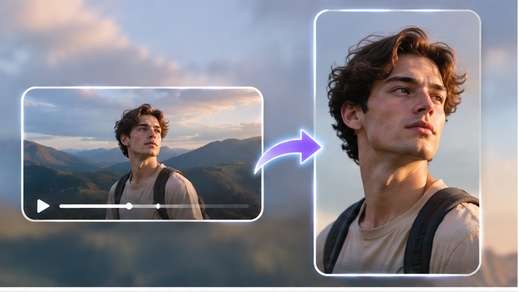
Keep People, Products, and Scene Details in View
Changing a video's aspect ratio shouldn't mean losing the details that make it worth watching. Whether you're showing a product, filming someone in action, or sharing a scenic moment, Media.io helps you reframe the video while preserving the original visual content. Give your footage a new shape without losing sight of what matters.
- People and Faces - keep the focus on the people who make your video engaging.
- Products and Objects - retain important visual details in product showcases and short ads.
- Background Context - preserve the surroundings that help tell your story.
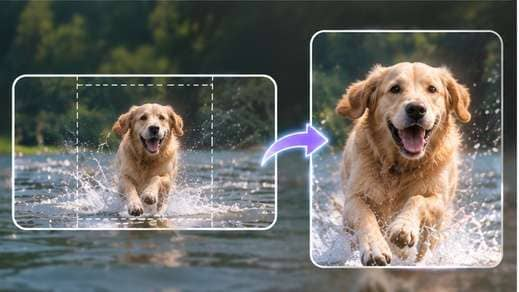
Make One Video Fit More Platforms
Your video might look perfect on YouTube but need a completely different frame for Instagram or TikTok. Rather than making separate videos from scratch, reframe the same short clip for multiple placements. Choose the aspect ratio that suits your destination and make more use of the content you've already created.
- 9:16 Vertical Videos - for TikTok, Instagram Reels, and YouTube Shorts.
- 1:1 Square Videos - for square social posts and video cards.
- 16:9 Landscape Videos - for YouTube, websites, and widescreen presentations.
- More Aspect Ratios - choose 4:3 or 3:4 when your layout calls for a different frame.
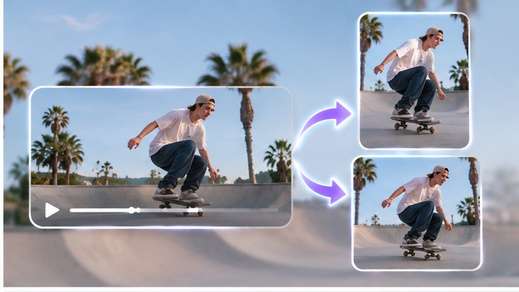
Reframe AI-Generated Videos Without Starting Over
Generated a video you love, only to realize it's the wrong shape for your next post? You don't have to recreate the scene just to try another aspect ratio. Upload your finished AI-generated clip, choose a new frame, and prepare it for a different screen while keeping the original creative idea intact.
From AI character videos and product animations to cinematic clips, reframe videos online to make more use of the footage you've already created.
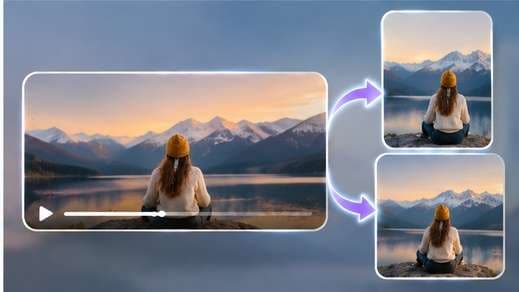
Video Aspect Ratios for Different Screens
Choose an aspect ratio for your destination while keeping the original scene in mind.
| Ratio | Best-fit frame | Common use |
|---|---|---|
| 9:16 | Portrait video | TikTok, Instagram Reels, YouTube Shorts |
| 1:1 | Square video | Feed posts, square cards, compact placements |
| 16:9 | Landscape video | YouTube, webpages, presentations |
| 4:3 | Classic landscape | Traditional display layouts and presentations |
| 3:4 | Portrait layout | Portrait-oriented video placements |
How to Reframe a Video Online with AI
Need a different video format for TikTok, Reels, or another platform? With Media.io's AI Video Reframer, you can adapt your existing clip in just three simple steps.
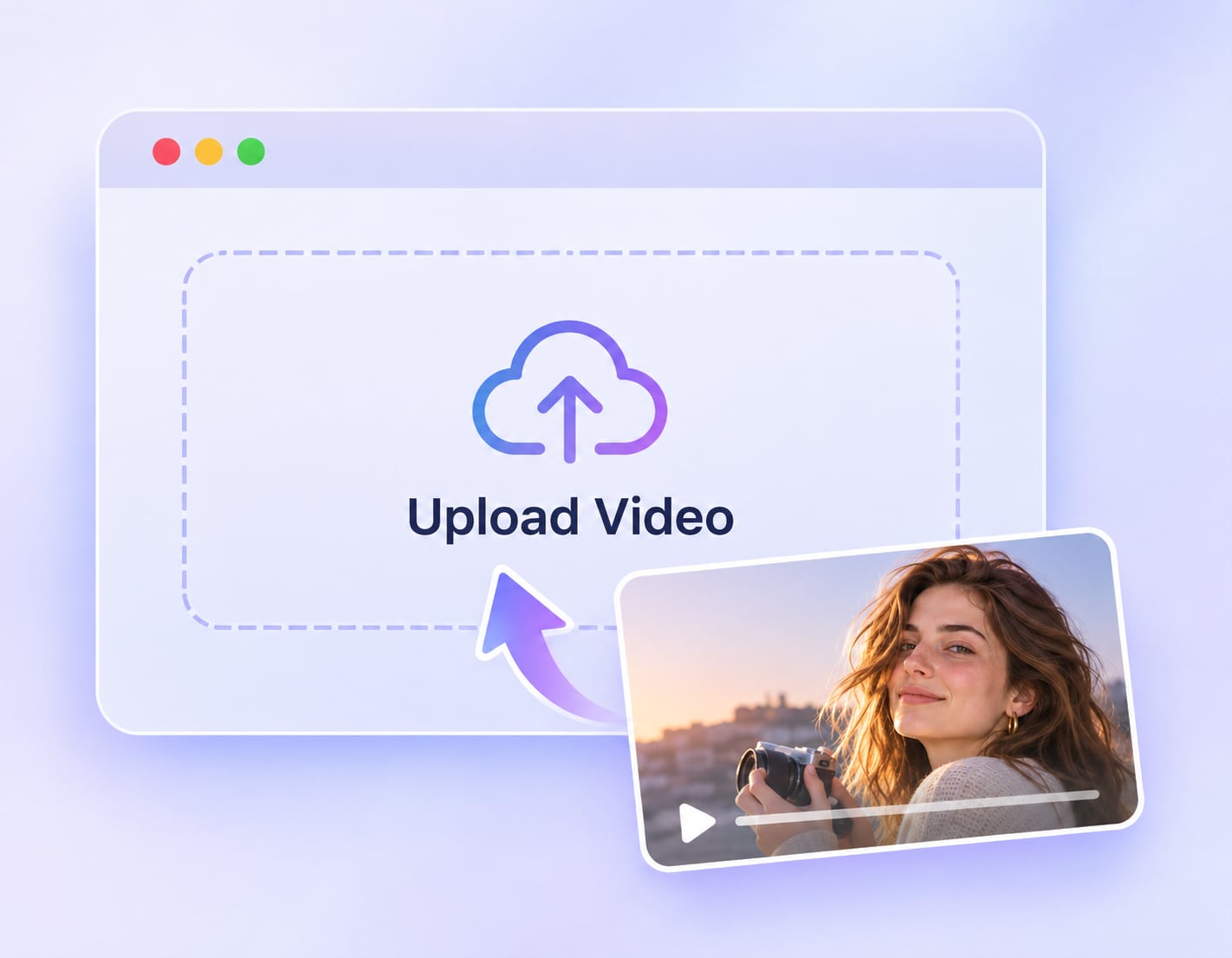
Upload Your Video
Open Media.io AI Video Reframer and upload the MP4 or MOV clip you want to adjust. You can start with an existing video or a short AI-generated clip.
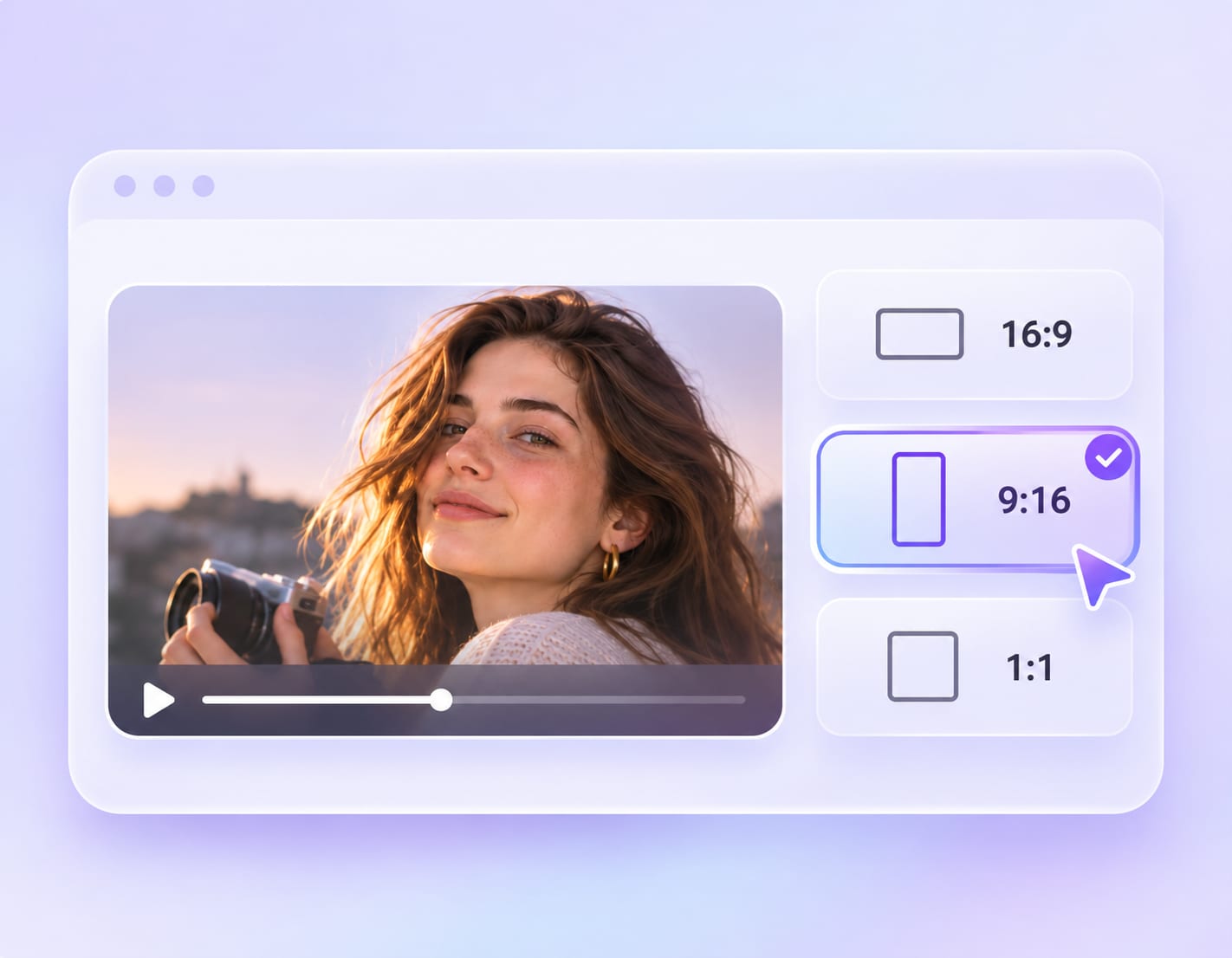
Choose Your Target Aspect Ratio
Select the frame that fits your destination, whether it's 9:16 for vertical videos, 1:1 for square posts, or 16:9 for widescreen viewing. Choose your preferred output resolution, then start reframing.
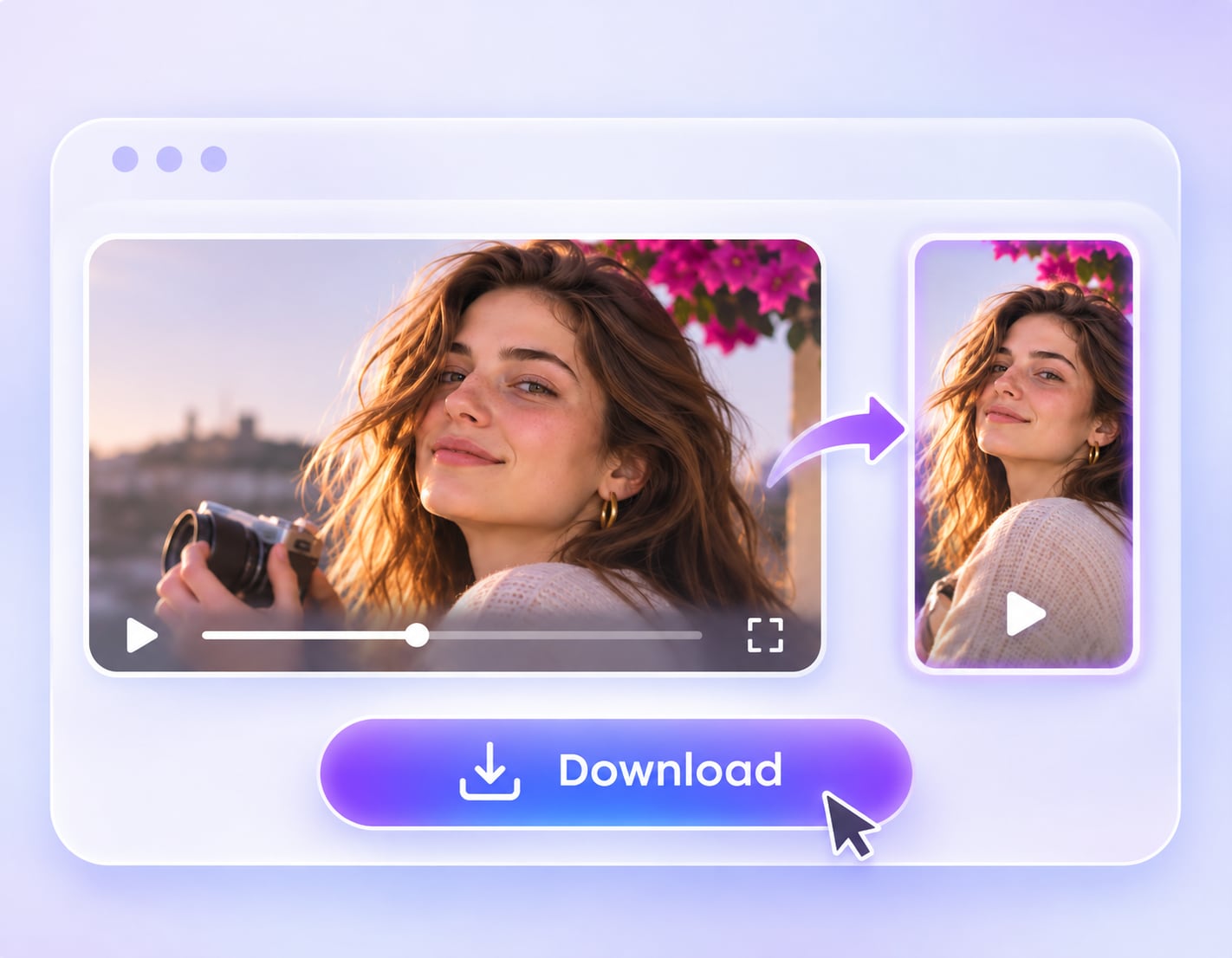
Preview and Download Your Video
Let AI adapt your video to the selected frame. Check that the people, products, and important scene details look right, then download your reframed clip for sharing.
AI Video Reframe vs Resize vs Crop: Which One Do You Need?
Reframing, resizing, and cropping change a video in different ways. Choose the workflow that matches the content you want to keep.
| Question | AI Reframe | Resize | Crop |
|---|---|---|---|
| What it changes | The video composition for a new frame | The canvas dimensions, scale, or display size | The visible boundaries of the picture |
| When to choose it | You want to adapt a finished scene to another screen | The layout size needs adjusting but content can remain as is | Unnecessary edges can be removed safely |
| Main trade-off | Review how scene details carry into the new frame | The source may show borders or need additional fit choices | Content outside the crop is removed |
| Example | Adapt a landscape product clip for a vertical social post | Make a square output from a fitted video | Remove empty space on one side of a shot |
| Media.io workflow | Use AI Video Reframer for a new target ratio | Use the Video Resizer for general resizing | Use the Video Cropper for deliberate cropping |
Where Can You Use an AI Video Reframer?

Make Your Videos Fit TikTok, Reels, and Shorts
Got a great landscape clip that doesn't fit a vertical feed? Use an AI video reframer to adapt it for TikTok, Instagram Reels, or YouTube Shorts while keeping the important parts of your scene in view. Make more use of the videos you've already created.

Adapt Product Videos for Different Ad Placements
Your product looks great in one format, but what about the next ad placement? Reframe short product demos and promotional clips for vertical, square, or landscape layouts while keeping attention on the product and its key details. Reuse your existing creative across more channels.

Reframe AI-Generated Videos Without Starting Over
Generated an AI video you love, only to find that the aspect ratio doesn't suit your next post? Instead of recreating the scene from scratch, reframe your finished clip for a different screen. Give your AI-generated footage another use while preserving the original creative idea.

Give Your Brand Videos More Places to Shine
A video made for your website may need a different frame for an Instagram post or promotional campaign. Use AI video reframing to adapt brand visuals, campaign clips, and short showcases for different layouts without making a new video for every placement.
What to Check Before Sharing a Reframed Video
Your video may fit the new frame, but is everything still where it should be? Check these four details before sharing your reframed video.
Keep Key Subjects Visible
Check that faces, products, and important objects remain clearly visible. Pay extra attention to subjects near the edges of the original video.
Review Moving Scenes
Play the entire clip to see how moving subjects look in the new frame. Watch for awkward framing, missing details, or unexpected changes near the edges.
Check Text and Safe Areas
Make sure captions, logos, and on-screen text are easy to read. Leave enough space around the edges for TikTok, Reels, or Shorts interface elements.
Preview Before Posting
Check the final aspect ratio, playback, and visual quality on your target screen. A quick preview helps catch framing issues before your video goes live.
AI Video Reframer FAQs
What is an AI video reframer?
An AI video reframer helps adapt an existing video to a different aspect ratio while working to keep its important visual content in view. It is useful when a finished clip needs to fit another screen or publishing format.
How do I reframe a video online with Media.io?
Upload an MP4 or MOV clip between 1 and 15 seconds, choose a supported target ratio, generate the new version, then review the picture before downloading. Media.io supports 16:9, 4:3, 1:1, 3:4, and 9:16.
Can I reframe a landscape video into a vertical video?
Yes. Choose 9:16 when you want a portrait version of a landscape clip. Review the result closely if the original scene includes several people, wide motion, or important details near the edges.
What is the difference between AI reframe, resize, and crop?
Resizing changes output dimensions or canvas fit. Cropping removes part of the visible picture. AI reframing is intended to adapt the composition for a different frame while considering the scene. The exact result depends on the clip.
Can I reframe a video without losing important content?
Media.io is designed to help preserve the original scene when changing video size. The result still needs visual inspection, especially for moving subjects, edge details, and scenes with many objects. Do not assume every clip will be pixel-identical.
Which aspect ratios does Media.io AI Video Reframer support?
The available output aspect ratios are 16:9, 4:3, 1:1, 3:4, and 9:16. Choose based on your placement rather than assuming one format works everywhere.
What video formats and limits are supported?
The current tool accepts MP4 and MOV videos from 1 to 15 seconds, up to 100MB per file. Source resolution can range from 240 to 4096 pixels, and the source aspect ratio must not exceed 8:1.
What output resolution should I choose?
The tool offers 1080p, 720p, and 480p, with 1080p selected by default. Choose based on your intended use and the quality of the original clip.
Can I reframe an AI-generated video?
Yes. If you already have a short AI-generated clip saved in a supported format, you can upload it and choose a new target ratio rather than regenerating the creative concept from scratch.
Does AI reframing automatically expand the background or track speakers?
AI video reframing can refer to different techniques, including guided crops, tracking, or generative extension. This page does not claim automatic speaker tracking or generative outpainting as a Media.io feature because those particular mechanisms have not been verified.
Is it better to reframe or create a new video for social media?
Try reframing when the footage, motion, and message already work and you only need another composition. Make or edit a new clip when the underlying action, story, or camera angle needs to change.
More Ways to Prepare Your Video
Need a simple crop, a different output size, or a brand-new clip? Choose the Media.io workflow that fits what you want to change.