Crying Eyes Filter with Realistic Tears
Create a crying eyes filter look with glossy eyes, trembling lips, and tears that gradually roll down the cheeks. The emotional progression feels more convincing than a single frozen sad face.
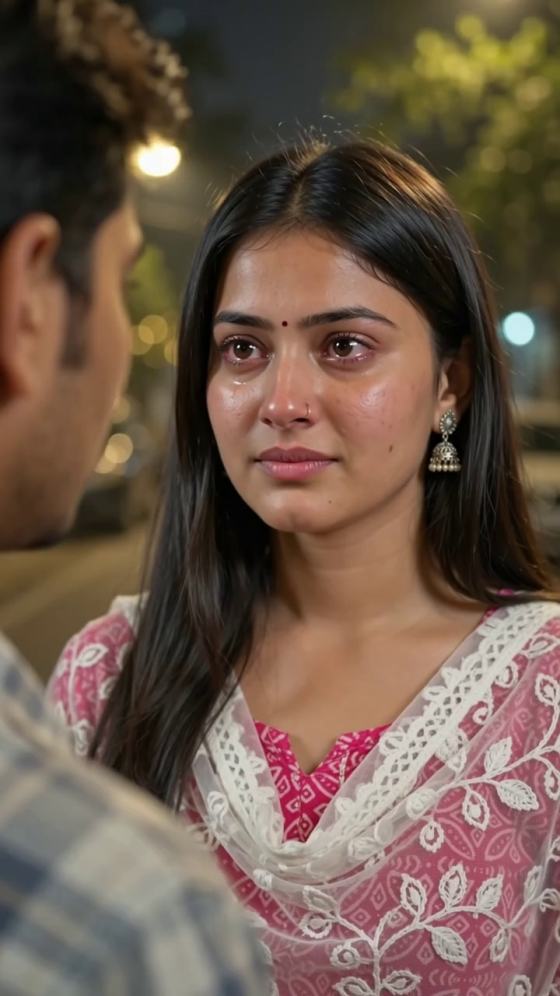
Turn a portrait into a dramatic Middle Finger Cry Filter video. Watch your character hold back tears, break into realistic crying, raise one middle finger, and walk away. Make an expressive AI crying video with cinematic lighting and emotional storytelling using Media.io Image to Video.
Upload a clear portrait. Crying motion, gesture accuracy, audio, and generation credits depend on the selected model.
Create a crying eyes filter look with glossy eyes, trembling lips, and tears that gradually roll down the cheeks. The emotional progression feels more convincing than a single frozen sad face.
Turn a simple sad filter into a memorable reaction scene. Guide the character to raise one hand, extend only the middle finger, and hold the gesture briefly while crying.
Start from your own photo and describe natural facial micro-expressions, consistent hairstyle, clothing, and realistic body proportions. Inspect the output for face or hand distortions.
Build a short story from restraint to heartbreak, defiance, and walking away. Use warm night lighting and an over-the-shoulder angle for a cinematic reaction video.
Open Media.io Image to Video and upload a front-facing or three-quarter portrait. A visible face and upper body make it easier to show tears and a readable hand gesture.
Paste the Middle Finger Crying prompt below. Describe glossy crying eyes, tears, one raised middle finger, and a final turn away. Keep the shot steady and the motion natural.
Generate your clip, check facial identity and finger anatomy, then export your favorite version. Add licensed sad music afterward if your chosen model does not generate audio.
Copy this image-to-video prompt for realistic tears, a clear middle-finger gesture, and an emotional walk-away ending.
Use the uploaded photo as the visual reference. Create a vertical 9:16 photorealistic romantic-drama video of two people facing each other outdoors at night. Film over the shoulder of the foreground character, softly blurred on the left. Keep the main subject in sharp medium close-up, maintaining eye contact. Warm streetlights, golden bokeh, shallow depth of field, realistic skin and subtle film grain. The main subject begins calm but hurt. Their eyes gradually become glossy and red, eyebrows tighten, and the lower lip trembles. Tears gather and roll down the cheeks as quiet sobbing and shaky breathing begin. While still crying, the subject slowly raises ONE hand to chest level and clearly extends ONLY the middle finger toward the other person; all other fingers fold naturally. Hold the gesture briefly with a heartbroken yet defiant expression. Then lower the hand, break eye contact, turn away, and walk out of frame, still crying. Timing for a 10-second clip: 0–3s holding back tears; 3–5s tears begin; 5–7s crying with a clear middle-finger gesture; 7–10s turning and walking away. One continuous shot, subtle handheld movement, natural micro-expressions, accurate anatomy, and smooth motion. Preserve the subject's exact face, hairstyle, outfit, and proportions. If audio generation is supported, use soft modern Bollywood sad-pop music with gentle piano, warm strings, and quiet sobs. Avoid extra or distorted fingers, incorrect gestures, exaggerated crying, face changes, abrupt cuts, text, or watermarks.
Turn a portrait into a breakup-style confrontation with realistic crying, a defiant hand gesture, and a quiet exit.
Use the crying eyes filter aesthetic for an ironic reaction video: emotional tears paired with a bold middle-finger gesture.
Create a warm, night-lit romantic-drama shot and add appropriately licensed Indian sad-pop music to reinforce the emotional beat.
Illustrative creator concepts for editorial planning, not verified customer testimonials.

Short-Form Creator · Illustrative example
“Tears Made the Scene.” I would start with a calm portrait, then let the tears appear before the reaction for a stronger emotional payoff.

Meme Editor · Illustrative example
“The Gesture Is Everything.” I would keep the middle finger visible for one second so the punchline reads clearly on a small screen.

Video Storyteller · Illustrative example
“A Mini Drama in Seconds.” I would use a warm nighttime scene, a close-up, and a quiet walk-away ending instead of overacting.
The Middle Finger Cry Filter is an AI video effect concept that combines a gradually crying face with a defiant middle-finger gesture. Unlike a static crying face app, an image-to-video workflow can show tears forming, the hand gesture, and a final turn away. Exact results vary by model and source photo.
Upload a clear portrait to Media.io Image to Video and describe glossy eyes, trembling lips, tears rolling down the cheeks, and gentle sobbing. For the Middle Finger Crying version, add one clearly raised middle finger and a walk-away ending. Review the result for facial consistency and hand anatomy; regeneration may be needed.
Some online AI tools offer trial access or limited free credits, but availability, generation costs, export quality, and watermarks can change. Check Media.io’s current model and credit details before generating. A crying eyes filter changes the facial expression; a full AI crying video also adds motion.
No. ChromaStudio AI is a separate search term and should not be treated as a Media.io product or partnership. Media.io offers an image-to-video workflow for prompting emotional facial motion. Traditional crying face apps may apply a still-image or camera filter instead of generating a cinematic action sequence.
AI video models can struggle with hands, facial details, and multiple actions. Use a clear upper-body photo, specify ONE hand with ONLY the middle finger extended, keep the camera steady, and limit the scene to a few simple actions. If the output is inconsistent, shorten the prompt or generate a shorter clip. Audio support depends on the selected model.