

AI Markdown to Video Generator - Convert MD Files to Video Online
Turn a focused README, release note, Markdown article, or knowledge note into a 5-30 second AI video. Upload one Markdown file, add relevant photos, video clips, or audio, then choose the resolution and aspect ratio for your next product update, project introduction, or content teaser.
Short-form video creation from Markdown content, with output options up to 1080p.
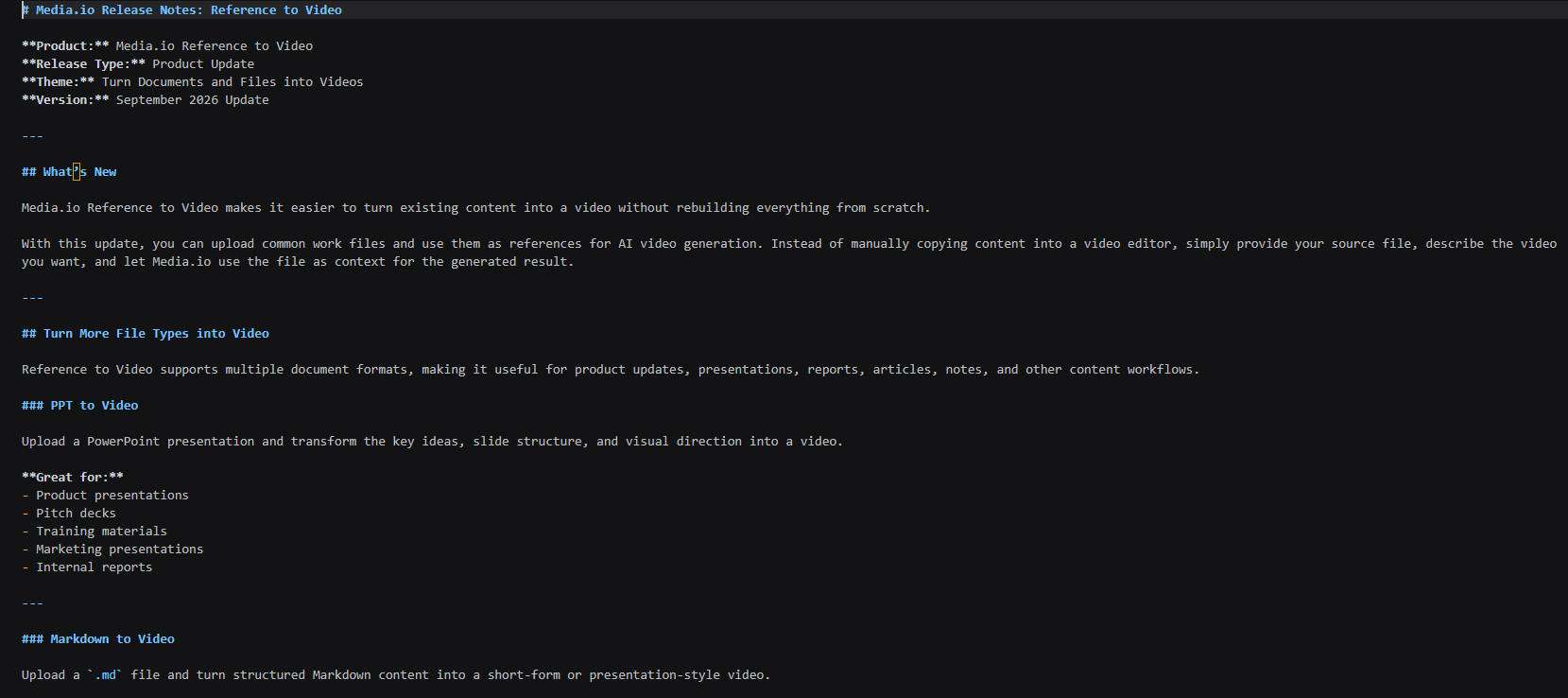
What Is Media.io Markdown to Video?
Media.io Markdown to Video is an AI video creation workflow that uses one Markdown file as source material for a short video. It is designed for focused repurposing rather than line-by-line document playback: choose one useful update, project idea, article angle, or note, then build a 5-30 second video around it. You can also add up to 10 photos, 5 video clips, and 5 audio files as supporting inputs.
Turn READMEs, Release Notes, and Markdown Articles into Short Videos
Use the Markdown you already have as a content starting point. Keep each video focused on one reason to watch, learn more, or open the complete document.
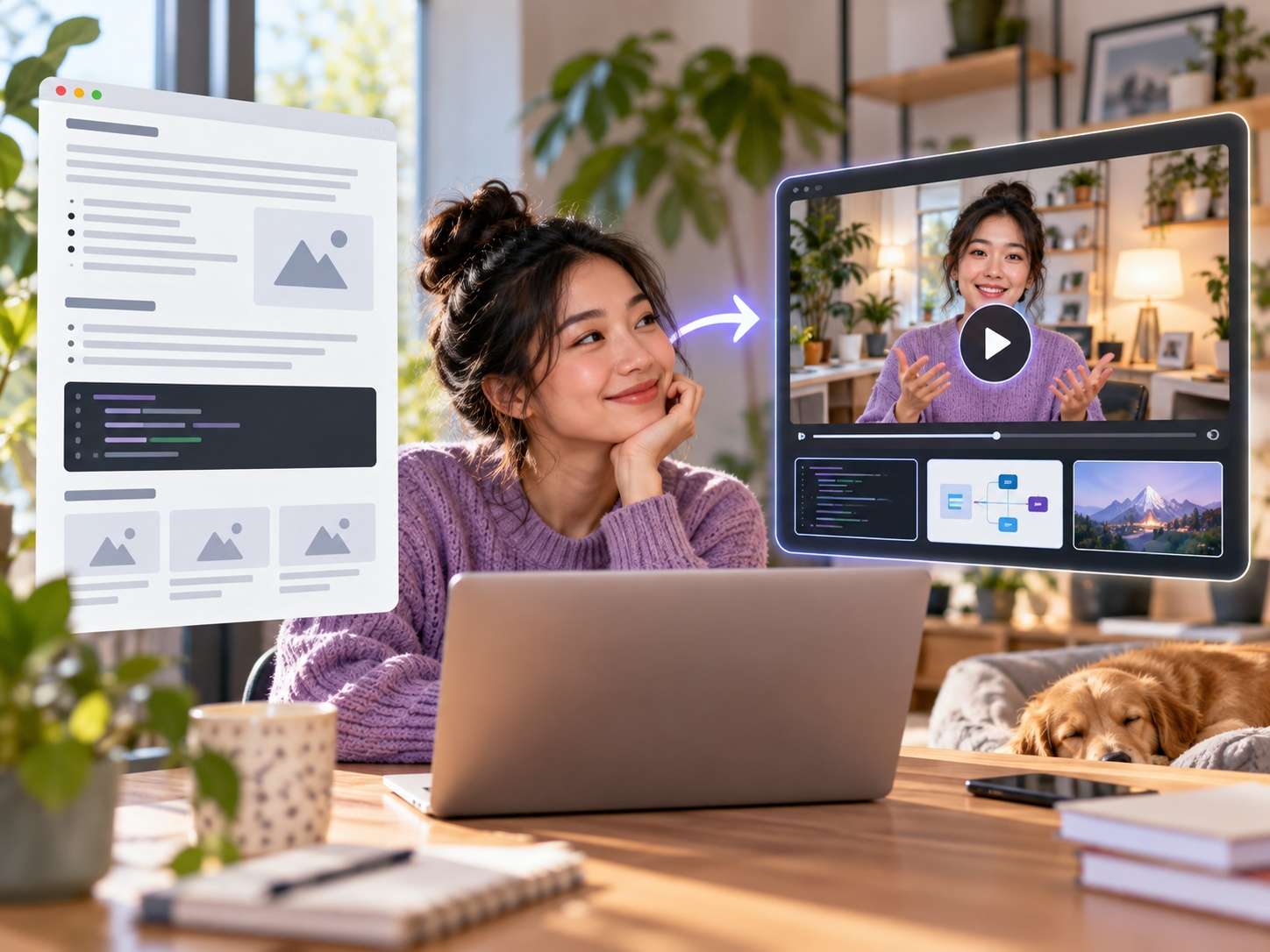
Product Update Videos
Turn a release note or changelog into a short announcement about one important change. Focus on what changed, who it helps, and why the update is worth opening.
release notes to video · changelog to video
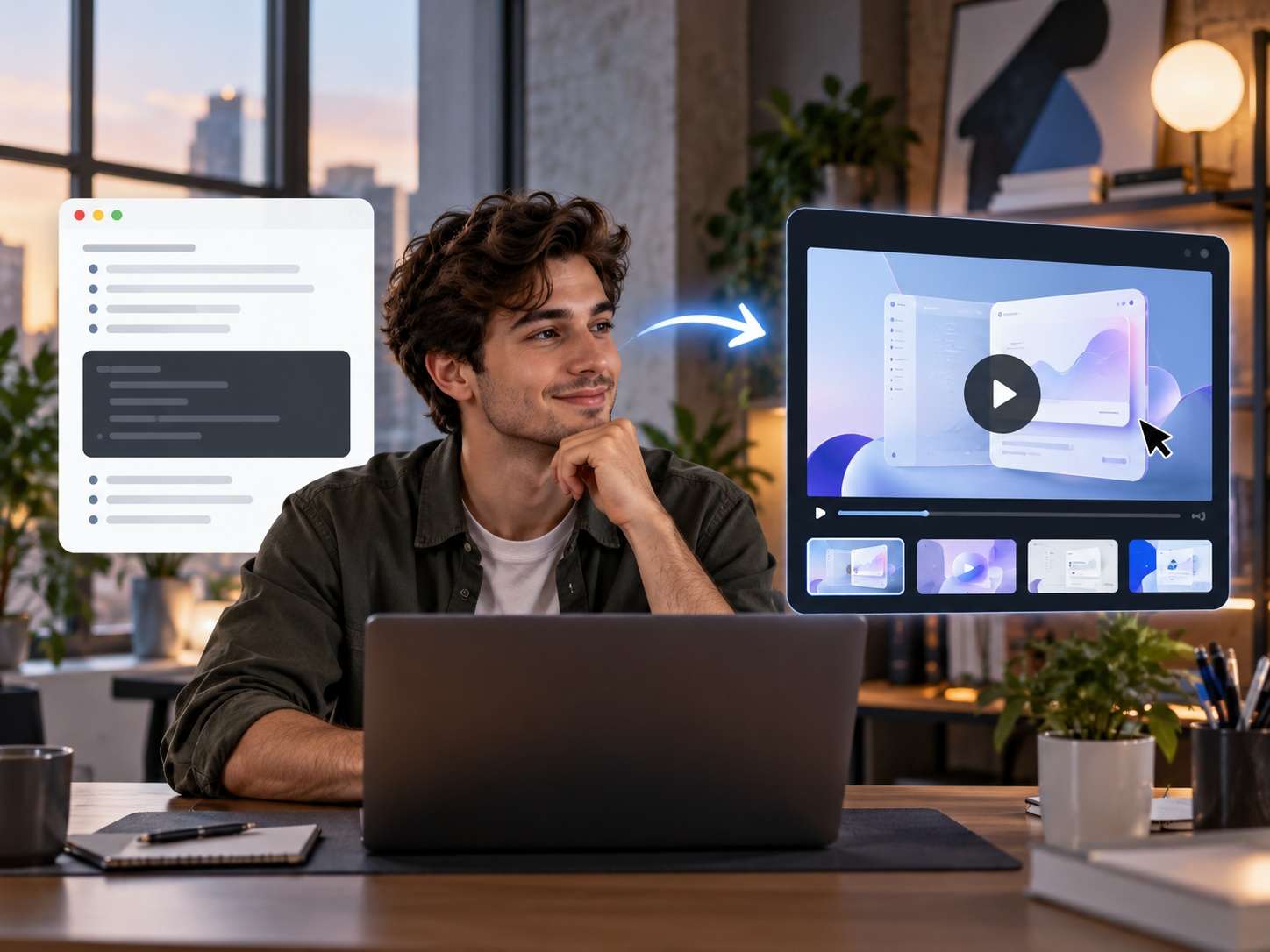
README Project Intros
Use a README as the source for a short project introduction. Explain who the project is for and what problem it addresses, then point viewers to the complete documentation for setup details.
README to video · project introduction
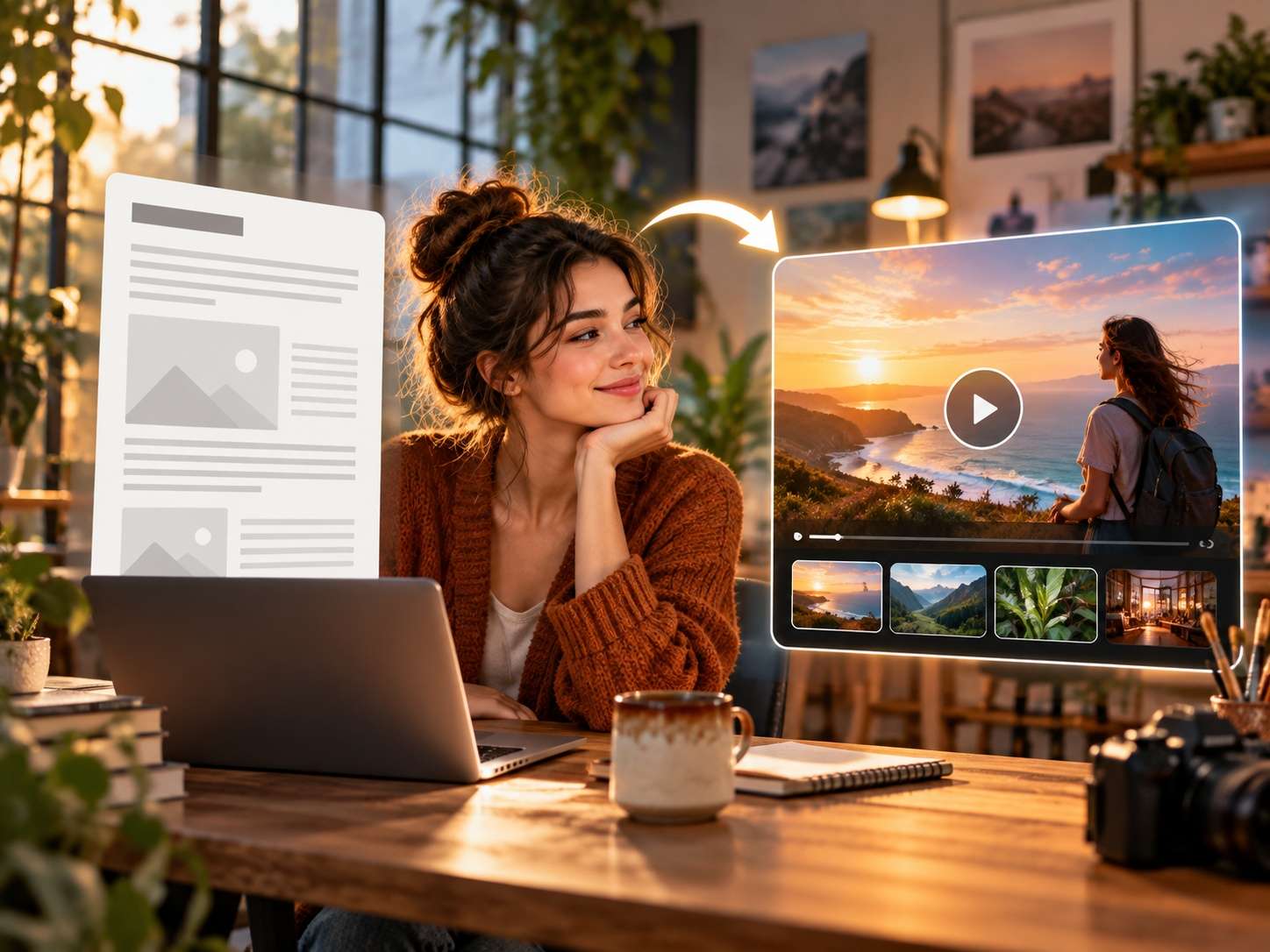
Article & Blog Teasers
Repurpose one question, argument, or useful takeaway from a Markdown article into a short video. Let the clip introduce the topic while the full article provides the context.
markdown article to video · blog teaser

Knowledge Note Videos
Turn a focused Markdown note into a short explanation or idea preview. Keep complex references, linked notes, and detailed examples in the original knowledge base.
markdown notes to video · knowledge content
How to Convert Markdown to Video Online in 3 Steps
Start with a focused Markdown file, add only the supporting media that matters, and choose the output settings for the channel you plan to use.
Upload Your Markdown File
Start with one Markdown file and choose the single topic you want the video to communicate. If specific photos, clips, or audio are essential, prepare them as supporting uploads rather than relying only on links inside the file.
Choose Video Settings
Choose a video duration from 5 to 30 seconds and select 480p, 720p, or 1080p. Aspect ratios include Auto, 16:9, 9:16, 4:3, 3:4, and 1:1 for horizontal, vertical, and square placements.
Generate and Review the Result
Review the generated video before sharing it. Check names, numbers, visible text, technical terms, product details, and media. Keep the original Markdown available whenever viewers need exact commands, tables, links, or detailed instructions.
How Should You Prepare a Markdown File for Short Video?
Markdown documents often contain more than prose. Before generating, separate the material that needs to become a visual message from the material that should remain in the original document.
Use headings and paragraphs to define the idea
A release note may contain ten changes, while a README may contain installation, usage, API, and license sections. A 5-30 second video works better when you decide which section deserves the spotlight instead of asking one clip to reproduce the entire file.
Upload important media separately
Do not assume a linked image, relative file path, or embedded media reference inside Markdown will automatically become a usable video asset. If an image, clip, or audio file is important to the message, add it as a supporting upload.
Treat code and commands as details to verify
Code blocks can contain characters where one typo changes the meaning. Use the short video to introduce the workflow or benefit, then keep exact commands, parameters, and code examples in the original Markdown for reference.
Keep tables and technical data in context
Dense comparison tables and detailed benchmarks are difficult to communicate in a few seconds. Use the video to explain the takeaway, then direct viewers to the document when exact values, methodology, or full comparisons matter.
Choose the Right Workflow for Your Markdown Content
A short AI video, a narrated presentation, and the original Markdown document solve different communication jobs.
FAQs on Markdown to Video
Can I turn a README or Markdown document into a video?
Media.io supports one Markdown file as the source for a 5-30 second AI video. For README files, release notes, articles, or notes, focus the video on one clear idea rather than expecting the complete document to be reproduced line by line.
What happens to images, links, tables, and code blocks in my Markdown file?
Do not assume that every Markdown element or linked asset will be rendered exactly as written. Review the generated result carefully. If a photo, video, or audio file is important to the video, upload it as a supporting media file rather than relying only on a link inside the Markdown document.
How long can a video generated from Markdown be?
The available video duration is from 5 to 30 seconds. This makes the workflow better suited to product updates, project introductions, article teasers, and other focused short videos than to full technical tutorials or long-form document narration.
Can I add photos, video clips, and audio to a Markdown-to-video project?
Yes. The supported upload quantities are one Markdown file, up to 10 photos, up to 5 video clips, and up to 5 audio files. Choose supporting material that directly helps communicate the short video topic.
Which resolutions and aspect ratios are available?
You can choose 480p, 720p, or 1080p. Available aspect ratios are Auto, 16:9, 9:16, 4:3, 3:4, and 1:1. Choose the output shape according to where the video will be used, then review the result at the intended viewing size.
Start from a Different Content Format?
Use the workflow that matches the material you already have. Start from a written script for script-led creation, or use a presentation workflow when your source is already organized as slides.

Your Markdown Already Has the Idea.
Give It a Short-Video Format.
Choose one useful message from your README, release note, article, or knowledge note, add the supporting media that matters, and turn it into a 5-30 second video.