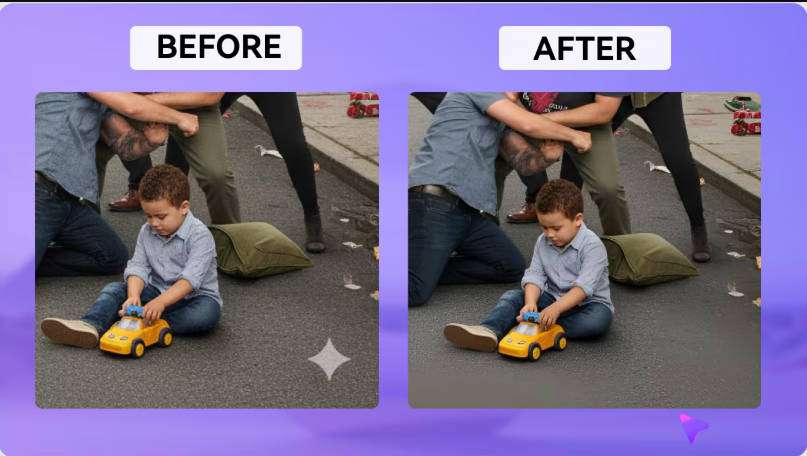
첫 구독 최대50% 할인
지금 구매
비디오 객체 제거기
비디오 객체 제거기
tiktok 워터마크 제거기
모드
기본 모델
AI 모델
가우스 흐림
기본 모델 v2
업로드
파일을 여기에 끌거나 클릭하여 업로드합니다.클릭 업로드지원: mp4, .mov; 최대: 15분
목록 생성
작업물은 7일 동안만 저장됩니다. 멤버십 플랜으로 업그레이드한 후 생성된 에셋은 영구적으로 저장됩니다.
ai_video_generator창의적 잠재력을 풀고 미디어 AI의 마법을 즉시 경험하십시오!

Vizard Watermark Remover for Exported Clips

Already downloaded your Vizard clip? Upload it to Media.io, select the visible Vizard.ai logo, and preview AI cleanup without cropping the frame. Keep your selection clear of captions, speaker close-ups, and scene changes so you can check the details that make your short easy to follow. If your project is still available, check Vizard's watermark-free export option first.

Remove Vizard Watermark

Use videos you own or have permission to edit. If the logo overlaps captions, exporting again from the original Vizard project can better preserve the text.

Choose the Right Way to Remove a Vizard Watermark

Pick between exporting again from Vizard or cleaning the visible logo with AI. The best route depends on whether your project is still accessible and how close the watermark sits to captions, faces, or moving details in your exported clip.

RouteWhen it fitsExpected result
Official Vizard exportThe project is accessible and the account has an eligible plan.Export without the brand watermark directly from Vizard.
Media.io AI cleanupYou have an exported file you own or are authorized to edit.Reconstruct the selected visible watermark area and preview the result.
Gaussian blurCovering the logo is enough and a blurred patch is acceptable.Obscures the detail rather than restoring the background.

For the official export option, see Vizard's free plan and watermark guide.

Check Captions, Faces, and Scene Changes After Cleanup

Check whether you can export without the watermark

Vizard adds its logo to free-plan exports, while paid plans offer watermark-free export. If you still have the project, check the official export option first. Starting from the original project avoids reconstructing the image beneath the logo.
Keep captions, faces, and highlights outside the selection

Captions and speaker close-ups help viewers follow a short without sound. Use a small selection around the Vizard.ai logo rather than covering a large strip of the frame. If the watermark overlaps a word or face, AI cleanup may change it; it cannot guarantee an intact version of hidden details.

Review the final vertical frame

Work on the version you actually intend to publish. Vizard's automatic reframing can change where the speaker, captions, and logo appear between versions. Region-based editing lets you treat the logo without cropping the entire frame, but you should still check that important text and subjects remain visible.

Check movement and scene changes

A fixed logo can sit over different backgrounds throughout a clip. Play the edited section before and after each cut, paying attention to faces, hands, and caption animation near the selection. If you notice a patch or flicker, refine the area or process a shorter section.

How to Remove a Vizard Watermark Online

1
2
3
1
Step 1: Check your export options

If your Vizard project is still accessible, check whether your plan includes watermark-free export. Otherwise, continue with an exported video you own or are authorized to edit. This Media.io workflow supports MP4 and MOV files up to 15 minutes; check the uploader for current requirements.

2
Step 2: Upload and select the watermark

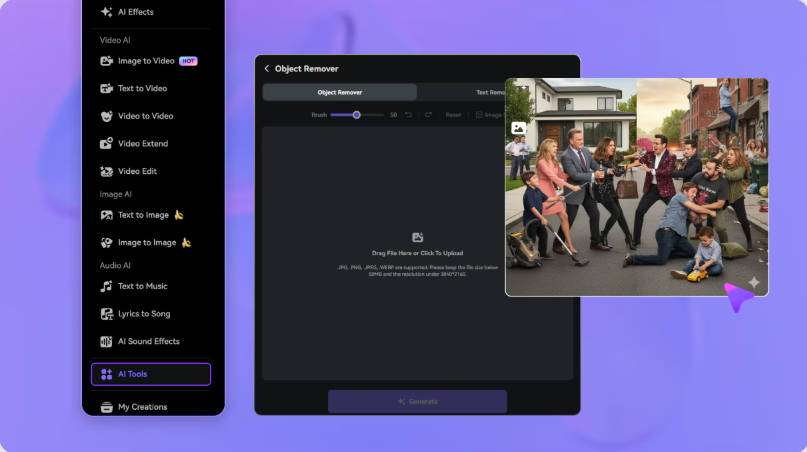
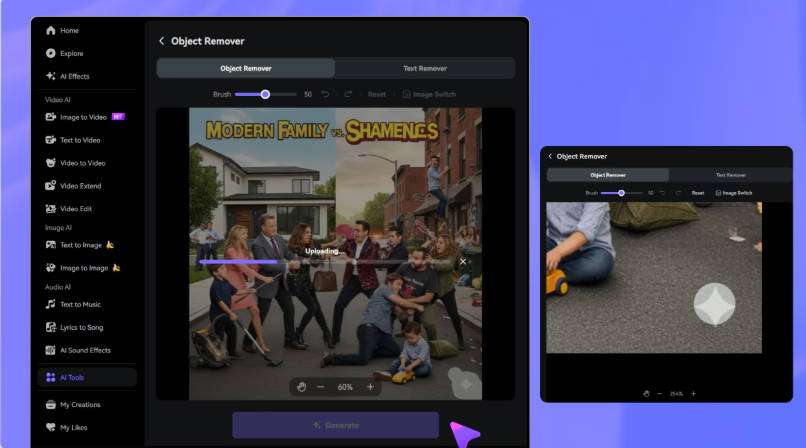
Upload your clip to Media.io Video Eraser and select the visible Vizard.ai logo. Adjust the timeline to cover the frames where it appears. Keep the selection away from captions and speaker close-ups so nearby details stay outside the mask.

3
Step 3: Generate, preview, and download

Generate the cleanup and play the edited segment to check nearby captions, faces, and background changes before downloading. If you notice artifacts, refine the selection or process a shorter section. AI cleanup reconstructs the selected region; it does not recover the exact original pixels hidden behind the logo.

Upload your Vizard video to Media.io
Select the Vizard.ai logo with the brush
Preview and download your edited video

FAQs About Vizard Watermark Removal

Why does my Vizard video have a watermark?

Vizard's official documentation states that free-plan exports carry a Vizard.ai watermark, while paid plans offer watermark-free export. If you downloaded the clip from a free plan, the visible logo is expected. You can either re-export from an eligible plan or clean the logo from the exported file you own or are authorized to edit.

Can I export videos without a watermark directly from Vizard?

Yes, if your account has an eligible paid plan and the project is still accessible. Open the project in Vizard and export a new version; the brand watermark will not be added. Upgrading does not change a copy you have already saved to your device, so a file downloaded earlier from the free plan still carries the logo.

How do I remove the Vizard.ai logo from an exported video?

Upload the exported clip to Media.io Video Eraser, select the visible Vizard.ai logo, set the timeline segment where it appears, and generate the cleanup. Preview the edited area throughout the segment, checking nearby captions, faces, and background changes before downloading.

Can I remove a Vizard watermark without cropping?

Yes. Region-based editing lets you process the logo area without cropping the full frame, so your vertical framing, speaker, and captions keep their original positions. Review the result in the original aspect ratio to confirm that important details remain visible.

Will AI cleanup affect captions or faces near the watermark?

It can. Select only the logo and keep nearby text and faces outside the mask to reduce the risk. If the watermark overlaps a caption, emoji, or speaker close-up, AI reconstruction may alter that area because it rebuilds the region from surrounding context rather than recovering hidden pixels.

Does watermark removal recover the original pixels?

No. AI cleanup reconstructs the selected region using the surrounding video context; it does not recover the exact original pixels hidden behind the logo. Results depend on the background, movement, and selection size, so check several frames and scene changes before downloading.

Is Media.io's Vizard watermark remover free to try?

You can try Media.io with the free credits available when you sign up. Check your account balance and the processing cost before generating a result. Vizard's own watermark-free export option depends on a supported plan on that platform.

What should I check before downloading the edited clip?

Play the edited segment and watch nearby captions, speaker faces, and background changes through any scene cuts. Confirm the reconstruction looks natural and that no text or subject was altered. If you notice a patch or flicker, refine the selection or process a shorter section before downloading.