Create Video from a Written Scene
Describe a subject, action, setting and camera angle in plain English. Generate a draft before spending time on a full storyboard.
Discover the latest AI photo prompts for ChatGPT, Gemini, Midjourney, Flux, and more. Explore 100+ trending AI image prompts, viral Instagram and TikTok photo ideas, cinematic portraits, couple edits, fantasy styles, anime, seasonal effects, and ready-to-use prompt templates - all in one place.
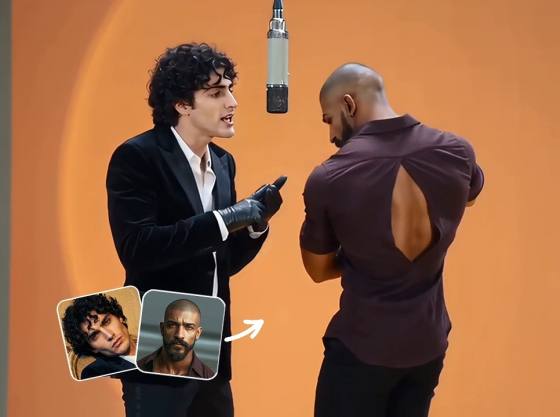
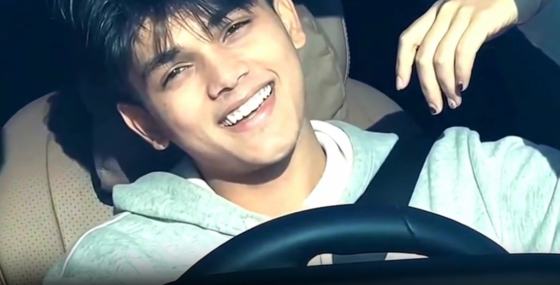
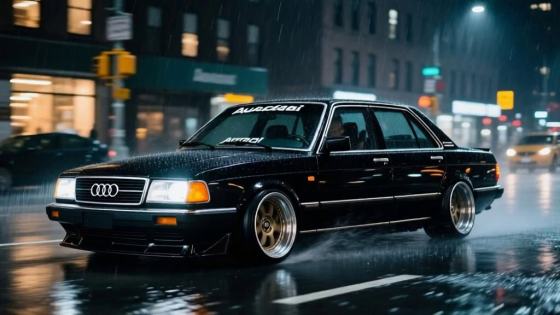
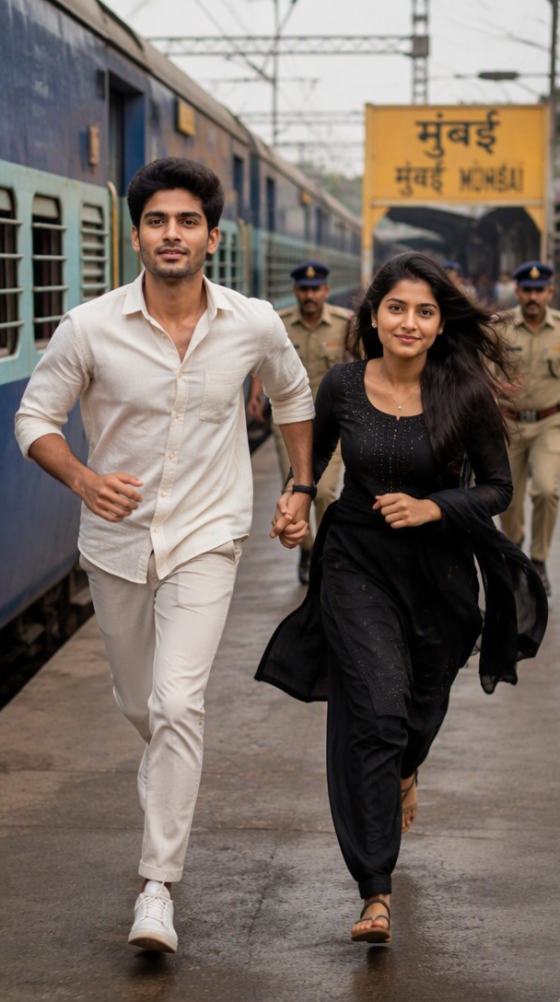
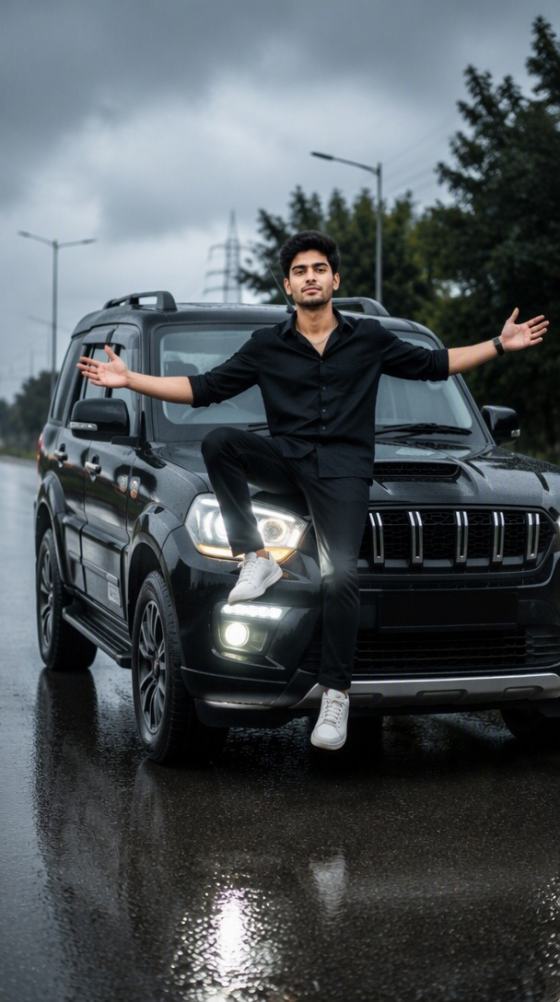
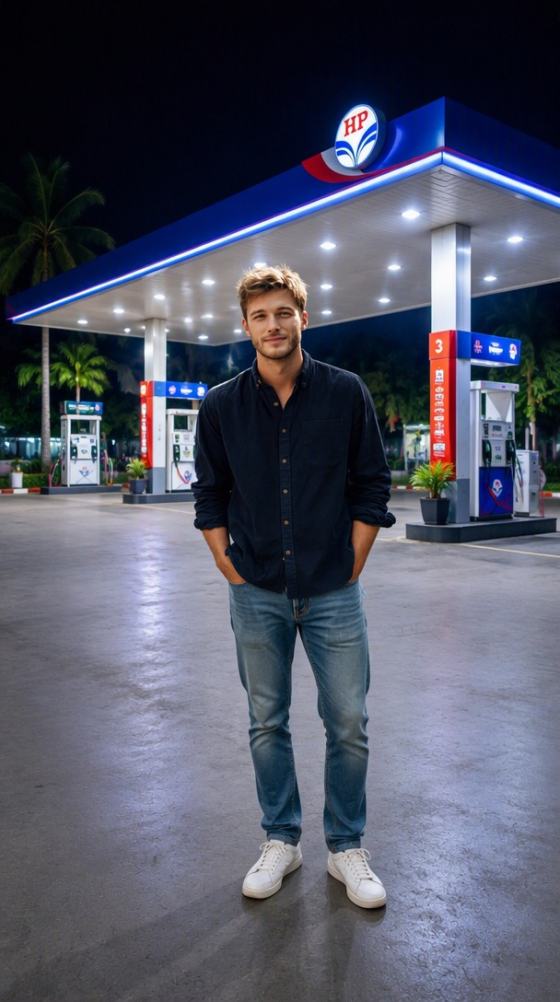
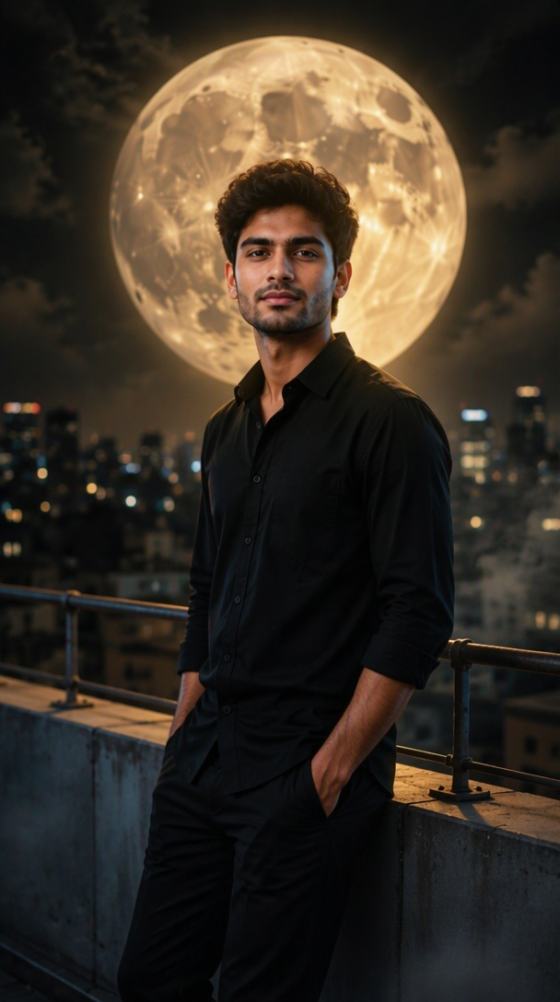
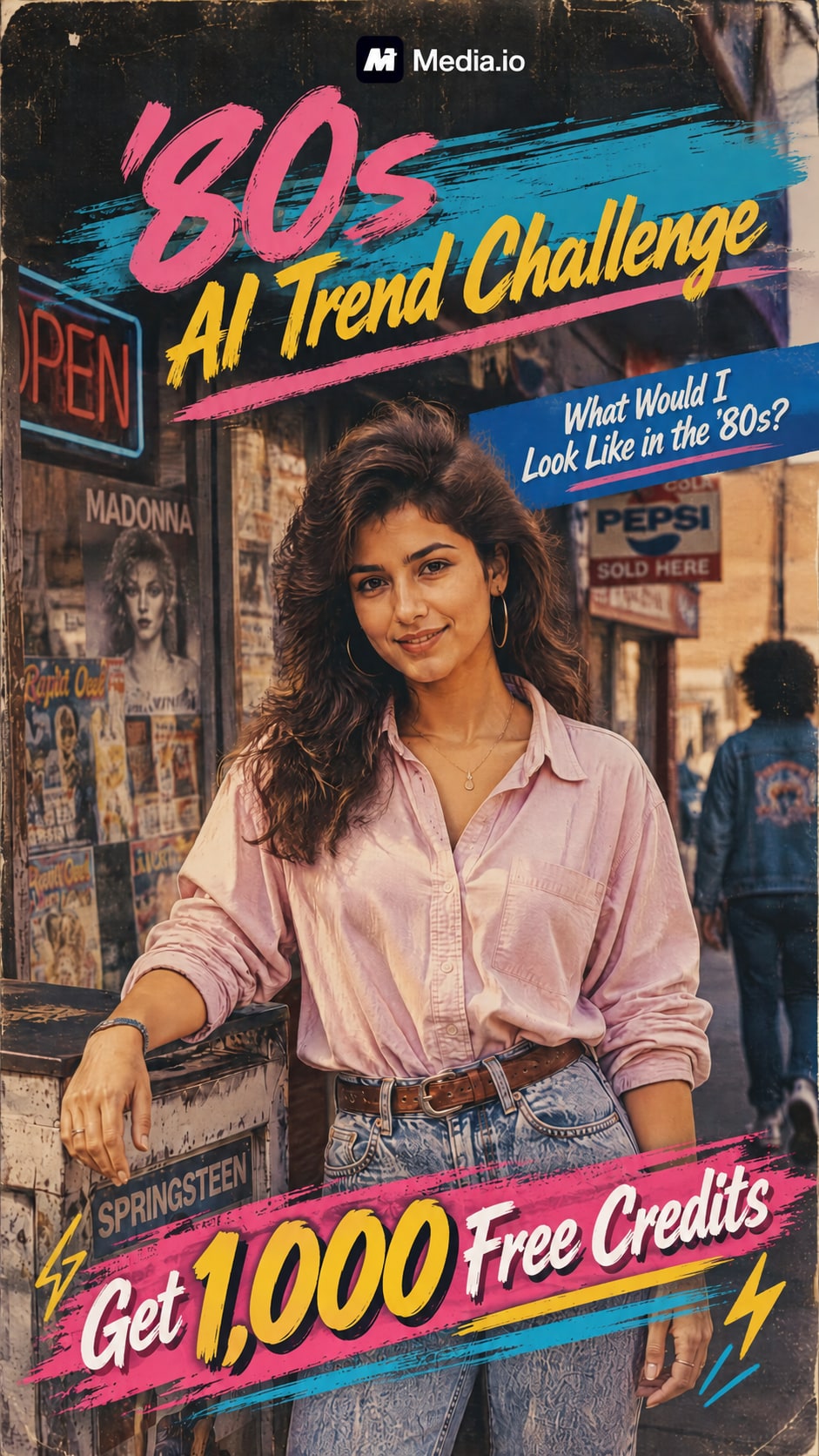
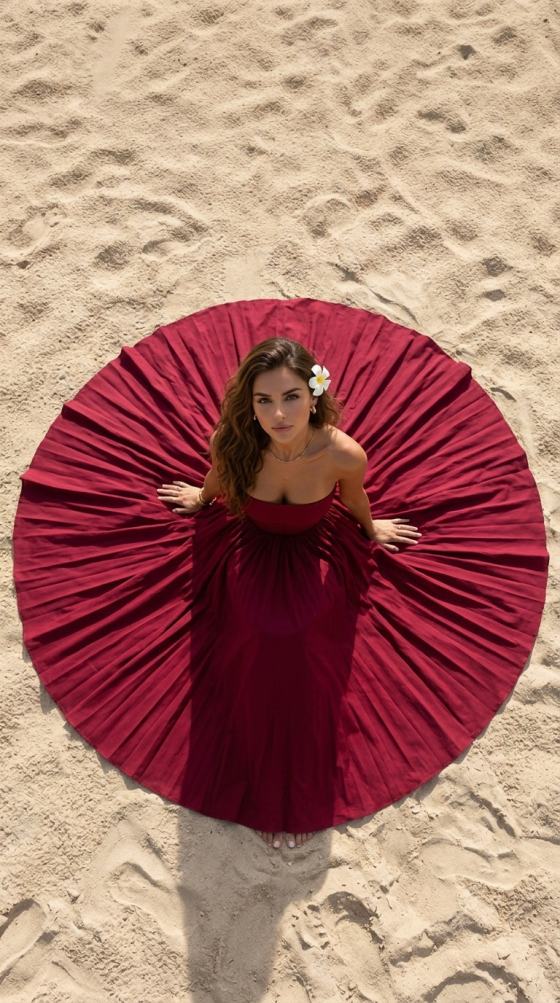

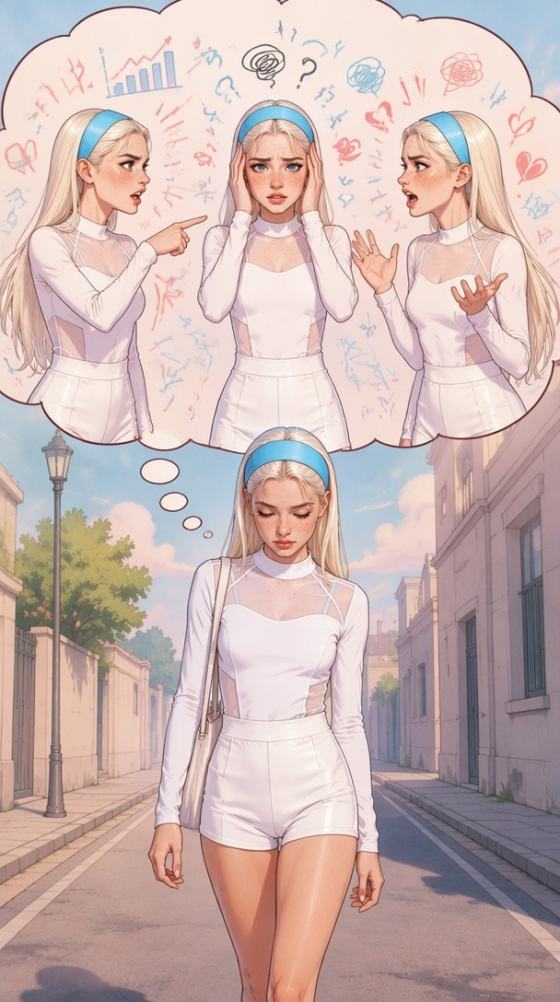
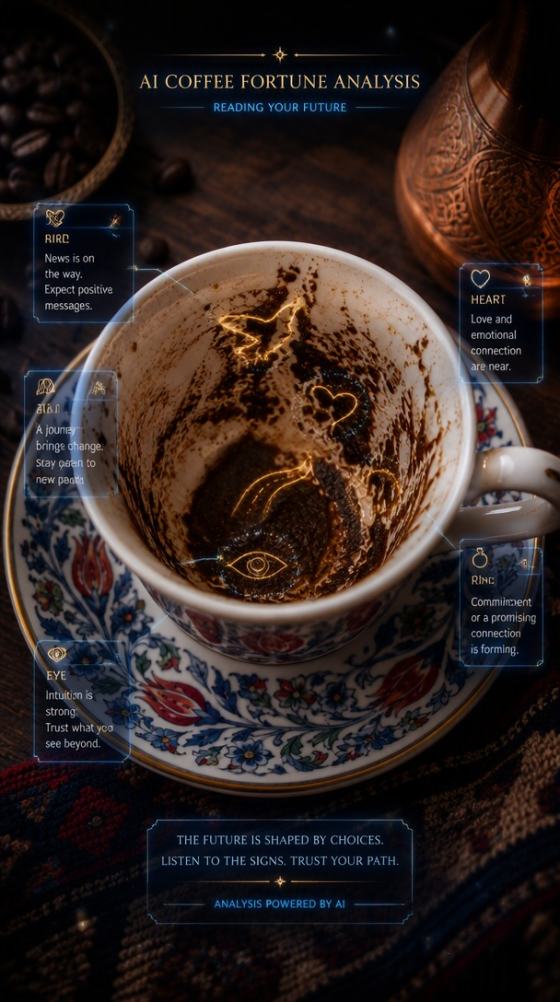
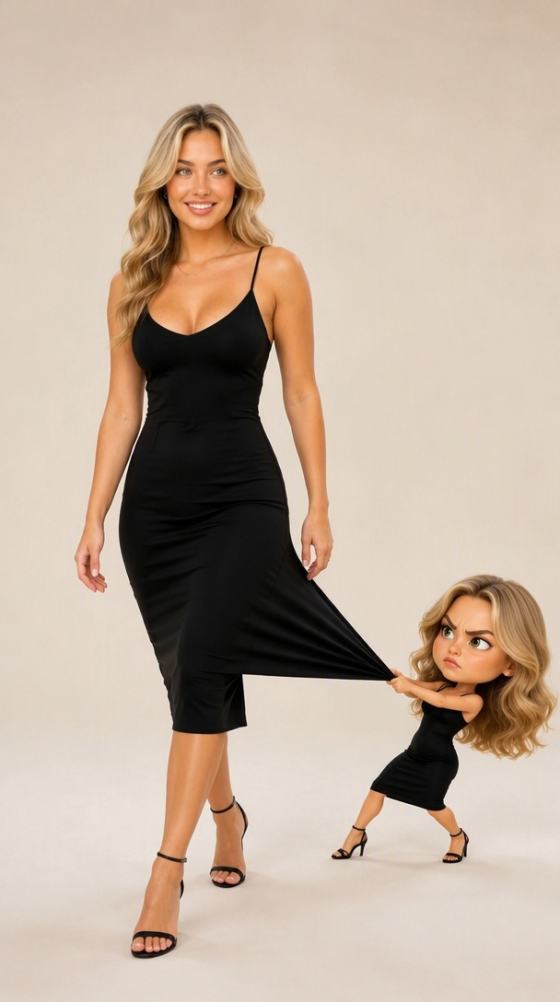
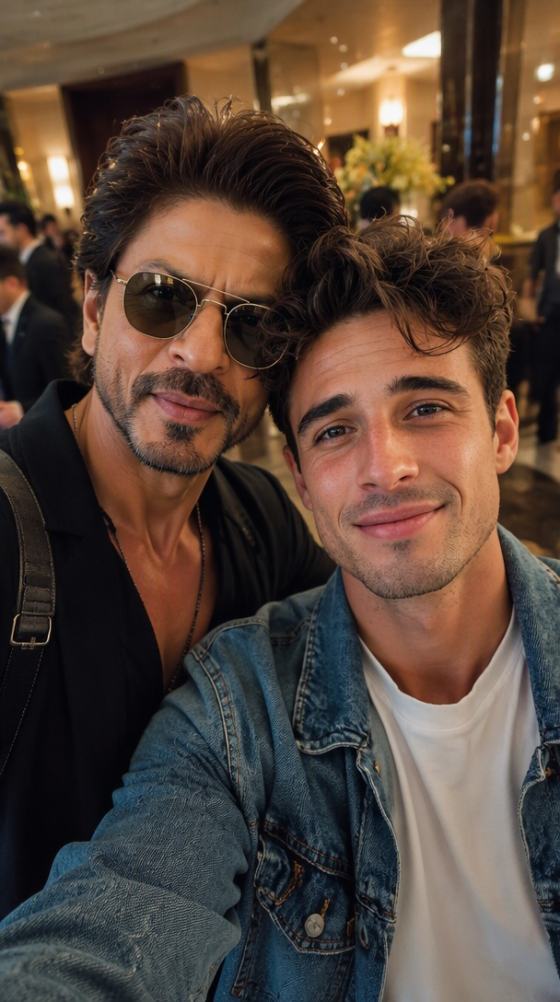
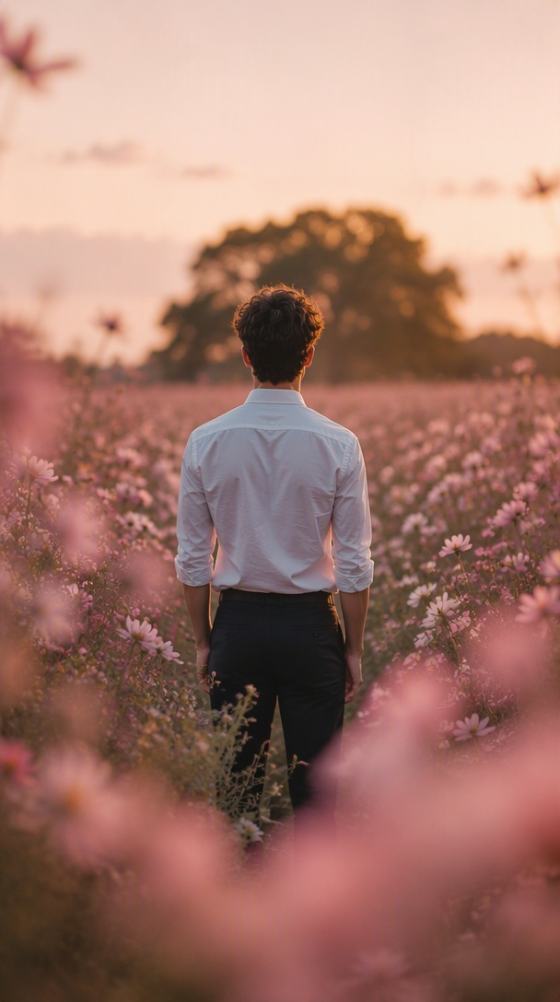
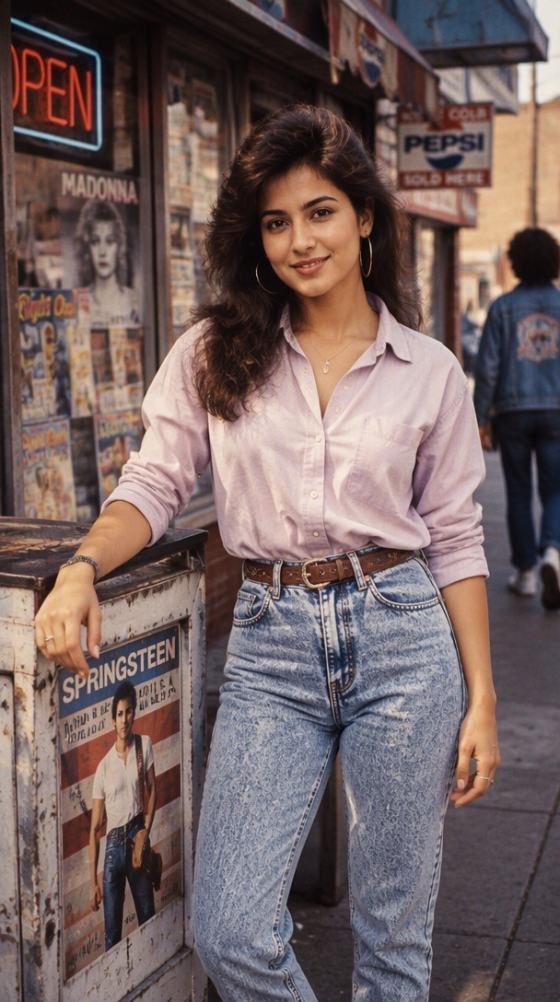

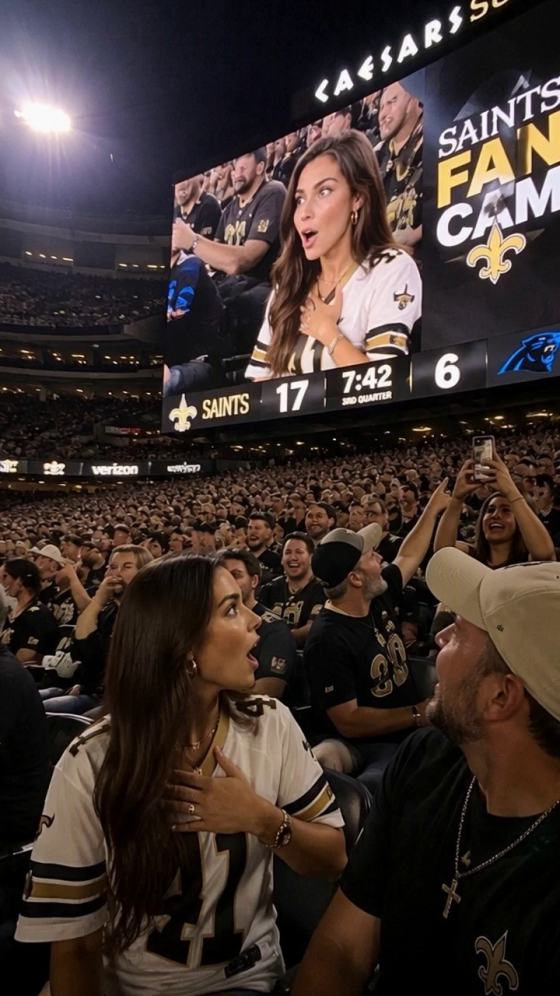
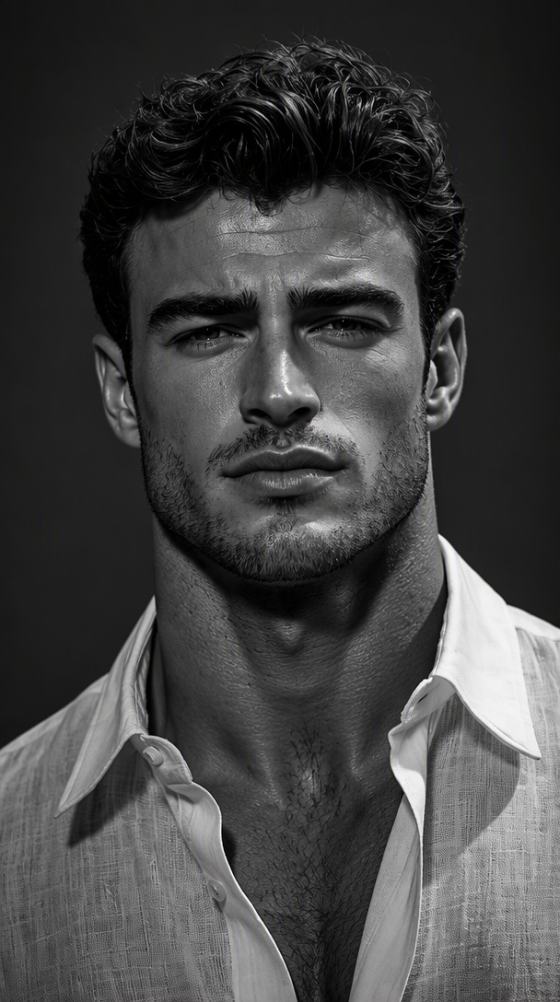
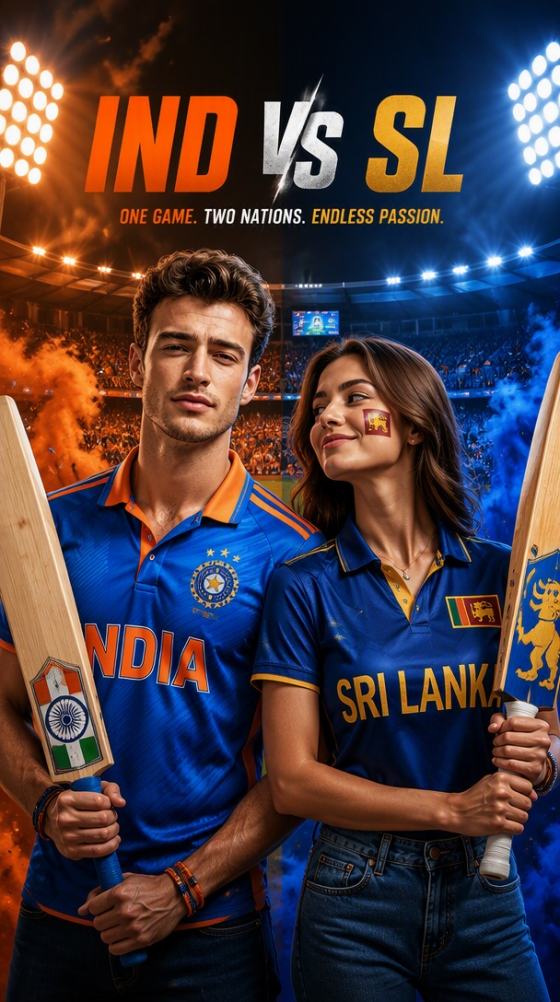
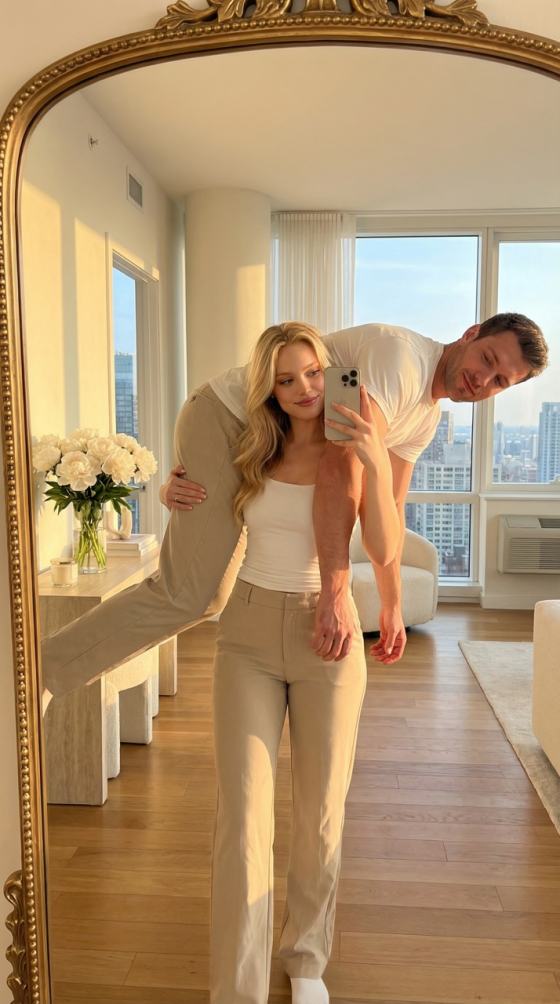
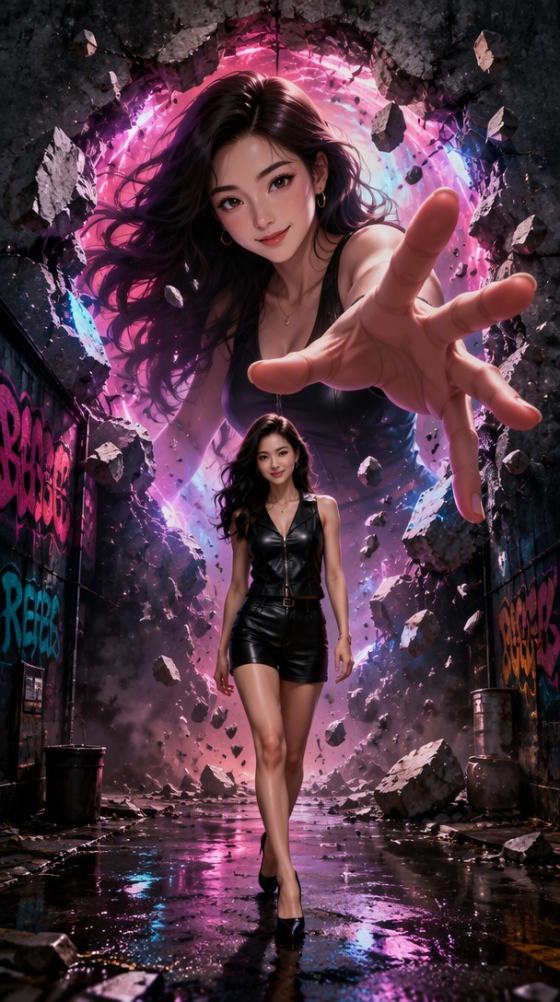
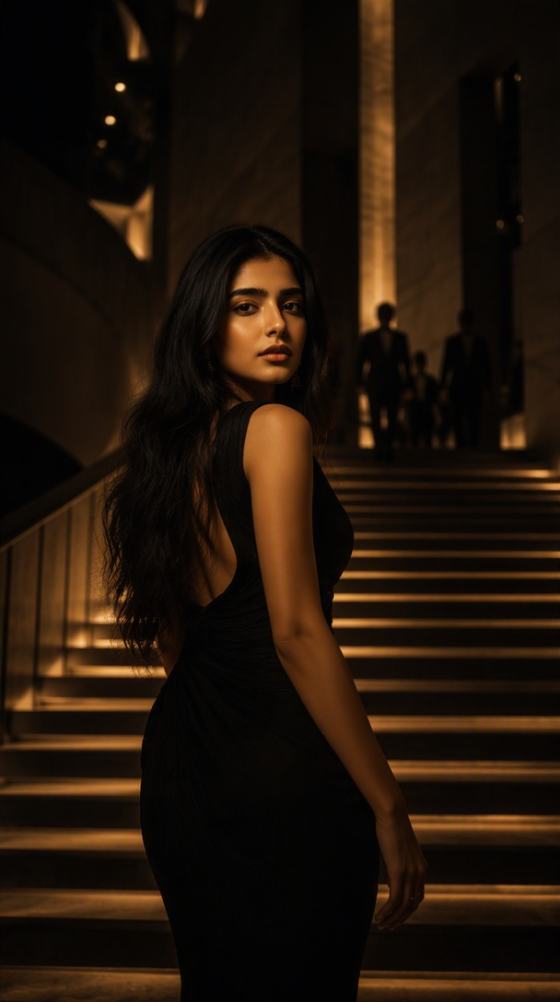
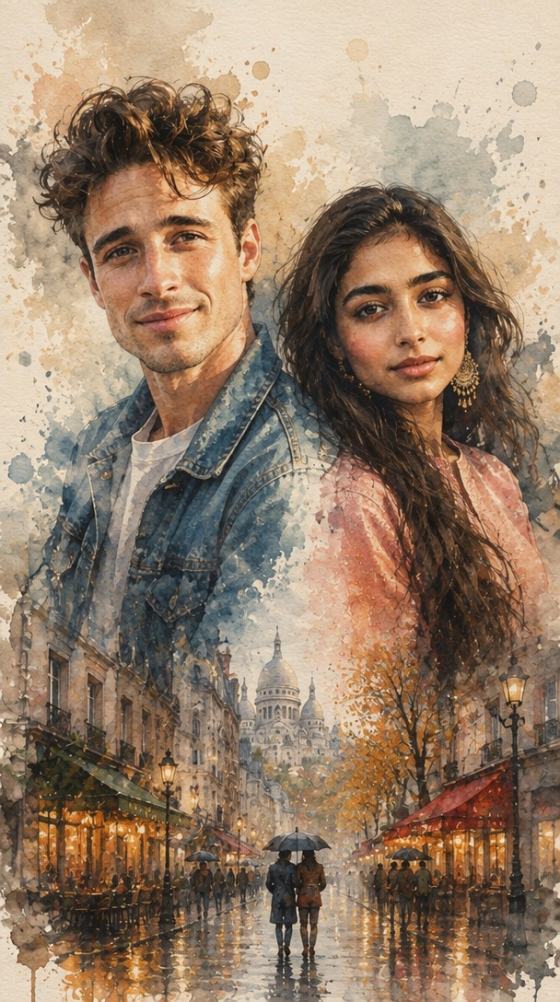
Ausar AI is an AI content studio for generating videos, images and audio from prompts. Explore how its video workflow works, get ideas for cinematic clips, and create a similar shot from text or your own image with Media.io. This independent guide is published by Media.io.
Start with a prompt, then refine the motion and style.
Ausar AI brings image, video and audio creation into one studio, including text-to-video, image-to-video and motion control. If you want to turn a prompt or image into a short visual clip, the steps below show how to plan the shot and create it with Media.io.
Describe a subject, action, setting and camera angle in plain English. Generate a draft before spending time on a full storyboard.
Already have a portrait, product shot or illustration? Start with Media.io Image to Video and describe how the subject and camera should move.
Use concrete cues such as “slow push-in,” “subtle head turn,” or “handheld tracking shot.” Check the preview and adjust one detail at a time.
Explore realistic, animated, or cinematic directions with prompt changes. Choose the version that best fits your social post, concept pitch or campaign.
Open Text to Video to create a scene from words, or Image to Video to animate a photo you have the right to use. Pick the input that fits your idea.
Write one clear action and add the setting, camera motion, lighting and mood. For an image, say what should move and what should remain consistent.
Generate a preview, check motion, faces and object details, then refine your prompt if needed. Download a result that fits your intended use.
Use these starting points to plan a video in Media.io. They are original prompt ideas, not Ausar templates or outputs.
Start with a portrait and describe a gentle head turn, natural blinking and a slow camera push-in. Keep the face and clothing consistent throughout the clip.
Upload a clean product image. Ask for a slow orbit, soft studio reflections and a steady background so the product stays recognizable.
Describe one clear action, such as a character opening a door into a neon city. Specify vertical framing and a single smooth camera move.
Test a short, visually clear scene for Reels, Shorts or TikTok. Try different hooks and camera moves, then select the strongest opening.
Show a client or teammate how a visual idea could move before planning a full shoot. Use a generated clip to discuss mood and composition.
Animate a portrait, product still or artwork you own. Prompt subtle motion first, then add more ambitious movement once the key details look right.
Illustrative review copy for editorial approval. Replace with verified feedback before publishing.

Short-Form Creator · Sample
“Easy to test one shot.” I described the action and camera move in one prompt. The preview helped me decide which direction to refine for a short post.

Product Marketer · Sample
“Our product photo could move.” Starting with an existing image gave me a quick concept clip to discuss with my team before producing an ad.

Digital Artist · Sample
“A helpful visual draft.” I tried a restrained movement first, checked the composition, and changed the lighting in my next version.
Ausar AI is an AI content studio offering video, image and audio generation, plus tools such as motion control and templates. You can describe a scene or use an image as a starting point. Media.io is a separate platform; this page explains the Ausar AI workflow and offers a way to create a related video on Media.io.
You can create a cinematic AI clip on Media.io using a text description, or animate an image you provide. Results depend on the chosen model, prompt, input image and settings. A look inspired by an example can be described in your own words, but matching another platform’s output exactly is not guaranteed.
Choose Text to Video when your starting point is an idea with no image. Choose Image to Video when you already have a portrait, product shot or artwork and want to preserve its visual starting point while adding motion. For either workflow, describe one main action, the camera movement and the scene mood.
Ausar advertises free sign-up, while generation is subject to its current credit and plan terms. Media.io may also offer free credits or limited trials depending on your account and selected model. Check each service’s current pricing and generation screen before starting; free does not mean unlimited.
You can adapt a general scene idea into your own prompt, but a proprietary Ausar template may not transfer directly to Media.io. Describe the subject, action, setting and camera in plain language instead. Only upload images, video or other assets you are permitted to use.



