Tus creaciones solo se guardan durante 7 días. Los recursos creados después de actualizar a Membresía se almacenarán de forma permanente.
¡Desbloquea tu potencial creativo y experimenta la magia de Media AI ahora mismo!
Minecraft Filter That Turns Your Photo Into Blocky Game Art
Create a minecraft filter look from any selfie, pet photo, or scene in seconds. Media.io helps you turn photo into minecraft style with AI image-to-image editing, so you can make avatars, pixel portraits, thumbnails, and playful voxel-inspired posts online. This setup works well for turn photo into minecraft pixel art.
Review these sample directions, then customize the details to get stronger results with this Minecraft Filter, whether you want a minecraft avatar filter, a minecraft character filter, or a simple blocky photo remix.
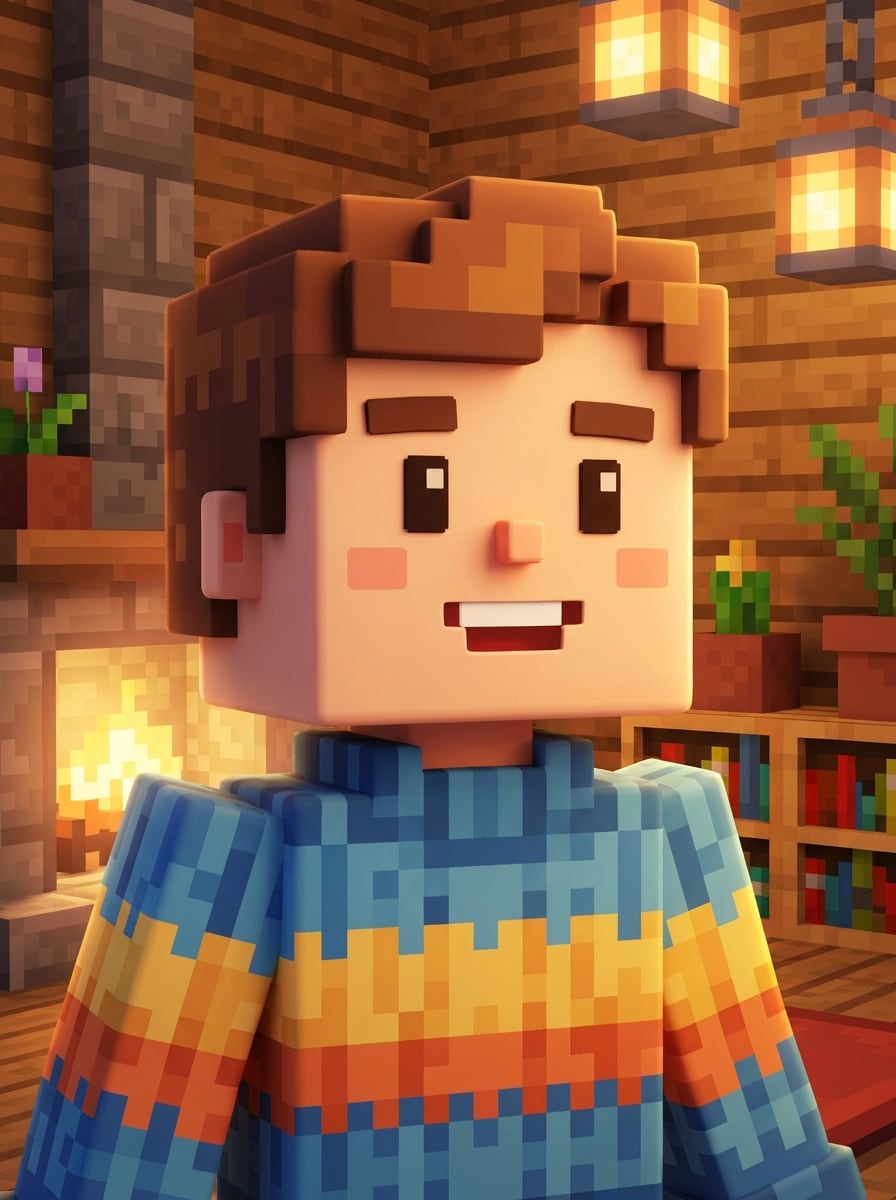
Classic Blocky Avatar
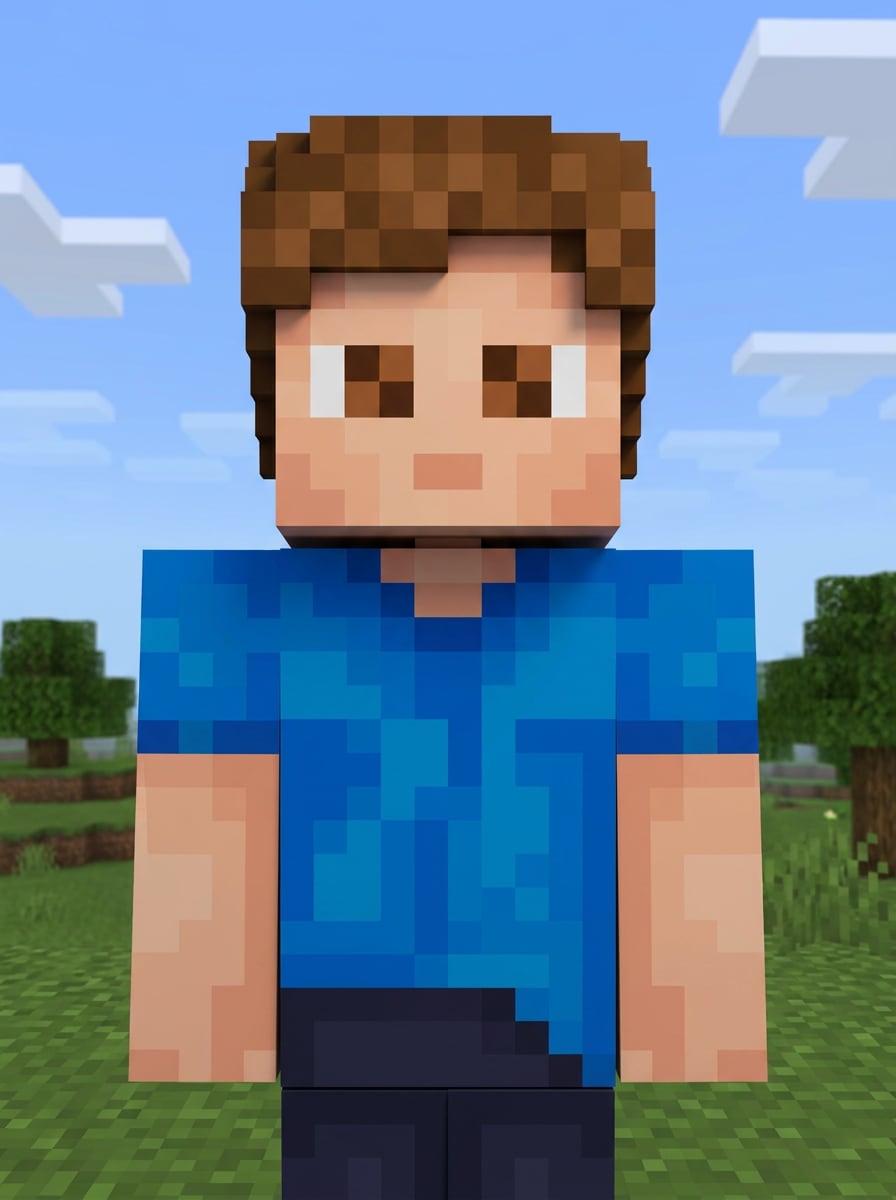
Use the uploaded image as the main subject and transform it into a classic Minecraft-style avatar with blocky voxel geometry, square facial features, crisp pixel textures, front-facing composition, clean game lighting, faithful hair and clothing colors, simple background, polished high-detail game character finish.
Minecraft Profile Picture
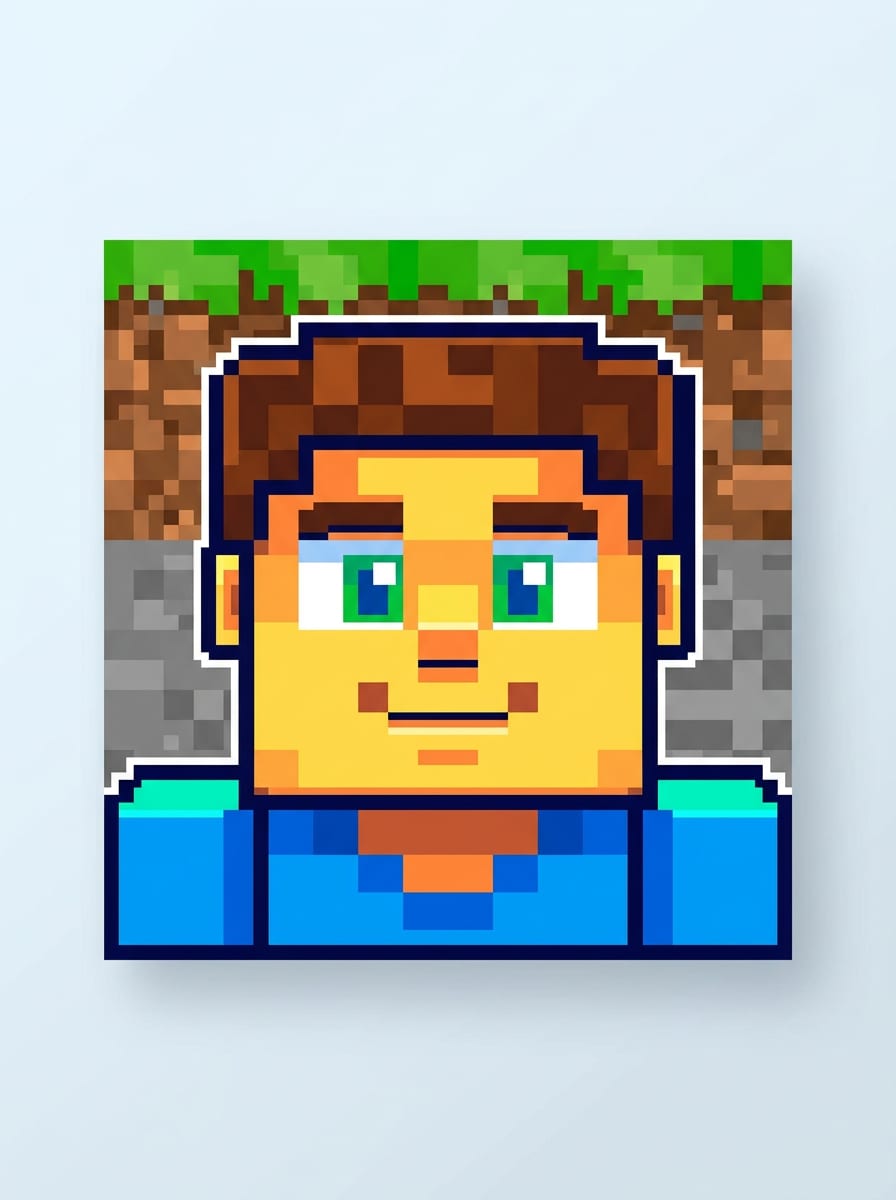
Use the uploaded portrait as the subject and restyle it into a bold Minecraft profile picture, centered face crop, simplified voxel shading, bright saturated colors, crisp square edges, smooth game-inspired lighting, clear expression, clean background contrast, social-avatar framing, polished and highly readable finish.
Cute Pixel Portrait
Use the uploaded image as the subject and turn it into a cute Minecraft-inspired pixel portrait with soft block shading, charming expression, pastel-accented colors, simplified facial details, cozy lighting, friendly mood, smooth voxel forms, and a playful handcrafted game-art look with clear identity preservation.
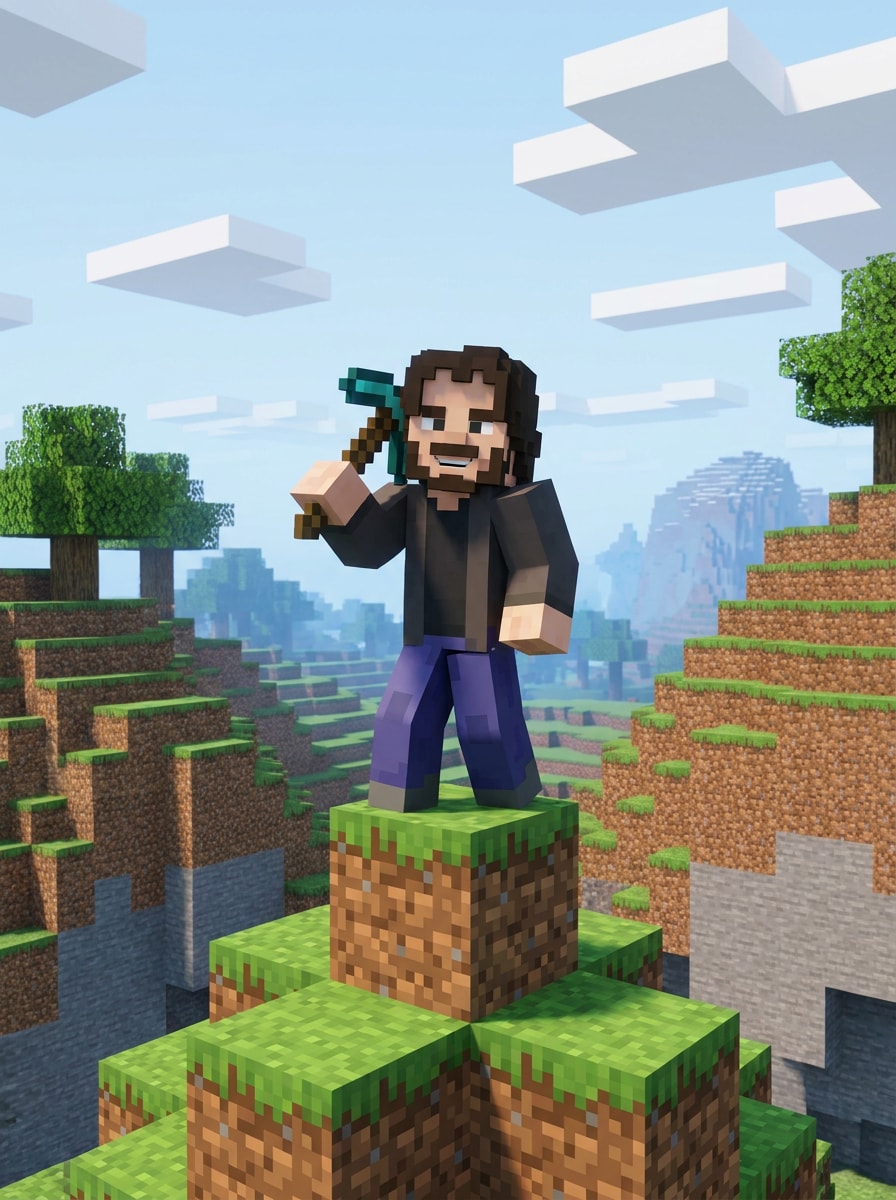
Minecraft World Background
Use the uploaded image as the subject and place it inside a Minecraft world, preserving the person while transforming the setting into blocky terrain, cubic trees, square clouds, pixel grass, stone textures, bright daylight, adventurous mood, and a cohesive voxel environment with immersive depth.
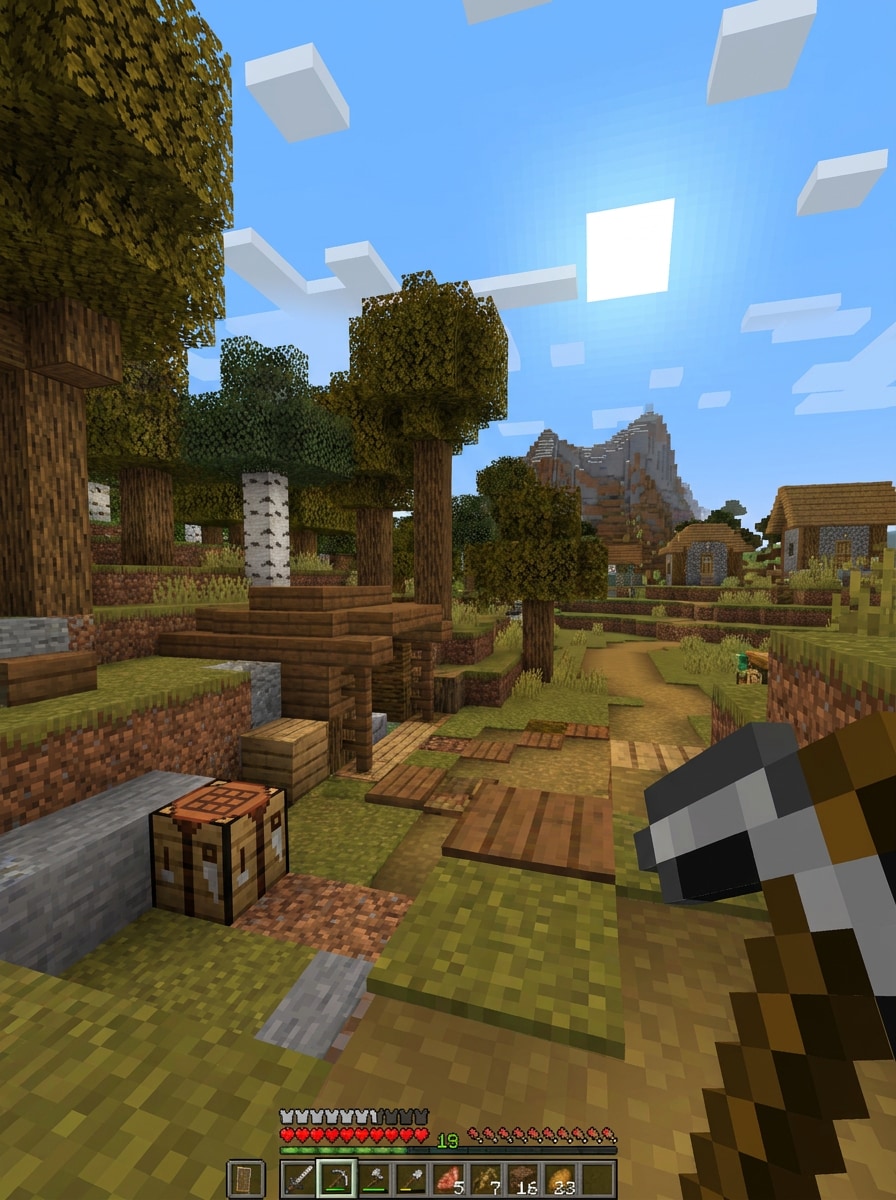
Survival Screenshot Look
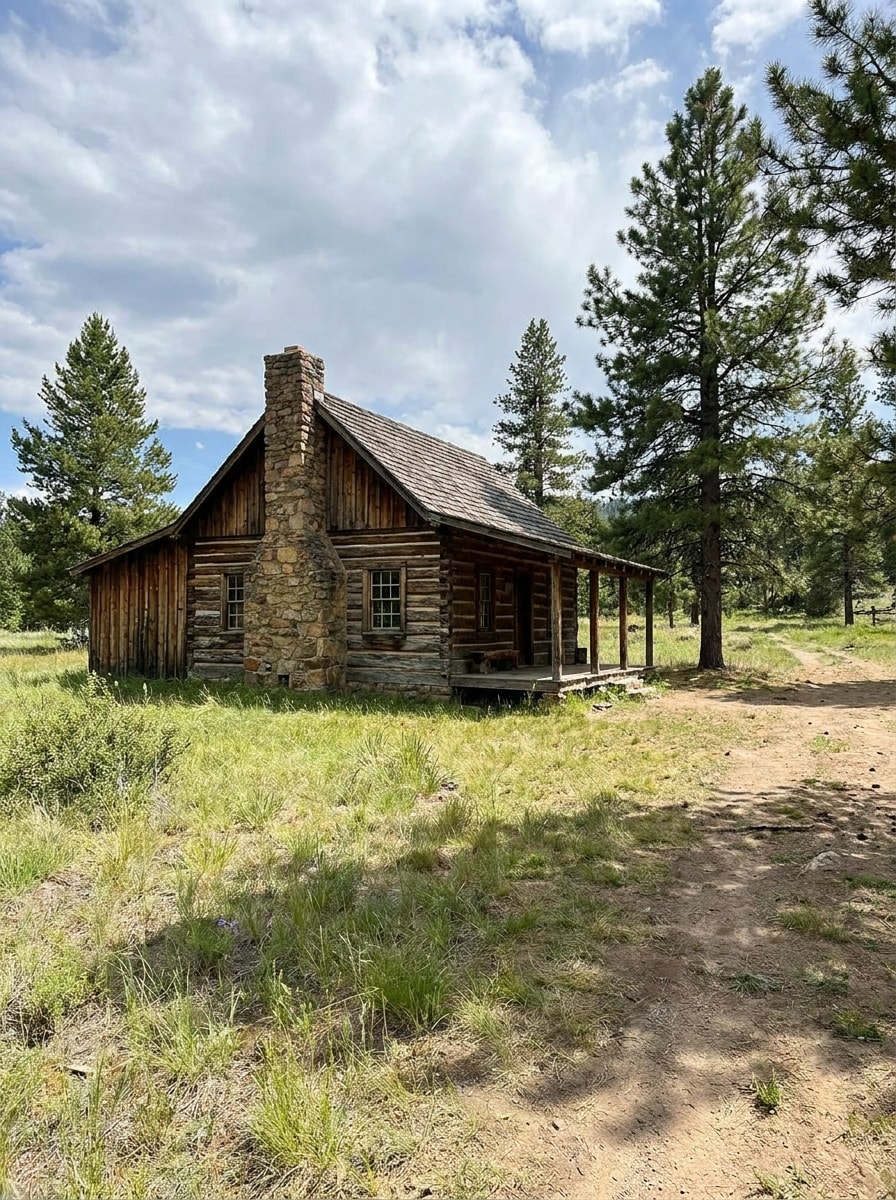
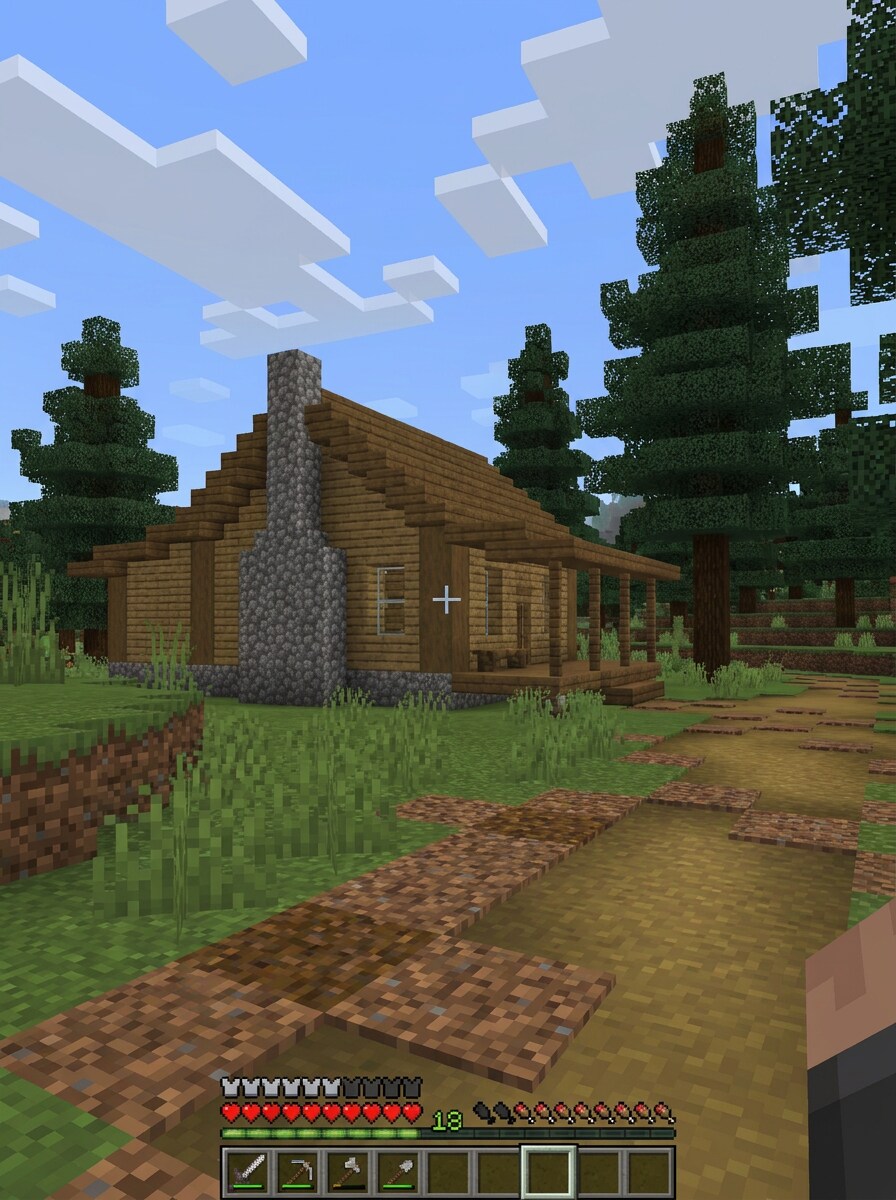
Use the uploaded image as reference and transform it into a Minecraft survival-mode screenshot aesthetic with block-based materials, game-like perspective, natural daylight, earthy green and brown palette, voxel terrain, subtle HUD-inspired framing feel, and a realistic yet unmistakably cubic adventure atmosphere.
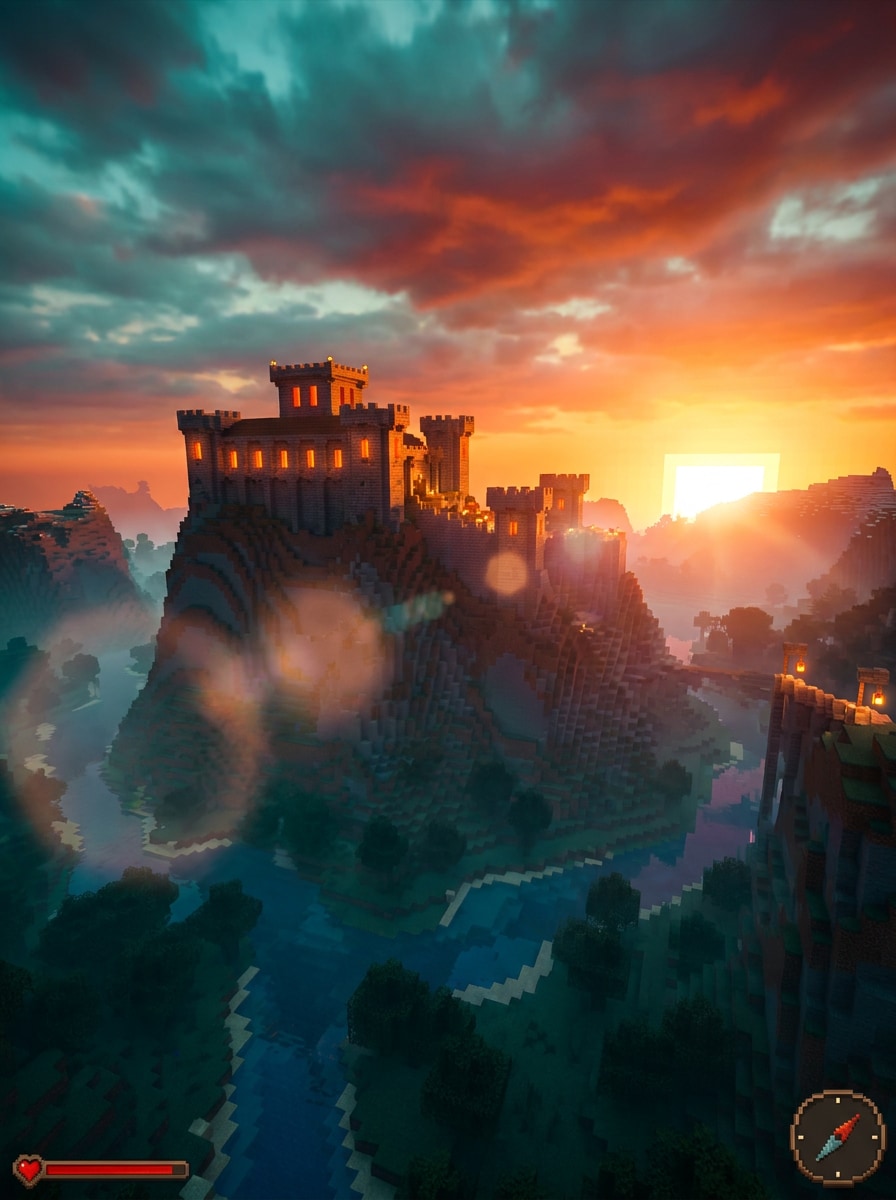
Epic Shader Minecraft Style
Use the uploaded image as the subject and convert it into a cinematic Minecraft-style scene with dramatic sunset lighting, shader-like glow, high contrast shadows, richly textured voxel blocks, warm orange and teal color palette, heroic composition, and an immersive fantasy-game mood.
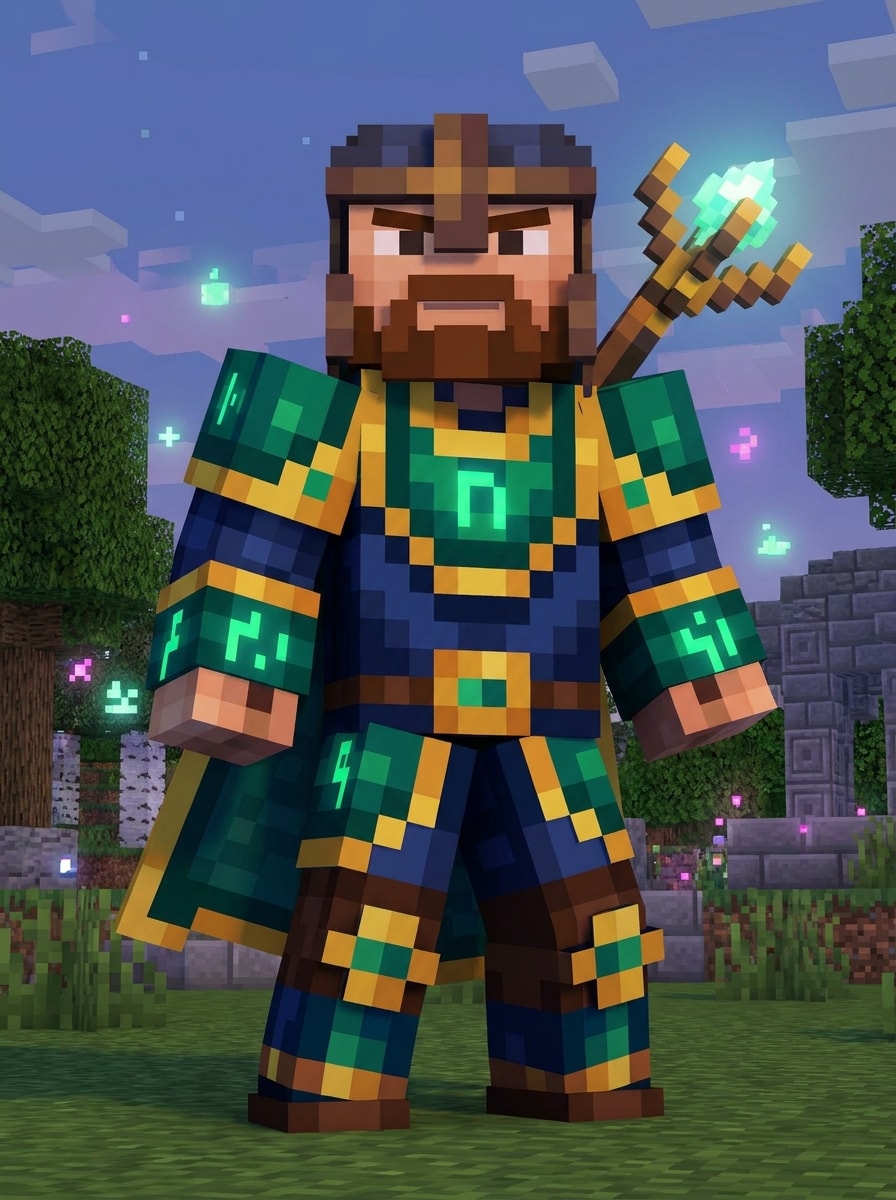
Minecraft Fantasy Skin
Use the uploaded image as the character base and redesign it as a Minecraft fantasy skin with voxel armor, blocky silhouette, pixel fabric and metal textures, adventurous stance, magical atmosphere, rich blue and gold color accents, and a recognizable face adapted into game-ready styling.
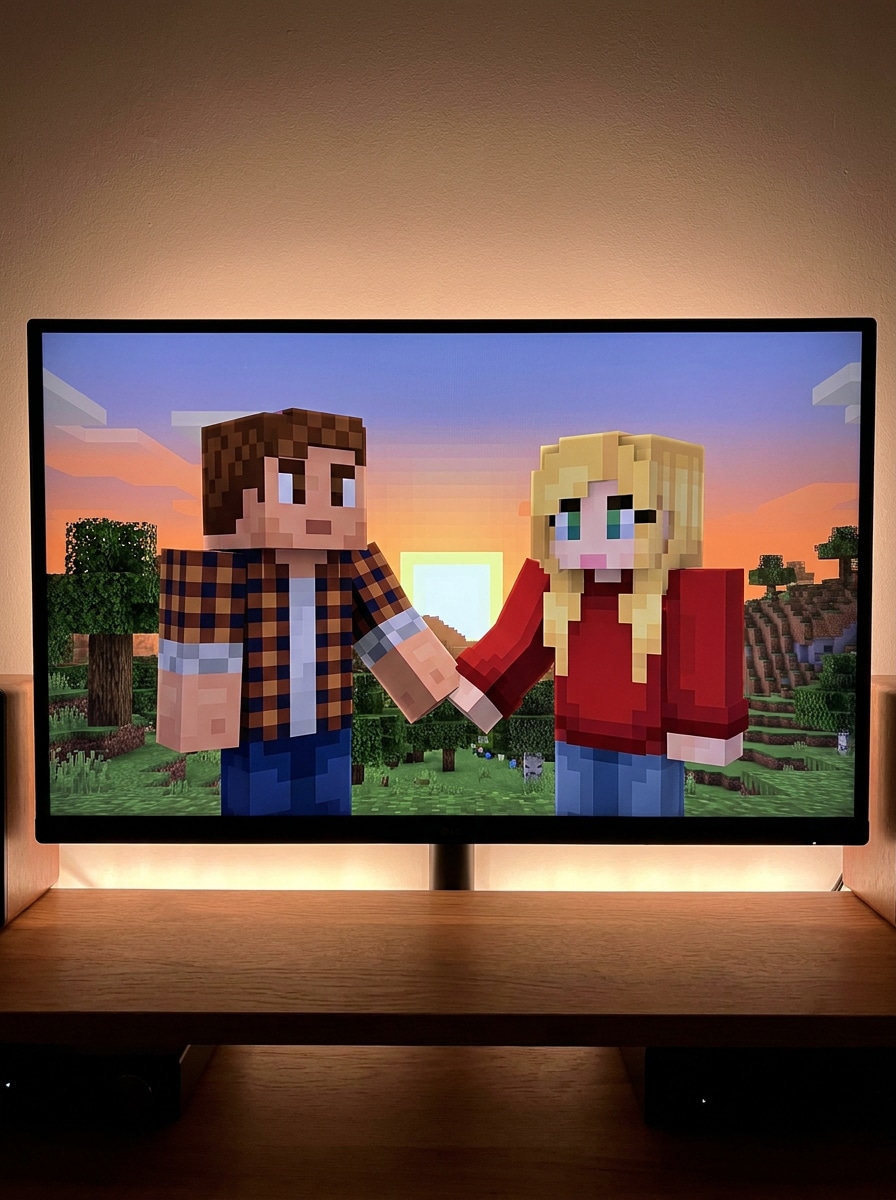
Couple Minecraft Portrait
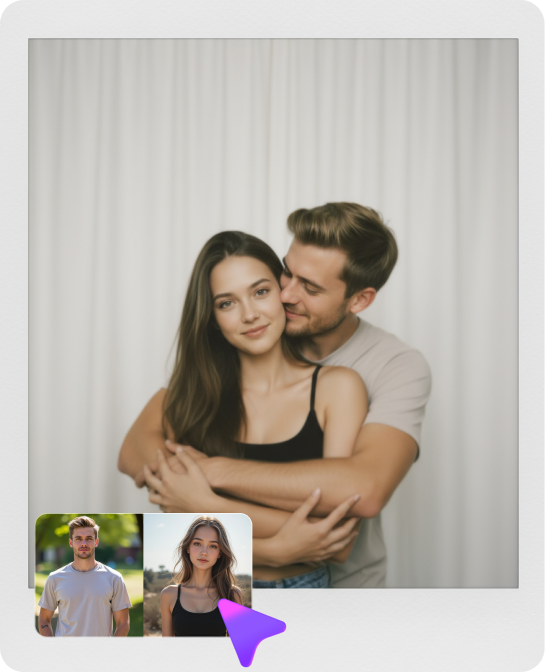
Use the uploaded couple photo as reference and transform both people into Minecraft-style characters with matching voxel proportions, coordinated pixel outfits, soft romantic lighting, charming blocky features, cozy world background, balanced composition, and a warm, game-inspired keepsake portrait feel.
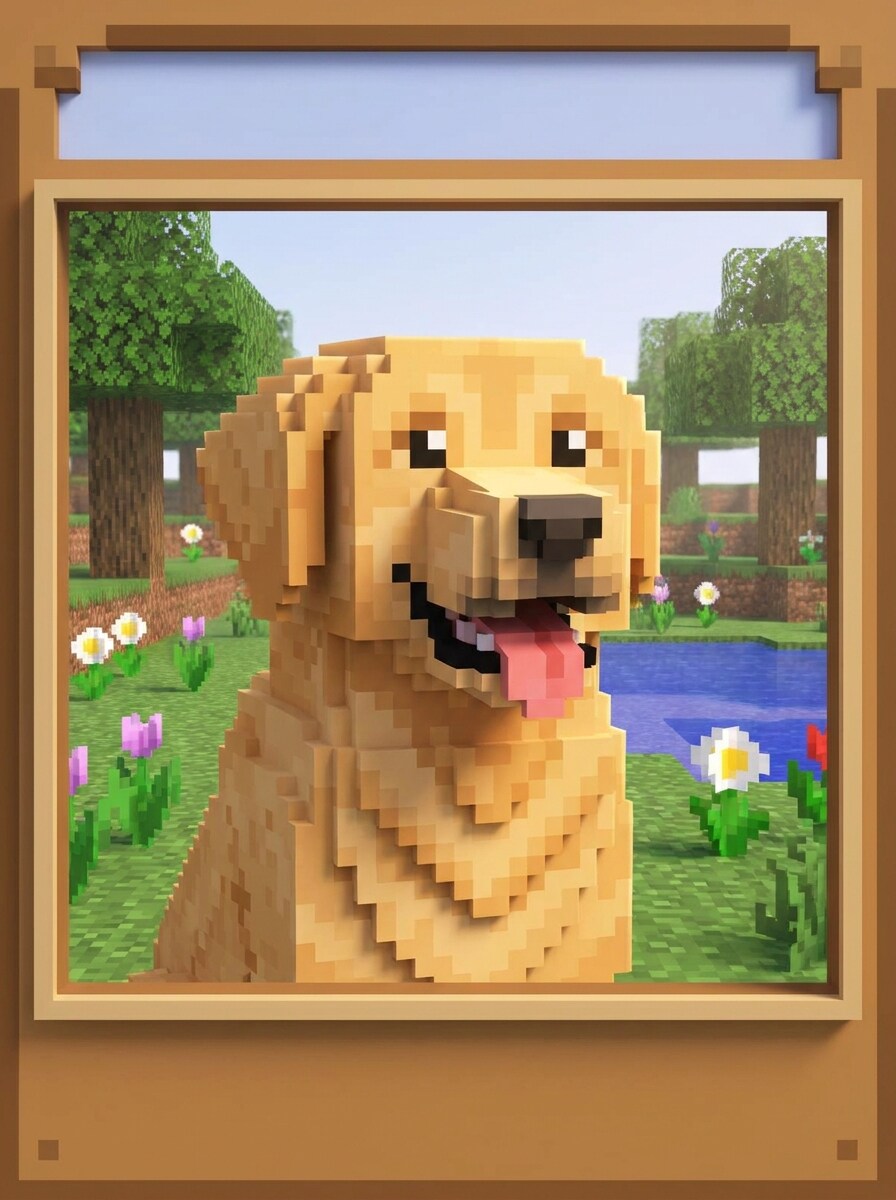
Pet in Minecraft Style
Use the uploaded pet photo as the subject and turn it into a Minecraft-inspired animal portrait with blocky anatomy, pixel fur textures, bright playful colors, game-like environment, soft daylight, clear breed markings, cute expression, and a polished voxel-art finish that stays easy to recognize.
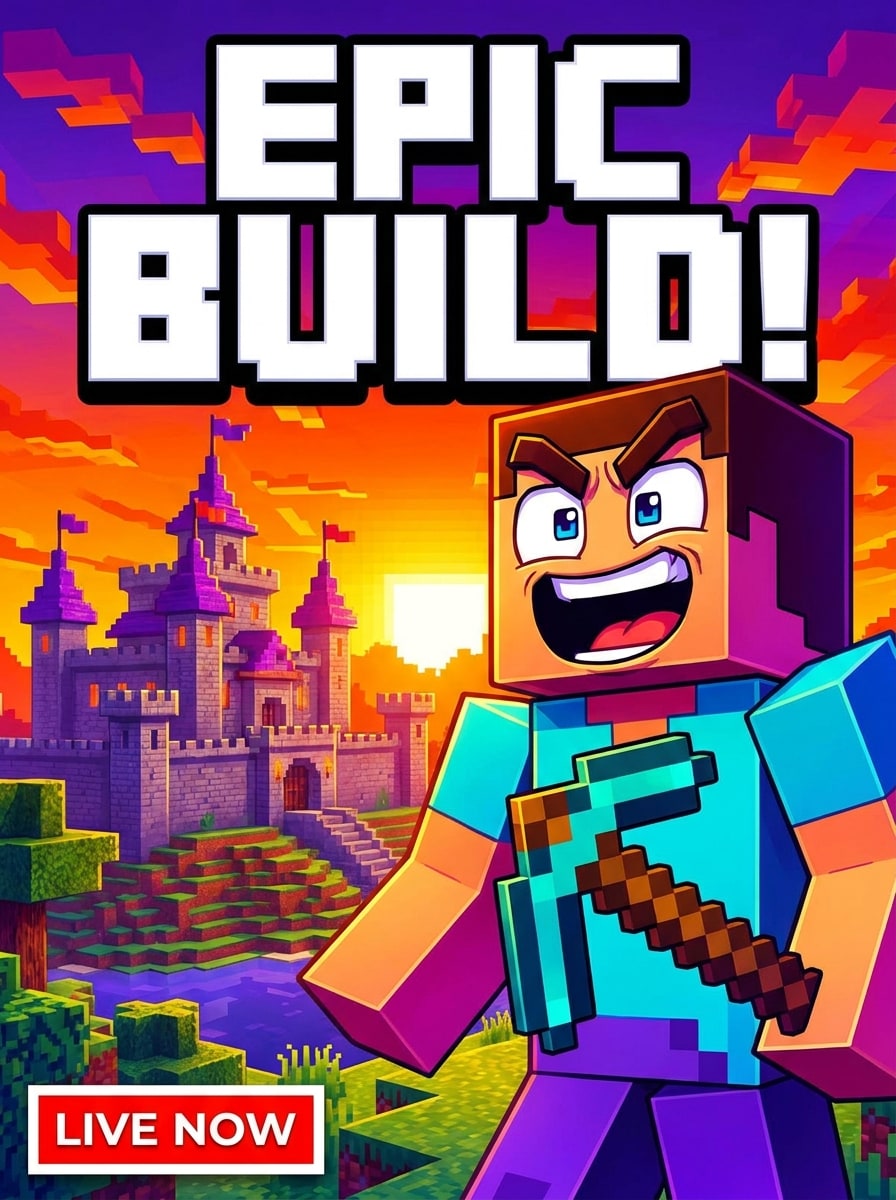
Streamer Thumbnail Style
Use the uploaded image as the main subject and restyle it into a bold Minecraft-themed thumbnail with exaggerated blocky features, vibrant high-contrast colors, dramatic background, crisp pixel edges, expressive pose, dynamic lighting, and strong visual readability for video covers or social posts.
Why Use Media.io for Minecraft-Style Photo Edits
Switch from Portraits to Scenes with Precise Style Control
Reference-based work needs more than a loose style shift. Media.io helps keep key identity details recognizable while reworking the minecraft filter visual look, so the result feels personal instead of generic.
Explore Different Looks Without Losing Direction
When the art direction is still open, Media.io lets you test multiple looks around the same minecraft filter visual idea, making it easier to find the right style without rebuilding from zero.
Create High-Resolution Images for Real Use
If the final minecraft filter visual will be reused beyond a small preview, Media.io helps deliver sharper results up to 4K so the image stays more reliable in practical design and presentation work.
Edit Online on the Device You Already Use
Creative work rarely stays on one screen. Media.io keeps the minecraft filter visual workflow in your browser, so you can start on phone and finish on desktop without stopping to install extra software.
How to Use the Minecraft Filter Online
Turn your words into stunning visuals in three simple steps, then continue refining the result if you want to take it further.
Step 1
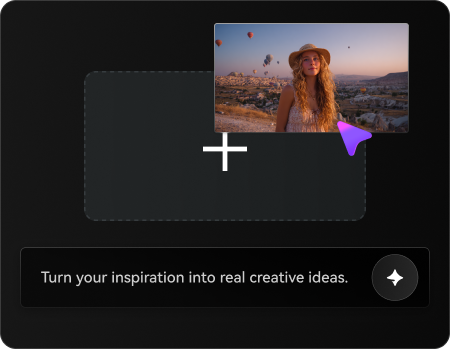
Upload Your Reference Image
Start with a clear selfie, pet photo, couple picture, or scene that matches the result you want. A sharp upload with visible details gives Media.io a stronger base for Minecraft-style transformation.
Step 2
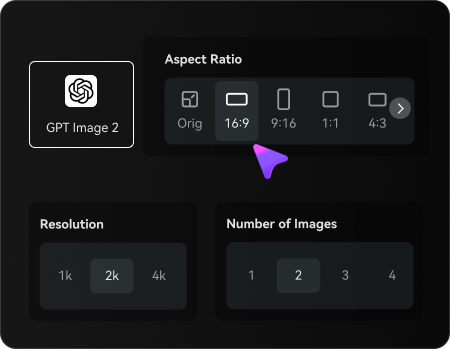
Describe the Change and Set Options
Enter a prompt describing the blocky style, mood, colors, composition, and background you want. Then choose your model and adjust aspect ratio, image quality, resolution, or the number of variations.
Step 3
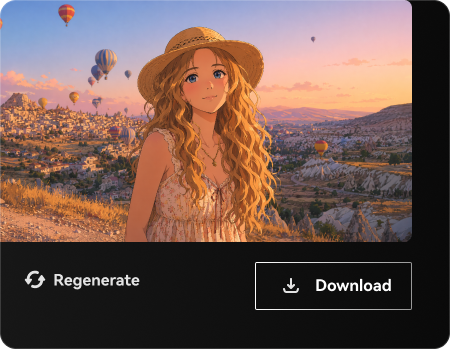
Generate, Download, and Keep Improving
Create your results, compare the different versions, and download the one you like best. You can refine the prompt, regenerate new variations, or continue editing until the voxel look feels right.
Unlock the Potential of Turn Photo Into Minecraft Skin
See how creators use this Minecraft Filter for content, marketing, and personal projects, then adapt each idea to fit the brief.
Create Gaming Profile Pictures That Stand Out
Transform a selfie into a blocky portrait for Discord, YouTube, Twitch, or community forums. This is a fast way to turn photo into minecraft skin-inspired character art or a playful profile image that feels instantly on-theme for gaming audiences.
Turn Couple, Friend, and Pet Photos Into Shareable Voxel Art
Convert everyday pictures into charming pixel-style keepsakes for posts, gifts, wallpapers, or chat icons. Media.io can turn photo into minecraft-style artwork that works especially well for recognizable faces, pets, and casual snapshots, including playful concepts close to a minecraft avatar filter.
Design Creator Thumbnails and Before/After Reels
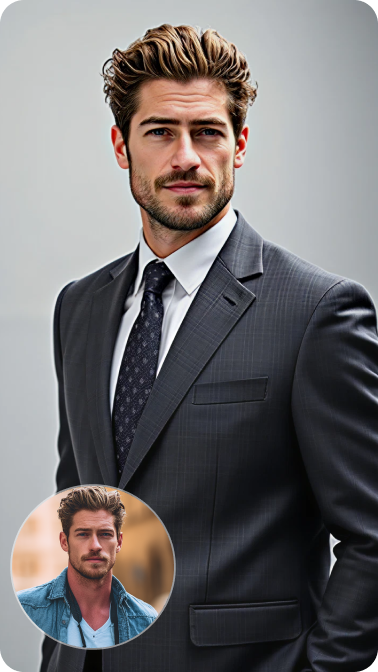
Use transformed portraits and scenes for scroll-stopping content on TikTok, Reels, and YouTube. A dramatic before-and-after edit gives creators an easy visual hook, especially when they want a Minecraft-style reveal with strong color, readable composition, and the feel of a minecraft character filter.
What Users Say About This Minecraft Photo Filter
Ethan M.
Gaming Content Creator
"Perfect for thumbnails" I used it to turn my face into a blocky game character for YouTube thumbnails. The result looked fun, readable, and way faster than trying to build the style manually.
Sofia R.
Student Designer
"My pet still looked like my pet" I uploaded a photo of my dog and got a cute voxel-style portrait that still kept the right coloring and expression. That made the final image feel personal instead of generic.
Marcus T.
Streamer
"Easy on mobile" I tested the tool from my phone because I wanted a quick Minecraft-style profile picture. Uploading, prompting, and downloading were simple, and I didn’t need any editing app.
Lina C.
Social Media Hobbyist
"Fun before-and-after results" The transformation looked instantly recognizable as Minecraft-inspired art, which made my before-and-after reel much more shareable. I liked being able to try a few prompt variations before downloading.
A Minecraft filter for photos is an AI image effect that transforms a real picture into blocky, voxel-inspired artwork similar to the visual style people associate with Minecraft. In Media.io, you upload a JPG, PNG, or JPEG image and use image-to-image editing to create avatars, portraits, pets, or scenes with that game-inspired look.
2. How does an AI Minecraft filter work?
Media.io applies AI image-to-image generation to your uploaded photo, using it as a reference for structure, identity, and key visual details. You can add a prompt that describes the blocky style, background, mood, and composition you want, then generate variations that restyle the image into voxel-like art. This tool is for visual editing only, not a minecraft profanity filter or other text-moderation feature.
3. How do I turn a photo into Minecraft style online?
Upload your photo to Media.io, enter a prompt describing the Minecraft-style result you want, choose your preferred model, and set options like aspect ratio or resolution. Then generate the image, compare the variations, and download the version you like best. This workflow works well if you want to turn photo into minecraft art for portraits, pets, and scene edits.
4. Can I use a Minecraft filter for free?
Free users can try the Minecraft photo filter with available credits on Media.io. If you need more generation capacity or want watermark-free high-resolution downloads, you can check the pricing page for plan options. Media.io does not offer a profanity filter minecraft tool here; this page is specifically for image transformation.
5. Will the filter keep my face or subject recognizable?
It can, especially when you upload a clear reference image and use a prompt that focuses on preserving identity. Media.io’s image-to-image workflow is designed to guide style transfer from your source photo, which helps keep important traits like hairstyle, clothing colors, pet markings, or overall facial structure more recognizable in the final result.
6. What image formats does the Minecraft photo filter support?
Media.io supports JPG, PNG, and JPEG uploads for this Minecraft-style image-to-image workflow. Using a clear, well-lit source image in one of those formats usually gives the AI better visual information to work with.