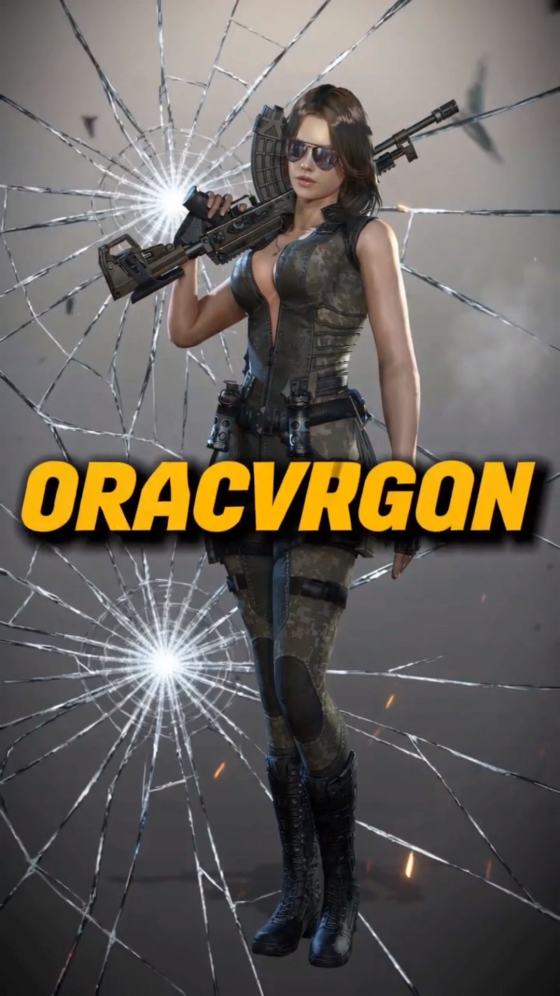
2026 Trend CapCut Şablonları – Yavaş Çekim, Viral ve AI Video Şablonları

TikTok, Instagram Reels ve Shorts için 2026 trend CapCut şablonlarını keşfedin. AI ile Healing Thailand, neon yavaş hareket, yavaş hareket yürüyüşü, Free Fire, Badmash, 94FBR ve daha fazla viral CapCut şablon trendini yeniden yaratın.
All Submissions

Preset Editor CapCut

Explore a smarter Preset Editor CapCut workflow with Media.io. Create custom looks for videos, test AI-assisted styles, refine color and motion, and build reusable ideas for CapCut. Whether you need CapCut presets color grading, text styles, or PC-friendly editing inspiration, start online without rebuilding every look from scratch.

Create Your Preset Style

Free credits on signup.

Why Use a Preset Editor for CapCut with Media.io

Build Preset Looks Online

Use Media.io as a preset editor online to experiment with visual directions before finishing your edit. Develop cinematic, clean, retro, moody, vibrant, or social-first looks around your own footage and creative brief.

Create AI-Assisted Preset Ideas

A preset editor AI workflow helps you describe the mood, lighting, camera feel, colors, and overall style you want. Test variations quickly, then use the strongest direction as a reference for your CapCut project.

Explore CapCut Color Grading

Plan CapCut presets color grading around a specific aesthetic instead of guessing at adjustments. Define warm cinematic skin tones, cool urban contrast, vintage fades, high-energy saturation, or other repeatable visual treatments.

Work Across Mobile & PC Ideas

Looking for CapCut presets for PC or mobile? Build the creative direction online, keep your visual references consistent, and then reproduce or refine the settings in the CapCut version you use.

How to Create a New Preset Editor CapCut Style

01

Upload Your Media

Start with a clear photo or video that represents the content you normally edit. Using your own media makes it easier to judge whether a preset direction works with your subjects, lighting, and social format.

02

Describe Your Preset

Specify color mood, contrast, lighting, typography, camera energy, or visual effects. Try directions such as cinematic teal-orange, soft film fade, high-contrast street edit, clean text overlay, or warm travel grade.

03

Generate, Compare & Reuse

Generate several variations, compare the results, and keep the strongest visual direction as your editing reference. Recreate the look in CapCut and save reusable settings where the app supports them.

What Creators Say About Preset Editing

user
Ryan Cole

Short-Form Video Creator

starstarstarstarstar

“Faster style testing.” I can compare different color moods before spending time rebuilding every adjustment in my final CapCut project.

user
Maya Patel

Social Media Editor

starstarstarstarstar

“Great for color ideas.” It helps me turn a vague visual idea into a clearer grading direction that I can reproduce across multiple clips.

user
Ethan Brooks

PC Video Editor

starstarstarstarstar

“Useful across projects.” I use the generated look as a reference when I want several PC edits to share the same visual identity.

FAQs About Preset Editor CapCut

1. Where can I find CapCut presets free download?

People searching for CapCut presets free download may be looking for reusable color settings, text styles, effects, templates, or creator-shared project resources. Availability and import methods can vary by CapCut version, device, region, and the type of asset. Media.io does not position this page as a repository of unofficial CapCut preset files. Instead, it helps you develop and preview a visual direction online, which you can then reproduce in your own CapCut workflow. For third-party preset downloads, check the source carefully before importing files or opening external links.

2. What is a new preset editor CapCut workflow?

A new preset editor CapCut workflow is less about applying one fixed filter and more about building a repeatable visual system. You can define color, contrast, lighting, text treatment, effects, and motion, test the direction on representative media, and then reproduce the strongest combination in CapCut. An AI-assisted workflow can make this exploration faster because you can describe a target aesthetic in natural language—for example, “warm cinematic travel grade with soft highlights and subtle film fade”—before manually fine-tuning your project.

3. Can I use CapCut presets for PC and color grading?

Yes, you can build consistent visual references for CapCut presets for PC, but the exact controls and reusable-setting options depend on the CapCut desktop version you use. For CapCut presets color grading, focus on repeatable characteristics such as exposure, contrast, temperature, saturation, highlight roll-off, shadow tone, and overall color mood. Media.io can help you visualize different directions first. You can then use that result as a reference while adjusting your footage in CapCut, rather than copying settings blindly across clips with very different lighting.

4. How to save preset in CapCut mobile?

If you are searching how to save preset in CapCut mobile, first note that CapCut may handle reusable settings differently depending on the feature and app version. Some elements can be copied between clips or reused through saved styles, templates, favorites, or duplicated projects rather than through one universal “save preset” button. A practical approach is to finish the look on one clip, copy supported adjustments or effects to similar clips, and keep a reusable project when necessary. Check your current CapCut interface because feature names and availability can change between releases.

5. What are text presets in CapCut, and can an AI preset editor help?

Text presets CapCut generally refer to reusable or ready-made combinations of typography, styling, animation, effects, and layout. They are useful for captions, lyric edits, hooks, titles, and recurring branded content. A preset editor AI workflow can help at the concept stage by defining a consistent text direction—for example, bold condensed titles with high contrast, minimal subtitle styling, or energetic lyric typography. Media.io can help you explore the overall creative look, while final font selection, timing, animation, and text placement can be refined inside your editing workflow.

Media.io Online AI Tools Quality Rating:
vote4.7 (162,357 Votes)