The free plan watermarks the clips
OpusClip states that the Free Plan and Free Trial add the brand logo. Paid plans offer watermark-free export, so the original project should be the first option when it is still available.

 Unlock your creative potential and experience the magic of Media AI right away!
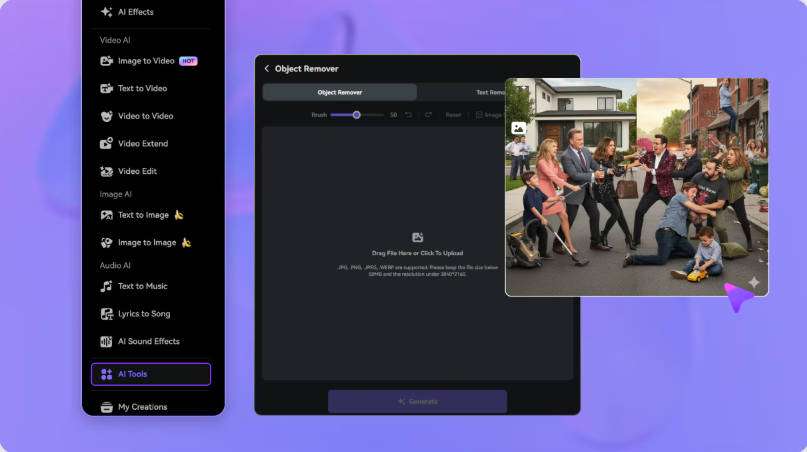
An OpusClip short rarely has just video and a logo: Auto Captions, emojis, keyword highlights, and vertical reframing all compete for the same space. If the project still exists, use the watermark-free export available on an eligible plan. When you only have the final file you own or are authorized to use, the Media.io Video Eraser lets you mark the watermark region without cropping the 9:16 frame. The workflow accepts MP4 and MOV files up to 15 minutes; keep the selection away from the captions and review every scene change.
Only use videos you own or are authorized to use, and prefer the official watermark-free export when the project is still available.
With OpusClip, preserving the short's readability is just as important as removing the watermark. The chosen route must keep captions, emojis, and the automatic reframing intact, especially in videos prepared for Reels, TikTok, and Shorts.
| Route | What to do | When to use | Expected result |
|---|---|---|---|
| Official OpusClip route | Adjust the account/project and re-export | If the project is still in OpusClip, upgrade and use the watermark-free export. On free projects, the platform itself can update the watermark status after the upgrade. | Preserves the video without reconstructing pixels |
| AI removal | Mark the visible area with the brush or describe the element | A final file you own/are authorized to use with a visible Overlay that can no longer be removed in the original project | Visually reconstructs the selected region; review frames and motion |
| Gaussian Blur | Outline the area that only needs to be hidden | Private information, license plate, face, or stamp when a blur is acceptable | The region remains perceptible as a blurred area |
OpusClip states that the Free Plan and Free Trial add the brand logo. Paid plans offer watermark-free export, so the original project should be the first option when it is still available.
OpusClip clips frequently use captions, emojis, and keyword highlights. A large selection at the bottom can destroy the very elements that make the short readable without sound.
The automatic framing can reposition the speaker and text. Clean the final file for each aspect ratio, or better yet, export without a watermark from OpusClip itself before creating multiple versions.
The current pricing page shows a limited export window for free-plan clips. Check the project while it is still accessible.
If the project is still in OpusClip, upgrade and use the watermark-free export. On free projects, the platform itself can update the watermark status after the upgrade. If that is not possible and the video is yours, proceed with the final file.
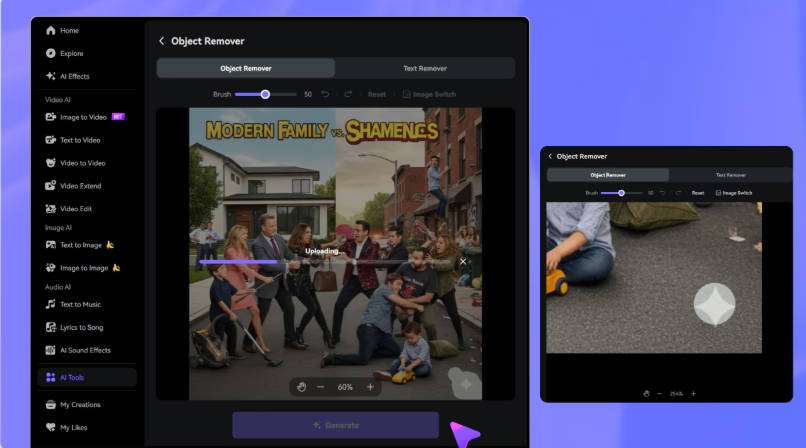
Upload an MP4 or MOV of up to 15 minutes to the Video Eraser. Use the brush to select the OpusClip logo in short clips cropped from long videos and adjust the timeline segment where the element appears.
Process the region and watch the entire segment. Check Auto Captions, emojis, keyword highlights, and vertical framing, and Retake the selection if the reconstructed background varies too much between frames.