Disable the watermark before generating when you can
HeyGen offers a watermark toggle for paid-plan users. If the scene is still in the Studio, use that option and regenerate instead of cleaning pixels from the finished video.

 Unlock your creative potential and experience the magic of Media AI right away!
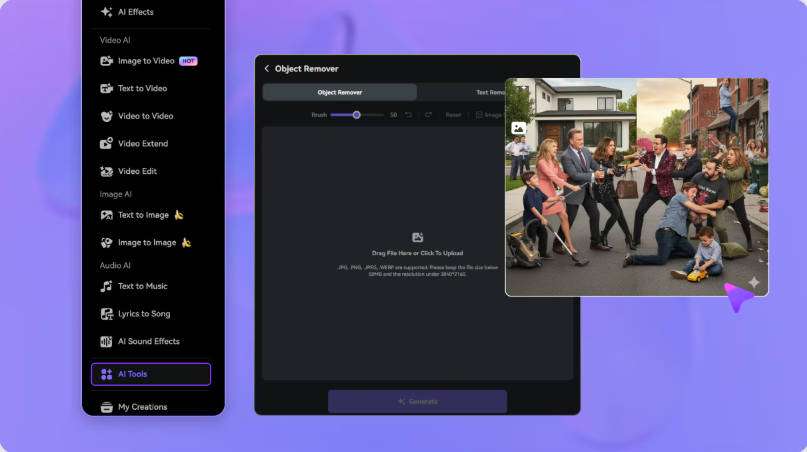
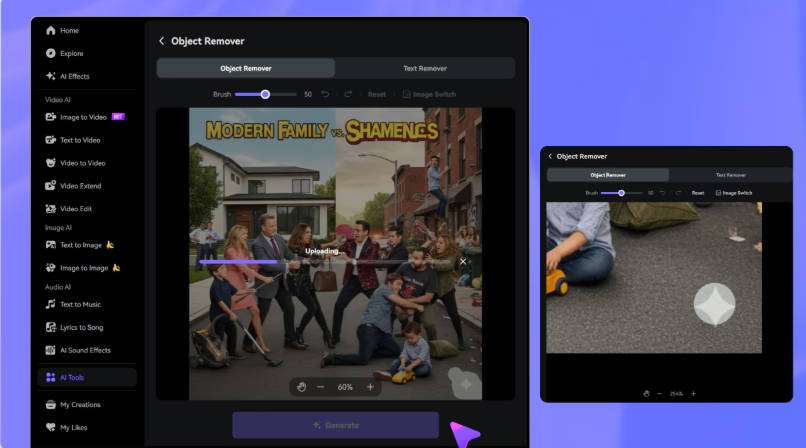
In a HeyGen video, the watermark may share space with the Avatar, captions, and lower thirds. If you can still generate the project, disable the watermark through the official option available on your plan and create a new version. For a final file you own or are authorized to edit that can no longer be regenerated, Media.io's Video Eraser lets you outline only the visible Overlay and review the result throughout the clip. MP4 and MOV files up to 15 minutes are accepted; near the face, hair, or clothing, use a small selection.
Only use videos you own or are authorized to edit, and prefer the official watermark-free export when the project is still available.
Videos with an Avatar require a different decision than a regular clip: any reconstruction near the presenter is more noticeable. Therefore, prioritize regenerating in HeyGen when it is still possible and use Media.io only on the final file you have the right to edit.
| Path | What to do | When to use | Expected result |
|---|---|---|---|
| Official HeyGen path | Adjust the account/project and export again | If you can still generate the video in HeyGen, use the official watermark toggle on an eligible plan and run a new generation. | Preserves the video without reconstructing pixels |
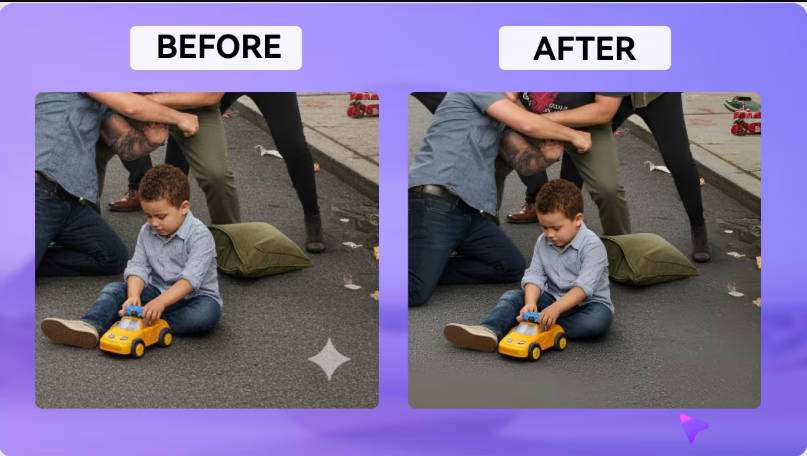
| AI removal | Mark the visible area with the brush or describe the element | Final file you own/are authorized to edit with a visible Overlay that can no longer be removed in the original project | Visually reconstructs the selected region; review frames and motion |
| Gaussian Blur | Outline the area that only needs to be hidden | Private information, license plate, face, or seal when a blur is acceptable | The region remains perceptible as a blurred area |
HeyGen offers a watermark toggle for paid-plan users. If the scene is still in the Studio, use that option and regenerate instead of cleaning pixels from the finished video.
Logo and lower thirds may sit close to the shoulder or the presenter area. A large selection can affect hair, clothing, or the Avatar outline and become noticeable during speech.
Corporate videos often combine slides, captions, text boxes, and company branding. Identify exactly which visual mark needs to go so you don't remove information that is part of the content.
If the same video has been translated into multiple languages, prefer resolving the watermark in the base project before the localized versions. This way you avoid repeating the same reconstruction in each exported language.
If you can still generate the video in HeyGen, use the official watermark toggle on an eligible plan and run a new generation. If that is not possible and the video is yours, proceed with the final file.
Upload an MP4 or MOV up to 15 minutes to the Video Eraser. Use the brush to select the HeyGen logo in Avatar, Presentation, training, and marketing videos and adjust the timeline segment where the element appears.
Process the region and watch the entire segment. Check the Avatar face, captions, and lower thirds near the logo and redo the selection if the reconstructed background varies too much between frames.