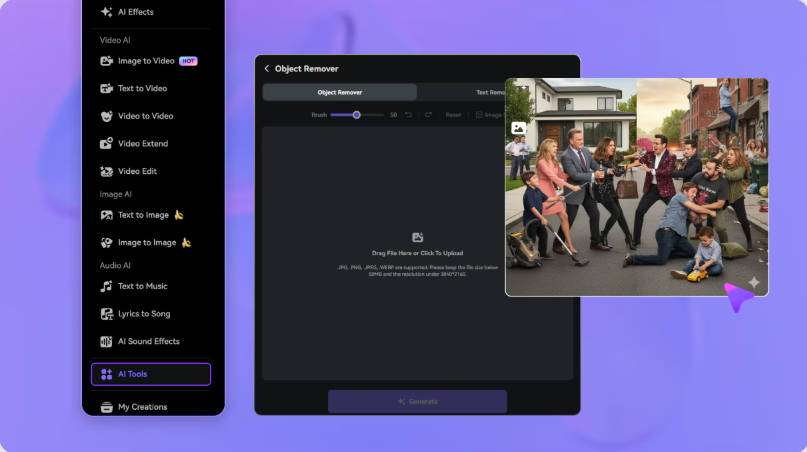
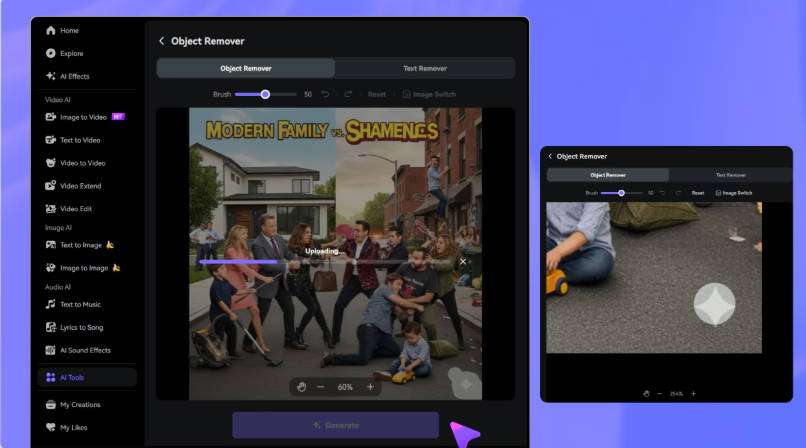
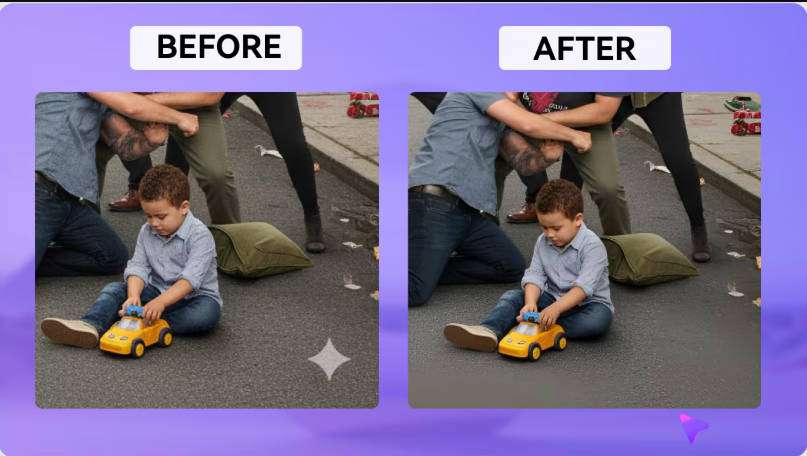
Protect Nearby Text and Stickers
Keep the selection close to the VivaVideo watermark. Leave captions, decorative borders, and stickers outside the marked region whenever possible.

 ¡Desbloquea tu potencial creativo y experimenta la magia de Media AI ahora mismo!
Already exported your video? Use Media.io’s AI watermark remover to clean the VivaVideo logo without cropping. Select the watermark area, process your clip, and review the result.
Still have the project? Check VivaVideo’s in-app watermark-removal options before re-exporting. Use videos you own or have permission to edit.
Choose the route that fits the file you have. Re-exporting from VivaVideo avoids reconstructing the background. If you only have the finished video, Media.io can process the visible logo area while keeping the full frame.
| Route | What to do | When to use | Expected result |
|---|---|---|---|
| Official VivaVideo export | Open the original project and check the in-app watermark-removal options. | The project is still available, and your account offers Remove Watermark or an eligible VIP option. | A new export without reconstructing the covered area. |
| AI watermark removal | Brush over the logo with a suitable mode, or describe it with AI Model Pro. | You have an exported video you own or are authorized to edit. | AI processes the watermark region; inspect the result across frames. |
| Gaussian Blur | Select the area you want to obscure. | A blurred patch is acceptable instead of background reconstruction. | The selected region is blurred rather than restored. |
Keep the selection close to the VivaVideo watermark. Leave captions, decorative borders, and stickers outside the marked region whenever possible.
A slideshow puts the same logo over changing backgrounds. Review each photo change and transition, since a result that looks natural in one scene may differ in the next.
Use Basic Model or the upgraded Basic Model v2 for selected-area removal. Describe the target with AI Model Pro, or choose Gaussian Blur when hiding the area is enough.
Upload the highest-quality copy you have before reposting to TikTok, Reels, or WhatsApp. Keep the full composition instead of cropping away the watermark and part of your frame.
If the original project is still in VivaVideo, check its Remove Watermark option or eligible VIP benefits and export again. If you only have the finished video, upload your own or authorized MP4 or MOV to Media.io.
Choose a removal mode. With a brush-based mode, mark the VivaVideo logo and set the relevant time range. With AI Model Pro, describe what you want removed. Avoid including nearby text, stickers, or borders.
Process your video and check the edited region throughout the clip, especially across photo changes and transitions. Adjust the selection or time range if needed, then download when you are satisfied.